How to Batch Convert Multiple PDFs Free Online (No Upload Required)
How to Batch Convert Multiple PDFs Free Online (Complete Guide)
The quick answer: Batch PDF conversion lets you convert multiple PDFs to Word, Excel, or images simultaneously rather than one at a time. The most efficient approach is to sort files by type first, process in batches of 30-50 files, and use browser-based tools like Practical Web Tools that process locally without uploading to servers. This method can reduce conversion time from hours to minutes while maintaining document privacy.
The 847 PDF Problem (And How I Solved It)
Last year, I inherited a project nobody wanted: digitizing 15 years of company archives. Boxes of paper had been scanned to PDFs over the years, but the scans were disorganized, unsearchable, and scattered across dozens of folders. My job was to convert everything to searchable, editable formats for migration to a new document management system.
The number that haunted me: 847 PDFs. Invoices, contracts, reports, memos, and documents of every type. Some were single pages, others were 50+ page reports. All needed to become Word documents or Excel spreadsheets depending on content.
Converting one PDF takes maybe two minutes with a web tool. Times 847, that's over 28 hours of clicking, waiting, and downloading. My deadline was two weeks. Even working eight-hour days doing nothing but conversions, I'd barely finish in time.
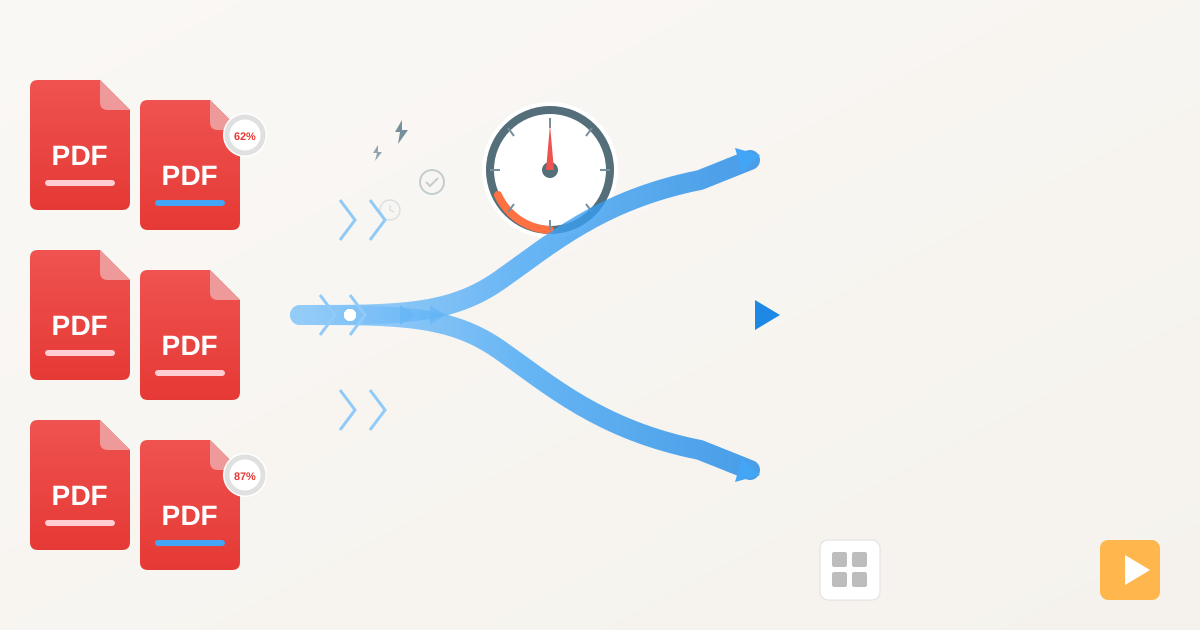
That's when I learned the value of batch processing. Instead of converting files one by one, I processed them in groups of 20, 50, even 100 at once. What would have taken weeks became a project I finished in three days, with time to spare for organization and quality checks.
Here's everything I learned about batch processing PDFs efficiently.
Why Is Batch PDF Processing Faster Than Converting One at a Time?
The mathematics of single-file conversion don't scale. Every individual conversion involves:
- Opening the converter (2 seconds)
- Selecting a file (5 seconds)
- Waiting for conversion (30-120 seconds)
- Downloading the result (5 seconds)
- Organizing the output (10 seconds)
That's 52 seconds minimum per file for the fastest conversions, plus all the mental overhead of repeated clicking and waiting. For 847 files, you're looking at over 12 hours of work even at peak efficiency.
Batch processing changes the equation:
- Opening the converter once (2 seconds)
- Selecting 50 files (15 seconds)
- Waiting for batch conversion (5-10 minutes)
- Downloading all results as ZIP (10 seconds)
- Organizing the output folder (60 seconds)
For those same 50 files, batch processing takes maybe 11 minutes versus 43 minutes for individual conversions. Scale that across hundreds of files, and you save days of work.
But time savings aren't the only benefit.
Consistency Across Documents
When I processed contracts individually, I kept forgetting which settings I'd used. Did that batch from Tuesday use the same quality settings as Monday's? When you batch process, every file gets identical treatment automatically.
Reduced Error Rate
Repetitive tasks breed mistakes. Click the wrong button, select the wrong file, forget to download a result. When you're on your 200th individual conversion, attention wavers. Batch processing removes most opportunities for human error.
Preserved Focus
Those 12+ hours of individual conversions aren't really productive time, they're tedious clicking interspersed with waiting. Batch processing lets you start a conversion, work on something else, and return to completed results. Your brain gets to do actual thinking instead of mechanical clicking.
How I Processed 847 PDFs in Three Days
My approach evolved through trial and error. Here's the system that worked.
Day 1: Sorting and First Batches
Before converting anything, I spent the first morning sorting. The 847 PDFs went into categories:
- Invoices and financial documents (312 files) - needed Excel conversion
- Contracts and agreements (203 files) - needed Word conversion
- Reports and memos (189 files) - needed Word conversion
- Mixed/unclear (143 files) - needed individual review
This sorting was crucial. Different document types benefit from different conversion approaches. Invoices with tables convert better to Excel. Text-heavy contracts convert better to Word. Sorting first meant I could batch similar documents together.
By end of Day 1, I had converted all 312 invoices to Excel format. Batch processing 30-50 at a time, the actual conversion work took about four hours. The rest of the day was organizing outputs and spot-checking quality.
Day 2: Contracts and Reports
Day 2 tackled the Word conversions. 392 PDFs (contracts plus reports) needed to become editable documents.
I processed in batches of 50, which I found to be the sweet spot for my computer:
- Small enough that one failed file didn't ruin everything
- Large enough to get meaningful time savings
- Manageable for quality-checking outputs
Eight batches later, all contracts and reports were converted. I spent the afternoon reviewing outputs and flagging documents that needed manual attention.
Day 3: Cleanup and Problem Files
The final day addressed the 143 files I couldn't easily categorize, plus about 40 files from earlier batches that had conversion issues (usually due to scan quality problems or unusual formatting).
This was the only day requiring significant manual work. Each problem file needed individual attention: some required different output formats, others needed pre-processing, a few were essentially images that needed OCR treatment.
Results
- 847 PDFs converted in approximately 24 hours of actual work
- Spread across three business days
- Original estimate for individual conversion: 28+ hours
- Time saved: At least 4 hours, plus significant mental energy
- Error rate: Approximately 5% of files needed manual attention (would have been higher with individual conversion fatigue)
What Is the Best Workflow for Batch Converting PDFs?
Based on my experience, here's the workflow I recommend:
Step 1: Sort Before You Convert
Spend time upfront categorizing your files. Questions to answer:
- What output format does each file need?
- Are files similar enough to batch together?
- Are there problem files that need special handling?
Sorting 847 files took me about two hours. That investment saved many more hours of confusion and rework later.
Step 2: Choose Appropriate Batch Sizes
Through experimentation, I found these batch sizes work well:
| Document Complexity | Recommended Batch Size |
|---|---|
| Simple (1-5 pages, text-heavy) | 50-100 files |
| Medium (5-20 pages, some tables) | 30-50 files |
| Complex (20+ pages, heavy formatting) | 10-20 files |
Larger batches are faster but riskier. If something goes wrong, you potentially lose more work. Start smaller until you're confident in the process.
Step 3: Test Before Committing
Before processing hundreds of files, test with a small sample:
- Select 5-10 representative files
- Run them through your chosen conversion
- Check output quality carefully
- Adjust settings if needed
- Only then process the full batch
I learned this lesson after converting 50 invoices at the wrong resolution. Testing first would have caught the problem immediately.
Step 4: Process and Monitor
Start your batch and let it run. Our PDF converters show progress indicators, so you can see how the batch is proceeding. For large batches, I typically:
- Start the batch
- Work on something else (organizing previous outputs, other tasks)
- Check progress periodically
- Return when complete
Don't stare at the progress bar. Use the time productively.
Step 5: Quality Check Outputs
After each batch:
- Open a few random converted files
- Verify formatting converted correctly
- Check that text is editable (not just an image)
- Confirm tables and layouts look reasonable
- Note any problematic files for manual attention
I check about 10% of each batch. If that sample looks good, the batch is probably fine. If I find issues, I check more carefully.
Step 6: Organize Immediately
Don't let converted files pile up disorganized. After each batch:
- Download the ZIP archive
- Extract to an organized folder structure
- Name folders clearly (e.g., "Contracts_Batch1_Converted")
- Move originals to an archive folder
- Note any files needing manual attention
Organization takes a few minutes per batch but saves hours of confusion later.
What Are Common Batch PDF Conversion Use Cases?
Converting Monthly Invoices to Excel
Finance teams often receive invoices as PDFs but need spreadsheet data for analysis.
My approach:
- Collect all invoice PDFs in one folder
- Upload entire folder to PDF to Excel converter
- Batch convert all files
- Download as ZIP
- Import Excel files into accounting software
Pro tip: Invoices with consistent formatting convert most reliably. If you receive invoices from many vendors with different layouts, consider sorting by vendor first and processing each vendor's invoices together.
Processing Legal Documents to Word
Law firms and legal departments often need to edit contract templates or extract text from signed agreements.
My approach:
- Sort documents by type (contracts, amendments, correspondence)
- Process each type as a batch to our PDF to Word converter
- Review converted documents for accuracy
- Archive originals and converted versions
Pro tip: Legal documents often have specific formatting requirements. Check a sample conversion before processing everything to ensure layout preservation meets your needs.
Creating Images from Report Pages
Marketing and presentation work often requires individual pages as images for slides or social media.
My approach:
- Upload report PDFs to PDF to Image converter
- Select PNG format (better for text) or JPG (smaller files)
- Batch convert all reports
- Download image folder
- Organize by source document
Pro tip: Multi-page PDFs create multiple images (one per page). For 10 reports of 20 pages each, you'll get 200 images. Plan your organization accordingly.
Extracting Searchable Text
When you need raw text content for search indexing, analysis, or content migration.
My approach:
- Upload PDFs to PDF to Text converter
- Batch extract text from all documents
- Use extracted text for search index, migration, or analysis
Pro tip: Text extraction works best on digital PDFs. Scanned documents may need OCR processing first.
How Do You Handle PDFs That Fail to Convert?
Even with batch processing, some files need individual attention. In my 847-file project, about 5% required special handling.
Common Issues and Solutions
Scanned documents with poor quality: Low-resolution scans or skewed pages may convert poorly. Solution: Re-scan if possible, or accept lower-quality output.
Complex layouts: Multi-column designs, text boxes, and unusual formatting sometimes confuse converters. Solution: Convert to image format first, or accept layout differences.
Password-protected PDFs: If you have the password, remove protection first. If not, you'll need permission from the document owner.
Corrupted files: Some PDFs may be damaged. Solution: Try to repair or re-acquire the source file.
Extremely large files: Very large PDFs may strain browser resources. Solution: Process large files individually or split into smaller documents first.
My Problem File Protocol
For the 5% of files that don't batch process cleanly:
- Note the file name and issue during batch processing
- Collect problem files in a separate folder
- Address after main batches complete
- Try alternative conversion approaches
- Accept some manual cleanup if necessary
Don't let problem files stall your entire project. Process what you can automatically, then address exceptions.
Is Batch PDF Conversion Safe for Confidential Documents?
When I worked on that 847-PDF project, many documents contained sensitive business information: employee names, financial figures, contract terms, client details.
Uploading these to a random conversion website would have been a serious breach of confidentiality. Even with good intentions, you can't know what happens to files on external servers.
This is why I specifically use browser-based converters that process locally. Our PDF converters run entirely in your browser using WebAssembly technology. Your documents never leave your computer. For batch processing sensitive documents, this isn't optional, it's essential.
What Computer Specs Do You Need for Batch PDF Processing?
Batch processing puts more demand on your computer than single-file conversion. Based on my experience:
Minimum specifications:
- 8GB RAM
- Modern browser (Chrome, Edge, or Firefox)
- SSD storage (for faster file handling)
Recommended for large batches:
- 16GB+ RAM
- Recent-generation processor
- SSD with plenty of free space
- Good internet connection (for loading the converter initially, not for file uploads)
If your computer struggles with large batches, reduce batch size. 20 files at a time is still much faster than individual conversion.
Lessons From Processing 847 PDFs
That archive project taught me principles that apply to any batch processing task:
Invest time in organization first. Two hours of sorting saved many more hours of confusion. Know what you have before you start converting.
Test before committing. A small test batch catches problems early. Fixing issues after processing 500 files is painful.
Batch size matters. Too large and failures are costly. Too small and you lose efficiency benefits. Find your sweet spot.
Track progress. Know which batches are complete, which files had issues, and where originals are stored. A simple spreadsheet or folder structure prevents chaos.
Plan for exceptions. Some files won't convert cleanly. Accept this reality and have a process for handling them.
Privacy isn't optional. For business documents, local processing is essential. Don't sacrifice confidentiality for convenience.
Ready to batch process your PDFs? Our PDF converters handle unlimited files with no uploads to external servers. Your documents process entirely in your browser.
Batch conversion tools:
- PDF to Word - Batch convert PDFs to editable documents
- PDF to Excel - Batch extract data to spreadsheets
- PDF to Image - Batch convert pages to images
- PDF to Text - Batch extract text content
Related PDF tools:
- PDF Merge - Combine multiple PDFs
- PDF Split - Separate pages
- PDF Compress - Reduce file sizes
Frequently Asked Questions About Batch PDF Conversion
How many PDFs can I batch convert at once?
With browser-based tools like Practical Web Tools, there's no hard limit on the number of files. The practical limit depends on your computer's RAM and processing power. For most modern computers with 8GB+ RAM, batches of 30-50 files work smoothly. If your computer has 16GB+ RAM, you can comfortably process 100+ files at once.
What is the best batch size for converting PDFs?
The optimal batch size depends on file complexity. For simple text PDFs (1-5 pages), use batches of 50-100 files. For medium complexity documents (5-20 pages with some tables), use 30-50 files. For complex documents (20+ pages with heavy formatting), stick to 10-20 files per batch. Larger batches are faster but riskier if something fails.
Can I batch convert scanned PDFs to editable documents?
Scanned PDFs require OCR (Optical Character Recognition) before conversion. Many batch converters include OCR, but results depend heavily on scan quality. High-resolution, straight scans convert well. Blurry or skewed scans produce errors. For scanned documents, expect to spend additional time reviewing and correcting OCR output.
Why do some PDFs fail during batch conversion?
Common reasons include: password protection (remove protection first), corrupted files (try to repair or re-acquire), extremely large files (process individually), complex layouts that confuse the converter, and poor scan quality for scanned documents. Plan for about 5% of files needing individual attention in any large batch.
Is batch PDF conversion free?
Yes, browser-based tools like Practical Web Tools offer free batch conversion with no file limits, no watermarks, and no registration required. Because processing happens locally in your browser rather than on expensive servers, there's no per-file cost to the service provider, making truly free batch conversion sustainable.
How do I batch convert PDFs to Excel for data extraction?
Collect all PDF files containing tabular data in one folder, upload them to a PDF to Excel converter, process the batch, then download results as a ZIP file. For best results, batch PDFs with similar table structures together, as they'll convert more consistently.
Do batch PDF converters upload my files to the cloud?
Most online converters do upload files to servers for processing. However, browser-based converters like Practical Web Tools process files entirely in your browser using WebAssembly technology. Your documents never leave your computer, making this approach essential for confidential business documents, HR files, or anything with sensitive data.
How long does batch PDF conversion take?
Conversion speed depends on file size, complexity, and your computer's processing power. For reference: 50 simple PDFs typically convert in 5-10 minutes. 50 complex documents with tables and images may take 15-20 minutes. This is still dramatically faster than converting files individually, which could take several hours for the same batch.