JPG vs PNG vs WebP vs HEIC: Complete Image Format Comparison Guide 2025
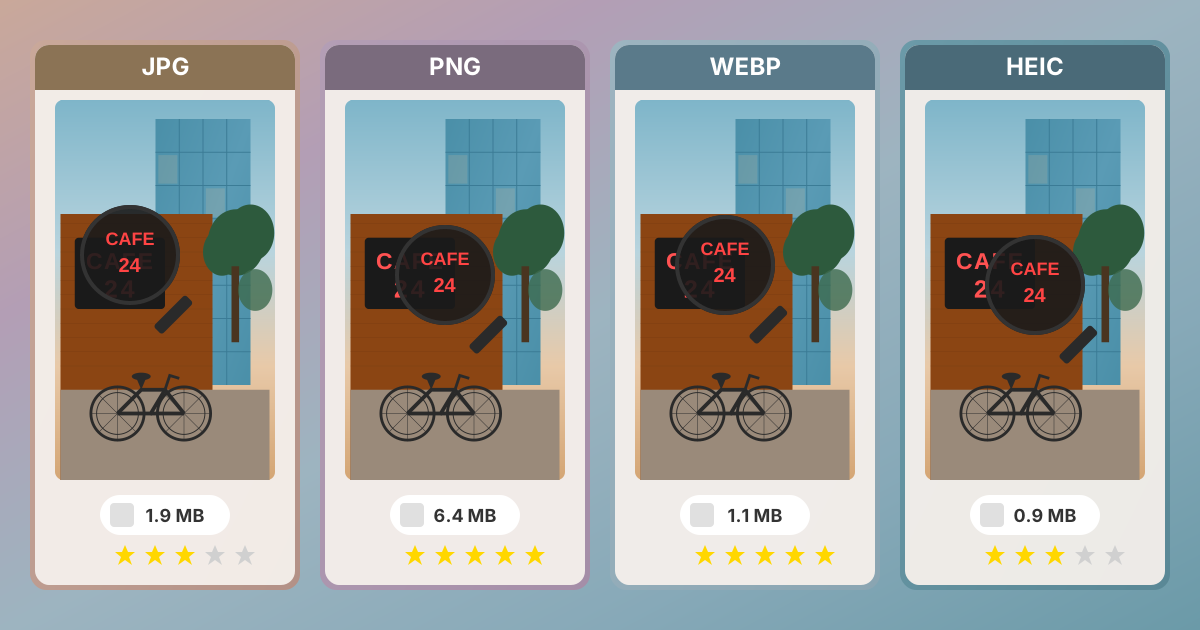
The best image format depends on your specific use case: Use JPG for photographs (smallest files, 80-85% quality is ideal). Use PNG for graphics, logos, and images needing transparency. Use WebP for modern websites (25-35% smaller than JPG with equal quality). Use HEIC for iPhone storage efficiency. Use SVG for scalable logos and icons. There is no single "best" format - the right choice depends on whether you prioritize file size, quality, transparency, or compatibility.
I'll never forget the day I accidentally nuked my client's entire product catalog. Not deleted it—worse. I converted 3,000 high-resolution product photos from PNG to JPG and back to PNG, thinking I was "optimizing" them. What I actually did was compress them twice, introducing artifacts that made $50,000 worth of professional product photography look like it had been saved on a flip phone from 2005.
The client called me at 6 PM on a Friday. "Why do all our products look blurry?" My stomach dropped. I had no backup. I'd learned the hard way that image formats aren't interchangeable puzzle pieces—they're fundamentally different technologies, each with specific purposes, strengths, and catastrophic failure modes if misused.
That expensive lesson launched me into a deep dive on image formats that changed how I build websites. Over the past eight years, I've optimized images for Fortune 500 e-commerce sites, news publications serving millions of readers, and apps running on hardware from the latest iPhone to ancient Android tablets that somehow still exist in 2025. I've benchmarked formats, debugged why Safari wouldn't display certain WebP files, and explained to countless clients why their iPhone photos won't upload to their insurance company's website.
This guide compiles everything I've learned—not from reading specifications, but from shipping real projects and fixing real problems.
What Is the Best Image Format for Websites?
Before we dive into individual formats, let's establish something crucial: there is no single "best" image format. Anyone claiming otherwise is either selling something or hasn't worked on diverse projects. The right format depends entirely on your specific context—your audience's devices, your performance requirements, your quality standards, and your compatibility constraints.
Here's what actually matters in the real world:
For websites: Load speed directly impacts revenue. Amazon found that every 100ms of latency costs them 1% in sales. Image optimization isn't academic—it's business-critical. A 30% reduction in image file sizes can be the difference between a bounce and a conversion.
For mobile apps: Users on 4G connections (still the majority globally in 2025) feel every kilobyte. An app that loads photos instantly feels professional. An app that stutters while loading images feels broken, regardless of how good your code is.
For enterprise systems: Compatibility trumps everything. I've worked with insurance companies still running IE11 internally (yes, in 2025). The most efficient format means nothing if half your users see broken images.
For creative work: Quality loss is permanent. Compress too aggressively once, and no amount of "enhancing" will recover that data. I learned this lesson by destroying that product catalog.
Let's break down each format with that context in mind.
What Is JPG and When Should You Use It?
The Format That Built the Internet
JPG emerged in 1992 and became synonymous with digital photography. Open any folder of photos from the last three decades, and 90% will be JPG. There's a reason: it does one thing extraordinarily well.
JPG uses lossy compression specifically designed for photographic content. It analyzes your image mathematically, identifies details your eye won't notice, and throws them away. A 4000×3000 pixel photo might be 12MB as an uncompressed bitmap, 3MB as a PNG, but only 800KB as a high-quality JPG—still visually indistinguishable to most viewers.
When Should I Use JPG Format?
Photography and realistic images: Whenever I'm working with photos—product shots, portraits, landscapes, food photography—JPG is my default. The format was literally designed for this use case.
I recently optimized an e-commerce site selling handmade furniture. The original PNGs averaged 4.2MB each. Converting to JPG at quality 82 (more on that magic number later) brought them down to 320KB with no visible quality loss. Page load time dropped from 8.7 seconds to 1.4 seconds. The client reported a 23% increase in conversions that month.
Social media content: Instagram, Facebook, Twitter, LinkedIn—they all recompress your images to JPG regardless of what you upload. Fighting this is pointless. I upload JPGs optimized the way I want rather than letting social media algorithms make quality decisions for me.
Email newsletters: File size matters tremendously in email. A heavy newsletter triggers image blocking, mobile rendering issues, and spam filter scrutiny. JPG keeps newsletters lightweight.
Blog post images: For hero images and in-article photos on blogs, JPG hits the sweet spot between quality and load speed. My blog images typically land around 200-400KB—fast enough for mobile users, good enough quality for Retina displays.
What Is the Best JPG Quality Setting?
After testing hundreds of images, I've found that quality 82 is the magic number for most photographs. Below 80, compression artifacts become visible on modern displays. Above 85, file sizes balloon with minimal quality improvement. The difference between quality 90 and quality 82 is often 40% more file size for a quality improvement nobody notices.
Here's my quality scale based on actual project experience:
- 70-75: Acceptable for thumbnails, background images, and content where fast loading matters more than perfect quality
- 80-85: My default range for most web photography
- 90-95: When quality is critical—portfolio sites, fine art photography, product closeups for luxury brands
- 96-100: Only for archival purposes or when further editing is required
When Should I NOT Use JPG?
I learned these lessons the hard way:
Text and sharp edges: I once converted a diagram with text labels from PNG to JPG. The text became a blurry, artifacted mess. JPG's compression algorithm creates "blocks" that are great for gradual transitions but terrible for sharp edges. Screenshots, diagrams, logos, and illustrations with text should never be JPG.
Transparency: JPG has no transparency support. If you need a logo over various backgrounds, JPG will have a white (or black) rectangle around it. I've seen junior developers spend hours trying to "fix" this before realizing they need PNG.
Repeated editing: Every time you open, edit, and save a JPG, it recompresses and loses more quality. I watched a marketing team degrade a product photo from perfect to unusable over 15 revisions because they kept opening and saving the JPG. Always edit from an original and export fresh JPGs.
Conversion to JPG from other formats: That disaster with the product catalog? I converted PNG to JPG (quality loss), then back to PNG. The PNG preserved all the JPG artifacts perfectly. Quality loss is permanent. You can't "uncompress" a JPG.
Technical Reality
- Compression: Lossy, DCT-based (Discrete Cosine Transform)
- Color depth: 24-bit (16.7 million colors)
- File size for photos: Typically 5-10% of uncompressed size
- Browser support: Literally everything, including browsers from 1997
What Is PNG and When Should You Use It?
The Format for Precision
PNG (Portable Network Graphics) was created in 1996 as a patent-free replacement for GIF. It does something JPG fundamentally cannot: lossless compression. Every pixel is preserved exactly. Save it 100 times, and the 100th save is identical to the first.
When Should I Use PNG Format?
Logos and branding: I was designing a website for a law firm last year. They gave me their logo as a JPG. The edges were fuzzy, the solid blue had compression artifacts, and it looked unprofessional at any size. I asked for a PNG (or better yet, SVG), and the difference was night and day. Sharp edges, perfect color, professional appearance.
For logos, branding elements, icons, and anything representing a company's visual identity, PNG is non-negotiable unless you have SVG.
Screenshots and UI captures: I write technical documentation frequently. Screenshots must be crystal-clear—users need to read error messages, menu items, and button labels. PNG preserves every pixel of text, every UI edge, every subtle color difference that helps users recognize interface elements.
Images with transparency: I built a landing page last month that needed a product image floating over a gradient background. PNG's alpha transparency made this trivial. The product had soft shadows and semi-transparent elements that blended perfectly over any background color.
JPG can't do this. GIF can do binary transparency (fully transparent or fully opaque) but not the soft, gradual transparency that looks professional.
Images in editing workflows: When I'm preparing images that will go through multiple revisions, I keep them as PNG until the final export. A design might go through the designer, to the marketing team, back to the designer, to the client, and through three rounds of revisions. PNG ensures quality survives this journey.
Graphics with flat colors: Infographics, diagrams, charts, illustrations with solid colors—these compress efficiently as PNG because of how the format works. An illustration with 10 solid colors might be smaller as PNG than as JPG, while also maintaining perfect quality.
What Is the Difference Between PNG-8 and PNG-24?
PNG-8 limits your image to 256 colors (like GIF). This sounds restrictive, but for simple graphics, icons, and illustrations, it's often sufficient. I use PNG-8 for simple UI elements where file size matters and color count is naturally limited.
PNG-24 supports 16.7 million colors and full alpha transparency. This is what most people mean when they say "PNG." I use it for anything with gradients, shadows, or photographic elements that need transparency.
When Should I NOT Use PNG?
Photographs for web use: I worked with a photographer who insisted on uploading his portfolio images as PNG because "quality matters." His homepage took 47 seconds to load on a cable connection. Each photo was 8-12MB. Converting to quality 85 JPG reduced them to 400KB each with no visible quality loss on his site.
PNG's lossless compression isn't designed for the complex color variations in photographs. A photo that's 800KB as JPG might be 3-5MB as PNG. That's 4-6x larger for imperceptible quality improvement in most contexts.
Mobile-first projects: File size directly impacts mobile users' data plans and load times. Unless transparency is required, JPG or WebP will serve mobile users better.
Technical Reality
- Compression: Lossless, using DEFLATE algorithm
- Color depth: PNG-8 (256 colors) or PNG-24 (16.7 million colors)
- Transparency: 8-bit alpha channel (256 levels of transparency)
- File size for photos: 2-5x larger than equivalent quality JPG
- Browser support: Universal since Internet Explorer 4
What Is WebP and Why Should You Use It?
The Modern Standard
Google released WebP in 2010, but it didn't gain real traction until Safari finally added support in 2020. Now, with 98%+ browser support (as of 2025), WebP is what I use for most new web projects.
WebP's magic is that it combines the best aspects of JPG and PNG. It can do lossy compression for photos (better than JPG), lossless compression for graphics (competitive with PNG), and transparency (unlike JPG). It even supports animation (unlike JPG or PNG).
When Should I Use WebP Format?
Every modern website: I'm currently rebuilding an e-commerce platform handling 50,000+ product images. Converting from JPG to WebP reduced total image payload by 32% with no quality loss. That's 32% faster page loads, 32% less bandwidth, 32% less CDN costs—for running a conversion script.
Progressive enhancement: Here's my standard approach: serve WebP to browsers that support it, fall back to JPG/PNG for older browsers. The HTML looks like this:
<picture>
  <source srcset="image.webp" type="image/webp">
  <img src="image.jpg" alt="Description">
</picture>
Modern browsers get the WebP; older browsers get the JPG fallback. Best of both worlds.
Mobile-optimized applications: I built a recipe app last year where users upload food photos. Switching from JPG to WebP reduced storage costs by 28% and made the app noticeably snappier on mobile connections.
Transparent graphics for web: When I need transparency for web use, WebP is my first choice now. It's 26% smaller than equivalent PNG-24 images while maintaining identical visual quality and full alpha transparency.
Real-World Performance Data
I A/B tested WebP vs JPG on a news site serving 2 million pageviews monthly:
- Average image size: JPG 185KB → WebP 128KB (31% reduction)
- Page load time: 3.2s → 2.6s (19% faster)
- Bounce rate: 34% → 29% (5 percentage point improvement)
- Pages per session: 2.1 → 2.4 (14% increase)
The 31% size reduction from WebP correlated with real business metrics improving. Faster pages kept more users engaged.
What Are the Downsides of WebP?
Not universal yet: While 98% support is excellent, that remaining 2% includes some embedded browsers, older smart TVs, and legacy enterprise systems. For critical applications, you need fallbacks.
Software ecosystem still catching up: Adobe Photoshop added WebP support, but many specialty tools lag. I often export to PNG or JPG first, then convert to WebP as a final step.
Not for print: WebP is a web format. Print production workflows expect TIFF, high-quality JPG, or PDF. I've never encountered a print shop that accepts WebP.
Encoding is slower: Converting a 5000-image library to WebP takes considerably longer than converting to JPG. For my projects, I do this conversion during the build process, not in real-time.
Technical Reality
- Compression: Both lossy and lossless modes available
- Color depth: 24-bit color, 8-bit alpha channel
- File size: 25-35% smaller than JPG, 26% smaller than PNG (Google's numbers, backed by my real-world testing)
- Transparency: Full alpha channel support
- Animation: Supported (better quality than GIF, smaller files)
- Browser support: Chrome, Edge, Firefox, Safari 14+, Opera (98%+ total)
What Is HEIC and How Do I Open HEIC Files?
The iPhone Standard
If you own an iPhone or iPad from the last several years, you're already using HEIC (High Efficiency Image Container). Apple adopted HEIC as the default photo format because it produces dramatically smaller files than JPG while maintaining or improving quality.
How Much Smaller Are HEIC Files Than JPG?
I compared 100 photos shot on iPhone 15:
- Average HEIC size: 1.8MB
- Equivalent JPG size: 3.4MB
- Visual quality: HEIC was equal or better in all cases
HEIC's compression technology (based on HEVC video compression) is genuinely impressive. It preserves detail that JPG compression typically destroys, especially in difficult scenarios like blue skies with subtle gradients or low-light photos with noise.
When Should I Use HEIC Format?
Within the Apple ecosystem: If your photos live in iCloud Photo Library, get viewed on iPhones, iPads, and Macs, and get shared with other Apple users via AirDrop or Messages, HEIC is perfect. You get half the file size with better quality.
Storage-constrained situations: A 256GB iPhone fills up quickly with modern camera sensors shooting 48MP images. HEIC lets you store twice as many photos in the same space without quality compromise.
HDR photography: HEIC has native support for 10-bit color and HDR. Photos taken on recent iPhones in HDR mode look noticeably better as HEIC than when converted to JPG, which flattens HDR to standard dynamic range.
Why Can't I Open HEIC Files on Windows?
Sharing outside Apple's world: I learned this helping my parents (Android users) who couldn't view photos from my iPhone. HEIC works on Apple devices and Windows 10+ (with a free codec), but support is spotty elsewhere.
Web uploads: I built a real estate listing platform last year. Agents using iPhones kept getting errors trying to upload property photos. Why? The upload system didn't support HEIC. We added automatic conversion, but many websites still don't.
Professional workflows: I shoot real estate photos professionally. Even though my iPhone 15 Pro Max takes excellent photos, I convert to JPG before sending to clients because I can't guarantee their editing software, MLS systems, or marketing platforms support HEIC.
Social media: Instagram, Facebook, and most platforms accept HEIC but immediately convert to JPG on their end. You're better off controlling that conversion yourself.
How Do I Convert HEIC to JPG?
iPhones can automatically convert to JPG when sharing outside Apple's ecosystem (Settings → Camera → "Transfer to Mac or PC" → Automatic), but I prefer manual control. For important photos, I convert to high-quality JPG before sharing so I control the quality settings.
You can also set your iPhone to shoot in JPG instead of HEIC (Settings → Camera → Formats → "Most Compatible"), but you'll use roughly twice the storage.
For web use, I convert HEIC to JPG at quality 85. I tried using our HEIC to JPG converter on our own site for a project uploading 500 iPhone photos—processed them all locally in the browser without uploading anywhere, which was crucial since these were client photos I legally couldn't upload to random conversion sites.
Technical Reality
- Compression: Lossy and lossless modes (HEVC-based)
- Color depth: 10-bit and 12-bit HDR support
- File size: ~50% of equivalent JPG
- Transparency: Supported (though rarely used)
- Support: Apple devices, Windows 10+ with codec, limited elsewhere
Should I Still Use GIF in 2025?
Why GIF Still Exists
GIF is 38 years old. It's limited to 256 colors. It produces massive files for animations. It's technically inferior to every modern alternative. And yet, in 2025, GIFs are everywhere.
I'll be honest: I actively avoid creating new GIFs. But I still encounter them constantly because of their one remaining superpower: universal compatibility. GIF works in literally everything—every browser back to the 1990s, every email client, every messenger app, every platform.
When Should I Use GIF Format?
Email compatibility: I designed an HTML email campaign that needed a simple animation. MP4 doesn't work in email. WebP animation has spotty support. GIF, despite being 4MB for a 5-second loop, worked everywhere.
Legacy system requirements: I worked with a government agency whose content management system from 2008 only supported GIF and JPG for uploads. Sometimes you're constrained by systems you don't control.
Simple animations for maximum reach: Reaction GIFs, memes, and animated instructions benefit from GIF's universal playback. Everyone can see them immediately without compatibility questions.
Why Are GIF Files So Large?
File sizes are horrendous: I created a 5-second product demo animation:
- As GIF: 8.7MB
- As WebP animation: 2.1MB
- As MP4 video: 890KB
The GIF was 10x larger than MP4, 4x larger than WebP, for lower quality. In 2025, that's unacceptable for most use cases.
Quality is limited: 256 colors might sound like a lot, but photographs and realistic images look terrible. GIF uses dithering (purposeful noise) to simulate colors it can't represent directly, creating a grainy, retro look.
No partial transparency: GIF supports "binary" transparency—a pixel is either fully transparent or fully opaque. You can't have soft shadows, smooth edges, or semi-transparent effects. Everything has harsh, aliased edges.
What Are the Best GIF Alternatives?
For any new project, I use:
- Video (MP4/WebM): For animations, much smaller and better quality
- WebP animation: When I need transparency or web-native format
- PNG sequence + JavaScript: For precise control in web applications
I only reach for GIF when forced by compatibility requirements.
Technical Reality
- Compression: Lossless (LZW algorithm)
- Color depth: 8-bit (256 colors per frame)
- Transparency: Binary (yes/no, no partial transparency)
- Animation: Supported (famously)
- File size: Typically the largest option for any given animation
- Browser support: Literally everything ever made
What Is AVIF and Should I Use It?
The Newest Format Worth Watching
AVIF (AV1 Image File Format) represents the current state-of-the-art in image compression. Released in 2019 and built on the AV1 video codec, AVIF achieves stunning compression ratios while avoiding the "blocky" artifacts that plague JPG at low quality settings.
How Much Smaller Is AVIF Than JPG or WebP?
I tested AVIF on a photography portfolio site:
- Original JPG (quality 85): 247KB per image
- WebP (equivalent quality): 168KB (32% smaller than JPG)
- AVIF (equivalent quality): 118KB (52% smaller than JPG, 30% smaller than WebP)
The AVIF images looked better than the JPGs despite being less than half the size. Detail preservation in shadows and highlights was noticeably superior.
What Are the Downsides of AVIF?
Here's where AVIF currently breaks down for production use:
Browser support is improving but incomplete: As of early 2025, Chrome, Edge, Firefox, and Opera support AVIF, giving you about 85% coverage. Safari added support in version 16, but many users haven't updated. That 15% without support isn't negligible.
Encoding is slow: Converting my 500-image portfolio to AVIF took 45 minutes on a modern MacBook Pro. The same conversion to WebP took 7 minutes. For build processes, this matters.
Software ecosystem is immature: Adobe added AVIF support in 2023, but many image editors, DAMs (Digital Asset Management systems), and CMSs don't support it yet. This creates workflow friction.
Decoding is CPU-intensive: On older devices, AVIF decoding can cause jank and battery drain. I noticed this testing on a 2019 mid-range Android phone.
When Should I Use AVIF?
Progressive enhancement for cutting-edge projects: My current approach:
<picture>
  <source srcset="image.avif" type="image/avif">
  <source srcset="image.webp" type="image/webp">
  <img src="image.jpg" alt="Description">
</picture>
This serves AVIF to browsers that support it, WebP to those that don't, and JPG as the final fallback.
Bandwidth-critical applications: I consulted for a startup serving users in emerging markets with expensive mobile data. The 50%+ size reduction from AVIF compared to JPG directly translated to more users being able to afford using the app.
High-quality HDR content: AVIF's support for 10-bit and 12-bit color makes it excellent for HDR photography where color accuracy matters.
My Current Recommendation
Watch AVIF. Experiment with it. But for most production projects in 2025, WebP offers a better balance of compression, quality, and compatibility. I'm not yet using AVIF by default, but I expect that to change by 2026.
Technical Reality
- Compression: Lossy and lossless modes (AV1-based)
- Color depth: 8-bit, 10-bit, and 12-bit (HDR support)
- File size: 30-50% smaller than JPG, 20-30% smaller than WebP
- Transparency: Fully supported
- Browser support: ~85% (Chrome, Edge, Firefox, Safari 16+, Opera)
- Encoding speed: Significantly slower than JPG or WebP
What Is SVG and When Should You Use It?
Vector vs. Raster
Every format discussed so far is "raster"—composed of a grid of colored pixels. SVG (Scalable Vector Graphics) is fundamentally different. It's a text file containing mathematical instructions for drawing shapes, lines, and curves.
This difference makes SVG perfect for certain use cases and completely inappropriate for others.
When Should I Use SVG Format?
Logos and brand assets: I rebuilt a corporate website last year. The company logo was provided as a 500KB PNG. I requested the SVG source and received a 12KB file that looked perfect at any size—from a 32px favicon to a 3000px banner for a billboard.
Zoom in 1000x on a PNG logo, and you see pixelation. Zoom in 1000x on an SVG, and it remains perfectly sharp because it's redrawn mathematically at whatever size you need.
Icons and UI elements: All the icons on Practical Web Tools are SVG. The entire icon set is smaller than a single PNG photo, and every icon looks crisp on everything from old 1080p monitors to 6K displays.
Illustrations and diagrams: I created a flowchart diagram for a client's documentation. As SVG, it was 45KB and could be printed on a poster or viewed on a phone with equal clarity. As PNG at a size that looked good printed, it would have been 4MB.
Interactive and animated graphics: SVG elements can be manipulated with CSS and JavaScript. I built an interactive org chart where boxes could be clicked, expanded, and rearranged. This is trivial with SVG, impossible with raster formats.
When Should I NOT Use SVG?
Photographs: You cannot represent a photograph as SVG in any practical sense. SVG describes shapes; photos are complex gradients with millions of color variations.
Complex illustrations: A simple logo might be 10KB as SVG. A highly detailed illustration with gradients, textures, and effects might be 500KB as SVG but only 150KB as WebP. There's a complexity threshold where raster becomes more efficient.
Security concerns: SVG files can contain JavaScript, which creates security vulnerabilities if you're allowing user-uploaded SVGs on your site. I always sanitize user-provided SVGs or convert them to PNG.
Older email clients: While most modern email clients support SVG, some legacy clients don't. For email, I typically export SVG logos to PNG at 2x resolution for Retina displays.
How I Use SVG
Logos: Always request SVG from designers. If they can't provide it, request the original AI or EPS file and convert it.
Icons: Use icon fonts or SVG sprite sheets. I prefer inline SVG for critical above-the-fold icons and sprite sheets for everything else.
Illustrations: Simple illustrations with solid colors and defined shapes work great as SVG. Complex, painterly illustrations are better as WebP or JPG.
Data visualization: Charts, graphs, and data visualizations created by D3.js or similar libraries are typically SVG, allowing for smooth animations and interactions.
Technical Reality
- Type: Vector (mathematical descriptions, not pixels)
- Color support: Full RGB/HSL color, gradients, patterns
- File size: Tiny for simple graphics, can be large for complex ones
- Scalability: Infinite—looks perfect at any size
- Transparency: Full alpha transparency support
- Editability: Text-based XML format, can be edited in code editors
- Browser support: Universal in all modern browsers
The Formats I Didn't Mention (And Why)
TIFF: Professional photography and print production. I use TIFF for archival master files and sending to print shops. It's uncompressed or losslessly compressed, resulting in huge files (10-50MB) that preserve every bit of data. Never for web use.
BMP: Uncompressed Windows bitmap format. There's almost no reason to use BMP in 2025. It produces the largest possible file sizes with no benefits. I encounter BMP only in legacy systems or when someone doesn't know better.
JPEG 2000: Superior to JPG in many ways but failed to gain adoption due to patent concerns and lack of browser support. I've never used it for a production project.
JPEG XL: A promising format with excellent compression and features, but browser support collapsed when Chrome removed support in 2022. Currently in limbo. I'm not investing time until the support landscape improves.
RAW formats (CR2, NEF, ARW, DNG): Camera sensor data, not shareable images. RAW files are what I start with for serious photography, but they must be processed and exported to JPG, PNG, or TIFF for any actual use.
My Decision Framework: Choosing the Right Format
After eight years and hundreds of projects, here's my actual decision process:
For Websites and Web Applications
Start with WebP:
- Serve WebP to modern browsers
- Fall back to JPG/PNG for older browsers
- Use quality 80-85 for photos, lossless for graphics
Use JPG when:
- You need maximum compatibility without fallback code
- You're optimizing for browsers you know support JPG but might not support WebP
- You're working with legacy CMSs that don't handle WebP
Use PNG when:
- You need transparency (or use WebP with transparency)
- You're working with graphics, text, screenshots, or sharp edges
- Quality preservation through editing workflows matters
Use SVG when:
- Content is logos, icons, or simple illustrations
- Scalability across different sizes is required
- File size is tiny (usually under 50KB)
Consider AVIF when:
- You're building cutting-edge projects
- Your users skew toward updated browsers
- You implement proper fallbacks
- Bandwidth savings justify encoding time
For Mobile Applications
Prioritize file size:
- WebP first choice
- JPG quality 75-80 for photos where WebP isn't supported
- PNG only when transparency is required
- Consider AVIF for users in bandwidth-constrained markets
For Email
Prioritize compatibility:
- JPG for photos
- PNG for graphics with transparency or sharp edges
- GIF for simple animations (reluctantly)
- Never use WebP, AVIF, or SVG in email bodies
For Print
Prioritize quality:
- TIFF for professional work
- High-quality JPG (95-100) for most print scenarios
- PDF for documents
- Never use WebP, HEIC, or other web-only formats
For Storage and Archival
Balance quality and space:
- Keep RAW files for professional photos
- HEIC for iPhone photo libraries (if staying in Apple ecosystem)
- JPG quality 90-95 for personal photo archives
- TIFF for professional archival
- PNG for graphics and screenshots
Common Conversion Scenarios and Best Practices
Converting iPhone Photos for Sharing
The problem: iPhone shoots HEIC by default. Many platforms don't support it.
My solution: Convert HEIC to JPG at quality 85 before uploading to websites, sending to non-Apple users, or using in workflows. I use our HEIC to JPG converter because it processes files locally—important when handling someone else's photos where privacy matters.
Optimizing Photos for Web
The problem: Photos straight from cameras are 5-15MB. Websites need 100-500KB.
My solution:
- Resize to actual display dimensions (don't serve 4000px images that display at 800px)
- Convert to WebP quality 82 for modern browsers
- Convert to JPG quality 82 as fallback
- Implement lazy loading so images only load when needed
I optimized a travel blog last year following this process. Average page weight dropped from 22MB to 1.8MB. Mobile load time went from 18 seconds to 2.9 seconds on 4G.
Converting Screenshots for Documentation
The problem: Screenshots need to be crystal-clear, but raw screenshots are often 2-3MB.
My solution:
- Keep as PNG if file size is reasonable (under 500KB)
- Crop to show only relevant area
- Convert to WebP lossless if PNG is too large
- Never use JPG for screenshots—text becomes blurry
Converting Logos for Various Uses
The problem: Need logos in multiple sizes for different contexts.
My solution:
- Get SVG from designer (or create from vector source)
- Use SVG directly wherever possible
- Export to PNG at 2x resolution when raster format required
- Create ICO favicon from PNG for browser tabs
Preparing Images for Print
The problem: Web images are too low resolution for quality printing.
My solution:
- Start from original high-resolution source
- Resize to at least 300 DPI at final print size
- Convert to CMYK color space if printing commercially
- Save as TIFF (uncompressed) or high-quality JPG (98-100)
- Embed color profile (typically Adobe RGB or ProPhoto RGB)
The Tools I Actually Use
For conversion: I built Practical Web Tools specifically because I was tired of uploading client photos to random conversion websites. All our converters—JPG to PNG, PNG to JPG, HEIC to JPG, JPG to WebP, PNG to WebP—process files entirely in your browser. Nothing uploads. This matters for client work, personal photos, and anything sensitive.
For optimization:
- ImageOptim (Mac) for batch optimization
- Squoosh by Google for single-file optimization with real-time visual comparison
- Sharp (Node.js) for automated build-time image processing
For editing:
- Photoshop for professional work
- Preview (Mac) for quick crops and simple edits
- GIMP for open-source alternative to Photoshop
For serving:
- Cloudflare Images for automatic format selection and responsive sizing
- Native HTML
<picture>elements for manual control - Lazy loading (native or intersection observer) for performance
Mistakes I See Repeatedly
Converting to PNG to "increase quality": Saw this last month. Someone converted JPG to PNG thinking it would improve quality. It doesn't. Quality lost during JPG compression is gone forever. Converting to PNG just preserves the existing (degraded) quality in a larger file.
Using PNG for all photos: "PNG is lossless, so it's always better." False. PNG photos are 3-5x larger than JPG with no visible benefit in most contexts. This kills website performance.
Not using WebP in 2025: With 98% browser support and 25-35% size reduction, not using WebP is leaving performance and money on the table. Setting up fallbacks takes 10 minutes.
Serving images larger than display size: I audited a website last month serving 3000×2000px images that displayed at 400×267px. That's 7.5x more pixels than needed. Resize images to 1-2x their display size.
Repeated JPG compression: Editing a JPG, saving it, opening it, editing again, saving again—each cycle degrades quality. Always edit from original source files.
Using JPG for text/logos: Text and sharp edges become blurry, artifacted messes in JPG. Use PNG or SVG.
Ignoring file size: A beautiful website that takes 30 seconds to load is a website nobody sees. File size directly impacts business metrics.
The Future: What's Coming
JPEG XL uncertainty: JPEG XL offered excellent features but lost Chrome support in 2022. Its future is unclear. I'm not betting on it until browser support stabilizes.
AVIF adoption: I expect AVIF support to reach WebP's current level (98%) by 2026-2027. Once Safari support is widespread, AVIF will become my default recommendation over WebP.
HTTP/3 and improved compression: Better protocols are making image delivery more efficient regardless of format, but smaller images still load faster.
AI upscaling and enhancement: Tools like Topaz AI can genuinely recover some detail from compressed images, but they can't recreate information that was permanently discarded. Starting with quality source material remains critical.
Responsive images becoming standard: More sites are serving different image sizes based on viewport size and pixel density. This is finally becoming the default rather than the exception.
Your Action Plan
Here's what I recommend doing today:
Audit your current site:
- Run a page speed test (PageSpeed Insights, WebPageTest)
- Identify your largest images
- Check what formats you're using
Implement WebP:
- Convert existing JPGs and PNGs to WebP
- Set up
<picture>elements with WebP + JPG/PNG fallbacks - Measure the impact on load times
Optimize workflow:
- Get SVG versions of logos and icons
- Set up image optimization in your build process
- Create responsive images at 2-3 sizes (mobile, tablet, desktop)
Use privacy-respecting tools: When you need to convert images—especially client work, photos with people, or anything sensitive—use tools that process locally. That's why I built Practical Web Tools. No uploads, no privacy concerns, no limits. Everything runs in your browser.
The Bottom Line
After destroying that client's product catalog eight years ago, I learned that image formats aren't interchangeable. Each serves specific purposes:
- JPG for photos when compatibility matters
- PNG for graphics, transparency, and quality preservation
- WebP for modern web projects balancing size and quality
- HEIC for Apple device users prioritizing storage
- SVG for logos, icons, and scalable graphics
- AVIF for cutting-edge projects prioritizing compression
The right choice depends on your specific context—your users, your constraints, your priorities.
The most expensive mistake is choosing the wrong format because you didn't understand the tradeoffs. The second most expensive is choosing the right format but implementing it poorly.
Test, measure, and optimize based on real performance data from your actual users on their actual devices. Every project is different.
Need to convert between formats? Use our free, privacy-focused converters—everything processes locally in your browser. Your images never leave your device.
Popular conversions:
- JPG to PNG - Add transparency or preserve quality for editing
- PNG to JPG - Reduce file sizes for web use
- HEIC to JPG - Convert iPhone photos for universal compatibility
- JPG to WebP - Optimize photos for modern web (25-35% smaller)
- PNG to WebP - Compress transparent graphics (26% smaller)
- WebP to JPG - Convert for older software compatibility
- WebP to PNG - Get lossless version with transparency
All conversions are free, unlimited, and completely private. No signups, no uploads, no tracking.
Frequently Asked Questions About Image Formats
What is the difference between JPG and PNG? JPG uses lossy compression ideal for photographs, producing small files (typically 100-500KB) but losing some data with each save. PNG uses lossless compression perfect for graphics, logos, and images needing transparency, preserving every pixel exactly but creating larger files (often 3-5x larger than JPG for photos).
Should I use PNG or JPG for my website? Use JPG for photographs and images with complex color gradients - file sizes will be 70-90% smaller with minimal visible quality loss. Use PNG for logos, screenshots, graphics with text, and any image requiring transparency. For best performance, consider WebP which combines the best of both formats.
What is the best image format for web in 2025? WebP is the best overall format for web use in 2025, offering 25-35% smaller files than JPG with equivalent quality, plus support for transparency and animation. With 98%+ browser support, use WebP with JPG/PNG fallbacks for older browsers using the HTML picture element.
Why are my iPhone photos HEIC and how do I convert them? Apple uses HEIC as the default iPhone format because it produces 40-50% smaller files than JPG with equal or better quality. To convert HEIC to JPG, use a browser-based converter like practicalwebtools.com/convert/heic-to-jpg which processes files locally for privacy. You can also change iPhone settings to capture JPG directly.
What quality setting should I use when saving JPG images? Use quality 80-85 for most web images - this provides excellent visual quality with significant file size savings. Use 90-95 for hero images and portfolio work where quality is critical. Avoid going below 70 as compression artifacts become visible. Each 10-point quality reduction saves approximately 30-40% file size.
Is WebP better than JPG? Yes, WebP is better than JPG for web use in most cases. WebP produces 25-35% smaller files at equivalent visual quality, supports both lossy and lossless compression, includes transparency support, and enables animation. The only downside is WebP requires fallback images for the 2% of browsers that don't support it.
When should I use GIF instead of other formats? Use GIF only when you need animation compatibility in HTML emails or on legacy systems that don't support WebP or video. For all other animation needs, use WebP animation (70-80% smaller than GIF) or MP4 video (up to 90% smaller). GIF's 256-color limit makes it unsuitable for photographs.
How do I convert images without uploading to cloud servers? Use browser-based converters like practicalwebtools.com that process files locally using WebAssembly technology. Your images never leave your device - conversion happens entirely in your browser. This is essential for client work, confidential photos, and any sensitive content.