How to Convert Files Without Losing Quality Free Online
How to Convert Files Without Losing Quality: Complete Guide
To convert files without losing quality, always convert from your highest-quality source file, use lossless formats (PNG, TIFF, FLAC, WAV) for masters, and avoid multiple conversions between lossy formats. The key principle is that quality loss is permanent and cumulative - once data is discarded during compression, no subsequent conversion can restore it. For images, keep PNG or TIFF masters and create JPG copies for distribution. For audio, maintain FLAC masters and export to MP3 only when needed.
This guide explains exactly how to preserve file quality during conversion, which formats to use for different purposes, and how to avoid the costly mistakes that can permanently degrade your files.
The $2,000 Mistake That Taught Me About Lossless Conversion
A few years ago, I digitized my grandmother's photo collection. 400 photographs spanning from the 1940s to the 1990s, carefully scanned at high resolution on a professional scanner. The originals went back into archival storage, and I had beautiful digital masters.
Then I made a mistake that still haunts me.
I converted the entire collection to JPG at quality 60 to save storage space, then deleted the original scans to free up hard drive space. I figured I could always reconvert if I needed higher quality.
I was wrong. Those conversion-degraded images were now my only copies. The quality I'd lost was gone forever. When I wanted to print an enlargement of my grandmother's wedding photo for a family reunion, the artifacts and blur from over-compression were painfully visible.
I spent nearly $2,000 re-scanning the physical photos, this time keeping lossless masters. That expensive lesson taught me everything about why conversion quality matters and how to avoid losing it.
Why Is Quality Loss Permanent in File Conversion?
Here's the fundamental truth about file conversion: quality loss is usually permanent. Once data is discarded during compression, you cannot get it back by converting to a higher-quality format.
Converting a low-quality JPG to PNG doesn't restore the missing detail. Converting a 128kbps MP3 to FLAC doesn't bring back the frequencies that were cut. The information was thrown away during the first conversion; no subsequent process can recreate it.
This is why understanding the difference between lossy and lossless conversion is so important. It's not just technical trivia—it's the difference between preserving your files forever and gradually destroying them.
What Is the Difference Between Lossy and Lossless Compression?
Lossy Compression
Lossy formats achieve small file sizes by permanently removing data. The algorithms analyze your file and decide what information is "probably not important" based on how human perception works.
Common lossy formats:
- Images: JPG, WebP (lossy mode)
- Audio: MP3, AAC, OGG Vorbis
- Video: MP4 (H.264/H.265), WebM
How it works (simplified): A JPG image might notice that a patch of blue sky has 50 slightly different shades of blue. The algorithm decides these differences are imperceptible to human eyes, so it represents the entire area as one shade of blue. File shrinks dramatically; most viewers never notice.
The catch: Every time you save a lossy file, the algorithm runs again and removes more data. Convert JPG to JPG repeatedly, and quality degrades with each generation. This is called "generation loss."
Lossless Compression
Lossless formats reduce file size through clever encoding without discarding any data. The original can be perfectly reconstructed from the compressed version.
Common lossless formats:
- Images: PNG, TIFF, BMP (uncompressed)
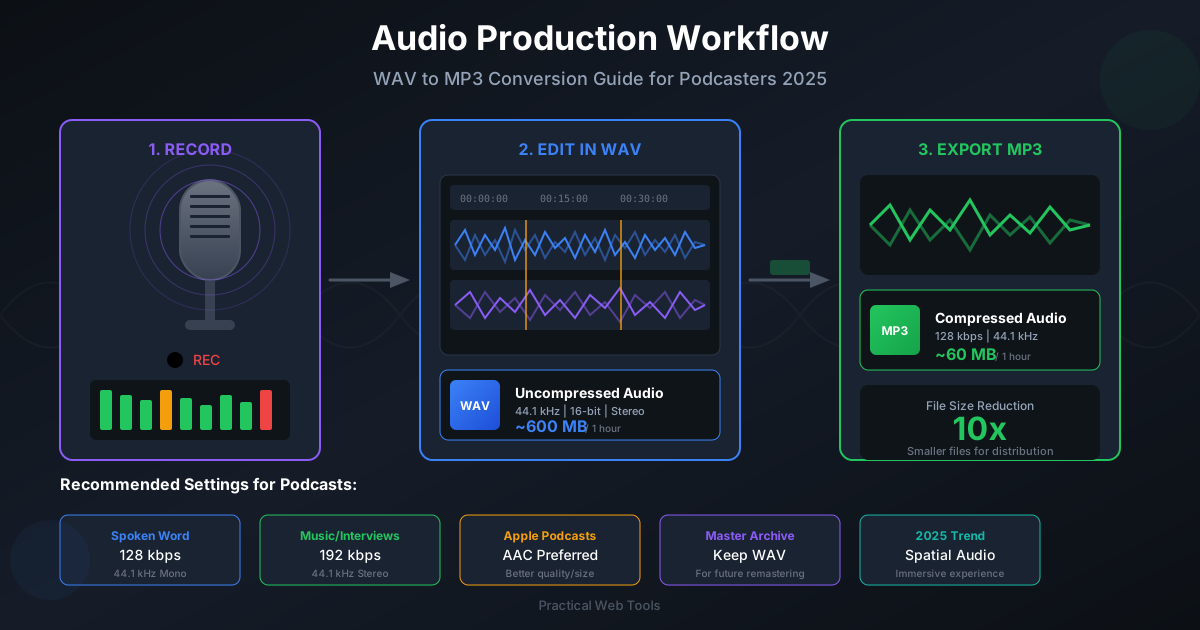
- Audio: FLAC, ALAC, WAV (uncompressed)
- Archives: ZIP, 7Z
How it works (simplified): Instead of throwing away data, lossless compression finds patterns and represents them efficiently. "Blue pixel, blue pixel, blue pixel, blue pixel" becomes "4 blue pixels." Same information, smaller representation.
The benefit: You can convert between lossless formats indefinitely without any quality loss. FLAC to WAV to FLAC produces identical data each time.
The Conversion Quality Matrix
Understanding what happens during different conversion types helps you protect your files:
| From | To | What Happens |
|---|---|---|
| Lossless → Lossless | No quality loss | Safe, convert freely |
| Lossless → Lossy | Quality loss (controlled) | Use highest quality settings |
| Lossy → Lossless | No quality improvement | File gets bigger, quality stays same |
| Lossy → Lossy | Additional quality loss | Avoid when possible |
The "Lossy to Lossless" Misconception
One of the most common mistakes: believing you can "upgrade" file quality by converting to a better format.
Converting an MP3 to FLAC doesn't make it sound better. Converting a JPG to PNG doesn't make it sharper. The damage was done during the original compression. All you get is a larger file with the same limited quality.
This conversion is only useful for:
- Preventing further quality loss during editing
- Compatibility with software that requires specific formats
- Archiving what you have (even if quality isn't perfect)
The "Lossy to Lossy" Problem
Converting between two lossy formats causes cumulative damage. Each format's compression algorithm makes different decisions about what to discard, and these decisions compound.
Example: You have an MP3. You convert to AAC for your phone. Later you convert that AAC to OGG for a game. Each conversion degrades the audio. The final file is noticeably worse than the original MP3.
Avoid this by: Always converting from your highest-quality source. Keep masters in lossless format. Create lossy copies for specific uses, but never chain lossy conversions.
How Do I Convert Different File Types Without Quality Loss?
Images: My Current Workflow
After my grandmother's photo disaster, I developed a strict workflow:
For important images (photos, artwork, scans):
- Original/Master: Keep as PNG or TIFF (lossless)
- Working copy: Edit as PNG (no degradation during editing)
- Distribution: Create JPG copies at 85-95% quality for sharing
- Storage rule: Never delete the lossless master
For casual images (screenshots, memes, downloaded content):
- Keep as-is unless conversion is necessary
- Accept that quality may already be limited
- Don't expect to improve quality through conversion
Quality settings for JPG:
- 95-100%: Near-lossless, 2-3x larger than optimal
- 85-94%: Excellent quality, minor artifacts on extreme zoom
- 75-84%: Good quality, visible artifacts in gradients
- Below 75%: Noticeable quality loss, only for thumbnails
Our image converters process locally in your browser, so you can experiment with settings without uploading files anywhere.
Audio: Lessons From My Music Collection
I have a 15-year music collection that's been through multiple format evolutions. Here's what I learned:
The master rule: Rip CDs and vinyl directly to FLAC. Never use lossy formats for masters. Storage is cheap; re-ripping your entire collection is not.
The distribution rule: Create MP3/AAC copies from FLAC masters for devices. When better formats become standard, create new copies from the same masters.
The quality reality:
- 320kbps MP3: Indistinguishable from lossless for most listeners on most equipment
- 256kbps AAC: Equivalent to 320kbps MP3
- 192kbps: Good for casual listening, compression may be audible on good headphones
- 128kbps: Audible compression, acceptable only for podcasts/speech
Our audio converter maintains quality during conversion and processes locally—important when your music collection is large and personal.
The mistake to avoid: Converting MP3s between bitrates or formats. I once "upgraded" my 192kbps MP3s to 320kbps thinking it would sound better. It didn't. The files were just bigger.
Documents: Where Quality Means Something Different
Document "quality" usually means:
- Text remains selectable and accurate
- Formatting is preserved
- Images within documents stay sharp
- The document remains editable
PDF considerations:
- PDF itself can be "lossy" for embedded images (compression settings matter)
- Converting PDF to Word may alter formatting (inherent to format differences)
- Text quality doesn't degrade like images; it's either accurate or it isn't
Best practices for documents:
- Keep original source files (Word, InDesign, etc.)
- Use PDF/A for archival (standardized, self-contained)
- When converting PDF to editable formats, accept that some formatting may shift
Our PDF to Word and PDF to Excel converters preserve as much formatting as format differences allow.
Specific Conversion Scenarios
Converting Images for Web
The goal: smallest file size while maintaining acceptable quality.
My approach:
- Start with the highest quality source available
- Resize to actual display dimensions (don't serve 4000px images at 400px)
- Convert to WebP for modern browsers (25-35% smaller than JPG)
- Use JPG fallback at 82% quality for older browsers
Common mistake: Over-compression. Saving 20KB per image isn't worth visible quality loss when visitors notice artifacts.
Archiving Important Photos
The goal: preserve maximum quality for decades.
My approach:
- Scan at highest practical resolution (600+ DPI for photos)
- Save masters as TIFF or PNG (lossless)
- Create viewing copies as JPG at 90%+ quality
- Store masters on multiple drives/locations
- Never delete masters to save space
The math: A 50MB PNG of a treasured family photo costs about $0.001 to store on cloud backup. That's not worth risking.
Converting Audio for Portable Use
The goal: reasonable quality at practical file sizes.
My approach:
- FLAC masters stay on home server
- For phone: 256kbps AAC (good quality, small files)
- For car USB: 320kbps MP3 (universal compatibility)
- All conversions come from FLAC masters, never from other lossy copies
Storage reality: A 1TB micro SD card holds roughly 5,000 albums at 256kbps. Storage constraints that once justified aggressive compression no longer exist for most people.
Preparing Documents for Different Uses
For editing:
- Convert PDF to Word while accepting formatting may need adjustment
- Work in the target format rather than repeatedly converting
For sharing:
- PDF maintains appearance across devices
- Consider PDF/A for long-term preservation
- Use compression to reduce email attachment size
For data extraction:
- PDF to Excel for tables works better than PDF to Word
- Accept that complex tables may need cleanup
- Simple, well-structured PDFs convert best
What Tools Preserve Quality During File Conversion?
For quality-conscious conversion, tool choice matters:
What to look for:
- Adjustable quality settings (not just "low/medium/high")
- Lossless options where appropriate
- Local processing (no server-side recompression)
- Preview before committing
What to avoid:
- Tools with no quality settings
- Services that add extra compression
- Batch tools that apply same settings to everything
Our converters offer granular control over quality settings and process entirely in your browser. You can experiment with settings, compare results, and choose what works for your specific files.
The Quality Preservation Checklist
Before any conversion:
- Is my source the highest quality version available?
- Am I converting to an appropriate format for my goal?
- Have I chosen optimal quality settings?
- Am I keeping the original as backup?
- Am I avoiding unnecessary conversion chains?
After conversion:
- Does the output look/sound acceptable?
- Have I verified quality before deleting anything?
- Is my original safely stored?
Frequently Asked Questions
Can converting to a higher-quality format improve my file?
No. Conversion cannot restore data that was already discarded. Converting a low-quality JPG to PNG creates a larger file with the same limited quality. Always start from the highest-quality source available. This is one of the most common misconceptions about file conversion.
What quality setting should I use for JPG?
For important photos: 90-95%. For general web use: 82-88%. For thumbnails: 70-80%. Higher isn't always better if you're just creating files that will be resized anyway. The sweet spot for most uses is 85%, which balances file size and visual quality.
Is FLAC better than MP3?
FLAC is lossless (perfect quality), MP3 is lossy (quality trade-off for size). For archival and audiophile listening, FLAC is better. For portable devices where storage matters, high-quality MP3 (256-320kbps) is effectively indistinguishable for most people. The best approach: keep FLAC masters and create MP3 copies for devices.
How do I know if quality was lost?
For images: Zoom to 100% and look for blocking artifacts, color banding, or blur around edges. For audio: Listen for "swooshing" sounds on cymbals or harsh high frequencies. For any file: Compare against the original at full resolution. Quality loss is often subtle until you need to enlarge or edit the file.
Should I keep all my original files?
Yes, whenever possible. Storage is cheap; re-acquiring source materials is expensive or impossible. The files that seem unimportant today may be precious tomorrow. A good rule: never delete the highest-quality version of any file.
What is generation loss in file conversion?
Generation loss occurs when you convert a lossy file to another lossy format, or re-save a lossy file multiple times. Each save cycle removes more data, degrading quality progressively. This is why converting MP3 to AAC to OGG results in worse quality than converting directly from the original source.
Which image format is best for preserving quality?
For photographs you want to preserve indefinitely, use PNG (lossless) or TIFF (lossless, supports higher bit depths). For images that need transparency, PNG is the standard choice. Never use JPG as your master format for important images - it loses quality every time you edit and re-save.
Can I convert a video without losing quality?
Yes, but only when converting between lossless formats or using lossless codecs. Converting from one lossy video format to another (like MP4 to AVI) will always degrade quality slightly. For video archival, use lossless codecs like FFV1 or ProRes, or keep files in their original format.
Why do my converted images look blurry?
Blurry converted images usually result from: (1) converting from an already-compressed source, (2) using too-low quality settings during conversion, (3) resizing without proper resampling, or (4) converting through multiple lossy formats. Always start from the highest-quality source and use appropriate quality settings.
Ready to convert files without losing quality? Our free converters process files locally in your browser with adjustable quality settings. Start from your best source, choose appropriate settings, and keep your masters safe.
Recommended converters:
- JPG to PNG - Lossless preservation
- PNG to JPG - Adjustable quality
- WAV to FLAC - Lossless audio compression
- FLAC to MP3 - High-quality portable audio