How to Sign PDFs Free Online (No Software Required 2025)
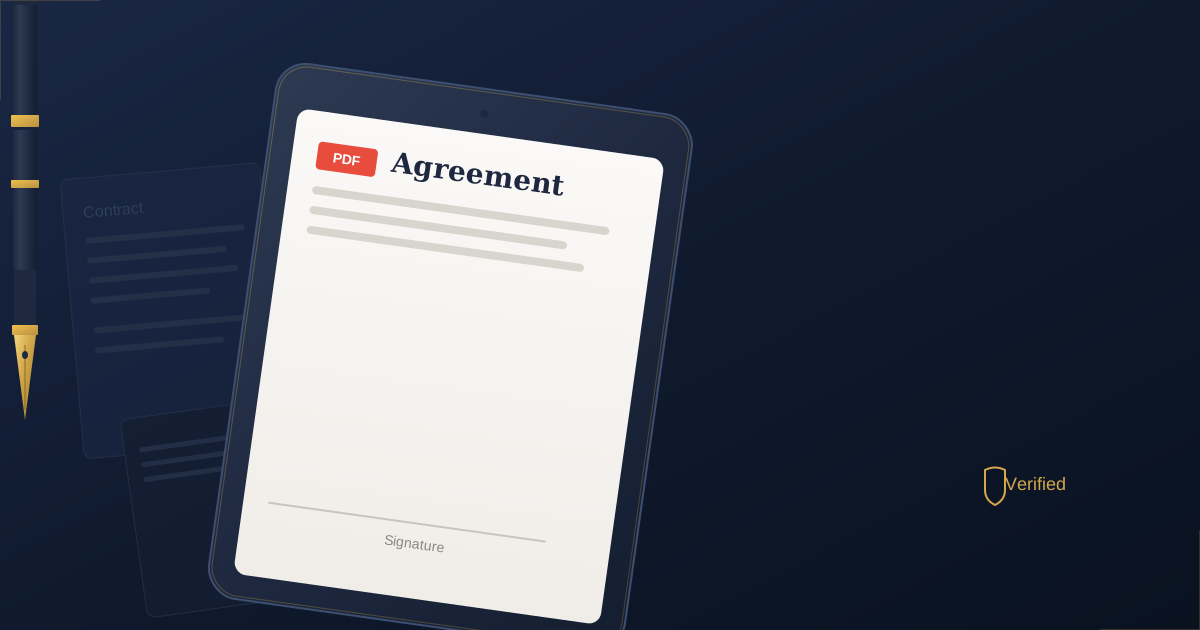
The quick answer: Yes, digital signatures are legally valid in the United States under the ESIGN Act (2000) and in the EU under eIDAS regulation. To sign a PDF online for free, use a browser-based tool like Practical Web Tools PDF Signature Tool that processes files locally. You can draw, type, or upload your signature, position it on the document, and download the signed PDF instantly. No software installation, no account required, and your documents never leave your device.
I still remember the panic I felt at 11:47 PM on a Tuesday night in 2019. I had a client contract that needed to be signed and returned by midnight - a hard deadline for a six-figure project - and my printer had just decided to become a very expensive paperweight. The error message mocked me: "Paper jam. Please check tray 2." There was no paper jam. There never is when printers claim there is.
That night, after thirty minutes of printer rage and growing desperation, I discovered something that changed how I handle documents forever: I could sign PDFs directly in my browser without any software, any printing, or any uploads to sketchy third-party servers. The contract was signed and sent with seven minutes to spare.
Since then, I've signed hundreds of documents digitally—everything from freelance contracts and NDAs to rental agreements and tax forms. I've also watched digital signatures evolve from a technical curiosity to the standard way business gets done. But here's what nobody talks about: most people are doing it wrong. They're using tools that compromise their privacy, creating signatures that could be challenged legally, or spending money on software they don't need.
This guide will show you exactly how to sign PDFs online for free, following best practices that keep your documents secure and your signatures legally valid. Whether you're signing a single contract or processing dozens of documents weekly, you'll learn the methods that actually work in 2025.
Why Should You Use Digital Signatures Instead of Printing and Scanning?
Before we dive into the how-to, let me explain why digital signatures became non-negotiable for me—and why they should be for you too.
The Real Cost of Print-Sign-Scan
Most people think of printing and scanning as "free" because they already own the equipment. But let's do the math on what that workflow actually costs:
Time investment per document:
- Find the document on your computer: 1 minute
- Open and print: 2-3 minutes (longer if the printer needs to "warm up")
- Sign the physical document: 30 seconds
- Scan the signed document: 2-3 minutes
- Save and locate the scanned file: 1 minute
- Email or upload the file: 1 minute
Total time: 8-10 minutes per document, assuming nothing goes wrong.
Financial costs:
- Ink/toner: $0.15-0.50 per page
- Paper: $0.02-0.05 per page
- Equipment depreciation: Printers average 3-5 year lifespan at $150-400
- Electricity: Negligible but non-zero
If you're signing just 10 documents per month, you're spending 80-100 minutes and $2-6 on supplies. That's 16-20 hours and $24-72 annually just on the mechanics of signing things.
But the real cost isn't financial—it's the disruption. Every document that requires printing breaks your workflow. You have to physically move to wherever your printer lives, wait for it to do its thing, then return to your desk. Remote work has made this even more painful as many people don't even have home printers anymore.
The Legal Reality: Digital Signatures Are Fully Valid
The most common objection I hear is: "But is it legally binding?" The answer is an emphatic yes, and it has been for over two decades.
I'm not a lawyer, but the legal framework is straightforward:
In the United States, the Electronic Signatures in Global and National Commerce Act (ESIGN Act) passed in 2000 established that electronic signatures have the same legal standing as handwritten signatures. The act defines an electronic signature as "an electronic sound, symbol, or process attached to or logically associated with a contract or other record and executed or adopted by a person with the intent to sign the record."
In the European Union, the eIDAS Regulation (electronic IDentification, Authentication and trust Services) established a comprehensive framework for electronic signatures in 2016. It created three tiers of signatures—simple, advanced, and qualified—with increasing levels of security and legal weight.
Globally, most developed nations have enacted similar legislation. The UNCITRAL Model Law on Electronic Signatures provides a framework that many countries have adopted.
I've personally signed contracts worth over $500,000 using digital signatures, including agreements that were reviewed by law firms. Not once has a signature's validity been questioned because it was digital rather than handwritten.
The Privacy Problem with Cloud Signature Services
Here's where most people go wrong: they use "free" signature services that upload their documents to external servers.
Last year, I was consulting with a healthcare practice that had been using a popular cloud-based signature service for patient consent forms. When I asked if they'd reviewed the service's privacy policy, they hadn't. We looked at it together. The service explicitly stated they could "process, store, and analyze uploaded documents for service improvement and AI training."
For HIPAA-covered entities, this was a compliance nightmare waiting to happen. But even if you're not in healthcare, do you really want your NDAs, client contracts, financial documents, or rental agreements sitting on someone else's servers?
The solution is browser-based processing. When you use our PDF Signature Tool, your document never leaves your device. The JavaScript code runs entirely in your browser, processes your PDF locally, and generates the signed version on your machine. No uploads, no external storage, no third-party access.
This isn't just about privacy—it's about security. Every upload is a potential breach point. Every cloud storage system is a target for hackers. The most secure document is the one that never left your possession in the first place.
What Are the Three Ways to Sign PDFs Online?
I use all three of these methods depending on the situation. Each has its place.
Method 1: Drawing Your Signature (The Standard Approach)
This is what I use for client contracts, legal documents, and anything where the signature needs to feel authentic.
The process:
- Open the PDF Signature Tool in your browser
- Upload your PDF by dragging it into the browser window
- Select the "Draw" option
- Use your mouse, trackpad, or touchscreen to create your signature
- Position the signature where needed on the document
- Add the date if required
- Download your signed PDF
What makes a good drawn signature:
I spent embarrassingly long perfecting my digital signature. Here's what I learned:
Your digital signature should be recognizable as intentional but doesn't need to be identical to your handwritten signature. In fact, most people's digital signatures evolve to be slightly simplified versions—fewer flourishes, clearer letterforms.
If you're using a mouse, draw larger than you need and then scale down. This makes the lines smoother. If you're using a touchscreen (which I recommend), use a stylus rather than your finger for better precision.
Don't overthink it. I've seen people spend ten minutes trying to perfectly replicate their handwritten signature. The recipient cares that you signed; they're not comparing it to a reference sample unless there's a fraud investigation.
Real-world example:
Last month, I had to sign a consulting agreement while traveling. I was in an airport lounge with my iPad. I opened our signature tool on Safari, uploaded the PDF my client had emailed, used my Apple Pencil to draw my signature directly on the tablet screen, and emailed back the signed contract—all in under two minutes. The client confirmed receipt before I boarded my flight.
This would have been impossible with traditional signing. I would have had to delay the project start, explain why I couldn't sign, and risk the client questioning my professionalism. Digital signing removed all that friction.
Method 2: Typing Your Signature (The Efficient Option)
I use typed signatures for internal documents, routine paperwork, and situations where I'm signing many similar documents.
When typed signatures make sense:
- Internal company approvals where formality is less important
- Forms that just need any signature to be complete
- Documents where legibility is more important than authenticity
- High-volume signing where consistency matters
The tool offers several signature fonts that simulate handwriting. I use a slightly stylized script that's clearly my name but has a professional appearance.
The corporate signature strategy:
I worked with a small law firm that was drowning in paperwork. Associates were spending hours each week printing, signing, and scanning engagement letters, retainer agreements, and internal memoranda.
We set up typed signatures for each attorney—professional script fonts that were consistent and clearly legible. For internal documents and routine client paperwork, they switched to digital signing with typed signatures. For major contracts and court filings, they continued using drawn signatures for maximum formality.
The result: They cut document processing time by about 60% and eliminated almost all printing except for archival copies of significant agreements.
How to create a professional typed signature:
- Navigate to the PDF Signature Tool
- Upload your document
- Select "Type" mode
- Enter your full name as you want it to appear
- Try different signature fonts to find one that feels professional
- Scale the signature to appropriate size
- Position it on your document
The key is consistency. Once you choose a typed signature style, use it for all similar documents. This creates a recognizable signature identity and makes your documents look more professional.
Method 3: Uploading a Signature Image (The Advanced Technique)
This is what I use for documents that need perfect signature consistency or when I need to sign on behalf of an organization.
Creating your signature image:
The best approach is to sign a piece of white paper with a dark pen, photograph it in good lighting, and then process it:
- Take a high-resolution photo (at least 1500x500 pixels)
- Use any photo editing software to increase contrast
- Crop tightly around the signature
- Remove the background to make it transparent
- Save as a PNG file
I created my signature image five years ago and still use it today. It lives in a secure folder on my computer and cloud storage, ready whenever I need perfect consistency.
When to use uploaded signatures:
I consulted with a nonprofit whose executive director was signing dozens of thank-you letters, receipts, and official correspondence monthly. Creating a signature image let her process documents in batches without compromising the personal touch of her actual signature.
We scanned her handwritten signature, processed it to remove background noise, and saved it as a high-quality PNG. Now she can sign twenty documents in the time it used to take to sign five, and every signature looks exactly the same—important for maintaining the organization's professional image.
The process:
- Create or locate your signature image file
- Open the PDF Signature Tool
- Upload your PDF document
- Select "Upload" mode
- Choose your signature image file
- Position and resize as needed
- Download the signed document
Security consideration: Your signature image file is valuable. Anyone with access to it could theoretically apply your signature to documents. Store it securely, don't share it unnecessarily, and consider keeping it in an encrypted folder if you're handling sensitive business documents.
What Are the Best Practices for Digital Signatures?
Always Read Before You Sign (Obviously, Right?)
You'd think this goes without saying, but the ease of digital signing makes it dangerously easy to sign things without reading them carefully.
I almost learned this the hard way. A client sent a "standard" contract amendment that I skimmed and signed within minutes using my typed signature. Later that day, I actually read it carefully and realized it contained revised payment terms that were significantly worse than I'd agreed to. I had to awkwardly email back explaining I'd signed too quickly and needed to renegotiate.
Fortunately, the client was understanding, but I learned a valuable lesson: making signing easier means you need to be more disciplined about reading what you sign, not less.
My current practice:
- Download the document
- Read it completely, making notes or highlighting concerns
- Resolve any questions before signing
- Only then open the signing tool and apply my signature
- Immediately file both the unsigned and signed versions
This seems obvious, but I've watched people sign documents while having phone conversations or in the middle of other tasks. The two-minute inconvenience of printing actually forced people to focus on the document. Digital signing removes that friction, so you need to replace it with intentional discipline.
Date Your Signatures (Timestamps Matter)
Many documents require dates along with signatures. For contracts, the signature date can be legally significant—it often determines when obligations begin, when deadlines are calculated from, or what version of regulations apply.
I always add the current date unless the document specifically requires a different date. Most signature tools, including ours, make this easy by letting you add text fields alongside your signature.
Why this matters:
A colleague once signed a contract but forgot to add the date. Weeks later, a dispute arose about when certain deliverables were due. The contract specified "30 days from signing," but without a signature date, it was unclear when that 30-day period began. What should have been straightforward became a negotiation about timeline interpretation.
Keep Records of Everything You Sign
This seems basic, but many people sign documents digitally and then never save copies for themselves.
My filing system:
I maintain a "Signed Documents" folder with subfolders by year and category:
Signed Documents/
├── 2025/
│   ├── Clients/
│   ├── Vendors/
│   ├── Personal/
│   └── Legal/
├── 2024/
│   └── [same structure]
Each signed document gets saved with a descriptive filename including the date: "2025-03-15-Client-XYZ-Consulting-Agreement-SIGNED.pdf"
I also keep the unsigned originals in a parallel folder structure. This has saved me multiple times when questions arose about what changed between the original and signed versions.
Verify Before Sending Signed Documents
Before I email a signed document, I always:
- Open the signed PDF to verify the signature appears correctly
- Check that it's positioned appropriately
- Confirm all required fields are completed
- Verify the file size is reasonable (our tool preserves quality while keeping files efficient)
Taking thirty seconds to verify prevents embarrassing situations like sending a PDF where your signature is halfway off the page or accidentally overlapping important text.
Use Different Signature Methods for Different Security Levels
Not all documents require the same level of signature formality. I've developed a mental hierarchy:
High formality (drawn or uploaded signature):
- Client contracts over $10,000
- NDAs and confidentiality agreements
- Legal documents that might be reviewed by attorneys
- Anything I might need to defend in a legal context
Medium formality (typed or simple drawn signature):
- Routine client agreements under $10,000
- Vendor agreements
- Internal company documents
- Standard forms and applications
Low formality (typed signature):
- Internal approvals
- Routine paperwork
- Documents that just need acknowledgment
- High-volume signing situations
This isn't about the legal validity—all these signatures are legally equivalent. It's about matching formality to context and audience expectations.
Are Digital Signatures Legally Valid and Secure?
The Difference Between Electronic and Digital Signatures
This confusion trips people up constantly, so let me clarify:
Electronic signatures are the broad category. If you type your name in an email, draw a signature on an iPad, click an "I agree" button, or upload a signature image, you've created an electronic signature. It's any electronic indication that you intend to sign something.
Digital signatures are a specific type of electronic signature that uses cryptographic technology. They involve certificate authorities, public key infrastructure, and mathematical verification that the document hasn't been altered since signing.
For 99% of everyday use—client contracts, business agreements, personal documents—electronic signatures are completely sufficient and legally binding. Digital signatures (the cryptographic kind) are primarily used in highly regulated industries, government submissions, or situations requiring absolute verification.
When you use our PDF Signature Tool, you're creating electronic signatures. These are legally valid, widely accepted, and appropriate for nearly all business and personal uses.
Simple, Advanced, and Qualified Electronic Signatures
The EU's eIDAS framework created three tiers of electronic signatures, and while this is European regulation, it's become a useful mental model globally:
Simple Electronic Signatures (SES): The basic level. You draw, type, or upload a signature. It has legal validity, but no special technical verification. This is what most people use for most purposes.
Advanced Electronic Signatures (AES): These are uniquely linked to the signer, capable of identifying the signer, created using signature creation data under the signer's control, and linked to the data signed in a way that detects subsequent changes. This typically involves some form of digital certificate.
Qualified Electronic Signatures (QES): The highest level, created with a qualified signature creation device and based on a qualified certificate issued by a qualified trust service provider. In the EU, these are legally equivalent to handwritten signatures with no room for challenge.
For context: I've signed hundreds of documents with simple electronic signatures and never needed anything more advanced. Unless you're in a highly regulated industry or dealing with government systems that specifically require advanced signatures, simple electronic signatures are sufficient.
How to Protect Your Digital Signature
Your digital signature is like your handwritten signature—it represents you. Here's how I protect mine:
For signature image files:
- Store in a secure, encrypted folder
- Don't share the file itself
- Use secure file transfer if you must send it
- Consider password-protecting the folder containing it
When signing documents:
- Only use trusted signature tools (browser-based tools that process locally)
- Verify the document source before signing
- Never sign blank or partially completed documents
- Keep records of what you've signed
General security practices:
- Use secure email when transmitting signed documents with sensitive information
- Consider adding additional signatures for highly confidential signed PDFs (you can use our PDF Signing Tool for multiple signatures)
- Be cautious about signing documents from unknown sources
- Verify recipient identity before sending signed documents
The Cloud vs. Local Processing Security Model
This is the most important security consideration that most people completely overlook.
Cloud-based signature services:
- Upload your document to their servers
- Process the signature on their infrastructure
- Store the document (at least temporarily) on their systems
- May retain copies for undefined periods
- Subject to their security practices and potential breaches
- Require you to trust their privacy policies
Browser-based local processing (like our tool):
- Document never leaves your device
- All processing happens in your browser's JavaScript engine
- No server upload, no cloud storage, no external access
- Your file is only in two places: your download folder and the browser memory (which clears when you close the tab)
- Zero trust required—you can verify the code yourself if you're technical
For sensitive documents—client contracts, financial paperwork, legal agreements, medical forms—local processing isn't just better, it's the only responsible choice.
I worked with a small accounting firm that had been using a well-known cloud signature service for client engagement letters. These letters contained client names, tax situations, and financial details. They hadn't realized every single one was being uploaded to external servers.
When we calculated the potential GDPR liability if those documents were breached, they immediately switched to browser-based signing. The functionality was identical, but the security posture improved dramatically.
Frequently Asked Questions About Digital Signatures
Can my digital signature be challenged as invalid in court?
In twenty-plus years of widespread electronic signature use, legal challenges based solely on the fact that a signature was electronic rather than handwritten are extremely rare and almost never succeed. Courts have consistently upheld electronic signatures under the ESIGN Act and similar legislation. What matters is intent to sign, not the method used. Signatures get challenged on grounds like fraud, lack of authority to sign, or misrepresentation - but these challenges would apply equally to handwritten signatures.
Do I need special software or certificates to sign PDFs digitally?
No. For standard business and personal use, you need nothing beyond a browser and a PDF signature tool. Digital certificates and specialized software are relevant only for qualified electronic signatures in specific regulatory contexts. If you were required to have them, you would know - the requesting organization would provide explicit instructions.
Can someone steal or forge my digital signature?
Yes, if they have access to your signature image file or can replicate your signing style, but this doesn't make digital signatures insecure. Protect your signature image files the way you'd protect other sensitive files. Use browser-based tools that don't upload your documents. Don't email your signature file to people. Keep records of what you sign so you can demonstrate if a signature is fraudulent. In practice, digital signature theft is far less common than people fear.
What if the other party doesn't accept digital signatures?
This is increasingly rare, but it happens. Some organizations - often government agencies or very traditional industries - still require wet signatures (handwritten signatures on paper). When this occurs, you can print, sign, scan, and send (the old way), or politely ask if they can accept electronic signatures, noting that they've been legally valid for over two decades. Often the requirement is inertia rather than actual policy.
Can I sign PDFs on my phone or tablet?
Absolutely, and in many ways, mobile signing is better than desktop signing. Our PDF Signature Tool works on any modern browser, including mobile browsers. Signing on an iPad with an Apple Pencil produces more natural-looking signatures than using a mouse. For typed signatures, mobile works fine. For uploaded signatures, you can use a signature image stored in your device's photo library.
How do I sign a multi-page document?
This trips people up because they expect to sign every page like initialing a physical document.
In most cases, you only need to sign where the document indicates signature lines. This might be the last page, or there might be multiple signature fields throughout the document.
When I need to initial multiple pages (like acknowledging I've read each page of a lengthy contract), I use our signature tool's text feature to add my initials. I can navigate through the PDF pages, adding initials where required, then sign the signature line at the end.
For documents that require multiple signatures (like forms with both applicant and spouse signatures, or contracts with multiple parties), the process depends on workflow:
If you're the only signer: Add all necessary signatures and initials, then save the document.
If multiple parties need to sign: You sign first, save and send to the next person, who signs and sends to the next, and so on. Each person receives a PDF with previous signatures already in place and adds their own.
Some organizations use more sophisticated routing tools for multi-party signatures, but for simple cases, sequential signing works fine.
Advanced Digital Signature Techniques
Batch Signing Multiple Documents
I sign consulting engagement letters at the start of each quarter—sometimes fifteen or twenty in a day. Here's my workflow for efficient batch processing:
- Collect all documents that need signing
- Review each one carefully (never skip this step)
- Open the signature tool once
- Process documents sequentially, using my uploaded signature image for consistency
- Download each signed version with a clear naming convention
- Send all signed documents in a single batch
The uploaded signature method is critical here. Drawing my signature twenty times would be tedious and would result in slight variations. Using an uploaded signature image ensures perfect consistency across all documents.
Creating Multiple Signature Versions
I maintain three versions of my signature for different contexts:
Formal signature: My full legal name, used for major contracts, legal documents, and official business Professional signature: A slightly abbreviated version, used for client work and business correspondence Initial signature: Just my initials, used for multi-page acknowledgments and informal internal documents
Each is saved as a high-resolution PNG in my secure signature folder. This gives me flexibility to match signature formality to document context while maintaining consistency within each category.
Adding Official Titles and Roles
When signing on behalf of an organization or in an official capacity, I include my title:
[Signature]
John Smith
Chief Technology Officer
Acme Corporation
Most signature tools let you add text elements alongside your signature. I create this as a single signature block so I can add everything at once—signature, typed name, title, and organization.
This is particularly important for corporate documents where your authority to sign derives from your role, not just your identity.
Combining Digital Signatures with Other PDF Tools
Signing is often part of a larger document workflow. Here's how I use related tools:
Before signing:
- Merge PDFs - Combine related documents that need signing together
- PDF to Word - Edit document content if changes are needed before signing
- Edit PDF - Edit document content if restrictions need to be addressed before signing
After signing:
- Compress PDF - Reduce file size for emailing large signed documents
- PDF to Image - Create image versions for situations requiring visual documentation
These tools all use the same local processing model—your files never leave your device, maintaining privacy throughout the workflow.
The Future of Digital Signatures
Where Digital Signing Is Heading
The trend toward digital signatures accelerated dramatically during 2020-2021 when physical document signing became difficult. That shift is now permanent.
What I'm seeing in 2025:
Increased integration: Digital signing is becoming embedded in document management systems, CRMs, and business software rather than being a standalone process.
Biometric authentication: Signatures are being linked to biometric verification—fingerprints on mobile devices, facial recognition—adding another layer of identity confirmation.
Blockchain verification: Some industries are experimenting with blockchain-based signature verification, creating immutable records of when and by whom documents were signed.
AI-assisted document review: Tools that analyze documents before you sign them, highlighting key terms, unusual clauses, or areas that might need attention.
But here's what I hope doesn't happen: consolidation around a few dominant platforms that create vendor lock-in and reduce user choice. The beauty of standards-based electronic signatures is that they're tool-agnostic. A signature created in one tool is just as valid as one created in another. This should remain true.
Regulatory Evolution
Digital signature regulations are maturing. We're seeing:
Cross-border recognition: International agreements that recognize electronic signatures across jurisdictions, making international business transactions smoother.
Industry-specific frameworks: Specialized regulations for healthcare (HIPAA), financial services (21 CFR Part 11), and other regulated industries that define acceptable signature practices.
Enhanced verification standards: As fraud techniques evolve, regulations are adapting to require stronger identity verification for certain transaction types.
Privacy regulations: GDPR, CCPA, and similar privacy laws are creating obligations around how signature services handle and store document data.
These changes mostly affect signature service providers, not individual users. But they're worth understanding because they shape what tools are available and what practices are considered acceptable.
Making Digital Signatures Part of Your Workflow
Getting Started Today
If you're new to digital signing, start small:
- Identify one category of documents you sign regularly
- Try our PDF Signature Tool next time you need to sign one
- Notice how much faster and more convenient it is
- Gradually expand to other document types
Don't try to change your entire workflow overnight. Build confidence with low-stakes documents first.
Training Others
If you're implementing digital signatures for a team or organization:
Demonstrate the process: People learn by seeing. Walk through signing a document together.
Address concerns: Many people worry about legal validity or security. Have answers ready based on the information in this guide.
Start with internal documents: Build comfort with digital signatures on internal paperwork before using them for external contracts.
Create standards: Decide as a team what signature methods are appropriate for different document types.
Document your practices: Write down your organization's digital signature standards so everyone is consistent.
Measuring the Impact
After three months of exclusive digital signing, I calculated what I'd saved:
- Time: Approximately 6 hours per month previously spent on printing, signing, and scanning
- Costs: About $15 per month in ink, toner, and paper
- Hassle: Countless moments of frustration with printer issues eliminated
The time savings are real, but the quality of life improvement is harder to quantify. I can now sign documents from anywhere—at home, while traveling, even from my phone while waiting for coffee. The flexibility has made me more responsive to clients and more efficient in my work.
Ready to Start Signing PDFs Digitally?
If you're still printing documents to sign them in 2025, you're working too hard. Digital signatures are faster, more convenient, legally valid, and—when done right—more secure than traditional signing.
The key is using tools that respect your privacy. Cloud-based services that upload your documents to external servers create unnecessary security risks. Browser-based tools that process locally keep your sensitive documents where they belong: on your device.
Try it now: Open our PDF Signature Tool and sign your next document digitally. No account required, no software to install, no uploads to external servers. Just fast, secure, private document signing that works exactly as it should.
You'll wonder why you ever bothered with printers in the first place.
Ready to sign your documents? Use our free PDF Signature Tool to sign PDFs online instantly. No signup required, no file uploads to servers, and complete privacy with browser-based processing. Your documents never leave your device.