PDF vs DOCX vs ODT: Complete Document Format Comparison Guide 2025
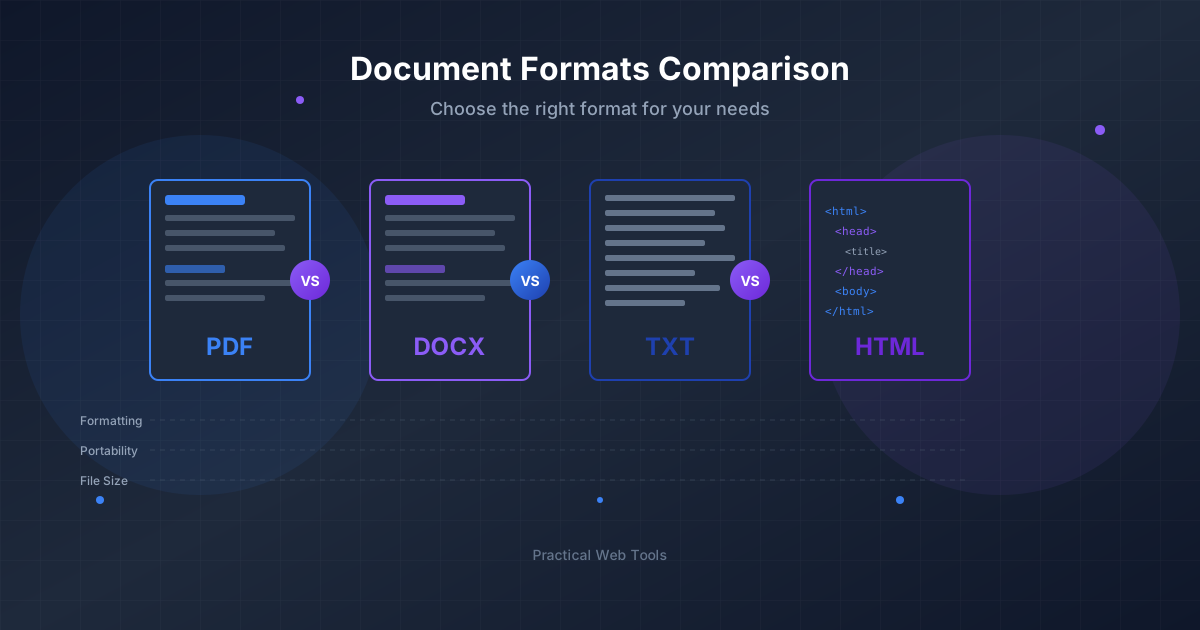
The quick answer: PDF is best for final documents that need consistent appearance everywhere (contracts, reports, archival). DOCX is best for documents you need to edit or collaborate on. ODT is the open-source alternative to DOCX. RTF offers maximum compatibility with older systems. Plain text is future-proof for simple content. Choose PDF for distribution, DOCX for creation, and PDF/A for long-term archival.
I'll never forget the morning I discovered a $12,000 mistake hiding in plain sight. I was managing proposal submissions for a government contract, and we'd sent our final bid as a Word document. When the procurement office opened our file on their system, the carefully formatted pricing table had shifted—pushing our million-dollar line item into the wrong column. We lost the contract because our document formatting failed us at the worst possible moment.
That expensive lesson taught me something crucial: choosing the right document format isn't just about technical specifications. It's about trust, precision, and ensuring your message arrives exactly as you intended. Whether you're signing a contract, collaborating on a proposal, or archiving critical records, the format you choose determines whether your document survives its journey intact.
Over the past decade, I've worked with thousands of documents across legal firms, healthcare organizations, and engineering companies. I've seen formatting disasters, witnessed data loss from poor conversions, and helped teams implement document workflows that actually work. This guide distills everything I've learned about choosing document formats that won't betray you when it matters most.
Why Document Format Choice Actually Matters
Most people treat document formats like they treat file folders—just containers for content. But formats are fundamentally different technologies solving different problems. A PDF is engineered for consistency and preservation. A DOCX file is optimized for editing and collaboration. Plain text is designed for eternal compatibility.
Understanding these differences means understanding when each format will save you time and when it will create problems. Let me walk you through the real-world scenarios where format choice makes or breaks your workflow.
The True Cost of Wrong Format Choices
I've consulted with a law firm that lost 40 hours of paralegal time because they were sharing contracts as DOCX files instead of PDF. Every time a client opened the document, their version of Word would reflow the page breaks, changing where signature lines appeared. The firm spent hours reformatting the same document repeatedly.
I've worked with a medical practice that couldn't access patient records from five years ago because they'd saved everything in an obscure proprietary format. When that software company went out of business, thousands of documents became unreadable. They eventually paid a data recovery specialist $15,000 to extract the content.
I've seen engineering teams collaborate on specifications using PDF files, making the editing process so painful that they resorted to emailing changes in separate documents, creating version control nightmares that delayed projects by weeks.
These aren't edge cases. They're the predictable consequences of choosing formats without understanding what they're designed to do.
What Is PDF and When Should You Use It?
What Makes PDF Different
PDF stands for Portable Document Format, and that word "portable" is the entire point. Adobe created PDF in the 1990s to solve a problem that seems quaint now: how do you share a document that looks identical on every computer?
Before PDF, if you created a document on your computer with your specific fonts and your specific page layout, opening that document on someone else's computer was a gamble. Different fonts, different printer settings, different software versions—everything conspired to make your carefully formatted document look terrible on someone else's screen.
PDF solved this by embedding everything needed to display the document exactly as intended: fonts, images, layout information, even color profiles. When you open a PDF, you're not viewing an interpretation of the document—you're viewing a precise replica.
When PDF Is the Only Acceptable Choice
I use PDF exclusively for these scenarios, and I recommend you do the same:
Contracts and legal documents: When I review contracts, I need absolute certainty that the signature line I see is in the same position the other party sees. I once caught a dispute that hinged on whether a particular clause appeared on page 3 or page 4. With PDF, there's no ambiguity—page 3 is page 3 everywhere.
Final reports and presentations: Last year, I delivered a proposal to a client with carefully designed infographics and custom charts. I sent it as PDF. My competitor sent theirs as a Word document. When the client opened my competitor's file on their system, missing fonts caused the entire design to collapse into generic Arial text. Visual professionalism matters, and PDF preserves it.
Financial statements and invoices: I learned this from an accountant who discovered that Excel files look different depending on which version of Excel opens them. Column widths change. Page breaks shift. Numbers that were carefully aligned become misaligned. For anything involving money, PDF eliminates ambiguity.
Print materials: If a document will be professionally printed, PDF is non-negotiable. Print shops need PDF because it specifies exact colors, bleeds, and layouts. I've seen marketing teams lose thousands of dollars reprinting brochures because they sent DOCX files to printers who had to guess at the intended layout.
Long-term archiving: I work with a healthcare organization that must retain patient records for 30 years. They use PDF/A, an archival variant of PDF that ensures documents remain readable even if specific software becomes obsolete. PDF/A doesn't rely on external fonts or linked content—everything needed is embedded in the file itself.
PDF's Real Limitations
PDF isn't designed for editing. While modern PDF editors exist, they're working against the format's fundamental design. I've tried editing complex PDFs, and it's like trying to renovate a house that's already been photographed—you're modifying a fixed representation rather than working with the underlying structure.
If you receive a PDF that needs significant changes, converting it back to an editable format like DOCX makes sense. But understand that conversion isn't perfect. Complex layouts, tables, and graphics often require manual cleanup after conversion. I always keep the original editable file and only create PDF when the document is finalized.
PDF files can also become bloated if you're not careful. A document with dozens of high-resolution photos can easily exceed 50MB, making it difficult to email. I've learned to optimize images before creating PDFs and use PDF compression when file size matters.
PDF Variants You Should Know About
PDF/A (Archival): This variant ensures long-term preservation by making the file completely self-contained. No external fonts, no linked content, no dependencies. If you're creating records that must survive decades, PDF/A is essential. I use it for all contracts and official records.
PDF/X (Print Production): This variant includes specific requirements for professional printing, including color space definitions and bleed specifications. If you're working with a print shop, they'll often require PDF/X.
PDF/UA (Universal Accessibility): This variant is optimized for screen readers and assistive technology. If you're creating documents for public distribution or government use, PDF/UA ensures compliance with accessibility requirements.
Most people only need standard PDF, but knowing these variants exist can save you trouble when special requirements arise.
What Is DOCX and When Should You Use It?
Why DOCX Became the Business Standard
Microsoft Word's DOCX format dominates business document creation for good reason. When I'm drafting anything—proposals, reports, specifications, documentation—I start with DOCX because it's optimized for the messy, iterative process of creating content.
DOCX files are actually ZIP archives containing XML files that describe your document's structure, content, and formatting. This might sound technical, but it has practical implications: DOCX files are relatively compact, they handle images efficiently, and they separate content from presentation in ways that make editing powerful.
When DOCX Is the Right Tool
Collaborative document creation: Last month, I worked on a proposal with five team members. We used DOCX specifically because it supports track changes and comments. Every edit was visible, every suggestion was trackable, and merging everyone's contributions was straightforward. Try that with PDF and you'll understand why DOCX exists.
Documents that need revision cycles: I write technical specifications that go through multiple review rounds. Starting with DOCX means I can easily incorporate feedback, adjust formatting, reorganize sections, and track what changed between versions. The format is designed for documents that evolve.
Templates and mail merge: I created a DOCX template for client proposals that includes placeholder fields for project details. Using Word's mail merge feature, I can generate dozens of personalized proposals in minutes. This automation only works with editable formats like DOCX.
Complex formatting requirements: When I need precise control over headers, footers, page numbering, tables of contents, and cross-references, DOCX provides the tools. I can create a 100-page technical document with automatic table of contents, figure numbering, and cross-references that update when I reorganize content.
Before PDF conversion: Here's my standard workflow: create and edit in DOCX, then convert to PDF for distribution. I keep the DOCX file as my "source of truth" that I can modify later, while distributing the PDF version that displays consistently.
DOCX's Compatibility Trap
The challenge with DOCX is that "compatibility" doesn't mean "identical appearance everywhere." I learned this when I created a document in Microsoft Word, sent it to a colleague using Google Docs, and watched in horror as the formatting deteriorated.
Here's what happens: DOCX is a specification, and different software implements that specification differently. Microsoft Word, Google Docs, LibreOffice, and Apple Pages all claim to support DOCX, but they interpret complex formatting in subtly different ways.
I've developed some rules after losing hours to compatibility issues:
Stick to basic formatting: Bold, italics, headings, bullets, and simple tables work reliably everywhere. Avoid text boxes, complex borders, intricate table layouts, and elaborate styles unless you know everyone uses the same software.
Test cross-platform early: If you're collaborating with people using different software, open the document in their software early in the process. Discovering formatting issues on the final day before a deadline is miserable.
Use PDF for final distribution: Never distribute important documents as DOCX unless you want recipients to edit them. Convert to PDF to lock in the formatting and ensure consistent appearance.
The DOCX Security Consideration
DOCX files can contain macros—embedded code that runs when you open the document. While macros enable powerful automation, they also create security risks. I've seen malware distributed through DOCX files with malicious macros.
My rule is simple: never enable macros in documents from unknown sources. When I send DOCX files externally, I save them as macro-free (.docx) rather than macro-enabled (.docm) to avoid triggering recipients' security warnings.
What Is ODT and When Should You Use It?
What Makes ODT Different
ODT (OpenDocument Text) is the native format for LibreOffice, a free and open-source alternative to Microsoft Office. The format is an ISO standard developed by the OASIS consortium, meaning its specification is completely public and free to implement.
I started using ODT when I worked with a government agency that required all documents to use open standards. The policy existed to ensure long-term accessibility and avoid vendor lock-in—they didn't want their archives dependent on a single company's software continuing to exist.
When ODT Makes Sense
Open-source workflows: If you're using LibreOffice, ODT is the native format that preserves all features. I use LibreOffice for personal projects and small business consulting where Microsoft Office licenses aren't justified.
Government and public sector work: Many government agencies in Europe and South America mandate open document standards. I've submitted proposals to organizations that explicitly require ODT format for all submissions.
Philosophical commitment to open standards: Some organizations choose ODT on principle, prioritizing long-term accessibility and freedom from proprietary control over maximum compatibility with business software.
Academic and educational environments: Universities often support open-source software, making ODT a natural choice. I've worked with research groups that standardized on ODT to ensure their documentation remains accessible regardless of budget changes.
ODT's Compatibility Reality
Here's what I've learned from real-world ODT use: if everyone in your workflow uses LibreOffice, ODT works beautifully. If you're exchanging documents with Microsoft Word users, you'll encounter issues.
Microsoft Word can open and save ODT files, but complex formatting often degrades. I created a document with custom styles and multi-level bullets in LibreOffice, saved as ODT, and opened it in Word. The styles were lost, the bullets reverted to defaults, and the layout shifted.
The reverse is also true: DOCX files opened in LibreOffice sometimes look different than in Word. Tables might not align perfectly. Fonts might substitute. Complex features might not translate.
My recommendation: use ODT if your entire workflow supports it. If you're working across different software, test compatibility early and stick to basic formatting, or accept that you'll need to convert to PDF for final distribution.
What Is RTF and When Should You Use It?
Why RTF Still Matters
RTF (Rich Text Format) is an ancient format by software standards—Microsoft introduced it in 1987. Yet it persists because it solves a specific problem: maximum compatibility with minimal complexity.
RTF is actually a text-based format that uses codes to indicate formatting. You can open an RTF file in a text editor and see the actual formatting commands. This simplicity means virtually any word processor on any operating system can read and write RTF files.
When I Still Use RTF
Legacy system compatibility: I worked with a legal discovery system that only accepted RTF format. The system was 15 years old, the vendor no longer existed, but the company had invested millions in it. RTF was the only format that consistently worked across all their tools.
Email attachments to unknown recipients: When I'm sending a formatted document to someone and I don't know what software they use, RTF is safer than DOCX. It won't look perfect, but it will open and display basic formatting reliably.
Security-conscious environments: RTF cannot contain macros, eliminating an entire class of security threats. I've worked with financial institutions that prefer RTF for external communications specifically because it can't execute code.
Simple formatted documents: If I need just basic text formatting—bold, italics, simple bullets—and I want maximum compatibility, RTF often makes more sense than DOCX. The file size is larger, but the compatibility is better.
RTF's Obvious Limitations
RTF doesn't support modern features. No track changes, no comments, no advanced tables, no embedded charts. If you try to save a complex DOCX document as RTF, you'll lose features.
I think of RTF as the "safe mode" of document formats. Use it when compatibility matters more than features, when you're dealing with old systems, or when security concerns prohibit more complex formats.
What Is Plain Text and When Should You Use It?
The Power of Simplicity
Plain text files contain only characters—no formatting, no styles, no embedded content. This extreme simplicity gives them a unique property: they'll be readable as long as computers exist.
I maintain notes in plain text files that I created 20 years ago on computers that no longer exist. I can open those files on my current system, my phone, a web browser, or a command-line interface. No other format provides this level of future-proof compatibility.
When Plain Text Is Perfect
Configuration files: Every software system I've ever worked with uses plain text for configuration. It's editable in any environment, version-controllable, and never becomes obsolete.
Code and scripts: All programming is done in plain text. The format's simplicity means it works identically in every development environment.
Notes and quick documentation: I keep a plain text file of meeting notes, quick ideas, and reference information. It's instantly searchable, syncable across devices, and I never worry about format compatibility.
Data exchange: CSV files (comma-separated values) are plain text. When I need to exchange data between different systems, plain text formats like CSV work universally.
Long-term preservation: For information I want to ensure remains accessible indefinitely, plain text is the safest choice. No software will ever be unable to read a text file.
Plain Text's Obvious Tradeoff
You're trading features for compatibility. No formatting means no bold, no headings, no tables, no images. For many documents, this tradeoff is unacceptable. But for the right use cases, plain text's simplicity is exactly what you need.
What Is Markdown and When Should You Use It?
Why I Write Almost Everything in Markdown
Markdown is a lightweight markup language that uses simple text symbols to indicate formatting. Instead of clicking "Bold" in a toolbar, you type **bold text**. Instead of selecting "Heading," you type # Heading.
This seems primitive until you experience the speed and focus it enables. I write faster in Markdown because my fingers never leave the keyboard. I stay focused on content because there's no toolbar to distract me. And when I'm done, I can convert Markdown to HTML, PDF, DOCX, or almost any other format.
I write this blog post in Markdown. I write technical documentation in Markdown. I write project specifications in Markdown. The format has become my default for any document that starts as words and might need to become multiple formats.
Real-World Markdown Workflows
Technical documentation: I manage documentation for a software project using Markdown files in a Git repository. Every documentation update is version-controlled. We can track who changed what and when. We can review documentation changes like code changes. And we can automatically generate a website from those Markdown files.
Blog content: This entire site's blog content is written in Markdown. I write once, and the static site generator converts it to HTML automatically. If I ever migrate to a different platform, my content is stored in a portable, human-readable format.
README files: Every software project needs a README explaining what it does and how to use it. The standard format is Markdown. GitHub, GitLab, and Bitbucket all render Markdown automatically.
Note-taking: I keep notes in Markdown because it's plain text (future-proof and searchable) but with just enough structure to be readable. I can bold important points, create headings for organization, and add links without dealing with a heavy word processor.
Markdown's Sweet Spot
Markdown excels for content that needs to be readable as plain text but will likely be converted to other formats. It's popular among developers and technical writers because it's efficient, version-control-friendly, and converts to anything.
But Markdown has limitations. There's no standard for advanced features like tables, footnotes, or mathematical equations (though many implementations add these). It's not suitable for documents with complex layouts or precise formatting requirements.
I use Markdown for content creation and DOCX or PDF for final presentation. Markdown is my writing format; other formats are my distribution formats.
HTML: The Web's Native Language
When HTML Is the Obvious Choice
HTML (HyperText Markup Language) is the foundation of every web page. If your document will be published online, HTML is its native format.
I create HTML documents when I'm building web content, online documentation, or email newsletters. HTML separates content (the HTML file) from presentation (CSS stylesheets), allowing the same content to adapt to different screen sizes, browsers, and devices.
HTML's Strengths and Weaknesses
Strengths: Universal browser support, responsive design capabilities, accessibility features, and no software required beyond a web browser.
Weaknesses: Not designed for print, appearance varies by browser, and direct editing requires technical knowledge.
For most people, HTML is a target format, not an authoring format. You write content in Markdown or DOCX, then convert to HTML for web publication. I rarely write HTML by hand unless I'm building a specific web component.
How Do You Choose the Right Document Format?
After years of document management across different industries, I've developed a decision framework that works reliably:
Ask These Questions in Order
1. Is this document finished or still being edited?
- Still editing: Use DOCX (or ODT in open-source environments)
- Finished: Use PDF
2. Who needs to access this document?
- Just me: Use whatever works for you (I use Markdown for personal documents)
- Team collaboration: Use DOCX with track changes enabled
- External distribution: Use PDF to ensure consistent appearance
- Web publication: Convert to HTML
- Unknown audience/old systems: Consider RTF for compatibility
3. How long must this document remain accessible?
- Short-term (< 5 years): Any format is fine
- Long-term (5-20 years): Use PDF/A or ODT
- Indefinite: Use plain text or PDF/A
- Legally required retention: Use PDF/A
4. What level of formatting is required?
- None: Plain text
- Basic: RTF or Markdown
- Standard business: DOCX or ODT
- Precise layout: PDF
- Web content: HTML or Markdown
5. Are there security or privacy concerns?
- High security environment: Avoid DOCX macros, consider RTF or PDF
- Confidential content: Use local conversion tools that don't upload to servers
- Requires signatures: Use PDF with digital signature capability
My Personal Workflow
Here's how I handle different document types in practice:
Proposals and reports: Write in DOCX using templates and styles. Review collaboratively with track changes enabled. Convert to PDF for final delivery. Archive as both DOCX (for future editing) and PDF/A (for long-term preservation).
Technical documentation: Write in Markdown, store in Git repository, automatically convert to HTML for website publication and PDF for downloadable guides.
Contracts and legal documents: Receive in DOCX, review and edit in DOCX, finalize as PDF with digital signatures, archive as PDF/A.
Quick notes and ideas: Plain text files synced across devices. Searchable, fast, and future-proof.
Web content: Write in Markdown, convert to HTML for publication.
How Do You Convert Between Document Formats?
The Conversion Quality Hierarchy
Not all conversions are equal. Some preserve nearly everything; others lose significant information. Here's what I've learned from thousands of conversions:
Excellent quality conversions (minimal loss):
- DOCX to PDF: Preserves formatting excellently
- Markdown to HTML: Perfect conversion
- Plain text to any format: No information to lose
- DOCX to ODT: Works well for basic formatting
Good quality conversions (some manual cleanup needed):
- PDF to DOCX: Works well for simple documents, struggles with complex layouts
- HTML to Markdown: Clean conversion for simple pages
- DOCX to HTML: Good for web publishing
Challenging conversions (expect significant cleanup):
- PDF to Excel: Tables work well, everything else requires manual work
- Complex DOCX to ODT: Advanced features often lost
- PDF with scanned images to editable text: OCR quality varies
Conversion Best Practices I've Learned
Always keep the original: I maintain a strict policy—never delete the source file after conversion. Storage is cheap; recreating lost work is expensive. I keep original DOCX files even after converting to PDF, because I know future edits will be necessary.
Test conversions early: If you know you'll need to convert a document, test that conversion early in the document's lifecycle. I discovered a PDF that wouldn't convert to DOCX cleanly, but I discovered it early enough to adjust the layout before finalizing.
Understand what won't convert: Text boxes, complex tables, intricate layouts, and custom fonts cause conversion problems. When I know a document will be converted, I avoid these features.
Use quality tools: Not all conversion tools are equal. I've seen the same PDF convert cleanly with one tool and produce garbage with another. The converters here on Practical Web Tools process files locally in your browser, avoiding upload privacy concerns while producing quality results.
Privacy-Conscious Conversion
This is critical: many online converters upload your documents to their servers. Your confidential business plan, your medical records, your legal contracts—uploaded to unknown servers in unknown locations.
I learned this when consulting for a law firm. They'd been using a "free" online converter for client documents. Those documents were being uploaded, processed on third-party servers, and stored indefinitely for "service improvement." Potential attorney-client privilege violations that made their general counsel lose sleep.
The conversion tools on this site process everything in your browser. Your files never leave your device. No uploads, no server storage, no privacy compromise. For confidential documents, this isn't a nice feature—it's a requirement.
Real-World Document Workflows
Let me share some workflows I've implemented that work reliably:
Legal Firm Document Management
Creation phase: Lawyers draft contracts in DOCX, using track changes for internal review cycles. Version control through saved file revisions with clear naming (ClientName_Contract_v1.docx, v2.docx, etc.).
Client review phase: Convert to PDF with comments enabled. Clients review and annotate the PDF without altering the underlying document structure.
Finalization phase: Incorporate final changes in DOCX, then convert to PDF for signature. Digital signatures applied using Adobe Sign or DocuSign.
Archival phase: Signed PDF converted to PDF/A for long-term storage. Original DOCX retained for future amendments. Both files stored in document management system with metadata.
This workflow ensures clean editing in the appropriate format (DOCX) while distributing and preserving in a format that guarantees consistency (PDF/A).
Technical Documentation System
Writing phase: Documentation written in Markdown, stored in Git repository alongside code. Writers use any text editor they prefer.
Review phase: Documentation changes reviewed through pull requests, just like code. Technical reviewers can see exactly what changed.
Publication phase: Automated build process converts Markdown to HTML for website publication and PDF for downloadable user guides. Same source, multiple output formats.
Versioning: Git provides complete history. We can see every documentation change ever made, who made it, and why.
This workflow leverages Markdown's simplicity and version control compatibility while automatically generating the formats users actually need.
Academic Research Paper Workflow
Research and notes phase: Researchers keep notes in plain text or Markdown for maximum flexibility.
Writing phase: Papers written in DOCX (for humanities) or LaTeX (for STEM fields with heavy mathematics).
Collaboration phase: Google Docs for real-time collaboration during drafting, then export to DOCX for final formatting.
Submission phase: Convert to PDF for journal submission. Most academic journals require PDF with specific formatting requirements.
Publication phase: Final version archived as PDF/A to ensure the published research remains accessible indefinitely.
What Are Common Document Format Mistakes to Avoid?
Mistake 1: Using PDF for Collaborative Editing
I've watched teams torture themselves trying to collaborate on PDF files. Someone creates a PDF, sends it to three reviewers, receives three annotated PDFs back, and spends hours manually merging comments.
Solution: Edit in DOCX or use Google Docs for collaboration. Convert to PDF only when editing is complete.
Mistake 2: Distributing Important Documents as DOCX
A marketing team created a beautiful proposal in Word, spent hours perfecting the layout, and sent it as DOCX. The client opened it on a different system, and the layout collapsed. The carefully designed document looked amateurish.
Solution: Convert finished documents to PDF before distribution. Keep the DOCX source file for future edits.
Mistake 3: Poor Long-Term Archival Choices
An engineering firm stored 20 years of project documentation in a proprietary CAD format. When the software vendor discontinued the product, they couldn't open historical files without maintaining old computers running obsolete software.
Solution: For long-term archives, use PDF/A or open standards like ODT. Convert proprietary formats to archival formats while you still can.
Mistake 4: Ignoring Conversion Quality
I've seen people convert complex PDFs to DOCX, make minor edits, convert back to PDF, and wonder why the document looks terrible. Each conversion degrades quality, like photocopying a photocopy.
Solution: Minimize conversions. Keep original editable files and only convert when necessary. When you must convert, expect manual cleanup.
Mistake 5: Uploading Confidential Documents to "Free" Online Converters
A healthcare provider used a free online converter for patient records. They didn't realize those records were being uploaded to servers in another country, potentially violating HIPAA regulations.
Solution: For confidential documents, use local conversion tools that process files in your browser without uploading to servers.
The Future of Document Formats
I've been working with documents long enough to see formats rise and fall. WordPerfect dominated, then vanished. PDF seemed unstoppable, then cloud collaboration challenged its relevance. Here's what I think matters going forward:
Cloud collaboration is changing expectations: Google Docs, Microsoft 365, and Notion have trained people to expect real-time collaboration. Static file formats feel increasingly outdated for active work.
Privacy concerns are growing: People are becoming more aware of what happens to their documents on cloud services. Local processing tools that respect privacy will become more valuable.
Accessibility is becoming mandatory: Legal requirements for accessible documents are expanding. Formats that support screen readers and assistive technology aren't optional anymore—they're required.
Long-term archival needs open formats: Organizations are realizing that proprietary formats create risk. Open standards like PDF/A and ODT ensure long-term accessibility without depending on specific companies staying in business.
My prediction: we'll continue using multiple formats strategically. Cloud-based collaboration tools for active work, PDF for distribution, and open formats for archival. No single format will dominate because different formats solve different problems.
Taking Action: Your Next Steps
If you've read this far, you understand that document format choice isn't trivial—it's a strategic decision that affects collaboration, distribution, preservation, and privacy.
Here's what I recommend you do immediately:
Audit your current workflow: Look at the documents you've created in the past month. Are you using the right formats? Are you distributing editable DOCX files when you should be using PDF? Are you trying to collaborate on PDF when DOCX would work better?
Establish format guidelines for your team: Create simple rules: "Draft in DOCX, distribute as PDF, archive as PDF/A." Clear guidelines prevent format-related problems before they start.
Test your conversions: If you regularly convert between formats, test those conversions with real documents. Discover quality issues before they affect important work.
Secure your document privacy: Review where your documents go during conversion. If you're uploading confidential information to third-party servers, find alternatives that process locally.
Organize your archives: Identify critical documents that need long-term preservation and convert them to PDF/A now, while you still have the source files and the software to convert them.
Start Converting With Privacy
The document converters on Practical Web Tools process everything locally in your browser. Your files never leave your device—no uploads, no server processing, no privacy compromise.
Try these privacy-respecting converters:
- PDF to Word Converter - Extract editable content from PDFs when you need to make changes
- Word to PDF Converter - Create professional, consistently formatted PDFs from your DOCX files
- PDF to Excel Converter - Extract tables and data from PDF reports for analysis
- PDF to Text Converter - Pull plain text content from PDFs for editing or archival
- Text to PDF Converter - Create professional PDFs from simple text files
- Markdown to HTML Converter - Convert your Markdown content for web publication
- HTML to Markdown Converter - Extract clean, editable content from web pages
Every tool processes files entirely in your browser. No uploads. No tracking. No compromises.
Your documents deserve better than generic format choices and privacy-compromising converters. Choose formats strategically, convert with tools that respect your privacy, and preserve your work in formats that will survive decades.
The $12,000 formatting mistake I mentioned at the beginning? It taught me that document formats matter. I hope this guide saves you from learning that lesson the expensive way.
Frequently Asked Questions About Document Formats
What is the difference between PDF and DOCX?
PDF (Portable Document Format) preserves exact appearance and is designed for distribution - documents look identical on every device. DOCX (Microsoft Word format) is designed for editing and collaboration - it supports track changes, comments, and easy modification, but may display slightly differently on different computers. Use DOCX for creating and editing, PDF for distributing final versions.
Which document format is best for long-term archiving?
PDF/A is the international standard for long-term document archival. It embeds all fonts and resources within the file, ensuring documents remain readable decades from now regardless of what software is available. For documents requiring 10+ year retention, PDF/A is the only appropriate choice.
Should I use ODT or DOCX for word processing?
Use DOCX if you work primarily with Microsoft Office users or need maximum compatibility with business software. Use ODT if you're in an open-source workflow, work with government agencies requiring open standards, or want to avoid vendor lock-in. Both formats work similarly for basic documents; complex formatting may not transfer perfectly between them.
What format should I use for sending documents by email?
For documents recipients only need to read: use PDF. For documents requiring editing or collaboration: use DOCX (or ODT if recipients use LibreOffice). For maximum compatibility with unknown recipients or old systems: consider RTF. Never send DOCX for important external documents where appearance matters - convert to PDF first.
Is RTF still useful in 2025?
Yes, for specific situations. RTF offers maximum compatibility with legacy systems, cannot contain macros (eliminating that security risk), and opens reliably in virtually any word processor ever made. Use RTF when dealing with old software, security-conscious environments, or when you need guaranteed compatibility over features.
What is Markdown and who should use it?
Markdown is a lightweight text format that uses simple symbols for formatting (like bold and # headings). It's ideal for technical writers, developers, and anyone who wants version-controllable documents that can convert to multiple output formats. Write once in Markdown, convert to HTML for web, PDF for print, or DOCX for editing.
Can I convert between any document formats?
Most conversions are possible, but quality varies. DOCX to PDF converts excellently. PDF to DOCX works well for simple documents but struggles with complex layouts. Scanned PDFs require OCR. Each conversion loses some information, so minimize conversions and keep original source files.
How do I keep documents private when converting formats?
Use browser-based converters that process files locally, like Practical Web Tools. These tools use WebAssembly to convert entirely on your device - nothing uploads to servers. Avoid "free" online converters that upload your files, as they may store, analyze, or expose your documents.