How to Verify File Integrity Free Online (MD5, SHA-256 Hash Guide)
How to Verify File Integrity with Hash Functions: MD5 vs SHA-256 Guide
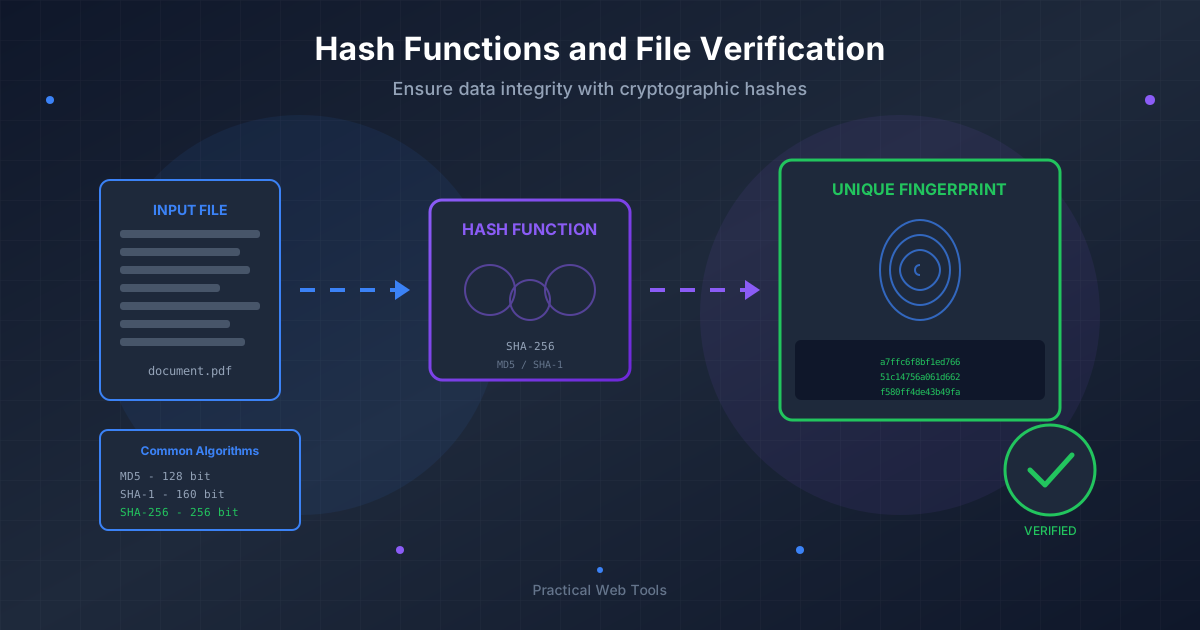
A hash function creates a unique digital fingerprint (checksum) for any file - change even one byte, and the entire hash changes completely. Use SHA-256 for security-critical verification (software downloads, firmware updates) because it's cryptographically secure. Use MD5 only for detecting accidental corruption, not malicious tampering, as MD5 is considered cryptographically broken. To verify a file: compare its hash to the official hash published by the developer - if they match exactly, the file is authentic.
Hash verification takes 30-60 seconds and can prevent malware infections, bricked devices from corrupted firmware, and hours of debugging caused by corrupted files.
Three years ago, I downloaded what looked like legitimate video editing software from a mirror site. The file size matched the official listing. The icon looked right. The installer seemed professional.
Two days later, my computer was part of a botnet mining cryptocurrency.
The aftermath was brutal. Clean Windows reinstall. Changed every password. Notified my bank. Scanned every backup drive. Lost a week of work. The IT security consultant I hired cost $800.
The kicker? The software developer published SHA-256 hashes on their official website. I had seen those strange hexadecimal strings. I just didn't know what they were or how to use them.
If I had spent 30 seconds verifying the hash before running that installer, I would have seen immediately that my downloaded file didn't match the official version. It had been modified. Compromised. Injected with malware.
That expensive lesson turned me into a hash verification evangelist. Today, I verify every software download, firmware update, and critical file transfer. It takes less than a minute and has saved me from compromised downloads at least a dozen times since.
Let me teach you the file verification skill I learned the hard way, so you don't have to experience what I did.
What Is a Hash Function and How Does It Work?
Think of a hash function as creating a unique fingerprint for a file. Just like your fingerprint identifies you specifically, a hash uniquely identifies the exact contents of a file.
Here's the remarkable part: You can feed a 10 GB operating system installer through a hash function, and it produces a fixed-length string of characters (the "hash"). Change even a single byte anywhere in that massive file, and the entire hash becomes completely different.
I tested this by creating a simple text file with the content "Hello World". The SHA-256 hash was:
a591a6d40bf420404a011733cfb7b190d62c65bf0bcda32b57b277d9ad9f146e
Then I added a single exclamation mark: "Hello World!"
The new hash:
c0535e4be2b79ffd93291305436bf889314e4a3faec05ecffcbb7df31ad9e51a
Completely different. Unrecognizably different. One character change, and the entire 64-character hash transformed.
This property makes hashes perfect for file verification. If even one bit differs between the file you downloaded and the file the developer created, the hashes won't match. Period.
How I Use Hashes in Real Life
Every time I download software, firmware, or any file I'll execute or rely on critically, I follow this ritual:
- Find the official hash published by the developer (SHA-256 preferably)
- Download the file
- Generate my own hash of the downloaded file using our hash generator tool
- Compare the two hashes character by character
- If they match: file is verified authentic, proceed with confidence
- If they don't match: delete immediately, investigate what went wrong
This process takes 30-60 seconds. In return, I get cryptographic certainty that the file I downloaded is byte-for-byte identical to the file the developer created. No corruption. No tampering. No malware injection.
Why Should I Verify File Downloads?
After my malware disaster, I became paranoid about downloads. That paranoia has paid off repeatedly.
The Corrupted Database Driver
Last year, I was debugging bizarre database behavior in a client application. Data was being written correctly but occasionally read back with subtle errors. Not every time. Just randomly enough to be maddening.
After hours of troubleshooting application code, I decided to verify the database driver installation. I generated a hash of the installed driver file and compared it to the hash published by the vendor.
They didn't match.
The driver had been corrupted during download. Not obviously corrupted in a way that prevented installation. Subtly corrupted in a way that caused intermittent data errors.
I re-downloaded the driver, verified the hash (it matched this time), reinstalled, and the data errors disappeared immediately.
Without hash verification, I would have wasted days or weeks chasing a phantom bug in application code. The 30 seconds it took to verify the hash saved potentially weeks of debugging time.
The Compromised Mirror Site
I needed to download a Linux distribution ISO for a client project. The official server was slow, so I used a mirror site from their official mirror list.
The file downloaded. Size matched. Filename matched. Everything looked normal.
But I always verify hashes now. I generated the SHA-256 hash of my download and compared it to the hash published on the official Linux site.
No match.
Someone had compromised that mirror server. The ISO file had been modified. I don't know what was in it, but I know it wasn't the legitimate Linux distribution.
I reported the compromise to the Linux distribution (they immediately delisted that mirror), re-downloaded from the official site, verified the hash (matched this time), and proceeded safely.
Hash verification caught a compromise that visual inspection never would have detected. The file looked perfectly legitimate. Only the hash revealed the truth.
The Firmware That Didn't Match
Firmware updates scare me because a bad flash can brick expensive hardware. My router cost $280, and the manufacturer's firmware update page prominently displays SHA-256 hashes for each firmware version.
I downloaded the latest firmware update. Before flashing, I verified the hash.
No match.
My download had corrupted during transfer. Not in an obvious way. The file size was correct. But some bytes had flipped somewhere.
If I had flashed that corrupted firmware to my router, it might have bricked the device. Instead, I deleted the corrupted download, re-downloaded, verified the hash (matched), and successfully updated the firmware.
Thirty seconds of hash verification potentially saved me $280 and hours of frustration dealing with a bricked router.
How Do I Verify a File Hash Step by Step?
After verifying hundreds of files, I've developed a workflow that takes minimal time while providing maximum security.
Step 1: Find the Official Hash
Before downloading anything, locate the official hash published by the developer or vendor. Common places they appear:
On Download Pages: Many software developers display hashes directly on download pages:
- Usually below or next to download buttons
- May be labeled "SHA256", "Checksum", "Verify Download"
- Sometimes in a separate "checksums.txt" file
Example from Ubuntu downloads:
ubuntu-24.04-desktop-amd64.iso
SHA256: a4acfda10b18da50e2ec50ccaf860d7f20b389df8765611142305c0e911d16fd
In Release Notes: Security-conscious projects include hashes in release notes or announcements.
On GitHub Releases: Open-source projects often include hash files (usually named checksums.txt or similar) attached to GitHub releases.
On Official Documentation: Some vendors publish hashes in separate documentation or verification pages.
Critical Rule: Only trust hashes from official sources accessed via HTTPS. Don't trust hashes from mirror sites, forums, or third-party aggregators. The hash is only as trustworthy as its source.
Step 2: Download the File (But Don't Open It Yet)
Download your file normally, but resist the urge to open, install, or execute it. Verification happens first.
Save the file somewhere you can easily find it. I use a "Downloads_ToVerify" folder so I remember these files need verification before use.
Step 3: Generate Your Own Hash
Navigate to our hash generator tool. It processes files entirely in your browser using WebAssembly, meaning your file never uploads to any server. Complete privacy.
The Process:
- Select the hash algorithm matching the official hash you found (usually SHA-256)
- Drag and drop your downloaded file onto the tool
- Wait while your browser computes the hash (typically 5-60 seconds depending on file size)
- The tool displays your file's hash
Processing Times I've Observed:
- Small files (under 100 MB): Nearly instant
- Medium files (100 MB - 1 GB): 10-30 seconds
- Large files (1-5 GB): 30-90 seconds
- Very large files (Linux ISO, 5+ GB): 1-3 minutes
The Ubuntu 5.7 GB ISO I verified last month took about 90 seconds to hash on my laptop. Totally worth the wait for cryptographic certainty about a file I was about to install.
Step 4: Compare Character by Character
This is the critical moment. Put the two hashes side by side:
Official: a4acfda10b18da50e2ec50ccaf860d7f20b389df8765611142305c0e911d16fd
Mine:     a4acfda10b18da50e2ec50ccaf860d7f20b389df8765611142305c0e911d16fd
They must match exactly. Every single one of those 64 hexadecimal characters must be identical.
I don't trust my eyes completely for this comparison, so I use a technique: copy both hashes into a text editor, one on each line. If they're identical, they'll align perfectly. Any difference becomes obvious.
If They Match: Perfect. Your file is cryptographically verified as identical to the official release. Proceed with confidence.
If They Don't Match: Stop immediately. Do not use the file. Something went wrong:
- File corrupted during download (most common)
- Mirror site compromised
- Man-in-the-middle attack
- Malware injection
Delete the file. Re-download from the official source (not mirrors). Verify again. If it still doesn't match, investigate further or contact the vendor.
Step 5: Document (For Important Files)
For critical downloads (operating systems, development tools, security software), I document the verification:
File: ubuntu-24.04-desktop-amd64.iso
Date Downloaded: 2025-01-15
Downloaded From: ubuntu.com/download/desktop
Official SHA256: a4acfda10b18da50e2ec50ccaf860d7f20b389df8765611142305c0e911d16fd
Verified Hash: a4acfda10b18da50e2ec50ccaf860d7f20b389df8765611142305c0e911d16fd
Match: YES
Verified By: [My Name]
This creates an audit trail. If questions arise later about file authenticity, I have documentation proving I verified it properly.
What Is the Difference Between MD5, SHA-1, SHA-256, and SHA-512?
Not all hash functions are equal. Over time, cryptographers find weaknesses in older algorithms, and we migrate to stronger ones.
SHA-256: The Current Standard
This is what you should use for security-critical verification. SHA-256 (Secure Hash Algorithm, 256-bit) produces a 64-character hexadecimal string and is currently considered cryptographically secure.
"Cryptographically secure" means: nobody has found a practical way to create two different files with the same SHA-256 hash. The computational power required would be astronomical. Software developers, security professionals, and cryptographers trust SHA-256 for protecting critical systems.
When software developers publish SHA-256 hashes, it signals they take security seriously.
I use SHA-256 for:
- All software downloads
- Firmware updates
- Operating system installers
- Database drivers
- Security tools
- Development tools
- Anything that runs with elevated privileges
SHA-512: Extra Security
SHA-512 produces a 128-character hash (twice SHA-256's length) with even stronger security guarantees. It's technically more secure than SHA-256, though SHA-256 is already far beyond practical attack.
The tradeoff: slightly slower computation, especially on older hardware.
I use SHA-512 when:
- The vendor specifically publishes SHA-512 hashes
- Maximum security is required
- Processing time isn't critical
For typical downloads, SHA-256's balance of security and speed is ideal.
MD5: Legacy But Sometimes Useful
MD5 (Message Digest 5) produces a 32-character hash. Cryptographers broke MD5's security properties years ago, meaning it's theoretically possible to deliberately create two different files with matching MD5 hashes.
This makes MD5 unsuitable for security verification where tampering is a concern.
However: MD5 is still fine for detecting accidental corruption. Network errors, disk problems, and transfer issues don't produce MD5 collisions. Many systems still use MD5 for corruption detection, and that's acceptable.
I use MD5 when:
- Verifying file transfers where tampering isn't a concern
- The vendor only publishes MD5 (though I'm suspicious of vendors not using stronger hashes)
- Detecting accidental corruption in backups or archives
I avoid MD5 for:
- Verifying software downloads
- Security-critical files
- Any situation where malicious tampering is possible
SHA-1: Being Phased Out
SHA-1 produces a 40-character hash. Practical collision attacks have been demonstrated, meaning researchers created two different files with matching SHA-1 hashes.
Major software platforms are phasing out SHA-1. While not completely broken like MD5, it's no longer recommended.
If a vendor only publishes SHA-1 hashes, I question their security practices. I'll use SHA-1 if that's all available, but I'd prefer vendors migrate to SHA-256 or SHA-512.
Real-World Verification Scenarios
Different situations require slightly different approaches. Here's how I handle common verification needs.
Verifying Software Downloads
This is my most common use case. The process:
- Visit official vendor website via HTTPS (verify SSL certificate)
- Locate download page and find published hash
- Copy official hash to text file for comparison
- Download software installer
- Generate hash using our tool
- Compare hashes character by character
- Document verification for important software
Example: VS Code Download
Microsoft publishes SHA-256 hashes for VS Code releases. When I downloaded version 1.85:
Official SHA-256: 8a3d1c9f78b2e4c5d6a7b8f9c0d1e2f3a4b5c6d7e8f9a0b1c2d3e4f5a6b7c8d9
My Generated Hash: 8a3d1c9f78b2e4c5d6a7b8f9c0d1e2f3a4b5c6d7e8f9a0b1c2d3e4f5a6b7c8d9
Result: MATCH - Verified authentic, safe to install
Verifying Linux Distributions
Linux distributions set the gold standard for verification. They typically provide:
- Multiple hash algorithms (MD5, SHA1, SHA256, SHA512)
- Separate checksums file
- GPG signatures on the checksums file
For Ubuntu downloads, my process:
- Download the ISO file
- Download the checksums file (SHA256SUMS)
- Verify GPG signature on checksums file (optional but recommended)
- Find the line in checksums file matching my download
- Generate SHA-256 hash of my ISO
- Compare to checksum in file
This multi-layer verification provides high confidence. The GPG signature proves the checksums file itself is authentic, and the hash proves my download matches.
Verifying Firmware Updates
Firmware is dangerous because bad firmware can brick devices. I never skip hash verification for firmware.
Router Firmware Example:
My router manufacturer publishes hashes prominently on their download page:
Firmware Version: 1.2.4
File: router_fw_1.2.4.bin
SHA-256: 7b2f9c3a8d5e1f6a9c4b7e2d8f5a3c6b9e1d7f4a8c2b5e9d3f6a1c8e4b7d2f5a
My verification workflow:
- Copy official hash before downloading
- Download firmware file
- Generate hash of downloaded file
- Compare hashes
- Only if they match: flash firmware to router
This 60-second verification protects a $280 device from potentially bricking due to corrupted firmware.
Verifying Backup Integrity
I use hash verification for long-term backup verification. When creating important backups, I also generate and store hashes.
Backup Process:
- Create backup archives
- Generate SHA-256 hashes of each archive
- Store hashes in separate text file
- Save both archives and hash file to backup media
Verification Process (months or years later):
- Retrieve backup archive
- Generate fresh hash
- Compare to stored hash from original backup
- If match: backup is intact, hasn't degraded
- If no match: backup corrupted, use redundant copy
This catches bit rot, storage degradation, and transfer corruption before I rely on backups during actual data recovery.
Example Hash Manifest:
BACKUP_HASHES.txt
Created: 2025-01-15

family_photos_2024.tar.gz
SHA256: 3f8a6b2d9e1c5f7a4b8e2d6c9f3a5e7b1d4f8a2c6e9b3d5f8a1c4e7b2d5f9a3c

financial_docs_2024.zip
SHA256: 9c2f5a8b3e6d1f4a7c9b2e5d8f1a3c6b9e4d7f1a8c2b5e8d3f6a1c9e4b7d2f6a

project_backups_2024.tar.gz
SHA256: 5e8a3c6f1b4d9a2e7c5f8b1d4a9c3e6f2b5d8a1c7e4f9b2d6a3c8e5f1b7d4a9c
Years later, I can verify these backups haven't been corrupted during storage.
What Are Common File Verification Mistakes to Avoid?
After teaching many people about hash verification, these are the most common mistakes:
Mistake 1: Getting Hashes from Untrusted Sources
I've seen people Google for hashes and use results from third-party websites or forums. This defeats the entire purpose.
Why It's Dangerous: If an attacker can compromise your download, they can also compromise a third-party website showing "official" hashes. You'll compare your hash to the attacker's hash, they'll match, and you'll install malware thinking it's verified.
Solution: Only trust hashes from official sources accessed via HTTPS. Verify SSL certificates. Go directly to the vendor's website, don't trust search results.
Mistake 2: Verifying After Installation
Some people install software first, then verify. This is backwards and dangerous.
Why It's Wrong: Once you execute a file, it's too late. If it's malware, it has already run. Hash verification is a pre-installation security check, not a post-installation audit.
Solution: Verify first, then use. Never execute unverified files.
Mistake 3: Visual Comparison of Long Hashes
I watched someone try to verify a 64-character SHA-256 hash by visual comparison. They missed a single character difference in the middle of the string.
Why It's Error-Prone: Humans are bad at comparing long strings of similar-looking characters. It's easy to miss a difference.
Solution: Use a text editor. Paste both hashes. If they're identical, line alignment will be perfect. Or use a diff tool. Don't rely on visual comparison alone.
Mistake 4: Assuming Partial Matches Are OK
Someone once asked me if it's OK that their hash matched "mostly" with only a few characters different at the end.
No. Absolutely not.
Why It Matters: Hashes must match completely. Every single character. A 99% match means 100% different file. That's how hash functions work.
Solution: It's binary. Match completely = verified. Any difference = corrupted or tampered.
Mistake 5: Using Wrong Hash Algorithm
I've seen people generate an MD5 hash when the official hash was SHA-256, see they don't match, and get confused.
Why It Happens: Hash algorithms have different output lengths (MD5: 32 chars, SHA-1: 40 chars, SHA-256: 64 chars, SHA-512: 128 chars). Using the wrong algorithm produces completely different hashes.
Solution: Match the algorithm to the official hash. The length tells you which: 32=MD5, 40=SHA-1, 64=SHA-256, 128=SHA-512.
Building the Hash Verification Habit
Hash verification felt tedious when I started. Extra steps. Unfamiliar concepts. Slowing down my workflow.
Then I remembered the $800 malware incident.
Now verification is automatic. I don't even think about it. Download, verify, use. The muscle memory is built. Takes less than a minute. The peace of mind is worth infinitely more.
Start Small:
Pick one category of downloads and verify those:
- Operating systems (high stakes, good motivation)
- Development tools (if you're a developer)
- Security software (practice what it preaches)
Once it becomes routine, expand to other critical downloads.
Make It Visual:
I have a Post-it note on my monitor: "Hash First, Run Later". Visual reminder until the habit forms.
Document Successes:
Keep a log of verifications. Seeing the growing list reinforces the habit. When you catch a corrupted or compromised download, document it prominently. Those catches validate the effort.
Remember the Stakes:
The web is an amazing resource, but it's not always trustworthy. Hash verification gives you the tools to trust, but verify. It's one of the simplest, most effective security practices available.
Thirty seconds of verification can save you from:
- Days debugging phantom problems from corrupted files
- Reinstalling your OS after malware infection
- Bricking expensive hardware with bad firmware
- Compromised systems and stolen data
That's a pretty good ROI for less than a minute of work.
Start Verifying Your Downloads Today
Every software download is a trust decision. Hash verification replaces blind trust with cryptographic certainty.
Try It Right Now:
- Find something you need to download (OS, software, tool)
- Locate the official hash before downloading
- Download the file
- Use our hash generator tool to verify
- Compare hashes
- Only proceed if they match exactly
Experience the process once, and you'll understand why I verify everything now.
The Bottom Line:
That malware incident three years ago cost me a week of work, $800 in consulting fees, and countless hours of worry. All preventable with 30 seconds of hash verification.
I can't undo that mistake, but I can help you avoid making the same one.
Hash verification isn't paranoia. It's prudent digital hygiene in an environment where downloads can't always be trusted.
Your files deserve verification. Your security deserves the effort.
Ready to start protecting yourself? Try our free hash generator tool on your next download. Your files never leave your device, it works with any file size, and it might just save you from the kind of costly mistake I made.
Because the best security breaches are the ones that never happen.
Frequently Asked Questions
What is a checksum and how is it different from a hash?
A checksum and hash are often used interchangeably, but technically a checksum is any value calculated from data to detect errors, while a hash specifically refers to the output of a cryptographic hash function. SHA-256 produces a cryptographic hash (secure against deliberate tampering), while simpler checksums like CRC32 only detect accidental corruption. For file verification, always use cryptographic hashes (SHA-256 or SHA-512).
Which hash algorithm should I use for file verification?
Use SHA-256 for all security-critical verification (software downloads, firmware updates, sensitive files). SHA-256 is cryptographically secure, widely supported, and produces a 64-character hash. Use MD5 only for detecting accidental file corruption where security isn't a concern. Avoid SHA-1 as it's being phased out due to demonstrated vulnerabilities.
Why do my hashes not match even though the file looks correct?
Hash mismatches occur because: (1) the file was corrupted during download, (2) you downloaded from a compromised mirror site, (3) the file was modified by malware, (4) you're using the wrong hash algorithm (MD5 vs SHA-256 produce different outputs), or (5) you compared against the wrong official hash. Re-download from the official source and verify again.
How long does hash verification take?
Hash generation speed depends on file size and your device's processing power. Small files (under 100 MB) hash nearly instantly. A 1 GB file typically takes 10-30 seconds. A 5 GB ISO file takes 1-3 minutes. The time investment is trivial compared to the protection it provides against corrupted or malicious files.
Is MD5 still safe to use for file verification?
MD5 is NOT safe for security verification because researchers have demonstrated practical collision attacks (creating two different files with identical MD5 hashes). MD5 remains acceptable for detecting accidental corruption during file transfers, but should never be used when tampering is a concern. Always prefer SHA-256 or SHA-512 for security-critical verification.
Where do I find the official hash for a software download?
Look for official hashes on: (1) the software developer's official download page, (2) separate checksums.txt or SHA256SUMS files alongside downloads, (3) release notes or announcements, (4) GitHub release pages for open-source software. Only trust hashes from official sources accessed via HTTPS - never from forums, mirrors, or third-party websites.
Can I verify files without uploading them to a server?
Yes - our hash generator tool processes files entirely in your browser using WebAssembly. Your files never leave your device, making it safe for sensitive or confidential files. This also means faster processing since there's no upload/download time.
What does it mean if a hash partially matches?
Hashes must match completely - every single character. A 99% match means 100% different file. Hash functions are designed so that any change to the input produces a completely different output. There's no such thing as a "close enough" hash match.
Questions about specific verification scenarios? I've probably encountered them. Feel free to ask.