How to Convert Images Free Online (JPG, PNG, WebP, HEIC, GIF)
To convert images between formats free online without uploading to servers, use browser-based converters like practicalwebtools.com that process files locally. For photos, convert to JPG at quality 80-85 for web or WebP for 25-35% smaller files. For graphics with transparency, use PNG. For iPhone photos (HEIC), convert to JPG for universal compatibility. All conversions should preserve your original high-quality source files - only convert copies for distribution.
My photography client sent me 437 photos for her new website. All HEIC files straight from her iPhone. I opened the first one on my Windows PC and got the dreaded "Windows can't open this file" error. The web developer working with me used Linux. Same problem. The client needed these photos processed by Friday for a Monday launch.
I spent two hours researching solutions. Most online converters had file limits of 10-20 images. One service wanted $49 for batch conversion. Another looked legitimate until I read their terms of service: they kept converted files for 30 days and could use them for "quality improvement purposes." My client's photos included images of her children. That wasn't happening.
I eventually found a solution that converted images locally in the browser. No uploads. No file limits. No privacy concerns. The 437 photos converted in 40 minutes while I worked on other tasks.
That experience taught me something important: image format conversion is a constant need in digital work, but most people don't understand which formats to use, when to convert, and how to do it without compromising privacy. Let me share everything I've learned from years of working with images across every imaginable format and use case.
Which Image Format Should I Use?
For years, I treated image formats as an afterthought. JPG for photos, PNG for logos, whatever. Then I built an e-commerce site with 1,200 product images, all in PNG format averaging 3.8 MB each. The total image weight was 4.5 GB. Page load times exceeded 8 seconds on mobile.
I converted those PNGs to JPGs at 85% quality. Same visual appearance. Average file size: 380 KB. Total image weight: 456 MB. Page load times dropped to under 2 seconds. Conversion rate increased by 23%. All because I finally understood image formats and used the right ones.
Different formats serve different purposes:
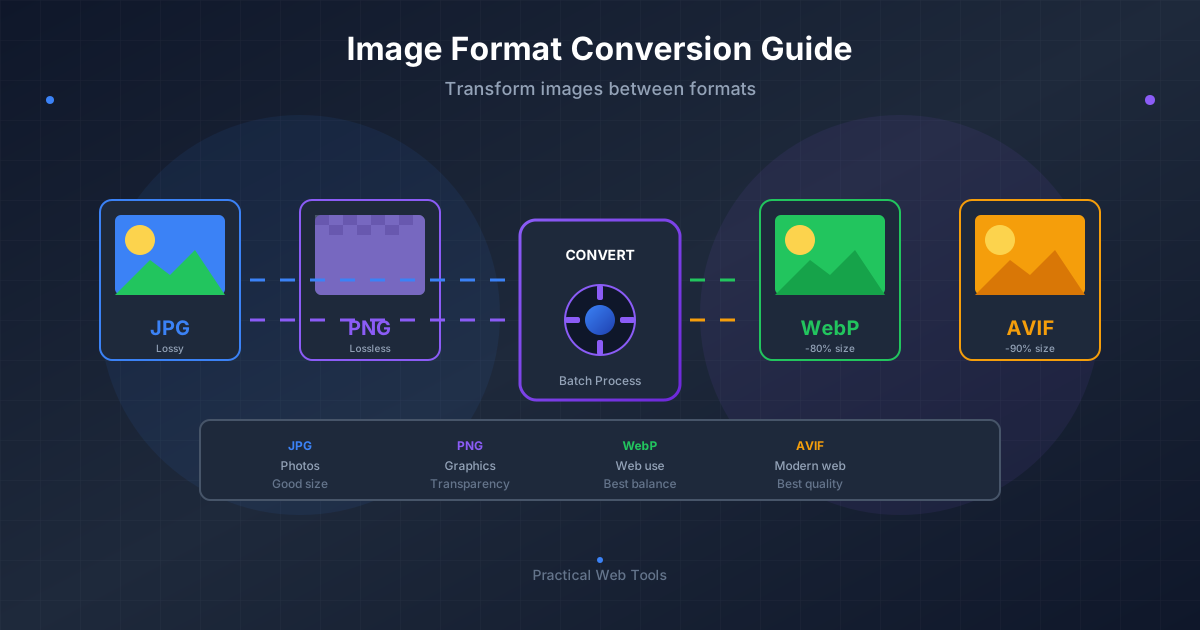
JPG (JPEG) uses lossy compression that's perfect for photographs with gradual color transitions and complex details. It excels at reducing file size dramatically while maintaining visual quality for natural images. The tradeoff: you lose data permanently with each save, and it doesn't support transparency.
PNG employs lossless compression, preserving every pixel exactly. It supports transparency through alpha channels, making it ideal for logos, graphics, screenshots, and any image requiring perfect reproduction. The downside: files are significantly larger than JPG for photographic content.
WebP is Google's modern format that provides both lossy and lossless compression, transparency support, and animation capabilities. It typically delivers 25-35% smaller files than equivalent JPGs with similar quality. The catch: older browsers (pre-2020) don't support it, requiring fallback images.
HEIC (High Efficiency Image Container) is Apple's format that provides excellent compression with high quality, supporting transparency and multiple images in one file. It creates smaller files than JPG with better quality. The problem: limited compatibility outside Apple ecosystems.
GIF uses lossless compression for simple graphics and supports basic animation. It's limited to 256 colors, making it inappropriate for photographs but fine for simple graphics, icons, and short animations.
The key insight I learned: there's no "best" format. There's only the right format for each specific use case.
When Should I Convert Images to a Different Format?
Let me share the specific scenarios where I convert images and why each conversion matters.
Scenario 1: iPhone Photos for Universal Sharing
Every iPhone photo since iOS 11 saves as HEIC by default. When my wife sent family photos to her parents' Windows PC, they couldn't open them. When she posted them to our family's shared platform, half the relatives saw broken images.
I now automatically convert all HEIC files to JPG when sharing outside the Apple ecosystem. The file size increases slightly (HEIC is remarkably efficient), but universal compatibility matters more than saving a few megabytes.
Conversion needed: HEIC to JPG for broad compatibility.
Scenario 2: Website Images for Speed
I inherited a small business website with 800-page load speeds. Investigation revealed 145 high-resolution PNGs averaging 2.4 MB each. These were photographs that had been exported as PNG to "preserve quality."
Converting those photos to WebP (with JPG fallback) reduced total image weight by 68%. Page load speeds improved to under 2 seconds. Google PageSpeed score jumped from 32 to 89. Search traffic increased 41% over the following three months because faster sites rank better.
Conversion needed: PNG to WebP for web performance, with JPG fallback for older browsers.
Scenario 3: Logo Files for Transparency
A client sent me their logo as a JPG with a white background. Their website had a dark background. The white box around the logo looked terrible. I asked for a PNG with transparency. They didn't have one. The designer who created it three years ago had disappeared.
I manually removed the background (painful for complex logos) and saved as PNG with alpha transparency. Problem solved. If they'd originally saved the logo as PNG, this wouldn't have been necessary.
Conversion needed: Recreate as PNG with transparency when the source has been lost.
Scenario 4: Print Materials Needing Quality
A colleague was printing marketing materials and exported web-optimized JPGs at 72 DPI and 70% quality. The printer rejected them, explaining they needed high-resolution images at 300 DPI minimum.
We went back to the original high-resolution images and converted to JPG at 95% quality at print resolution. File sizes were enormous (15-30 MB each), but print quality was excellent. Lesson: different output destinations need different conversions.
Conversion needed: High-quality JPG for print, lower quality for web.
Scenario 5: Email Attachments Hitting Size Limits
My realtor tried emailing 32 property photos to a client. Total attachment size: 87 MB. The email bounced. She was frustrated and ready to use WeTransfer (where the client would need to download a separate file).
I batch-converted her photos to JPG at 80% quality, reducing total size to 14 MB. Same visual appearance at reasonable viewing sizes. Email sent successfully. Client received photos immediately without additional steps.
Conversion needed: JPG at moderate quality for email distribution.
Does Converting Images Reduce Quality?
Here's what nobody told me when I started working with images: every format conversion involves trade-offs. Understanding these helps you make informed decisions rather than blindly converting.
Converting PNG to JPG
When you convert a PNG to JPG, you're trading lossless compression for lossy compression. The benefit: dramatically smaller files (often 70-90% reduction for photographs). The cost: you lose the transparency channel, and you introduce compression artifacts.
I learned this converting a website's product images. PNG files averaged 3.2 MB. After JPG conversion at 85% quality, they averaged 420 KB. Savings: 87%. Visual difference when displayed at intended size: imperceptible. But when I zoomed to 200%, compression artifacts became visible.
The lesson: match quality to display context. Web thumbnails at 500px wide can use 80% quality. Hero images at 2000px wide need 90% quality. Print images need 95%+ quality.
Converting JPG to PNG
This conversion doesn't improve quality - it just changes how the existing data is stored. If a JPG has compression artifacts, converting to PNG preserves those artifacts in a larger file. You're trading file size for a format that supports transparency and lossless editing going forward.
I made this mistake early in my career: I received low-quality JPGs, converted them to PNG thinking it would "restore" quality, and ended up with huge files that looked just as bad as the originals. Once quality is lost to JPG compression, it's gone forever.
The lesson: converting JPG to PNG makes sense when you need transparency or plan to edit further without additional quality loss. It doesn't magically restore quality.
Converting to WebP
WebP conversion is usually a win: smaller files with similar quality. But there's a hidden cost in workflow complexity. Not all software supports WebP natively. Some clients can't open WebP files. Some email clients don't display them.
I converted an entire photo library to WebP to save storage space. Then I needed to send photos to a collaborator using older software that couldn't open WebP. I had to convert everything back to JPG. The time spent converting twice exceeded any benefit from temporary storage savings.
The lesson: WebP is excellent for web delivery where you control the environment. For archival storage or broad sharing, stick with JPG or PNG.
Converting HEIC for Compatibility
HEIC to JPG conversion almost always involves quality loss and file size increase. HEIC is remarkably efficient - a 2 MB HEIC file might become a 3.5 MB JPG at equivalent visual quality. But compatibility often matters more than efficiency.
I keep my personal photo library in HEIC format for efficiency. When sharing with others, I convert to JPG. When archiving critically important photos long-term, I keep both HEIC (for efficiency) and JPG (for future compatibility if HEIC support wanes).
The lesson: accept the storage cost of conversion for compatibility when necessary, but don't convert your entire library unless you have a specific reason.
How Do I Convert Images Free Online Without Uploading?
Let me walk you through the actual process I use for different conversion scenarios, including the settings that matter.
For Single Image Quick Conversions
When I need to convert one or a few images quickly, I use our image converter:
- Open the converter for your specific format pair (e.g., PNG to JPG)
- Drag and drop your image files or click to browse
- Adjust quality settings if available (I typically use 85% for web images)
- Wait for conversion (usually 1-3 seconds per image)
- Download the converted files
Everything processes locally in your browser using WebAssembly. Your images never upload to any server. I've converted client work, family photos, and confidential documents this way without privacy concerns.
For Batch Converting Multiple Images
When I had those 437 HEIC files to convert, I needed bulk processing:
- Open the appropriate converter (HEIC to JPG in my case)
- Select all images (Ctrl+A or Cmd+A in the file picker)
- Drag all selected files to the converter
- Set quality once for all images
- Let the batch process run (handled multiple files simultaneously)
- Download all converted images as a ZIP file
The browser-based approach handles batches surprisingly well. I've converted 600+ images in a single session without issues.
For Format-Specific Conversions
Different conversions need different approaches:
PNG to JPG for File Size Reduction:
- Use 85% quality for general web use
- Use 90-95% quality for large hero images or important photos
- Check that no transparency is needed (JPG doesn't support it)
- Review a sample conversion before batch processing
JPG to WebP for Web Optimization:
- Use 80-85% quality (WebP compression is more efficient than JPG)
- Generate both WebP and JPG versions for browser compatibility
- Use HTML picture elements to serve WebP with JPG fallback
- Test on actual target browsers to verify appearance
HEIC to JPG for Compatibility:
- Use 90% quality to match HEIC's efficient compression
- Be prepared for file size increases (HEIC is very efficient)
- Process in batches to save time
- Maintain original HEIC files if storage permits
WebP to PNG for Editing:
- Use lossless WebP settings if the source was lossless
- Accept larger file sizes for lossless preservation
- Useful when you need to edit in software without WebP support
- Convert back to WebP after editing for final delivery
What Quality Setting Should I Use When Converting Images?
For years, I used default quality settings without understanding what they meant. Then I learned that quality settings dramatically affect both file size and visual appearance.
The Quality Scale Explained
Most image converters use a 1-100 quality scale for JPG/WebP compression:
Quality 100: Maximum quality, minimal compression, largest files. Looks nearly identical to lossless formats. I use this only for critical photos being archived or when print quality is essential.
Quality 90-95: Excellent quality, moderate compression, large files. Very difficult to spot compression artifacts even when zoomed. I use this for important photographs, portfolio work, and any image where quality is paramount.
Quality 85: The sweet spot for most web use. Great quality, good compression, reasonable files. Compression artifacts are rarely visible at normal viewing sizes. This is my default for general web images.
Quality 80: Good quality, strong compression, small files. Minor artifacts may be visible in areas with fine detail or smooth gradients. I use this for web thumbnails and secondary images where loading speed matters more than perfect quality.
Quality 70-75: Acceptable quality, aggressive compression, very small files. Artifacts are noticeable when looking for them. I use this for email attachments and situations where file size is critically constrained.
Quality Below 70: Visible quality degradation. Only use when absolutely necessary for size constraints.
How I Determine Quality Settings
Here's my process for finding the right quality for any image:
- Convert the image at quality 85 (my starting point)
- View it at the actual display size it will be shown (not zoomed to 100%)
- If it looks perfect, try quality 80 to see if I can save more space
- If I see artifacts, try quality 90
- Compare file sizes at each quality level
- Choose the lowest quality that looks acceptable at display size
This process takes 2 minutes and has saved me gigabytes of unnecessary image weight over the years.
A Real Example
I recently optimized images for a photography portfolio site. The photographer sent me high-resolution JPGs from her camera: 6000×4000 pixels, 8-12 MB each.
For full-screen hero images (displayed at 2400px wide maximum):
- Resized to 2400px wide
- Converted to JPG at quality 92
- Result: 850 KB, indistinguishable from original at display size
- Also converted to WebP at quality 87: 580 KB
For thumbnail images (displayed at 400px wide):
- Resized to 800px wide (for retina displays)
- Converted to JPG at quality 82
- Result: 95 KB, perfect for thumbnails
- Also converted to WebP at quality 78: 62 KB
Total site images: reduced from 340 MB to 42 MB without visible quality loss. Page load time: 8 seconds → 1.8 seconds.
What Are Common Image Conversion Mistakes to Avoid?
Let me share the conversion mistakes I've made (and seen others make) so you can avoid them.
Mistake 1: Converting Your Entire Library Unnecessarily
Early in my photography hobby, I read that WebP was "the future." I spent a weekend converting my entire 85 GB photo library to WebP to "save space." The savings: about 30 GB. The cost: compatibility problems, software that couldn't open the files, and eventual reconversion back to JPG. Net benefit: negative.
Lesson: Only convert when you have a specific need. Storage is cheap. Your time isn't.
Mistake 2: Using Maximum Quality Always
I once exported web images at quality 100 because "quality matters." A simple product page had 12 images totaling 48 MB. Load time was terrible, especially on mobile. Conversion to quality 85: 8.2 MB, indistinguishable visual quality, much better performance.
Lesson: Match quality to purpose. Web images rarely need quality above 85-90. Print images need 95+.
Mistake 3: Converting from Lossy to Lossy Formats
I received JPG images, converted them to WebP, hated the results, converted back to JPG, then tried PNG. Each conversion degraded quality further. I ended up with files that looked worse than the originals.
Lesson: Minimize conversion steps. Each lossy conversion (JPG → WebP, JPG → JPG at lower quality) degrades the image. If you need to try different formats, start from the highest quality source available each time.
Mistake 4: Ignoring Original File Preservation
I once cleaned up a project folder and deleted original high-resolution PNGs after converting to JPG for web use. Six months later, the client needed high-resolution images for print. The originals were gone. I had to redo photography for several products.
Lesson: Always keep original high-resolution files. Storage is cheap. Recreating lost content is expensive.
Mistake 5: Not Testing Conversions
I batch-converted 230 product images, uploaded them to the website, and then discovered that some had visible artifacts because they were screenshots and line drawings (not photographs). JPG compression was inappropriate for those images.
Lesson: Convert a sample, review it carefully, then batch process. Don't trust that all images in a set will convert well with the same settings.
Tools and Workflows That Actually Work
After trying dozens of conversion tools, here's what I actually use and recommend:
For Individual and Small Batch Conversions
Our browser-based converters handle most of my daily needs:
- JPG to PNG - When I need transparency or lossless editing
- PNG to JPG - For file size reduction on photographs
- HEIC to JPG - For iPhone photo compatibility
- JPG to WebP - For web optimization
- WebP to JPG - For broad compatibility
Benefits: No uploads, unlimited files, no waiting, works offline, completely private.
For Large-Scale Batch Processing
When I need to convert thousands of images with complex rules, I use:
- ImageMagick (command-line tool) for automated workflows
- XnConvert (GUI application) for visual batch processing with previews
- Custom scripts when I need specific processing logic
These tools require installation and learning curves but handle enterprise-scale conversions efficiently.
For Automated Website Workflows
Modern build tools handle conversion automatically:
- Next.js Image Optimization converts images on-the-fly
- Gatsby Image creates responsive versions automatically
- Cloudflare Images handles conversion at edge locations
These eliminate manual conversion from web development workflows entirely.
My Personal Workflow
Here's how I actually handle images day-to-day:
- Receive or create images in their native formats
- Keep originals in a "source" folder, never modify these
- Convert to web-optimized formats (WebP + JPG fallback) for websites
- Convert to JPG at moderate quality for email sharing
- Maintain conversion logs noting settings used for consistency
This systematic approach prevents the chaos that comes from ad-hoc conversion.
Platform-Specific Conversion Needs
Different platforms have specific image requirements. Here's what I've learned optimizing for each:
Website Images
Modern websites need multiple formats and sizes:
- Generate WebP versions for modern browsers (25-35% smaller than JPG)
- Provide JPG fallbacks for older browsers
- Create responsive sizes (400px, 800px, 1200px, 1600px) for different screen sizes
- Use quality 85 for JPG, quality 80-85 for WebP
- Implement lazy loading for below-the-fold images
I use picture elements to serve optimal formats:
<picture>
  <source srcset="image.webp" type="image/webp">
  <img src="image.jpg" alt="Description">
</picture>
Social Media
Each platform has specific requirements:
- Facebook/Instagram: JPG or PNG, max 30 MB, recommended 1200×630 for shared links
- Twitter: JPG or PNG, max 5 MB, animated GIF max 15 MB
- LinkedIn: JPG or PNG, recommended 1200×627 for articles
I maintain social media versions separately, optimized for each platform's compression and display characteristics.
Email has strict size limitations:
- Total email size should be under 100 KB ideally, under 1 MB maximum
- Most email clients block images by default, so critical content shouldn't be image-only
- JPG at quality 70-80 works for email
- Keep images small (under 100-150 KB each if possible)
Print needs high resolution and color accuracy:
- Minimum 300 DPI at final print size
- Use CMYK color mode for professional printing
- Save as high-quality JPG (95+) or uncompressed formats
- Expect file sizes of 10-50 MB for print-quality images
Your Action Plan for Better Image Management
Based on everything I've learned, here's what I recommend:
This Week: Audit Your Current Images
Look at your most-used images (website, social media, documents). Check:
- Are they the right formats for their purposes?
- Are file sizes appropriate?
- Do any images load slowly?
- Are you using PNG for photographs (likely too large)?
- Are you using JPG for logos (lacking transparency)?
This Month: Establish Conversion Standards
Document your image requirements:
- Web images: JPG/WebP at quality 85, multiple sizes
- Social sharing: JPG at 1200px wide, quality 85
- Email: JPG at quality 75, under 150 KB each
- Print: JPG at quality 95, 300 DPI minimum
Having standards eliminates decision fatigue and ensures consistency.
This Quarter: Optimize Your Most Important Images
Identify your highest-traffic pages or most-viewed content. Optimize those images first for maximum impact:
- Convert to modern formats (WebP with JPG fallback)
- Ensure appropriate quality settings
- Create responsive sizes
- Implement lazy loading
Even optimizing 20-30 critical images can dramatically improve performance.
Long-Term: Automate When Possible
Build or adopt automated workflows that handle conversion without manual intervention:
- Use build tools that optimize automatically
- Create scripts for batch processing common tasks
- Implement CI/CD pipelines that process images during deployment
Automation scales your effort and eliminates human error.
Looking Forward: The Evolution of Image Formats
The image format landscape continues evolving. AVIF (AV1 Image Format) is newer than WebP, offering even better compression. JPEG XL promises universal compatibility with excellent compression. Browser support improves quarterly.
My approach: stay informed but don't chase every new format. WebP provides excellent results and broad compatibility today. When AVIF reaches 90%+ browser support, I'll add it to my workflow. When JPEG XL gains traction, I'll evaluate it.
The fundamentals remain constant: understand your use case, choose appropriate formats, test your results, and maintain high-quality sources. These principles work regardless of which specific formats dominate.
Start Converting Smarter Today
You now understand more about image conversion than most people who work with images daily. The difference between knowing and doing is simply starting.
Pick one image that matters to you. Convert it using the techniques I've shared. Compare the results. Notice the file size savings or compatibility improvements. Then apply what you learned to the next image, and the next.
Over time, these small improvements compound. Websites load faster. Storage costs decrease. Images look better. Collaboration becomes easier. All because you took the time to understand image formats and conversion.
The tools are ready. The knowledge is in this guide. The only thing left is to convert that first image.
Ready to start? Try our free image converters for any format combination you need. Everything runs in your browser with no uploads, keeping your photos and graphics completely private. Whether you're converting iPhone photos, optimizing for the web, or preparing graphics, you'll have perfect conversions in seconds.
Need to work with other file types? Check out our complete suite of browser-based tools including PDF conversion, document editing, and file manipulation. All with the same local-processing approach that means your files never leave your device.
Frequently Asked Questions About Image Conversion
How do I convert images without uploading to servers? Use browser-based converters like practicalwebtools.com that process files locally using WebAssembly technology. Your images never leave your device - all conversion happens entirely in your browser. This is essential for client work, confidential photos, and any sensitive content.
What is the best image format for websites? WebP is the best format for modern websites, offering 25-35% smaller files than JPG with equivalent quality and 98%+ browser support. Use WebP with JPG fallbacks for older browsers. For graphics requiring transparency, WebP or PNG work well. Avoid using PNG for photographs as file sizes will be unnecessarily large.
Does converting PNG to JPG reduce quality? Converting PNG to JPG introduces some quality loss because JPG uses lossy compression. However, at quality settings of 80-85%, this loss is typically imperceptible for photographs. The tradeoff is dramatically smaller file sizes - often 70-90% smaller. For graphics with text or sharp edges, keep as PNG since JPG creates visible artifacts.
Does converting JPG to PNG improve quality? No. Converting JPG to PNG does not restore quality lost during JPG compression. Once image data is discarded by JPG compression, it's gone permanently. PNG conversion only prevents future quality loss from subsequent edits and enables transparency - it doesn't magically improve the existing image.
What quality setting should I use when converting to JPG? Use 80-85% quality for most web images - this provides excellent visual quality with significant file size savings. Use 90-95% for hero images and portfolio work. Use 70-80% for thumbnails and email attachments. Avoid going below 70% as compression artifacts become visible.
How do I convert HEIC to JPG? Use a browser-based converter like practicalwebtools.com/convert/heic-to-jpg that processes files locally. Drag your HEIC files to the converter, set quality to 85-90%, and download the JPG files. HEIC is Apple's iPhone format that requires conversion for universal compatibility.
Should I convert all my images to WebP? Only convert images to WebP when you have a specific need (faster website loading, smaller files for web delivery). Keep original high-quality files in their native formats for archival purposes. WebP is excellent for web delivery but may cause compatibility issues with older software or when sharing with others.
How do I batch convert multiple images at once? Browser-based converters like practicalwebtools.com support batch conversion - drag multiple files at once and download all converted images as a ZIP file. For hundreds of images, desktop tools like ImageMagick or XnConvert offer faster processing with more options.