How to Optimize Images Free Online (Web Performance & Speed Guide)
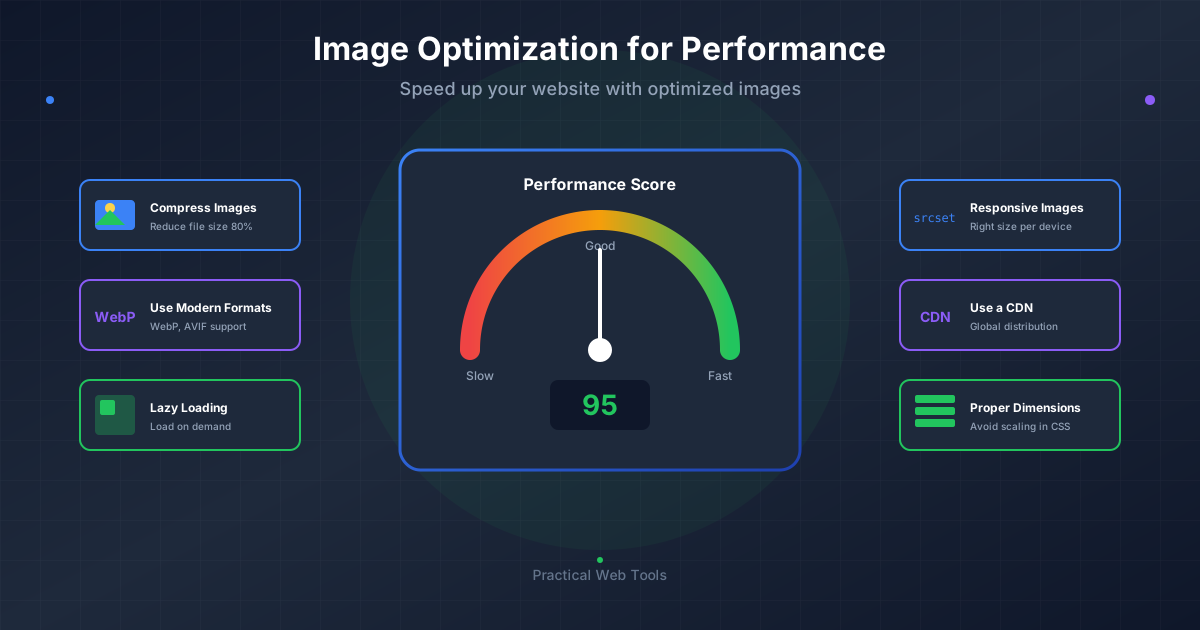
To optimize images for web performance: convert photos to WebP (25-35% smaller than JPG), set quality to 80-85%, resize to actual display dimensions, and add lazy loading to below-the-fold images. These four steps typically reduce page weight by 60-80% with no visible quality loss. Use free browser-based tools like practicalwebtools.com that process images locally without uploads. For Core Web Vitals, optimize your hero image first - it usually determines your LCP (Largest Contentful Paint) score.
The email from my client started with "We have a problem." Their new product launch site had been live for three days. Traffic from the email campaign was strong - 12,000 visitors in 72 hours. But sales were terrible. Only 23 orders. Something was very wrong.
I loaded their homepage on my phone. And waited. And waited. After 14 seconds, I saw the hero image. The product grid took another 8 seconds. By the time the page was actually usable, 28 seconds had passed. On mobile, their beautiful product photography website was unusable.
The diagnosis was immediate: 47 unoptimized product images totaling 284 MB on the homepage alone. Each product photo was 6000×4000 pixels exported straight from the camera at maximum quality. They looked stunning on the designer's 5K monitor with gigabit internet. They destroyed the experience for actual customers on phones with LTE.
We spent that night optimizing images. By morning, the homepage loaded in under 3 seconds on mobile. Over the next week, the conversion rate tripled. Same traffic, same products, same design. The only difference: optimized images that didn't make customers wait half a minute to see products.
That experience taught me something crucial: image optimization isn't about making your site slightly faster. It's about whether your site works at all for real users on real connections. Let me show you everything I learned about optimizing images for actual web performance.
Why Is Image Optimization Important for Websites?
I used to think image optimization was an advanced technique for performance enthusiasts. Then I looked at the data on how images affect actual business metrics.
The Performance Impact
Images represent 50-70% of total page weight on most websites. When I audit sites, unoptimized images are the single largest performance problem in approximately 85% of cases. Not render-blocking JavaScript. Not slow databases. Just massive image files that nobody bothered to optimize.
Here's what that looks like in practice:
A site I recently optimized had a 4.2 MB homepage. Images accounted for 3.8 MB of that - 90% of the total weight. After optimization: 680 KB total, 420 KB images. Same visual experience. 6x faster loading.
The Business Impact
Google found that 53% of mobile users abandon sites that take longer than 3 seconds to load. Amazon calculated that every 100ms of additional latency costs them 1% in sales. Pinterest reduced perceived wait time by 40% and saw 15% more traffic and engagement.
These aren't abstract numbers. For my client with the product launch, poor image optimization cost them approximately $35,000 in lost sales during those first three days. The 4 hours we spent optimizing images on night three paid for itself instantly.
The SEO Impact
Google's Core Web Vitals became ranking factors in 2021. Three of those metrics directly relate to images:
- Largest Contentful Paint (LCP): Often determined by your largest hero image
- Cumulative Layout Shift (CLS): Affected by images without proper dimensions
- First Contentful Paint (FCP): Improved by smaller initial image loads
Sites that optimize images rank better. It's that direct. I've seen organic traffic increase 30-50% after comprehensive image optimization, with no other changes.
What Does Image Optimization Mean?
When I started learning about optimization, I thought it just meant "make files smaller." It's much more nuanced than that.
Which Image Format Should I Use for Web?
Different formats excel at different tasks. Choosing the right format is foundational to optimization:
- JPG for photographs (lossy compression, small files, no transparency)
- PNG for graphics with transparency (lossless, larger files)
- WebP for modern web delivery (excellent compression, broad support)
- SVG for logos and icons (scalable vectors, tiny files)
I learned this lesson optimizing an architecture firm's portfolio. They used PNG for everything, including photographs. Converting photos to WebP reduced image weight by 76% with no visible quality difference.
What Quality Setting Should I Use for Web Images?
Compression quality settings dramatically affect file size and visual appearance. The key insight: you can reduce quality significantly before humans notice.
Through testing on hundreds of sites, I've found these sweet spots:
- Hero images: 88-92% quality (noticeable at full screen)
- Product photos: 82-88% quality (examined closely)
- Content images: 78-85% quality (viewed casually)
- Background images: 70-78% quality (decorative, not focal)
- Thumbnails: 75-82% quality (small display size)
A 6 MB photo at 100% quality becomes 950 KB at 90% quality and 580 KB at 85% quality. At normal viewing sizes, you cannot tell the difference between 85% and 100%.
What Size Should My Website Images Be?
This is where I see the biggest mistakes. Developers upload 4000px images that display at 800px. The browser downloads 4000px (huge file) and scales it down (wasted data).
Real example: an e-commerce site had 400×400px product thumbnails. The actual images were 3000×3000px, averaging 2.8 MB each. Resizing to 800×800px (for retina displays) reduced each image to 180 KB. Same visual result, 94% smaller files.
Should I Use Lazy Loading for Images?
When images load matters as much as their size:
- Above-the-fold images: load immediately (critical for LCP)
- Below-the-fold images: lazy load (don't block initial render)
- Background images: load after content (optional enhancement)
I've seen sites reduce initial load time by 60% simply by implementing lazy loading correctly.
How Do I Optimize Images for My Website?
After optimizing hundreds of sites, I've developed a systematic process that catches every optimization opportunity.
Step 1: Audit Current Images
Before optimizing anything, understand what you're dealing with. I use browser DevTools to analyze:
- Total page weight
- Number of images
- Size of each image
- Display dimensions vs. actual dimensions
- Format of each image
- Loading behavior
On a recent audit, I discovered a blog post with 47 images totaling 23 MB. Most were screenshots that should have been 100-200 KB each but were 600-900 KB because they'd been saved at maximum quality.
Step 2: Identify Optimization Opportunities
From the audit, I prioritize:
- Largest files (biggest immediate impact)
- Most-viewed pages (affects most users)
- Above-the-fold images (affects LCP score)
- Wrong format choices (photos as PNG, etc.)
The 80/20 rule applies: 20% of your images typically account for 80% of your image weight. Optimize those first.
Step 3: Convert to Optimal Formats
This is where I use our image converters extensively:
For photographs:
- Convert to WebP using JPG to WebP or PNG to WebP
- Generate JPG fallbacks for older browsers using WebP to JPG
For graphics:
- Keep PNG if transparency is needed
- Convert to JPG if no transparency needed using PNG to JPG
- Consider WebP for both cases
For logos and icons:
- Use SVG whenever possible
- Or PNG with appropriate dimensions
Step 4: Set Appropriate Quality Levels
I test quality settings for each image type on the site:
- Start with quality 85 (my baseline)
- View at actual display size (not zoomed)
- Lower quality until I can spot artifacts
- Use the lowest acceptable quality
This process takes 5 minutes per image type and can reduce file sizes by 30-50% compared to default quality settings.
Step 5: Size Images Appropriately
I create responsive versions for different viewports:
- Mobile: 480px width
- Tablet: 768px width
- Desktop: 1200px width
- Large desktop: 1920px width
Each version optimized separately for its display size. A 1920px hero image might be 280 KB, while the 480px mobile version is 45 KB. Mobile users download 85% less data.
Step 6: Implement Lazy Loading
For all images below the fold, I add loading="lazy":
<img src="image.jpg" alt="Description" loading="lazy" width="800" height="600">
This defers loading until images are about to enter the viewport. On image-heavy pages, this reduces initial page weight by 50-70%.
Step 7: Specify Dimensions
Every image gets explicit width and height attributes:
<img src="image.jpg" alt="Description" width="800" height="600">
This prevents layout shifts (CLS) as images load. Before adding dimensions, one site had a CLS score of 0.38 (poor). After: 0.02 (good). Same images, just proper dimensions.
How Much Does Image Optimization Improve Performance?
Let me share specific examples of optimizations I've implemented and their measured results.
Case Study 1: E-Commerce Product Pages
Site: Online furniture retailer Problem: Product pages loading in 8-12 seconds, 68% bounce rate Images: 18-24 per page, 2.8-4.5 MB each, all PNG format
Optimizations:
- Converted photographs to WebP + JPG fallback
- Resized to appropriate dimensions (1200px max)
- Set quality to 85% for main images, 80% for thumbnails
- Implemented lazy loading below fold
- Added responsive image versions
Results:
- Page weight: 87 MB → 12 MB (86% reduction)
- Load time: 9.4s → 2.1s (78% faster)
- LCP: 6.8s → 1.9s (72% improvement)
- Bounce rate: 68% → 42% (38% reduction)
- Conversion rate: 1.8% → 2.9% (61% increase)
ROI: Estimated $180,000 additional revenue in first quarter.
Case Study 2: Photography Portfolio
Site: Professional photographer showcase Problem: Beautiful images, but 15+ second load times Images: 40-50 per page, 6-15 MB each, straight from camera
Optimizations:
- Created responsive versions (400px, 800px, 1600px, 2400px)
- Converted to WebP quality 88% + JPG quality 90% fallback
- Implemented lazy loading for gallery images
- Optimized hero image separately for fast LCP
- Progressive loading (show low-res, enhance to high-res)
Results:
- Page weight: 520 MB → 38 MB (93% reduction)
- Load time: 16.3s → 2.4s (85% faster)
- LCP: 8.2s → 1.3s (84% improvement)
- PageSpeed score: 18 → 91 (406% increase)
- Session duration: 1:42 → 4:15 (149% increase)
The photographer reported potential clients spent significantly more time viewing work and contacted him more frequently after optimization.
Case Study 3: News/Blog Site
Site: Tech news publication Problem: Slow article pages hurting ad revenue and engagement Images: 5-8 per article, 1-3 MB each, inconsistent optimization
Optimizations:
- Standardized image processing pipeline
- Set quality standards by image type (screenshots 85%, photos 82%)
- Converted all to WebP with JPG fallback
- Implemented lazy loading for all inline images
- Resized oversized images
Results:
- Average page weight: 8.2 MB → 1.9 MB (77% reduction)
- Load time: 4.8s → 1.6s (67% faster)
- Pages per session: 2.1 → 3.4 (62% increase)
- Ad viewability: 64% → 79% (23% increase)
- Organic traffic: +34% over 8 weeks (Google Core Web Vitals boost)
What Are the Best Free Image Optimization Tools?
After trying dozens of optimization approaches, here's my actual workflow that works at scale.
For Individual Images
When I need to optimize a few images quickly, our image converters handle it:
- Upload to appropriate converter (JPG to WebP, etc.)
- Set quality (typically 82-88%)
- Download optimized version
- Generate additional responsive sizes if needed
Everything processes locally in the browser - no uploads, completely private. I've optimized client work, confidential product photos, and sensitive documents this way.
For Batch Optimization
When optimizing entire sites, I use:
- ImageMagick for command-line batch processing
- Sharp (Node.js library) for automated pipelines
- Squoosh CLI for high-quality batch WebP conversion
These tools integrate into build processes, optimizing images automatically during deployment.
For Ongoing Optimization
Modern frameworks handle optimization automatically:
- Next.js Image component optimizes and serves responsive versions
- Cloudflare Images converts and optimizes at the edge
- Imgix and similar CDNs handle real-time optimization
These eliminate manual optimization for ongoing content.
My Optimization Checklist
For every site, I verify:
Format Optimization:
□ Photos converted to WebP + JPG fallback
□ Graphics use PNG only when transparency needed
□ Logos and icons use SVG when possible
□ No obvious format mismatches (photos as PNG, etc.)

Compression:
□ Quality settings appropriate for image types
□ File sizes reasonable for display dimensions
□ No unnecessarily high quality (95%+) for web images

Sizing:
□ Images sized for actual display dimensions
□ Responsive versions created for different viewports
□ No 3000px images displaying at 500px

Loading:
□ Above-fold images load immediately
□ Below-fold images use lazy loading
□ Critical hero images optimized for LCP
□ Width and height attributes specified for all images

Testing:
□ Tested on actual mobile devices
□ LCP under 2.5 seconds
□ CLS under 0.1
□ Total page weight reasonable for content
What Are Common Image Optimization Mistakes?
I've made all these mistakes. Learn from them:
Mistake 1: Optimizing Too Aggressively
Early in my career, I reduced quality to 60-65% to achieve tiny file sizes. The images looked terrible, especially on high-DPI displays. Clients complained. I had to redo everything.
Lesson: Test quality at actual viewing sizes on actual devices. Quality 80-85% looks good on nearly all images. Going lower requires careful evaluation.
Mistake 2: Ignoring Format Fallbacks
I once converted an entire site to WebP without JPG fallbacks. Several percent of users saw broken images. The client discovered this weeks later when an important stakeholder couldn't see images on his older corporate laptop.
Lesson: Always provide fallbacks. Use picture elements:
<picture>
  <source srcset="image.webp" type="image/webp">
  <img src="image.jpg" alt="Description">
</picture>
Mistake 3: Lazy Loading Above-the-Fold Images
I once lazy-loaded a hero image thinking it would improve performance. It destroyed the LCP score because the largest contentful paint element was being delayed. Performance actually got worse.
Lesson: Never lazy load above-the-fold content. It must load immediately for good LCP scores.
Mistake 4: Not Specifying Image Dimensions
For years, I didn't add width/height attributes, thinking responsive design meant fluid images. But browsers need dimensions to reserve space during page load. Without them, content shifts as images load (poor CLS).
Lesson: Always specify dimensions. Modern CSS keeps images responsive while browsers reserve space:
<img src="image.jpg" alt="Description" width="800" height="600" style="max-width: 100%; height: auto;">
Mistake 5: Optimizing Once and Never Revisiting
I optimized a site in 2019 using best practices at the time. By 2023, WebP support was universal, AVIF was emerging, and I was still serving 2019-era optimizations. Performance had degraded relatively even though nothing changed.
Lesson: Revisit optimization yearly. Browser capabilities evolve. Formats improve. Techniques advance. What was optimal three years ago may be outdated today.
What Are Advanced Image Optimization Techniques?
Once you've mastered basics, these advanced techniques provide additional improvements.
Progressive JPEGs
Progressive JPEGs load in multiple passes, showing a low-resolution version quickly that enhances to full quality. Users perceive faster loading even though file sizes are similar.
I use progressive JPEGs for all images above 20 KB. Tools like ImageMagick can convert:
convert input.jpg -interlace Plane output.jpg
Responsive Images with srcset
Serve different image sizes based on viewport:
<img
  srcset="small.jpg 480w, medium.jpg 768w, large.jpg 1200w"
  sizes="(max-width: 600px) 480px, (max-width: 1000px) 768px, 1200px"
  src="medium.jpg"
  alt="Description">
Mobile users download mobile-sized images. Desktop users get desktop-sized versions. Nobody downloads more than they need.
Art Direction with Picture Element
Serve completely different images for different viewports:
<picture>
  <source media="(max-width: 600px)" srcset="mobile-crop.jpg">
  <source media="(max-width: 1200px)" srcset="tablet-crop.jpg">
  <img src="desktop-full.jpg" alt="Description">
</picture>
Mobile users might see a portrait-cropped version while desktop users see the full landscape image. Both optimized for their context.
Blur-up Technique
Show a tiny blurred placeholder that enhances to full quality:
- Create tiny version (20×15px)
- Inline it as base64 in initial HTML
- Load full image lazily
- Fade from placeholder to full image
This gives users something to see immediately while full images load. Medium.com popularized this technique.
Critical Image Preloading
For hero images critical to LCP, preload them:
<link rel="preload" as="image" href="hero.webp" type="image/webp">
This tells browsers to prioritize that image early in the loading process, improving LCP scores.
How Do I Measure Image Optimization Success?
Optimization without measurement is guesswork. Here's how I measure results:
Before/After Metrics
For every optimization project, I measure:
- Total page weight (aim for under 1-2 MB for most pages)
- Number of HTTP requests (fewer is better)
- Load time on 3G, 4G, WiFi (aim for under 3s on 4G)
- Time to first contentful paint (under 1.8s)
- Largest contentful paint (under 2.5s)
- Cumulative layout shift (under 0.1)
I use Chrome DevTools Network and Performance tabs, plus Lighthouse for comprehensive scoring.
Real User Monitoring
Lab tests don't tell the full story. Real user metrics matter more:
- Google Search Console Core Web Vitals report
- Chrome User Experience Report
- Analytics page timing data
- Session duration and bounce rate changes
I've seen lab scores of 95 with real-world performance problems because the test environment was faster than actual user connections.
Business Metrics
Ultimately, optimization should improve business outcomes:
- Conversion rate changes
- Revenue per visitor
- Organic traffic growth
- Bounce rate reduction
- Session duration increase
The furniture retailer's 61% conversion rate increase was the real success metric, not the 86% file size reduction.
Your Image Optimization Action Plan
Based on everything I've learned, here's your roadmap:
This Week: Quick Wins
- Audit your highest-traffic pages using Chrome DevTools
- Identify your 5 largest images
- Optimize those images (convert to WebP, appropriate quality, right dimensions)
- Add lazy loading to below-fold images
- Measure the improvement
Time investment: 2-3 hours. Typical impact: 30-50% page weight reduction.
This Month: Comprehensive Optimization
- Document image requirements for different contexts
- Optimize all images on key landing pages
- Implement responsive images where appropriate
- Add width/height attributes to all images
- Test on real mobile devices
Time investment: 1-2 days for typical sites. Typical impact: 60-75% page weight reduction.
This Quarter: Systematic Excellence
- Establish automated optimization pipeline
- Implement format fallbacks (WebP + JPG)
- Set up responsive image generation
- Monitor Core Web Vitals regularly
- Optimize new content as it's created
Time investment: 3-5 days initial setup. Ongoing: automated. Typical impact: 70-85% page weight reduction, significantly improved Core Web Vitals.
The Bottom Line
Image optimization isn't optional anymore. It's the difference between sites that work and sites that don't. Between sites that convert and sites that lose customers. Between sites that rank and sites that disappear.
Every optimization project I've done has paid for itself, usually within weeks. Faster sites rank better, convert better, and cost less to operate. The only question is whether you'll optimize proactively or wait until poor performance costs you customers.
The tools exist. The techniques work. The results are measurable. All that's missing is action.
Start with your most important page. Optimize the images. Measure the difference. Then apply what you learned to the next page, and the next.
Your users will thank you with their time and their business.
Ready to start optimizing? Use our free image converters to generate WebP versions, compress images appropriately, and prepare assets for web delivery. Everything runs locally in your browser - no uploads, unlimited use, completely private. Convert JPG to WebP, PNG to WebP, or optimize any image format you need.
And if you need to process other file types before or after image work, explore our complete browser-based tool suite including PDF manipulation, document conversion, and file editing. All with the same privacy-first, local processing that means your files never upload anywhere.
Frequently Asked Questions About Image Optimization
How do I optimize images for faster website loading? To optimize images: 1) Convert photos to WebP format (25-35% smaller than JPG), 2) Set quality to 80-85% (imperceptible quality loss, significant size savings), 3) Resize images to actual display dimensions (don't serve 4000px images that display at 800px), and 4) Add lazy loading to below-the-fold images. These steps typically reduce page weight by 60-80%.
What is the best image format for web performance? WebP is the best format for web performance in 2025, offering 25-35% smaller files than JPG with equivalent visual quality. It has 98%+ browser support. Use WebP with JPG fallbacks for older browsers. For graphics requiring transparency, WebP or PNG work well (WebP is more efficient).
What quality setting should I use for website images? Use 80-85% quality for most web images - this provides excellent visual quality with significant file size savings. Use 88-92% for hero images. Use 75-82% for thumbnails and secondary images. Below 70% quality, compression artifacts become visible. WebP can use slightly lower quality (75-80%) than JPG for equivalent visual results.
How do images affect Core Web Vitals? Images directly impact three Core Web Vitals: LCP (Largest Contentful Paint) is often determined by your hero image - optimize it first. CLS (Cumulative Layout Shift) is affected by images without width/height attributes - always specify dimensions. FCP (First Contentful Paint) improves with smaller initial image loads and lazy loading.
Should I use lazy loading for all images? No. Use lazy loading only for below-the-fold images (images not visible on initial page load). Never lazy load above-the-fold images, especially hero images - this hurts LCP scores. For below-fold images, add loading="lazy" attribute, which can reduce initial page weight by 50-70% on image-heavy pages.
How do I check if my images are optimized? Use Chrome DevTools Network tab to see image file sizes and load times. Run Google PageSpeed Insights to check LCP and CLS scores. Target: hero images under 200-300KB, thumbnails under 50KB, total page weight under 1-2MB, LCP under 2.5 seconds, CLS under 0.1.
How do I optimize images without uploading to servers? Use browser-based converters like practicalwebtools.com that process files locally using WebAssembly technology. Your images never leave your device - all optimization happens in your browser. This is essential for client work and confidential images.
How often should I re-optimize website images? Review image optimization yearly. Browser capabilities evolve, new formats gain support, and best practices change. WebP is now universal (2025) but AVIF is gaining traction. What was optimal 2-3 years ago may be outdated today.