How to Extract Images from PDF Free Online (Save Pictures from Any PDF)
How to Extract Images from PDF Free Online (Save Pictures from Any PDF)
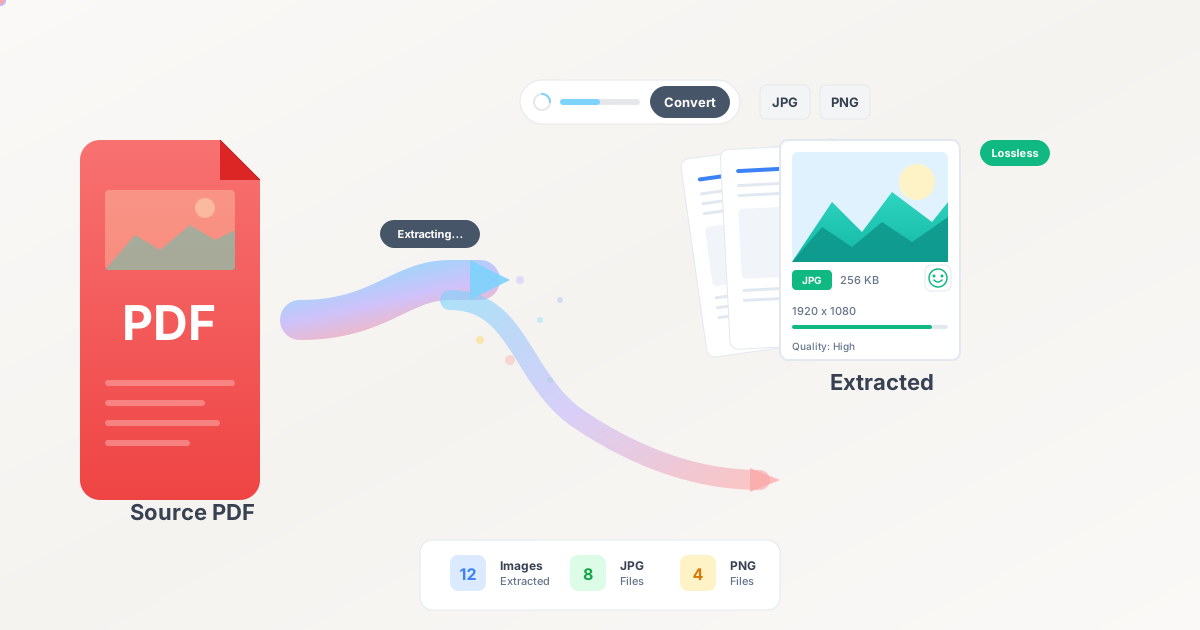
To extract images from a PDF or convert PDF pages to images, use a PDF-to-image converter that renders each page as a JPG or PNG file. Text-based PDFs convert with perfect quality when rendered at appropriate resolution (150-300 DPI). PNG format preserves every detail for documents with text and sharp graphics; JPG format creates smaller files for photographs and complex images. The process takes 10-60 seconds depending on page count, and browser-based tools process everything locally so your files never leave your device.
I'll never forget the morning my entire presentation strategy fell apart. Standing in a conference room fifteen minutes before a client pitch, I discovered their projector wouldn't display PDFs. The AV technician shrugged and suggested I convert everything to images. My laptop was offline, I had no time to install software, and uploading our confidential product roadmap to some random conversion website wasn't an option.
That disaster taught me something crucial: having multiple formats for important documents isn't paranoia—it's professional survival. PDF files are fantastic until they're not, and when you need those pages as images right now, the conversion method matters as much as the result.
Why Should I Convert PDF Pages to Images?
Before that conference room incident, I rarely thought about PDF to image conversion. Now I use it almost weekly for projects that would be impossible otherwise.
How Does Converting to Images Help with Social Media Sharing?
Last month, I wanted to share findings from a research report on LinkedIn. The report existed as a beautifully formatted PDF, but LinkedIn's document preview butchers PDF formatting and many people won't click through to download files from strangers.
Converting key pages to PNG images let me share insights directly in posts where people actually engage. Three report pages became three image posts that generated 10x more engagement than the PDF link ever did. The content was identical—the format made all the difference.
A marketing director I know converted their entire monthly newsletter into individual JPG images for Instagram. Their newsletter readership doubled when they started sharing visual snippets that people could actually read without leaving the app.
How Do Image Backups Make Presentations Bulletproof?
After my projector nightmare, I never deliver a presentation with only one file format. Every important deck gets converted to both PDF and images as backup.
This saved me again two months ago when a venue's computer couldn't run PowerPoint. I pulled up my backup image files and walked through them using the basic Photos app. The presentation happened, the contract got signed, and nobody knew I was improvising.
A professor colleague converts every lecture PDF to images specifically for students who struggle with PDF readers on older devices. Those images display perfectly on any phone, any tablet, any computer—removing technical barriers to learning.
How Does Converting to Images Improve Website Performance?
I consulted for an online training company whose course previews were loading frustratingly slowly. They embedded PDFs on their sales pages, and each preview file was 8-12 MB. Bounce rates were killing their conversions.
We converted preview pages to optimized JPG images at 150 DPI—reducing those 8-12 MB files to 200-400 KB images without visible quality loss. Page load times dropped from 14 seconds to under 2 seconds. Conversion rates improved by 23% just from this change.
What Happens When Converting PDF to Images?
Most people think PDF to image conversion is straightforward: just take a picture of each page. Reality involves more nuance, and understanding the process helps you get better results.
How Does Quality Work for Text-Based PDFs?
When you create a PDF from Word, Google Docs, InDesign, or similar tools, the PDF contains vector graphics and embedded fonts. Text stays crisp at any zoom level because it's mathematically defined, not pixel-based.
Converting these PDFs to images requires rendering: the converter draws each page exactly as it would appear on screen, then saves that visual representation as a JPG or PNG file. This process is remarkably accurate—what you see in the PDF is what you get in the image.
I tested this last week with a 25-page technical document. Converted to PNG at 300 DPI, every character was sharp, every diagram was clear, and comparing original to conversion revealed zero quality differences at normal viewing sizes.
What About Scanned PDFs?
Many PDFs are already images internally. When you scan a document, the scanner creates a photograph of each page and wraps those images in a PDF container.
Converting scanned PDFs to image format is essentially unwrapping existing images. Quality stays identical because you're not re-rendering anything—just changing the file wrapper.
What Resolution (DPI) Should I Choose?
DPI (dots per inch) determines how many pixels your image contains. Higher DPI means larger files with more detail; lower DPI means smaller files with less detail. Match DPI to your actual use case:
For screen viewing and social media: 150 DPI hits the sweet spot. Quality looks professional while keeping files manageable. Instagram, LinkedIn, and Facebook all handle this resolution perfectly.
For presentations: 150 DPI ensures sharp text on projectors and large monitors without creating massive files.
For printing: 300 DPI provides professional print quality. Going higher rarely provides visible improvement but dramatically increases file sizes.
For websites: 96-150 DPI balances quality and loading speed. Use 96 DPI for full-page images and 150 DPI for anything people might zoom into.
Should I Choose JPG or PNG Format?
JPG excels for photographs and complex graphics. The format uses lossy compression—it discards some data to create smaller files. For photographs and colorful graphics, this works brilliantly. A marketing brochure with product photos converts perfectly to JPG at 85-90% quality.
PNG preserves every pixel perfectly. The lossless compression keeps files larger, but nothing gets blurred or degraded. For documents with text, charts, diagrams, or anything requiring absolute sharpness, PNG is worth the extra file size.
My practical rule: Photographs and artistic content go to JPG. Text documents, presentations, and anything with sharp lines or fine details go to PNG.
How Do I Convert PDF to Images Step by Step?
After converting thousands of documents, I've refined a process that consistently delivers quality results while keeping files private.
Step 1: How Do I Verify My PDF Before Converting?
Before converting anything, open your source PDF and verify it displays properly:
- All pages present and in correct order
- Images and graphics appear clear
- Text is readable
- File isn't corrupted or password-protected
Five seconds of verification upfront saves frustrating debugging later.
Step 2: What Settings Should I Choose?
Think about where these images will be used:
For social media: JPG at 150 DPI keeps files manageable while maintaining quality For presentations: PNG at 150 DPI ensures sharp text on projectors and screens For printing: PNG at 300 DPI provides professional print quality For websites: JPG at 96-150 DPI balances quality and loading speed
Step 3: How Do I Use the PDF to Image Converter?
Navigate to our PDF to Image Converter and upload your file. The critical advantage: your document never leaves your computer. Everything processes in your browser using WebAssembly technology.
This matters enormously for confidential documents. I work with architects, attorneys, and product designers who cannot upload proprietary designs or confidential contracts to external servers. Browser-based processing solves this completely—your sensitive documents stay entirely under your control.
Upload your PDF by dragging and dropping it onto the converter, or clicking to browse and select it.
Step 4: How Do I Verify Quality After Converting?
Download your converted images and immediately spot-check:
- Text is crisp and readable
- Colors match the original PDF
- Nothing appears blurred or degraded
- File sizes are appropriate for your use
Always check the first few pages right after conversion. Last year I converted a 200-page document, assumed everything was fine, and discovered hours later that my resolution setting was wrong. Checking immediately would have caught this instantly.
What Are Common PDF to Image Conversion Scenarios?
These actual situations show practical conversion applications.
How Do I Create Social Media Content from Reports?
A content marketing agency publishes weekly industry reports as PDFs. Their challenge: PDFs get downloaded but rarely read, while social media content drives engagement.
We implemented a workflow:
- Design weekly report as usual
- Convert the most compelling 3-4 pages to JPG images
- Post images directly on LinkedIn, Twitter, and Instagram
- Include link to full PDF for interested readers
Report downloads actually increased because the image previews demonstrated value, motivating people to get the complete version.
How Do I Optimize Website Load Times with Image Conversion?
An e-commerce site selling industrial equipment embedded PDF spec sheets on every product page. Each PDF was 2-5 MB, and pages were loading slowly.
We converted the first page of each spec sheet to optimized JPG images at 150 DPI. File sizes dropped to 150-300 KB. Page load times improved from 8-12 seconds to 2-3 seconds. The full PDF remained available as a download link.
How Do I Make Training Materials Mobile-Friendly?
A corporate training department had hundreds of PDF training documents that were difficult to read on phones—requiring constant pinch-zooming and horizontal scrolling.
We converted these PDFs to PNG images at 96 DPI, then built a simple mobile-friendly gallery where each page displayed full-width on any screen. Trainees could swipe through pages naturally. Training completion rates on mobile devices increased by 47%.
What Problems Can Occur During Conversion?
Not every conversion is straightforward. Understanding common challenges helps you work around them.
How Do I Handle Very Large Documents?
Converting a 500-page technical manual takes considerably longer than converting a 5-page report. While processing happens quickly per page, those pages add up.
What I do: For massive documents, I convert only the sections I actually need. If I need pages 45-67 from a 500-page manual, I use our PDF Split Tool to extract those pages first, then convert the smaller subset.
Why Are My Image Files So Large?
High DPI settings and PNG format create large files. A single page at 300 DPI PNG can be 2-5 MB depending on content complexity.
Solutions:
- Lower DPI to match actual needs (150 DPI instead of 300 DPI often works fine)
- Use JPG instead of PNG when quality allows (typically 80-90% smaller files)
- Store only the pages you actually need
Can I Convert Password-Protected PDFs?
PDFs with open passwords (required to view) must be unlocked before conversion. If you have the password, enter it first. PDFs with "print protection" (preventing printing but allowing viewing) sometimes convert successfully since conversion is technically a form of viewing.
Why Does Privacy Matter for PDF to Image Conversion?
I work with professionals who handle genuinely confidential information. Where their files go during conversion is a critical security decision.
What Privacy Risks Do Cloud-Based Converters Create?
Most online conversion services upload your PDF to their servers for processing. During this process:
Your document exists on their hardware: Maybe for seconds, maybe indefinitely depending on their data retention.
Your content may be logged: Many services log uploads for analytics or service improvement.
You're trusting their security: Their systems, employees, and practices must be perfect for your confidential information to stay confidential.
How Does Browser-Based Conversion Protect My Documents?
When conversion happens entirely in your browser:
No upload occurs: Your file never leaves your device. It's processed on your own hardware.
No server storage: There's nowhere for your document to be stored externally.
No trust required: You don't need to trust anyone's security because they never access your data.
Compliance simplified: HIPAA, attorney-client privilege, NDA requirements—all become simpler when documents never leave controlled systems.
Our PDF to Image Converter processes everything locally using WebAssembly technology. From upload to download, your files remain on your computer.
Frequently Asked Questions
Does converting PDF to images reduce quality?
Quality depends on your settings. Converting at 300 DPI PNG produces images virtually identical to the original PDF. Converting at 72 DPI JPG with 50% quality will look noticeably degraded. Match your settings to your needs: higher resolution and PNG for maximum quality, lower resolution and JPG for smaller files.
How many PDF pages can I convert at once?
Our tool handles PDFs with hundreds of pages. Practical limits depend on your computer's memory and processing power rather than the tool itself. For very large documents (500+ pages), consider converting in sections.
Can I convert only specific pages instead of the entire PDF?
Yes, using a two-step process. First, use our PDF Split Tool to extract the specific pages you need. Then convert that smaller PDF to images. This is more efficient than converting everything.
What is the difference between extracting images and converting pages to images?
"Extracting images" means pulling out photographs or graphics embedded within the PDF. "Converting to images" means rendering each page as an image, including all text, graphics, and layout. Our tool does the latter—each page becomes a complete image.
Do my files get uploaded to a server during conversion?
Not with our tool. Our PDF to Image Converter processes everything locally in your browser using WebAssembly technology. Your files never leave your device. You can verify this by monitoring network traffic during conversion.
How long does PDF to image conversion take?
Processing time depends on page count and resolution. Typical timelines: 10 pages at 150 DPI in 10-15 seconds, 50 pages at 150 DPI in 30-45 seconds, 100 pages at 300 DPI in 1-2 minutes. Speed depends on your device's performance.
Can I convert images back to PDF later?
Yes, using our PDF Merge Tool you can combine images into a PDF. This creates a scanned-style PDF (images of pages) rather than a text-based PDF—text won't be selectable without OCR.
Why should I use PNG instead of JPG for documents with text?
PNG uses lossless compression, preserving every pixel perfectly. JPG compression can create subtle blur around text and sharp edges. For documents where text readability matters, PNG keeps everything crisp. For photographs where slight softening is imperceptible, JPG creates much smaller files.
Complementary Tools for Document Workflows
PDF to image conversion often works alongside other document operations:
PDF Split Tool: Extract specific pages before conversion to process only what you need
PDF Merge Tool: Combine multiple PDFs before converting to avoid handling dozens of separate files
PDF to Word: When you need to edit content rather than just view it as images
PDF to Text: When you need searchable text rather than images
Convert PDF to images privately in your browser. No uploads, no registration, no cost. Your documents stay on your device.