How to Secure PDF Files Free Online (Password Protection & Encryption)
How to Secure PDF Files Free Online (Password Protection & Encryption)
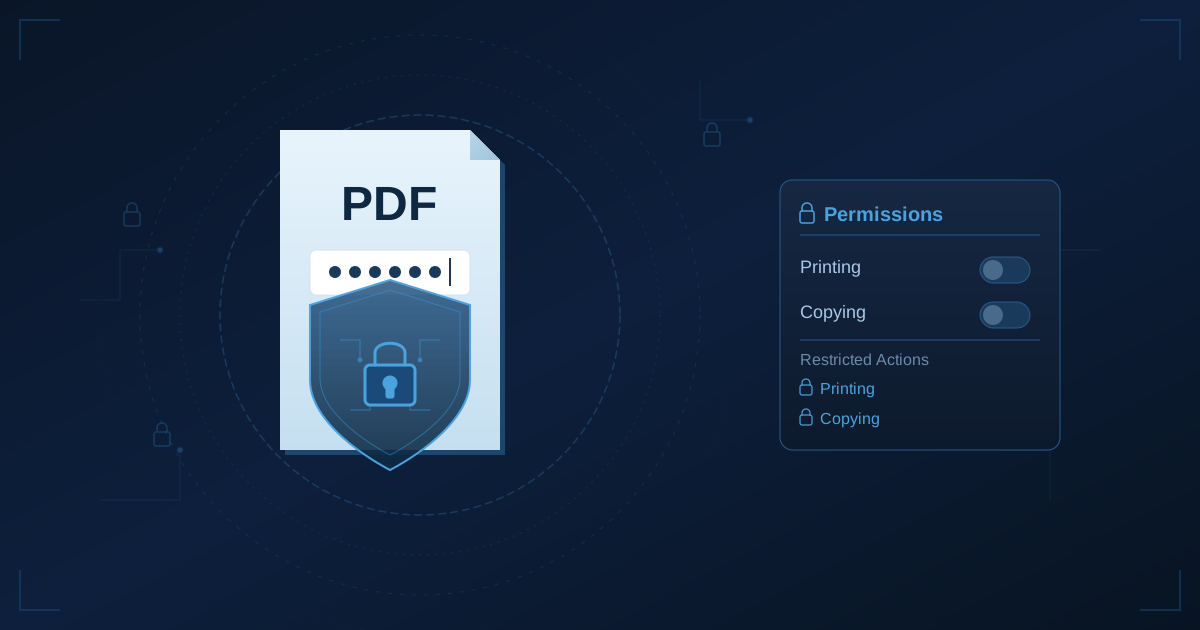
To secure a PDF file, set a document open password that encrypts the file so it cannot be viewed without the password, and optionally set permission restrictions to control printing, copying, and editing. Modern PDF security uses AES-256 encryption, which is effectively unbreakable with strong passwords. The process takes just a few seconds, and browser-based tools process everything locally so your sensitive files never leave your device during the protection process.
I learned the hard way why PDF security matters. Six years ago, I accidentally sent a confidential salary analysis to the entire department instead of just the executive team. The file contained detailed compensation breakdowns for every employee—information that was supposed to stay strictly between management and HR.
The aftermath was brutal. Three valuable employees quit within a month after discovering pay disparities. The HR director nearly lost her job. I spent weeks dealing with the fallout. All because I didn't password-protect a single PDF before hitting send.
That devastating mistake transformed how I handle sensitive documents. I now protect PDFs by default for anything remotely confidential.
Why Should I Password Protect PDF Files?
Before my salary-leak disaster, I only password-protected documents when explicitly required by compliance or contracts. Now I protect far more files proactively, having learned that seemingly harmless documents can cause serious problems in the wrong hands.
How Does PDF Security Protect Financial Documents?
Last year, I was consulting for a small business whose bookkeeper sent monthly financial statements as unprotected PDFs via email. They thought this was fine since recipients were authorized contacts.
The problem emerged when one recipient's email account was compromised. Hackers accessed two years of financial statements containing detailed revenue figures, profit margins, supplier pricing, and customer contracts. Competitors obtained this information, and aggressive underbidding started destroying the company's market position.
Password protection wouldn't have prevented the email compromise, but it would have rendered those PDFs useless to anyone without the passwords—which the hackers didn't have.
How Does PDF Protection Prevent Legal Document Leaks?
An attorney I know sent a draft settlement agreement to opposing counsel for review. The agreement was unprotected because it was "just a draft" and both sides had legitimate access.
The opposing lawyer accidentally forwarded the entire email thread—including the draft settlement—to his client, who then shared it with industry colleagues. The settlement terms became public knowledge before negotiations finished.
Password protecting that draft wouldn't have prevented the accidental forward, but it would have created a barrier. The opposing client would have needed to ask for the password, creating an explicit request rather than casual sharing.
How Does PDF Security Protect Client Proposals?
I worked with a marketing agency that lost a major pitch when their proposal somehow ended up in a competitor's possession. The competitor's pitch contained suspiciously similar strategies, pricing structures, and case study selections.
The agency had sent their proposal as an unprotected PDF to multiple stakeholders at the client company. Someone had shared it beyond the evaluation team.
Now they password-protect every proposal, providing the password separately via phone or encrypted message. This practice signals that the content is confidential and creates psychological barriers to casual sharing.
What Types of PDF Security Are Available?
Most people think PDF passwords simply prevent opening files. Reality is more nuanced, with multiple security layers serving different purposes.
What Is a Document Open Password (User Password)?
When you set a document open password, the PDF encrypts and becomes unopenable without the correct password. Anyone trying to view the file sees a password prompt. Enter the wrong password, and the file remains completely inaccessible.
This protection is robust when using strong passwords and modern encryption. I tested this by setting AES-256 encryption with a 16-character random password on a test document. Professional password-cracking tools estimated breaking it would take approximately 347 trillion years. That's effectively unbreakable.
Open passwords work perfectly for truly confidential documents: financial records, legal documents, medical information, confidential business plans, or anything containing sensitive personal data.
What Are Permission Passwords (Owner Passwords)?
Permission passwords allow viewing but restrict specific actions: printing, copying text, editing, extracting pages, or modifying annotations. You can view content but can't do certain things with it.
For example, you might send a contract for review with permissions blocking editing. Recipients can read every word and even annotate with comments, but they can't modify the actual contract text.
I use permission passwords for training materials I distribute widely. Students can view and print materials for personal use, but permissions block copying text (preventing plagiarism) and prevent editing (maintaining content integrity).
What Encryption Levels Are Available for PDFs?
PDF security relies on encryption algorithms that scramble data into unreadable gibberish without the correct password. Modern PDFs support several encryption levels:
AES-256 encryption: The current standard, providing maximum security. Government agencies use this for classified information. It's the strongest available option.
AES-128 encryption: Slightly older but still very strong. Offers excellent security with broader compatibility for older PDF readers.
RC4 encryption (40-bit or 128-bit): Obsolete encryption from the 1990s. Vulnerable to modern attack methods. Never use this for anything you actually want to protect.
What Are the Limitations of PDF Security?
PDF security has limitations worth understanding:
It doesn't prevent screenshots: Someone with the password can open your PDF and take screenshots of every page.
It doesn't prevent forwarding: Protected PDFs can still be forwarded via email along with the password.
It doesn't survive format conversion: If someone converts your PDF to Word, the converted file won't retain PDF password protection.
It doesn't protect against password theft: If someone gets your password through phishing or careless sharing, they have full access.
How Do I Secure PDF Files Step by Step?
After years of trial and error, I've developed a systematic approach to PDF security that balances protection with usability.
Step 1: How Do I Categorize Document Sensitivity?
Before protecting anything, determine how sensitive the content actually is:
Highly confidential: Financial records, medical information, legal documents, employee data, proprietary research. These get both open passwords and permission restrictions with AES-256 encryption.
Business confidential: Client proposals, internal reports, strategic plans. These get open passwords with AES-256 encryption but might allow printing and annotation.
Controlled distribution: Training materials, forms requiring structure preservation. These often get permission restrictions only—viewable by anyone but with copying or editing blocked.
Public or low-sensitivity: Marketing materials, published content. These usually don't need protection.
Step 2: How Do I Choose Appropriate Security Settings?
Based on sensitivity, select specific security features:
For highly confidential documents:
- Strong random password (16+ characters)
- AES-256 encryption
- Separate permissions password
- Block all permissions except viewing
- Provide password via separate secure channel
For business confidential documents:
- Strong password (12+ characters)
- AES-256 encryption
- Allow printing and annotations if needed for workflow
- Provide password via phone or encrypted message
For controlled distribution:
- Permission password only (no open password)
- Allow viewing and printing
- Block copying and editing
Step 3: How Do I Use the PDF Security Tool?
Navigate to our PDF Signing Tool and upload your file. The critical advantage: your document never leaves your computer. Everything processes in your browser using WebAssembly technology.
This matters enormously for confidential documents. Think about it: you're trying to protect a file because it's sensitive, but many protection tools require uploading that sensitive file to external servers. You're solving a security problem by creating a different security risk.
Browser-based processing eliminates this paradox. Your confidential financial statements, legal documents, or medical records stay on your hardware throughout the entire protection process.
Step 4: How Do I Configure Security Settings?
Set your protection parameters:
Document open password: Enter a strong password. The tool shows password strength as you type. Aim for "Strong" or "Very Strong" ratings.
Permissions password: Use a different password than the open password. This lets you provide view access while retaining control over security settings.
Encryption level: Choose AES-256 for maximum security.
Permission restrictions: Select which actions to allow or block: printing, copying text, editing content, extracting pages, adding annotations.
Step 5: How Do I Distribute Passwords Securely?
The strongest encryption is worthless if you email passwords in the same message as protected files. Use these password distribution methods:
For high security: Phone call or in-person delivery. "The password for the financial report I just emailed is..." This ensures password and file travel through completely different channels.
For moderate security: Text message or separate encrypted message service (Signal, WhatsApp). Don't send passwords via the same channel as the file itself.
For collaborative teams: Password managers with secure sharing features like 1Password or LastPass.
For recurrent documents: Establish a standard password with authorized recipients in advance.
What Are Common PDF Security Scenarios?
These actual situations show how PDF security prevents real problems.
How Do I Protect Merger Negotiation Documents?
I consulted for a company involved in acquisition negotiations. The term sheet, financial disclosures, and due diligence documents contained information that would devastate their negotiating position if leaked.
We implemented strict PDF security:
- All negotiation documents protected with AES-256 encryption
- Unique passwords for each recipient (tracking who had access)
- Passwords provided via phone calls only
- New passwords every two weeks
- Permission restrictions blocking printing and copying
The acquisition completed successfully with no information leaks that could be traced to document handling.
How Do I Share Employee Handbook with Contractors?
A manufacturing company hired seasonal contractors who needed access to safety procedures from the employee handbook. However, the handbook also contained information not appropriate for contractors: employee benefits details, internal promotion policies, compensation structures.
The solution: create a protected PDF of the full handbook with permission restrictions blocking copying and editing. Contractors could read safety procedures but couldn't extract sections for their own documentation.
How Do I Send Medical Records Between Providers?
A medical practice needed to transfer patient records to specialists. These transfers involved highly sensitive HIPAA-protected information.
They implemented password-protected PDFs: compile relevant records into a single PDF, protect with a strong password, email the PDF, and provide the password via phone call to the authorized physician.
This creates a paper trail (the password phone call documents who received access) while keeping information encrypted during transmission.
What Problems Can Occur With PDF Security?
Not every protection scenario is straightforward. Understanding common challenges helps you implement security effectively.
What Do I Do When Password Management Becomes Overwhelming?
When you protect dozens of documents with different passwords, remembering them becomes impractical.
Solution: Use a password manager (1Password, LastPass, Bitwarden) to generate and store strong passwords. Each document gets a unique strong password, and the password manager remembers all of them.
What Do I Do When Recipients Forget Passwords?
Even when you provide passwords securely, recipients lose them or forget them.
Solution: For documents that will be accessed repeatedly, include a note in the delivery email: "Save this password in your password manager—I won't be able to recover it if lost." For critical documents, create two identical protected copies with different passwords, providing each separately.
What Do I Do When Protection Interferes With Workflow?
Overly strict permission restrictions can prevent legitimate uses.
Solution: Talk to actual users about how they'll use protected documents before applying restrictions. "Do you need to print this? Do you need to highlight or annotate?" Match restrictions to real workflows.
Why Does Privacy Matter When Protecting PDFs?
The irony of PDF protection is that many protection tools require you to upload your sensitive document to protect it.
What Privacy Risks Do Cloud-Based Protection Tools Create?
Traditional online protection services work by uploading your PDF to their servers, applying protection, then sending back the secured file. During this process:
Your unprotected document exists on their hardware: Before protection is applied, your sensitive content sits on external servers.
Your content may be logged or analyzed: Many services log uploads for debugging or service improvement.
You're trusting their security and ethics: Their systems must be perfectly secure, their employees completely trustworthy.
How Does Browser-Based Protection Eliminate These Risks?
When protection happens entirely in your browser:
No upload occurs: Your file stays on your device throughout the entire protection process.
No external storage: There's nowhere for your content to be stored externally.
No trust required: You don't need to trust anyone's security because they never access your data.
Compliance simplified: HIPAA, GDPR, SOX, attorney-client privilege—all become simpler when documents never leave controlled systems.
Frequently Asked Questions
Can protected PDFs be hacked or cracked?
Modern PDF encryption using AES-256 with strong passwords is effectively unbreakable with current technology. Brute-force attacks against properly encrypted PDFs would take billions of years. However, weak passwords remain vulnerable—"Password123" can be cracked quickly. Security depends primarily on password strength.
What happens if I forget my PDF password?
Without the password, recovering access to a properly encrypted PDF is effectively impossible. This is by design—if recovery were easy, security would be meaningless. Always store important passwords in a secure password manager and maintain unprotected backup copies of critical documents in secure locations.
Do permission restrictions actually prevent copying?
PDF permission restrictions create significant barriers but can be bypassed by determined users with technical knowledge. However, they effectively prevent casual copying by typical users. For maximum protection, combine permission restrictions with document open passwords.
Does protecting a PDF reduce quality or change file size?
No. Encryption doesn't affect document quality or significantly change file size. Visual content, text, and formatting remain identical. File size typically increases by only a few kilobytes regardless of document length.
Can I remove protection from PDFs I created?
Yes, if you have the permissions password (owner password). PDF editors can remove security when you provide the correct password. If you've lost the password, you're in the same position as anyone else trying to bypass security—which is difficult to impossible for properly protected files.
Do my files get uploaded to a server when protecting them?
Not with our tool. Our PDF tools process everything locally in your browser using WebAssembly technology. Your files never leave your device. You can verify this by monitoring network traffic during the process.
What encryption level should I use for PDF protection?
Use AES-256 for maximum security on any document containing sensitive information. This is the current standard used by government agencies for classified information. AES-128 is acceptable for less critical documents or when compatibility with very old PDF readers is required. Never use RC4 encryption—it's obsolete and vulnerable.
How long should my PDF password be?
For truly secure protection, use passwords of 12-16 characters or longer, combining uppercase letters, lowercase letters, numbers, and special characters. Password managers can generate and store strong random passwords. Short passwords like "password" or "12345" provide essentially no security.
Complementary Tools for Document Security Workflows
PDF protection works best as part of a comprehensive document security approach:
PDF Merge Tool: Combine confidential documents before applying unified security
PDF Split Tool: Extract non-confidential sections from protected documents to share without passwords
PDF to Word: Edit documents before applying final protection
PDF to Text: Extract text from documents before protection for indexing or analysis
Secure PDF files privately in your browser. No uploads, no registration, no cost. Your documents never leave your device.