How to Convert PDF to Excel Free Online (No Upload Required)
How to Convert PDF to Excel Free Online (No Upload Required)
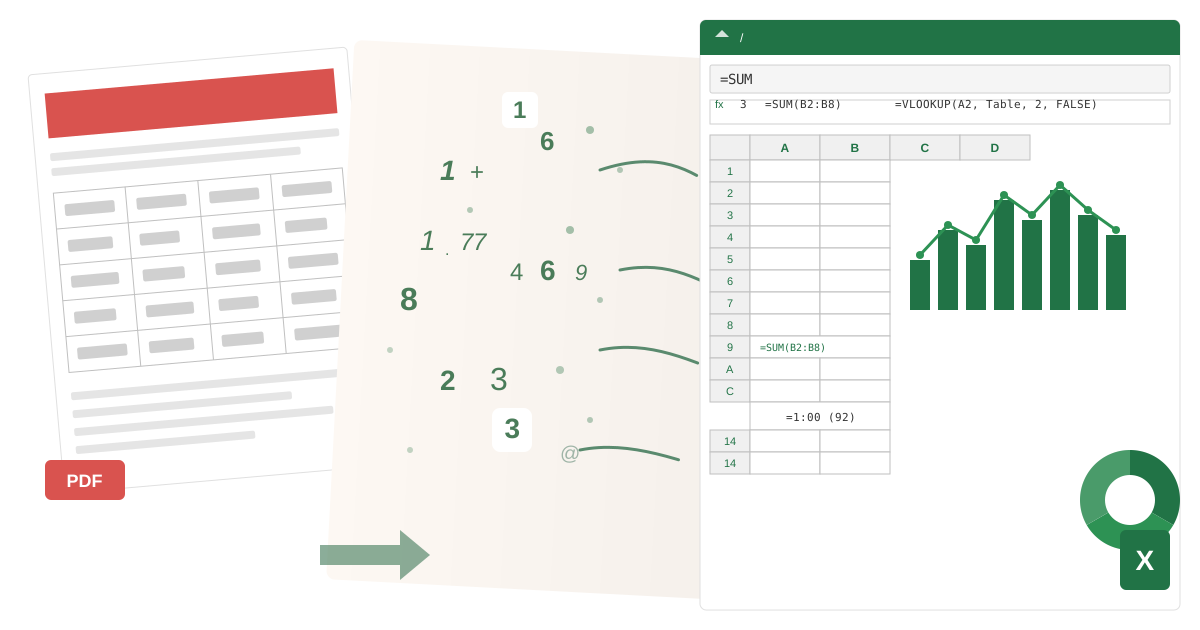
To convert PDF to Excel, upload your PDF to a converter that detects table structures and extracts data into spreadsheet cells. Native digital PDFs (created from Excel or databases) convert with 95-100% accuracy. Formatted document PDFs convert with 80-95% accuracy but may need column alignment. Scanned PDFs require OCR and convert with 60-85% accuracy depending on image quality. The entire process takes 5-30 seconds and can be done locally in your browser without uploading files to external servers.
I still remember the Friday afternoon in 2019 when my manager dropped a 47-page PDF financial report on my desk and said, "I need this in Excel by Monday. Build a pivot table showing year-over-year growth by product category." The PDF contained twelve months of sales data across eight regions, formatted in neat tables that looked perfect but were completely locked behind Adobe's iron curtain.
I spent the next six hours manually retyping numbers into Excel. Six hours of copying figures, double-checking that I hadn't transposed a 6 and a 9, verifying decimal places, and praying I hadn't made a mistake that would cascade through my analysis. By the time I finished, my eyes burned, my fingers cramped, and I had a newfound hatred for whoever invented the PDF format.
That experience taught me something important: PDFs are wonderful for preserving document appearance, but they're absolutely terrible for working with data. When you need to analyze financial statements, process invoice data, or extract research tables, being able to convert PDF to Excel isn't just convenient—it's essential.
Why Does Converting PDF to Excel Change Everything?
Before we dive into the how, let's talk about the why. Understanding what happens when you convert PDF to Excel helps set realistic expectations and shows you when conversion is the right choice.
What Is the PDF Data Prison Problem?
PDFs are essentially digital photographs of documents. Even when the text looks selectable, the PDF format stores data as visual elements positioned on a page, not as structured information in cells. When someone exports a financial report as PDF instead of Excel, they're effectively taking your data and encasing it in digital amber. It looks beautiful, but you can't touch it.
This matters because modern business runs on data manipulation. You need to sort invoice line items by amount, filter transaction histories by date range, calculate growth percentages using formulas, and create charts that update automatically when underlying data changes. None of this is possible with data locked in a PDF.
Converting PDF to Excel liberates your data. Those static tables become dynamic spreadsheets where you can sort, filter, calculate, visualize, and automate. That financial report I spent six hours retyping? With a proper converter, it would have taken three minutes.
What Are Real-World Scenarios Where PDF to Excel Saves Time?
Financial Statement Analysis: Your company's accountant sends quarterly reports as PDF. You need to calculate ratios, compare quarters, and build executive dashboards. Converting to Excel transforms hours of manual data entry into minutes of productive analysis.
Invoice Processing: Vendors send invoices as PDF. Your accounting system needs structured data. Instead of manually entering line items, dates, and amounts into your expense tracking system, you convert the PDFs to Excel and import the data directly.
Research Data Compilation: You're writing a literature review and need to compile statistics from twenty different research papers. All the relevant tables are in PDF format. Converting them to Excel lets you build a master dataset for meta-analysis.
Legacy Report Modernization: Your organization has years of historical data locked in archived PDF reports. To build trend analyses or train machine learning models, you need that data in a structured format. Batch converting PDFs to Excel unlocks your historical archive.
Budget Planning: Last year's budget exists only as a PDF. This year's planning process requires using those figures as a starting point. Converting the PDF to Excel gives you an editable template with all last year's categories and amounts ready to update.
How Does PDF to Excel Conversion Actually Work?
Understanding the conversion process helps explain why some PDFs convert beautifully while others need cleanup.
What Are the Three Types of PDFs You'll Encounter?
Not all PDFs are created equal. The conversion quality you can expect depends entirely on how the PDF was originally created.
Native Digital PDFs are created by exporting directly from Excel, accounting software, or database reporting tools. These PDFs contain actual text data that the conversion process can extract accurately. Tables usually have clear structure, and numbers are genuine numeric data rather than images of numbers. These convert with 95-100% accuracy and require minimal cleanup. If your PDF text is selectable and you can copy-paste it successfully, you have a native digital PDF.
Formatted Document PDFs come from word processors like Microsoft Word or report generation tools. These contain real text data, but tables might be constructed using visual formatting rather than true table structures. The PDF knows where each piece of text sits on the page but may not understand that it's organized in rows and columns. These convert with 80-95% accuracy and may need some manual column alignment afterward.
Scanned Image PDFs are photographs or scans of physical documents. The PDF contains pictures of text, not actual text data. Converting these requires Optical Character Recognition (OCR) to identify text in the images, which introduces potential errors. A scanned "1" might be misread as lowercase "l", or a "0" might become the letter "O". These convert with 60-85% accuracy depending on scan quality and absolutely require careful verification afterward.
To check which type you have, try selecting text in the PDF. If you can highlight and copy text normally, you have a native or formatted PDF. If you can't select anything, it's scanned.
What Happens During the Conversion Process?
When you upload a PDF to our converter at Practical Web Tools, here's what happens behind the scenes—entirely in your browser, with nothing uploaded to our servers.
Step 1: PDF Parsing - The converter analyzes the PDF structure, identifying text elements and their positions on each page. It looks for rectangular arrangements of text that indicate tabular data.
Step 2: Table Detection - The algorithm identifies table structures by analyzing spacing patterns, dividing lines, and alignment of text elements. It determines which pieces of text belong in the same row and which separate into different columns.
Step 3: Data Extraction - Recognized text gets extracted along with its position information. Numbers are identified and preserved with their decimal places. Table headers are detected based on formatting and position.
Step 4: Structure Reconstruction - The extracted data is reorganized into rows and columns matching the visual table layout. Cell relationships are established, and multi-page tables are potentially combined if they share the same column structure.
Step 5: Excel Generation - The structured data is written to an Excel file (.xlsx format) with appropriate cell formatting. Numbers are stored as numeric data types, dates are recognized where possible, and basic text alignment is applied.
This entire process happens locally in your browser using WebAssembly technology. Your financial data never leaves your computer, ensuring complete privacy for sensitive documents.
How Do I Convert My First PDF to Excel Step-by-Step?
Let me walk you through the actual conversion process, including what to watch for and how to verify your results.
How Do I Convert a Simple Financial Statement?
Let's say you have a quarterly sales report PDF with a table showing monthly revenue by product line. Here's exactly how to convert it:
Step 1: Navigate to the Converter Open Practical Web Tools PDF to Excel Converter in your browser. No signup, no account creation, no email verification. Just a tool ready to use.
Step 2: Upload Your PDF Drag your PDF file directly onto the upload area, or click to browse and select it. You'll see an immediate confirmation that your file has been loaded. If you have multiple PDFs to convert, you can select all of them at once—batch processing is fully supported.
Step 3: Wait for Processing A progress indicator shows the conversion happening. For most PDFs, this takes 5-30 seconds depending on document complexity and your computer's processing speed. The conversion happens entirely in your browser—watch your network monitor if you're skeptical, and you'll see zero data uploaded.
Step 4: Download Your Excel File Once conversion completes, a download button appears. Click it to save your new Excel file. Open it in Excel, Google Sheets, or LibreOffice Calc to see your extracted data.
Step 5: Verify and Clean This critical step separates amateur data work from professional analysis. Open both the original PDF and the converted Excel file side by side. Verify that:
- Row and column counts match
- Header text is preserved correctly
- Numeric values are accurate (spot-check several, especially values with decimals)
- Totals in the Excel match totals in the PDF
- Number formatting is appropriate (currency symbols, decimal places)
How Do I Handle Multi-Page PDF Reports?
Multi-page PDFs with repeating tables require slightly more attention but follow the same process.
When you convert a PDF with tables spanning multiple pages, pay attention to repeated headers. Many reports print column headers at the top of each page for readability. After conversion, these repeated headers appear as data rows between your actual data. You'll need to delete these extra header rows in Excel, keeping only one header row at the top of your dataset.
The fastest way to remove duplicate headers: In Excel, select your data and go to Data > Remove Duplicates. Select only the columns that contain header text, and Excel will eliminate the repeated header rows automatically.
How Do I Fix Common PDF to Excel Conversion Problems?
Not every PDF converts cleanly. Here's what to do when you encounter common problems.
Problem: Numbers extracted as text After conversion, your numbers look right but formulas treating them as text fail. Solution: Select the affected column, go to Data > Text to Columns, click Finish without changing any settings. Excel will convert text representations of numbers into actual numeric data types.
Problem: Currency symbols breaking formulas Your dollar amounts include $ symbols that prevent calculations. Solution: Select the column, press Ctrl+H to open Find and Replace, find "$" (without quotes), replace with nothing (leave replacement field blank), click Replace All.
Problem: Merged cells causing alignment issues The original PDF had merged cells for section headers, causing Excel column alignment problems. Solution: In Excel, select the problematic area, go to Home > Merge & Center dropdown, click Unmerge Cells. Then manually reposition any text that was in merged cells.
Problem: Dates not recognized Dates appear as text like "12/31/2024" but Excel doesn't treat them as dates. Solution: Select the date column, use the DATEVALUE formula in an adjacent column: =DATEVALUE(A1), then copy this formula down, copy the results, and Paste Special > Values back over the original column.
What Are Best Practices for Professional PDF to Excel Results?
After converting hundreds of PDFs to Excel for financial analysis, I've developed a systematic approach that ensures accurate, analysis-ready data every time.
What Pre-Conversion Checks Should I Do?
Before you even start the conversion, examine your source PDF to predict what you'll need to fix afterward.
Check text selectability: Try selecting and copying text from the PDF. If the text copies cleanly with proper spacing, you'll likely get good conversion results. If copying text produces garbled characters or missing spaces, expect to do more cleanup work.
Identify table boundaries: Visually note where tables begin and end, especially in documents with multiple tables. This helps you verify after conversion that all tables were detected and extracted.
Note special formatting: If the PDF has colored cells, merged headers, or nested tables, these features may not transfer to Excel. Plan to recreate essential formatting manually after conversion.
Verify page orientation: PDFs with landscape-oriented pages sometimes confuse table detection algorithms. Be prepared to manually verify column alignment on landscape pages.
What Is the Best Post-Conversion Verification Workflow?
I use this checklist after every conversion to ensure data integrity:
1. Structure Verification (2 minutes)
- Open PDF and Excel files side by side
- Count rows and columns in both
- Verify headers match exactly
- Check that table boundaries are correct
2. Data Spot-Checking (5 minutes)
- Verify first row of data matches PDF
- Check last row of data matches PDF
- Pick 5-10 random cells throughout and verify values
- Pay special attention to numbers with decimals
- Verify any totals or calculated fields
3. Data Type Validation (3 minutes)
- Check that numbers are stored as numbers (try a simple SUM formula)
- Verify dates are recognized as dates (change cell format to see if Excel recognizes them)
- Ensure text fields don't have leading/trailing spaces
4. Formatting Cleanup (5-10 minutes)
- Remove duplicate headers from multi-page tables
- Convert text numbers to numeric format where needed
- Remove currency symbols if they interfere with calculations
- Fix any merged cells that cause alignment issues
- Apply consistent number formatting (decimal places, thousand separators)
This 15-20 minute workflow might seem time-consuming, but it's dramatically faster than manual data entry and ensures your analysis is built on accurate data.
Why Does Privacy Matter When Converting PDF to Excel?
Let me tell you about the moment I realized cloud-based converters were a privacy nightmare.
A colleague in finance was using a popular free PDF converter to process vendor invoices. One day, curious about the service's security, I actually read their terms of service. Buried in section 8.4 was this gem: "Files uploaded to our service may be retained for up to 30 days for quality improvement purposes and may be accessed by our staff."
My colleague had been uploading PDFs containing vendor names, contract amounts, pricing details, and payment terms—competitive intelligence any rival would pay to access. Those files were sitting on someone else's server, potentially accessible to employees he'd never met, in a data center with security practices he couldn't verify.
That's when I realized: free cloud converters aren't really free. You're paying with your data privacy.
How Does Browser-Based Conversion Protect Your Data?
Our PDF to Excel converter at Practical Web Tools works entirely differently. When you upload a file:
No Server Upload: Your PDF never leaves your browser. The file is read directly from your device's storage into your browser's memory. If you monitor network traffic during conversion, you'll see zero data transmitted to our servers.
Local Processing: The conversion happens using WebAssembly code running in your browser. This is essentially compiled software running directly on your computer, using your processor and memory to analyze the PDF and generate the Excel file.
Immediate Deletion: Once you close the browser tab or navigate away, all traces of your file are immediately removed from memory. There's nothing to delete from servers because nothing was ever uploaded.
No Logging: We don't log filenames, we don't track what you convert, and we couldn't retrieve your data even if we wanted to because it never reaches our servers.
This architecture means you can safely convert:
- Confidential financial statements
- Proprietary research data
- Client information protected by NDAs
- Personally identifiable information
- Any sensitive data where privacy matters
For regulated industries—healthcare organizations handling patient data, financial services processing client information, legal firms managing case documents—this privacy-preserving architecture isn't just nice to have. It's essential for compliance.
How Do I Handle Advanced PDF to Excel Conversions?
Once you've mastered basic conversion, these advanced techniques help you handle more challenging documents.
How Do I Deal with Nested or Hierarchical Tables?
Some financial reports use nested tables where summary data sits above detailed breakdowns. Converting these requires a two-step approach:
First, convert the entire PDF to Excel. Then, in Excel, identify the hierarchical structure. Use indentation or cell shading to preserve the visual hierarchy. Consider splitting deeply nested tables into separate worksheets—one for summary data, another for details—and use Excel formulas to link them.
How Do I Extract Tables from Mixed-Content Documents?
When your PDF contains both text paragraphs and tables (like an analyst report with embedded data tables), the converter might struggle to separate narrative text from tabular data.
Strategy: After conversion, the narrative text usually appears in a single column while tables span multiple columns. Sort your data by row structure—rows with content in multiple columns are your tables, rows with content in only one column are narrative text. Separate them into different worksheets.
Alternatively, before conversion, use a PDF editor to extract just the pages containing tables, then convert only those pages. This gives you cleaner results than trying to separate mixed content after conversion.
How Do I Handle Scanned PDFs and OCR Limitations?
If you must convert scanned PDFs (photos or scans of paper documents), OCR introduces potential errors you need to defend against.
Pre-conversion optimization: If possible, rescan the document at higher resolution (300 DPI minimum, 600 DPI better). Ensure good contrast and straight alignment. Higher quality input dramatically improves OCR accuracy.
Post-conversion verification: OCR commonly confuses:
- Number "1" with lowercase "l"
- Number "0" with uppercase "O"
- Number "5" with uppercase "S"
- Number "8" with uppercase "B"
After converting scanned PDFs, sort numeric columns and look for text values where numbers should be. These are likely OCR errors that need manual correction.
Validation formulas: If your data includes totals or subtotals, use Excel formulas to recalculate them and compare against the converted values. Mismatches reveal OCR errors:
=IF(SUM(B2:B10)<>B11, "Error: Total doesn't match", "OK")
How Do I Batch Process Multiple PDFs?
When you have dozens of similar PDFs to convert—like a year of monthly statements—batch processing saves massive amounts of time.
Our converter supports uploading multiple files simultaneously. Upload all your PDFs at once, and they'll all convert in one operation. You'll receive either individual downloads for each converted file or a single ZIP archive containing all the Excel files.
After batch conversion, use Excel's Power Query to consolidate all the individual Excel files into one master workbook. This is dramatically faster than converting and consolidating manually.
What Common Pitfalls Should I Avoid?
Learn from my mistakes so you don't repeat them.
Pitfall 1: Trusting Converted Data Without Verification
The mistake: Converting a PDF and immediately building analysis on top of the extracted data without verifying accuracy.
Why it's dangerous: Conversion errors, especially in scanned PDFs or complex layouts, can introduce subtle mistakes that corrupt your entire analysis. A transposed digit in a key figure can lead to spectacularly wrong conclusions.
The fix: Always spot-check converted data against the source PDF. Verify totals, check random samples, and recalculate any summary statistics before you trust the data for decision-making.
Pitfall 2: Converting PDFs That Shouldn't Be Converted
The mistake: Attempting to convert PDFs that contain images of tables rather than actual data tables.
Why it fails: If your PDF shows a screenshot of an Excel spreadsheet rather than a native table, conversion results will be poor. The converter sees one large image, not individual data elements.
The identification: If you can't select individual cells or text elements in the PDF, if the entire table is one clickable block, or if zooming in makes the numbers pixelated, you have an image-based table. These require manual transcription or specialized OCR tools.
Pitfall 3: Ignoring Data Type Conversions
The mistake: Accepting Excel's automatic data type detection without verification.
Why it's problematic: Excel might interpret product codes like "00123" as the number 123, losing leading zeros. Dates might be misinterpreted if they're in ambiguous formats. ZIP codes might lose leading zeros.
The fix: Before doing anything with converted data, check columns that should have specific formats:
- ID numbers and codes: Format as text to preserve leading zeros
- Dates: Verify format matches your regional settings
- Percentages: Check if values are stored as decimals (0.15) or percentages (15%)
- Currency: Verify decimal places are correct
What Are Alternatives to PDF to Excel Conversion?
Sometimes conversion isn't the best solution. Here are alternatives worth considering.
Should I Request the Original Source Data?
If you're receiving PDFs from colleagues or vendors, the simplest solution is often asking for the original Excel file instead. Many people default to sending PDFs without realizing the recipient needs editable data.
Template email: "Thanks for the report. For my analysis, would it be possible to receive the source data in Excel format? This would help me integrate it with our other datasets more easily."
Can I Use Excel's Built-in PDF Import Feature?
Modern versions of Excel (2019 and later) can import PDF tables directly: Data > Get Data > From File > From PDF. This uses Microsoft's conversion engine, which works well for simple, well-formatted tables.
Limitations: It struggles with complex layouts, multi-page tables, and scanned documents. Our browser-based converter often produces better results for challenging PDFs while keeping your data private.
When Should I Use Dedicated OCR Software?
For large volumes of scanned PDFs, dedicated OCR software like Adobe Acrobat Pro or ABBYY FineReader provides more sophisticated document analysis and error correction features.
These tools are worth the investment if you're processing dozens of scanned financial documents regularly. For occasional conversion of a few documents, our free online tool is more cost-effective.
What Related Tools Complement PDF to Excel Conversion?
Your document workflow doesn't end with conversion. These related tools solve common follow-up needs:
PDF to Word Converter - When you need to edit the narrative portions of a financial report, not just extract tables, converting to Word gives you an editable document format.
PDF Merge Tool - Before converting multiple related PDFs to Excel, sometimes it's easier to merge them into one PDF first, then convert once.
PDF Split Tool - When you only need to convert specific pages from a large PDF, split out those pages first for faster, more focused conversion.
PDF Text Extractor - When you need just the text content without table structure, direct text extraction is faster than converting to Excel.
Frequently Asked Questions
How accurate is PDF to Excel conversion?
Accuracy depends on PDF type. Native digital PDFs (exported from Excel or databases) convert with 95-100% accuracy. Formatted document PDFs from Word processors convert with 80-95% accuracy. Scanned PDFs using OCR convert with 60-85% accuracy depending on scan quality. Always verify critical data against the source.
Does converting PDF to Excel upload my files to a server?
Not with our tool. Our converter processes everything locally in your browser using WebAssembly technology. Your files never leave your device, making it safe for confidential financial data, client information, and sensitive business documents. You can verify this by monitoring network traffic during conversion.
Why do my numbers appear as text after conversion?
This happens when the PDF stores numbers with formatting characters (currency symbols, commas) or when OCR processes scanned documents. Fix it in Excel: select the column, go to Data > Text to Columns, click Finish. Or use Find and Replace to remove currency symbols before converting text to numbers.
Can I convert a multi-page PDF with tables on every page?
Yes. The converter processes all pages and attempts to combine tables with matching column structures. Watch for repeated headers that appear as data rows—delete these duplicates in Excel, keeping only one header row at the top.
How long does PDF to Excel conversion take?
Most conversions complete in 5-30 seconds. Simple 10-page documents process in under 10 seconds. Complex 100-page documents with many tables may take 30-60 seconds. Processing happens locally, so speed depends on your device's performance rather than internet connection.
What if tables don't align correctly after conversion?
PDF tables use visual positioning, not true cell structure. If columns misalign, try: (1) adjusting column widths manually, (2) using Text to Columns to re-split data, or (3) splitting the PDF to extract just the problematic pages for individual conversion with different settings.
Can I convert password-protected PDFs to Excel?
You can convert PDFs with "print protection" (allowing viewing but blocking printing). PDFs with open passwords (requiring password to view) must be unlocked first. If you have the password, remove encryption before converting.
How do I handle merged cells in the original PDF?
PDF merged cells often convert as single cells spanning multiple columns or as repeated values across cells. After conversion, unmerge cells in Excel (Home > Merge & Center > Unmerge Cells) and manually reposition content as needed.
Convert PDF to Excel privately in your browser. No uploads, no registration, no cost. Your data stays yours.