PDF to Word Conversion: What Actually Happens to Your Document
PDF to Word Conversion: What Actually Happens to Your Document
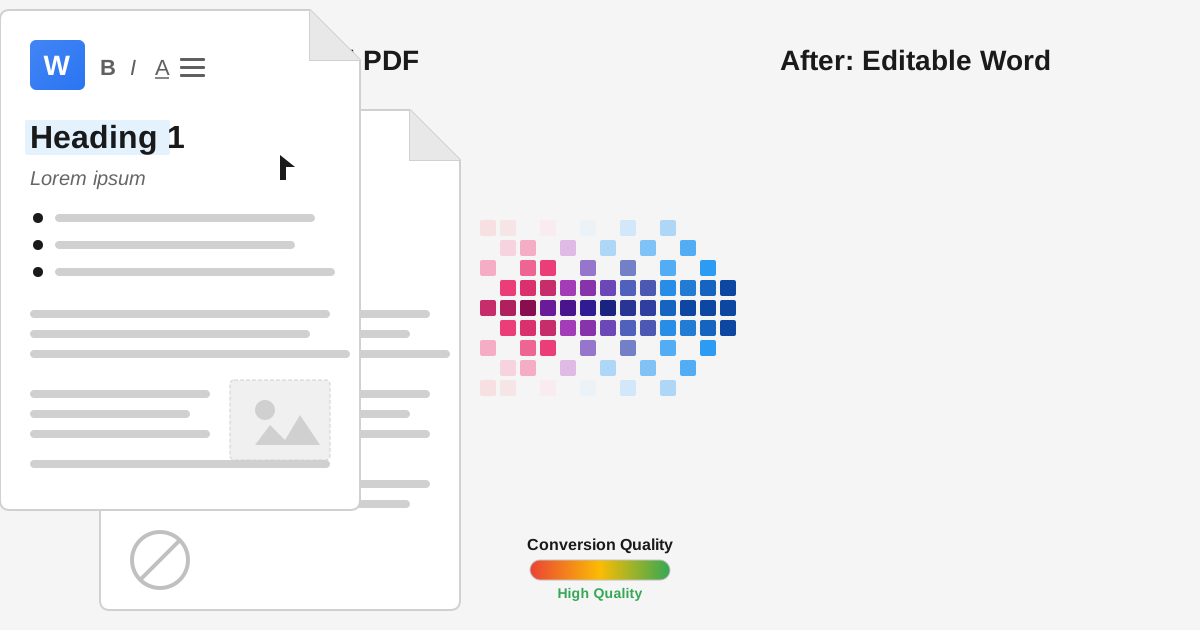
Converting PDF to Word works by reconstructing document structure from visual layout. The conversion software analyzes where text, images, and shapes are positioned on each page, then rebuilds them as editable Word elements. Text-based PDFs from Word or Google Docs typically convert with 90-99% accuracy, while scanned documents or design-heavy PDFs may need significant cleanup. The key factor is how the original PDF was created.
Last month, a user emailed us frustrated. She'd converted a 40-page PDF report to Word, and the result was a disaster: tables broken across pages, headers floating in wrong positions, and text scattered seemingly at random. Her colleague had converted a similar document the day before with perfect results.
Why does PDF to Word conversion work beautifully sometimes and catastrophically fail other times? The answer lies in understanding what PDF actually is and why converting it back to an editable format is fundamentally hard.
Why Was PDF Never Designed to Be Edited?
This might seem obvious, but it's worth stating clearly: PDF was designed for viewing and printing, not editing.
When Adobe created PDF in the early 1990s, they solved a real problem. Documents looked different on different computers. What appeared perfectly formatted on one machine might display incorrectly on another due to different fonts, printer drivers, or operating system quirks.
PDF solved this by describing exactly where everything goes on a page. Not "this is a paragraph of text," but "place these exact glyphs at these exact coordinates." A PDF doesn't contain a paragraph; it contains instructions to draw specific shapes at specific locations.
This approach guarantees visual fidelity but destroys structural information. The concept of "a word" doesn't really exist in a PDF. The letter sequences you see as words are just shapes placed near each other.
How Does PDF to Word Conversion Actually Work?
Converting PDF to Word means reconstructing document structure from visual layout. The conversion software must examine placed shapes and infer:
- Which shapes are letters and which are decorative elements
- Which letters belong to the same word
- Which words belong to the same paragraph
- Which paragraphs form columns, and in what reading order
- What's a table versus what's just aligned text
- What's a header versus what's body text
- Where headers and footers begin and end
This reconstruction works well when the original PDF was created from a Word document. The visual layout follows predictable patterns that match how Word structures documents.
It fails when the PDF comes from design software, scanned paper, or applications that structure documents differently than Word.
What Are the Three Types of PDF Sources (And What to Expect)?
Text-Based PDFs from Word Processing Software
These convert best because they were created by software similar to Word in the first place.
When you export a Word document to PDF, Word creates a PDF that loosely preserves some structural information. The text appears in reading order. Paragraphs are drawn as units. Tables are rendered in grid patterns.
Typical conversion accuracy: 90-99%
Common issues:
- Fonts may substitute if the original isn't available
- Precise spacing might shift slightly
- Complex nested tables may simplify
- Headers and footers may merge with body content
PDFs from Design Software
Adobe InDesign, Illustrator, and similar tools create PDFs optimized for visual appearance, not document structure. A three-column magazine layout might be drawn as hundreds of unrelated text fragments.
Typical conversion accuracy: 60-80%
Common issues:
- Columns merge or split incorrectly
- Text boxes become floating fragments
- Reading order may scramble
- Graphics may lose positioning relationship to text
Scanned Documents
Scanned PDFs contain images, not text. Converting them to Word requires OCR (Optical Character Recognition) to first identify text within the images.
Typical conversion accuracy: Variable, 50-95% depending on scan quality
Common issues:
- Character recognition errors (0 vs O, 1 vs l, rn vs m)
- Lost formatting since only text is recognized
- Tables become plain text without structure
- Handwriting typically doesn't convert at all
What Are Common PDF to Word Conversion Scenarios?
The Contract Update
You have a PDF contract and need to update some terms. The contract was originally created in Word by a law firm.
This scenario typically works well. Legal documents tend to be text-heavy with straightforward formatting. The main complications are:
- Signature lines or boxes may need manual adjustment
- Page numbers and headers may not align perfectly
- Legal formatting (indented clauses, numbered paragraphs) should be verified
Approach: Convert, make your edits, then carefully compare against the original PDF before finalizing.
The Old Report
You need to update a report from several years ago. You have the PDF but the original Word file is lost.
Success depends heavily on how the original was created. If it was a standard business report with text and simple tables, conversion will probably work. If it contained complex charts, multiple column layouts, or heavy formatting, expect significant cleanup.
Approach: Convert, assess the damage, decide whether to fix the converted document or use it as reference while rebuilding from scratch.
The Form
You received a PDF form and need to fill it out. The form has lines, boxes, and fields.
PDF forms are difficult for conversion because form elements often aren't actual form fields but just drawn lines. The converted Word document may show the lines but typing in them won't work like a real form.
Approach: Consider whether you actually need Word. If you just need to fill it out, our PDF signing tool might work better. If you need Word, expect to rebuild the form elements after conversion.
The Scanned Document
Someone scanned a paper document and you need an editable version.
The quality of your result depends almost entirely on the scan quality. Clear, high-resolution, straight scans convert reasonably. Blurry, skewed, or low-resolution scans produce garbage.
Approach: Check the OCR results carefully, especially for numbers and proper nouns where recognition errors could cause problems.
How Does Our PDF to Word Converter Process Your Document?
Our PDF to Word converter uses a multi-stage process:
1. PDF Parsing: We extract the raw content from the PDF, including text positioning, fonts, images, and drawing commands.
2. Structure Analysis: We analyze spatial relationships to infer document structure. Text elements close together horizontally are grouped into words. Words aligned vertically with consistent spacing become paragraphs. Rectangular arrangements of cells become tables.
3. Reading Order Detection: We determine the logical reading order, which isn't always left-to-right, top-to-bottom. Multi-column layouts, sidebars, and callout boxes complicate this.
4. Word Document Generation: We create a Word document that reproduces the detected structure using Word's native elements: paragraphs, tables, headers, footers, and text boxes.
5. Formatting Application: We apply font styling, paragraph spacing, and other formatting to match the original visual appearance as closely as possible.
All of this happens in your browser. Your files never leave your device, and we don't see your documents or store any data from the conversion process. This privacy-first approach means you can safely convert confidential contracts, sensitive business documents, and personal files without worrying about data exposure.
What Post-Conversion Cleanup Should You Expect?
Even good conversions usually need some cleanup. Here's what to look for:
Font Substitution
If the original PDF used fonts not available on your system, the converted document will substitute available fonts. Arial might replace Helvetica, Times New Roman might replace Times.
For most documents this is fine. If font accuracy matters, you'll need to install the original fonts or accept the substitution.
Table Adjustments
Tables often need manual adjustment:
- Column widths may need tweaking
- Cell alignment might be off
- Merged cells may unmerge or merge incorrectly
Use Word's table tools to fix these issues. Sometimes it's faster to recreate a complex table than to fix a badly converted one.
Spacing Normalization
PDF files often use inconsistent spacing that the conversion preserves. You might see paragraphs with slightly different line spacing or inconsistent space after paragraphs.
Select all text and apply consistent paragraph formatting to normalize.
Header and Footer Separation
Page headers and footers may merge with body content. You might need to move this content into Word's actual header/footer sections for proper behavior across pages.
When Should You Not Convert PDF to Word?
Sometimes PDF to Word conversion isn't the right approach:
If you only need to extract text: Use our PDF to Text converter instead. You'll get clean text without any formatting complications.
If you need to extract tables as data: Use our PDF to Excel converter. You'll get spreadsheet data that's easier to work with than Word tables.
If you need to sign or fill a form: Use our PDF signing tool. No conversion needed.
If the formatting is extremely complex: Consider using the PDF as reference and recreating the document in Word. Sometimes that's faster than fixing a bad conversion.
What Technical Details Should Power Users Know?
For those curious about the technical details:
Why WebAssembly? PDF parsing is computationally intensive. WebAssembly lets us run optimized parsing code in your browser at near-native speeds. Processing a 100-page PDF locally takes seconds, not minutes.
What about encrypted PDFs? We can process PDFs with "print protection" but not PDFs with password encryption. If you have the password, you'll need to remove the encryption first.
File size limits? There's no hard limit, but very large PDFs (hundreds of megabytes) may be slow or exhaust browser memory. Our practical limit depends on your device's capabilities.
How Do I Convert My PDF to Word?
Ready to convert a PDF to Word?
- Go to our PDF to Word converter
- Select your PDF file
- Wait for conversion (typically 5-30 seconds)
- Download and open in Word
- Review and make any needed adjustments
Your file stays on your device throughout the entire process. We never see it.
Frequently Asked Questions
Why does my converted Word document look different from the original PDF?
PDF stores visual positioning, not document structure. The converter must infer structure from layout, which works best for simple text documents but struggles with complex designs. Text-based PDFs from Word processors convert with 90-99% accuracy, while scanned or design-heavy PDFs may need significant manual cleanup.
Can I convert a scanned PDF to an editable Word document?
Yes, but with limitations. Scanned PDFs require OCR (Optical Character Recognition) to identify text in images. Quality depends heavily on scan resolution and clarity. Expect 50-95% accuracy for clean scans at 300 DPI or higher, but significant errors for low-quality or damaged scans. Always verify numbers and proper nouns carefully.
Is my PDF uploaded to a server during conversion?
No. Our converter processes everything locally in your browser using WebAssembly technology. Your files never leave your device, making it safe for confidential contracts, sensitive business documents, and personal files. You can verify this by monitoring network traffic during conversion.
Why do tables look wrong after converting PDF to Word?
PDF tables are visual constructions (lines and spacing creating the appearance of structure), not true data tables. The converter must detect table boundaries and cell relationships from visual cues, which sometimes fails for complex or nested tables. You may need to adjust column widths, fix merged cells, or rebuild complex tables manually.
How long does PDF to Word conversion take?
Conversion typically takes 5-30 seconds depending on document length and complexity. Simple 10-page text documents process in under 10 seconds. Complex 100-page documents with many images may take 30-60 seconds. All processing happens locally, so speed depends on your device's performance.
Can I convert password-protected PDFs to Word?
You can convert PDFs with "print protection" (which prevents printing but allows viewing). However, PDFs with open passwords (which prevent viewing without the password) must be unlocked first. If you have the password, remove the encryption before converting.
What file formats can I convert from?
Our converter accepts PDF files and produces DOCX format (compatible with Microsoft Word 2007 and later, Google Docs, and LibreOffice). For other source formats, you may need to convert to PDF first.
Why is text missing from my converted document?
Text may be missing if the original PDF used fonts that embed as images rather than text, if the PDF contains scanned images without OCR, or if text was rendered as vector graphics. Check whether you can select text in the original PDF - if not, the content may not be extractable as text.
Convert PDF to Word privately in your browser. No uploads, no registration, no cost.