How to Convert Text to PDF Free Online (No Upload Required)
How to Convert Text to PDF Free Online (No Upload Required)
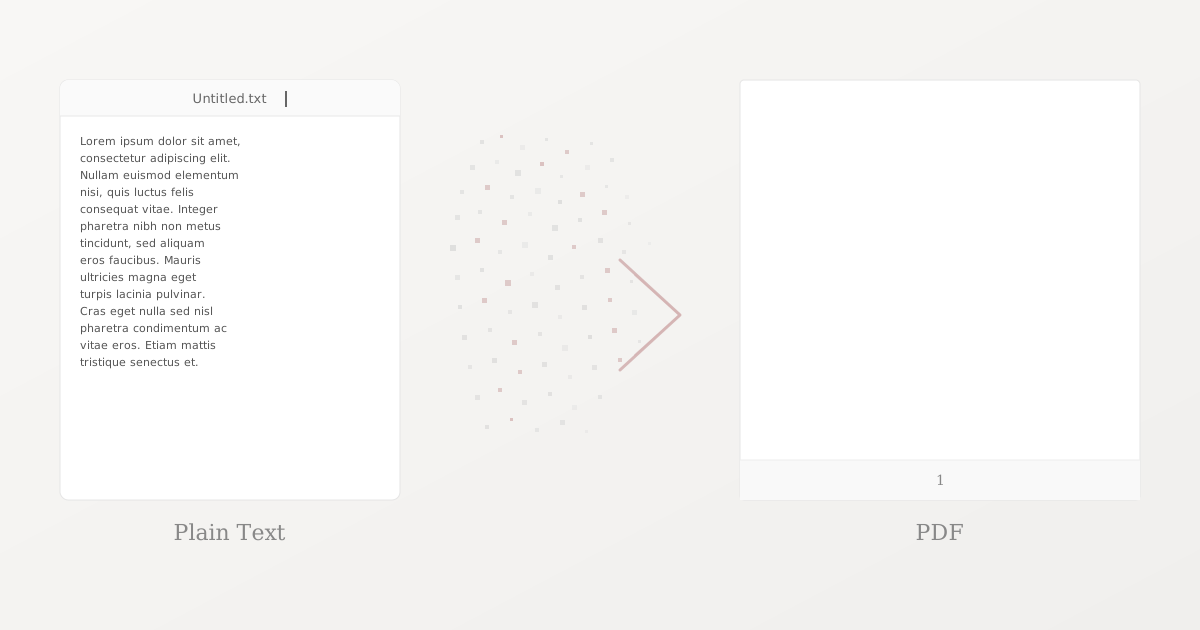
The quick answer: To convert a text file (.txt) to PDF, use a browser-based converter like Practical Web Tools text to PDF converter. Upload your text file, adjust settings like font, margins, and page size if needed, then download the PDF. The process takes seconds, requires no software installation, and processes files locally for complete privacy. Converting to PDF ensures your text displays identically on any device.
Last month, I spent an embarrassingly long time trying to email a simple text file to my literary agent. The problem wasn't technical - it was psychological. She kept replying with confusion: "I can't open this on my iPad," and "What program do I need for TXT files?"
I'd sent her a 10-page manuscript outline in plain text format because that's how I write. To me, TXT files are clean, simple, and universal. To her, they might as well have been ancient hieroglyphics.
After three failed attempts and growing frustration on both sides, I converted the text file to PDF and re-sent it. She opened it immediately. "Why didn't you just send it as a PDF in the first place?" she asked.
That frustrating exchange taught me something important: plain text files are powerful for writers like me, but PDFs are the universal language of document sharing. Converting text to PDF isn't about making your content better - it's about making sure other people can actually access it.
Why Should You Convert Text Files to PDF?
I write everything in plain text. My essays, my blog posts, my book chapters - all start life as TXT files. There are good reasons for this workflow that I'll defend passionately, but I've learned that what works for writing doesn't always work for sharing.
The Moment I Understood PDF's True Purpose
I used to think PDFs were just bloated text files with formatting. Why add 200KB of overhead to a 5KB text file? It seemed wasteful.
Then I sent my grandmother a recipe I'd typed up. She has an iPad from 2015 that she uses primarily for email and photos. She clicked my TXT attachment and saw this:
Grandma's Chocolate Chip Cookies

Ingredients:
- 2 1/4 cups all-purpose flour
- 1 tsp baking soda
[... continues with bizarre formatting]
Except she didn't see a formatted list. She saw a continuous block of text with no line breaks where I'd intended them. The encoding was wrong, the fonts were weird, and the measurements were impossible to follow. She tried following the malformed recipe anyway and ended up with something that resembled cookies but tasted like disappointment.
I converted the exact same text to PDF and resent it. She opened it immediately on the same iPad, saw perfect formatting, could zoom in on measurements, and the cookies turned out perfect.
That's when I understood: PDFs aren't about making text fancy. They're about ensuring text looks the same for everyone who opens it.
The Problems Text Files Actually Have
Over years of sharing writing with editors, clients, and family, I've encountered every possible way text files can fail:
Encoding Issues: I write with UTF-8 encoding, which handles special characters like smart quotes and em dashes. About 30% of recipients open my files in programs that default to ASCII encoding. Every smart quote becomes a weird character sequence. Every em dash becomes gibberish.
Line Break Problems: I carefully format text files with blank lines between paragraphs. Some email clients or text editors strip these out, creating walls of text that are impossible to read.
Font Inconsistency: My text files look clean in my monospace font at my preferred size. They look completely different on someone else's computer with their default settings. Sometimes they're huge. Sometimes they're tiny. Sometimes they're in Comic Sans for reasons I'll never understand.
Mobile Viewing: Text files on phones are particularly problematic. Many mobile text editors don't handle long lines well, requiring horizontal scrolling. Others wrap text in confusing ways. PDFs just work on every phone.
Professional Perception: I submitted a proposal to a client as a TXT file because the content was what mattered. They responded politely but clearly thought I was either unprofessional or technically incompetent. The exact same content as a PDF got a completely different reception.
What Is the Best Workflow for Converting Text to PDF?
After years of trial and error, I've developed a workflow that preserves my text-file writing process while ensuring easy sharing.
Step 1: Write in Plain Text
I still do all my actual writing in plain text. I use Notepad++ on Windows and a simple text editor on my Mac. No formatting, no distractions, just words.
Plain text has real advantages for writing:
- No formatting to fidget with instead of writing
- Tiny file sizes that never slow down
- Version control works perfectly with text
- No compatibility issues between devices
- Fast search across hundreds of files
I'll never give up text for writing. But I've learned that sharing requires a different format.
Step 2: Clean Up Before Conversion
Before converting text to PDF, I spend two minutes on quick cleanup:
Check Paragraph Breaks: I verify blank lines exist between paragraphs. These become visual spacing in the PDF.
Review Special Characters: If I've used any fancy characters like bullets or symbols, I make sure they'll convert properly or replace them with standard characters.
Verify Headings: I format headings consistently, usually with all caps or underlining with equals signs. These visual cues translate well to PDF.
Read Through Once: I do a quick final read to catch obvious typos. Once it's a PDF, editing becomes much more difficult.
This cleanup takes minutes but dramatically improves the final PDF appearance.
Step 3: Convert with Privacy
After my agent incident, I researched text-to-PDF converters. I tried several options:
Cloud Converters I Rejected: Many free converters require uploading your file to their servers. For most of my writing - essays, personal projects, client work - I'm not comfortable with that. I have no idea what happens to my file on their servers, how long it persists, or who might access it.
Desktop Software I Avoid: I tried several downloadable PDF creators. They work but require installation, updates, and often include bloatware or try to upsell premium features I don't need.
Browser-Based Solution I Actually Use: I found Practical Web Tools' text to PDF converter that processes everything in my browser. I upload the file, it converts locally using JavaScript, and I download the PDF. Nothing ever touches an external server.
I verified this by monitoring network traffic during conversion. Zero data transmitted except loading the tool itself. My manuscript that I'm keeping confidential until publication? It never left my computer during the conversion process.
Step 4: Review and Adjust
After conversion, I always open the PDF to verify it looks correct:
Check Pagination: Does the content flow naturally across pages? Sometimes a heading ends up alone at the bottom of a page, which looks awkward. If I notice this, I adjust the original text file and reconvert.
Verify Margins: Are the margins reasonable? Too narrow makes text cramped. Too wide wastes space. I've found 1-inch margins work well for most documents.
Test Zoom Levels: I zoom in and out to verify text remains readable at different sizes. This matters especially for recipients who may need larger text.
Review on Mobile: I send the PDF to my phone and check how it looks there. Most of my recipients read on phones or tablets, so mobile appearance matters.
If anything looks wrong, I adjust the settings and reconvert. This iteration takes time initially but I've learned what settings work for my typical documents.
What Settings Matter When Converting Text to PDF?
Most text-to-PDF converters offer numerous settings. After converting hundreds of files, I've learned which settings genuinely matter and which are just complexity.
Page Size: Choose Based on Purpose
Letter (8.5 x 11 inches): I use this for anything going to US recipients. It's the standard paper size in North America. Printed documents use this size, so PDFs designed for potential printing should match.
A4 (210 x 297mm): For international recipients, I use A4. It's the standard in most of the world outside North America. The difference is subtle but professionals notice when you use the wrong regional standard.
Legal (8.5 x 14 inches): I've used this exactly twice - both times for contracts where extra length per page was helpful. For normal documents, legal size is unnecessarily long.
I default to Letter for most conversions since most of my audience is US-based. When emailing internationally, I switch to A4.
Font Selection: Readability Over Style
The font choice dramatically affects how your PDF feels to read.
Serif Fonts (Times New Roman, Georgia): I use these for longer documents like essays or reports. The serifs guide the eye across lines, making extended reading easier. Traditional and professional-looking.
Sans-Serif Fonts (Arial, Helvetica): I prefer these for short documents, lists, or anything meant for screen reading. They're clean and modern, though I find them tiring for long-form reading.
Monospace Fonts (Courier): Perfect for code, logs, or anything where alignment matters. I use monospace when converting technical documentation where spacing communicates meaning.
For most documents, I stick with Arial at 11pt or 12pt. It's readable without being boring, works well on screens, and prints clearly if needed.
Margins: More Important Than You'd Think
Margins affect readability more than I initially realized.
1 inch (2.54cm): My standard for most documents. Provides comfortable white space without wasting too much page area. Text doesn't feel cramped or overly spread out.
0.75 inches: I use slightly smaller margins when fitting content on fewer pages matters. Be careful going smaller - text starts feeling cramped below 0.75 inches.
1.5 inches: For formal documents where extra white space creates elegance, wider margins work well. I used this for a book proposal where appearance mattered as much as content.
I learned about margin importance when I sent a PDF with 0.25-inch margins to a client. They mentioned it looked "crammed" and "hard to read." Increasing to 1-inch margins and reconverting made the exact same content feel professional.
Line Spacing: The Detail Most People Miss
Line spacing affects readability dramatically but many converters don't expose this setting clearly.
Single Spacing: Compact but can feel dense for longer documents. I use this for reference materials or lists where fitting content on fewer pages matters.
1.15-1.5 Spacing: My standard for most documents. Provides breathing room between lines without wasting space. Most professional documents use this range.
Double Spacing: Required in certain academic contexts but otherwise unnecessarily spacious. I avoid double spacing unless specifically requested.
Most browser-based converters default to reasonable spacing, so I usually don't adjust this unless the resulting PDF feels too cramped or too loose.
What Are Common Mistakes When Converting Text to PDF?
Mistake 1: Converting Without Proofreading
Early on, I'd write text, immediately convert to PDF, and send it off. I'd inevitably discover typos or awkward phrasing after the PDF was already in someone's inbox.
PDFs are much harder to edit than text files. While technically possible, PDF editing is clunky and often creates formatting artifacts. Now I always proofread the text file before converting. The text file is easy to fix. The PDF is semi-permanent.
My Current Rule: No conversion without at least one careful read-through of the text file.
Mistake 2: Ignoring Recipient Context
I converted a recipe collection to PDF using 9pt font because I wanted to fit everything on fewer pages. My mother, who was the intended recipient, couldn't read it without her reading glasses. When she tried zooming in on her iPad, the text was so small it remained difficult.
I reconverted with 12pt font. The document became longer but infinitely more usable for the actual person who needed to read it.
My Current Rule: Consider who will read this PDF and in what context. Age, device, and usage context matter more than abstract optimization.
Mistake 3: Using Inconsistent Formatting
I once converted a long document where I'd formatted headings inconsistently - sometimes all caps, sometimes bolded (though plain text doesn't have bold), sometimes underlined with hyphens, sometimes with equals signs.
In the PDF, this inconsistency became glaringly obvious. The document looked unprofessional and poorly organized, even though the content was solid.
My Current Rule: Before converting anything longer than a few pages, I verify heading formatting is consistent throughout the document.
Mistake 4: Converting Already-Converted Content
A colleague sent me a PDF. I needed to make changes, so I copied the text from the PDF into a text file, made my edits, and converted back to PDF.
The result looked terrible. Copying from PDF introduced weird line breaks, inconsistent spacing, and character encoding problems. The new PDF amplified all these issues.
My Current Rule: Always work from the original source file if possible. Converting from PDF to text to PDF is lossy and creates formatting problems.
Mistake 5: Forgetting File Naming
I converted dozens of text files to PDF using default names like "output.pdf" or "document.pdf". When I needed to find a specific PDF later, I had to open each one to identify the content.
My Current Rule: Before downloading the converted PDF, I rename it descriptively. "Recipe_Collection_2025.pdf" is findable months later. "output.pdf" is not.
Real-World Use Cases from My Experience
Writing Project Sharing
I'm working on a book. My editor wants chapters in PDF format for her to annotate. I write in plain text because it's distraction-free and allows me to focus on the words rather than formatting.
My workflow:
- Write chapter in plain text (usually 5,000-8,000 words)
- Proofread carefully for content and flow
- Add chapter title and section breaks formatted consistently
- Convert to PDF using my standard settings (Letter size, Arial 11pt, 1-inch margins)
- Name descriptively: "BookTitle_Chapter03_Draft2.pdf"
- Send to editor
This workflow preserves my preferred writing environment while delivering files my editor can easily work with. She adds comments and annotations in PDF, I incorporate her feedback in my text file, then convert again for the next round.
Client Deliverables
As a freelance writer, I deliver articles to clients. Some clients request specific formats, but many just want "the final article."
Text files feel too casual for professional delivery. Word docs work but introduce compatibility questions and make it too easy for clients to edit without tracking changes.
PDFs hit the sweet spot: professional appearance, universal accessibility, and preservation of the final approved version.
I write in text, convert to PDF, and deliver with confidence that the client will see exactly what I intended.
Personal Documentation
I keep various personal documents in text format: medical records, home inventory, important account information. These started as text because text is future-proof and searchable.
But when I need to share information - with a doctor, insurance company, or family member - text files create friction. Converting to PDF makes sharing seamless.
Example: I maintain a detailed home inventory for insurance purposes. When I needed to file a claim, the insurance adjuster requested documentation. I converted my text inventory to PDF, which looked professional and was immediately usable. If I'd sent a text file, I suspect the adjuster would have asked me to resubmit in a "proper" format.
Technical Documentation
I document various technical processes and configurations in text files. Plain text is perfect for this: I can copy-paste commands exactly, maintain formatting, and keep everything version-controlled.
When sharing these documents with less technical colleagues, text files often confuse them. Converting to PDF with a monospace font preserves the technical accuracy while making the document more approachable.
I've converted dozens of internal documentation files to PDF for this reason. The technical content remains identical, but the PDF format makes colleagues more comfortable actually using the documentation.
When Should You NOT Convert Text to PDF?
Despite my enthusiasm for text-to-PDF conversion, there are times when it's the wrong choice.
When the Recipient Needs to Edit
If someone needs to modify your content, PDF is a poor choice. While PDF editing exists, it's clunky and often creates formatting problems.
I learned this when I converted meeting notes to PDF and sent them to a colleague who needed to add her sections. She spent 20 minutes fighting with PDF editing before asking me to just send the text file.
Better Choice: Keep it as text, or use a properly editable format like DOCX.
When Search Across Files Matters
PDFs are searchable, but searching across many PDFs is slower and less reliable than searching plain text files.
I keep a personal knowledge base of notes and research. This stays as text files because I frequently search across hundreds of files simultaneously. Converting to PDF would make this workflow dramatically slower.
Better Choice: Keep as text if you need fast, comprehensive search.
When File Size Is Critical
Text files are tiny. PDFs are larger - often 50-100 times larger than equivalent text.
For a 5KB text file, this doesn't matter. But I once converted a 2MB text file (a massive screenplay) to PDF and ended up with a 15MB PDF. When I tried to email it, the size limit rejected it.
Better Choice: For very large documents, consider compression or alternate sharing methods rather than conversion.
When Frequent Updates Expected
If a document changes frequently, maintaining a text file and converting to PDF each time becomes tedious.
I wrote a project specification that went through 27 revisions in two weeks. Converting to PDF after each change was pointless busy work. I shared the text file with stakeholders and only created a PDF when we finalized.
Better Choice: Maintain as text during active development, convert to PDF only when stable.
The Tools I Trust
I've tried many text-to-PDF conversion tools over the years. Most were disappointing, some were concerning from a privacy perspective, and a few actually worked well.
What I Use Now
Practical Web Tools text to PDF converter became my standard for several reasons:
Privacy: Conversion happens entirely in my browser. I've verified with network monitoring that my files never transmit to external servers. For confidential writing, this matters enormously.
Simplicity: No account creation, no email verification, no download limits. I open the page, drop my file, and get a PDF. No friction.
Reliability: It's worked consistently for hundreds of conversions. No random failures, no corrupted outputs, no mysterious errors.
No Hidden Costs: Completely free with no attempts to upsell premium features. I'm skeptical of "free" tools that are actually freemium trials. This one is genuinely free.
Settings Control: I can adjust fonts, margins, and page sizes when needed, or accept reasonable defaults for quick conversions.
What I Avoid
Tools Requiring Uploads: Any converter that requires uploading my file to their servers is automatically disqualified. I have no visibility into what happens to my file on their infrastructure.
Converter Software with Bloat: I tried several downloadable converter programs. They all tried to install browser toolbars, change my default search engine, or included other software I didn't want. Not worth the hassle.
Conversion Sites with Aggressive Ads: Some free converter sites are barely usable due to aggressive advertising. Full-page ads before conversion, pop-ups during conversion, and download buttons that are actually ads. Life's too short for that frustration.
The Bigger Picture: Formats and Accessibility
Converting text to PDF taught me a broader lesson about file formats and accessibility.
As a writer who loves plain text, I initially viewed format conversion as a necessary evil. Text was "pure" and everything else was bloat. I was technically correct but practically wrong.
The Reality: File formats exist to solve specific problems. Text files solve the problem of simple, portable, future-proof writing. PDFs solve the problem of consistent, universal document display.
Neither format is superior in abstract terms. The question is: which format solves the problem you're currently facing?
When I'm writing, text is perfect. When I'm sharing, PDF is usually better. Accepting this rather than fighting it has made my workflow smoother and my collaborators happier.
Moving Forward with Text and PDF
These days, I maintain a simple but effective system:
For Writing: Plain text files, organized in folders by project. Simple, fast, and focused on the actual content.
For Sharing: Convert to PDF before sending to anyone outside my immediate technical circle. Takes 30 seconds and prevents 30 minutes of confused troubleshooting.
For Archives: I keep both text originals and PDF versions of important documents. Text for my own future use and searchability, PDF for easy sharing if needed later.
This system acknowledges that I think in text but the world runs on PDFs.
That manuscript I mentioned at the beginning? I still write it in plain text. But now when my agent requests the latest chapter, I convert to PDF before sending. She gets it immediately, opens it without issues, and provides feedback on the content rather than asking tech support questions.
Text for creation. PDF for communication. It's a simple system that actually works.
Ready to convert your text files to PDF? Try our free text to PDF converter - everything processes in your browser with complete privacy. No uploads, no accounts, just simple conversion that works.
Frequently Asked Questions About Text to PDF Conversion
How do I convert a TXT file to PDF for free?
Use a browser-based converter like Practical Web Tools text to PDF converter. Simply drag your text file onto the upload area, adjust font, margins, and page size if needed, then click convert. The PDF downloads immediately. The entire process takes seconds, requires no registration, and processes files locally for complete privacy.
What is the best font for converting text to PDF?
For most documents, Arial or Helvetica at 11-12 point size works well - clean, professional, and readable on screens and in print. For longer documents like essays or reports, serif fonts like Times New Roman guide the eye across lines better. For code or technical documentation, use monospace fonts like Courier to preserve alignment.
Can I convert text to PDF without installing software?
Yes. Browser-based converters run entirely in your web browser using JavaScript and WebAssembly. You don't need to download or install anything. Just visit the converter website, upload your file, and download the PDF. This works on any operating system with a modern browser.
Why does my text file look different when opened on another computer?
Text files depend on local settings for font, size, and encoding. Different computers may use different default text editors with different settings, causing the same file to appear differently. Converting to PDF locks in your intended appearance, ensuring every recipient sees identical formatting.
What page size should I use for text to PDF conversion?
Use Letter size (8.5 x 11 inches) for US recipients and A4 for international recipients. If your document will be printed, match the paper size you'll use. If it's only for screen viewing, either standard size works fine.
Can I convert text files with special characters to PDF?
Yes, but results depend on encoding. UTF-8 encoded text files handle special characters, smart quotes, and international characters well. ASCII-encoded files may show strange characters. If you see encoding issues in the PDF, save your text file as UTF-8 before converting.
How do I maintain paragraph formatting when converting text to PDF?
Ensure your text file has blank lines between paragraphs - these become visual spacing in the PDF. Use consistent indentation or spacing patterns for lists. If headings should stand out, format them consistently (all caps, underlining with equals signs, etc.) so the visual structure translates well.
Is it safe to convert confidential text files to PDF online?
It depends on the converter. Most online converters upload your files to their servers, creating privacy risks. Browser-based converters like Practical Web Tools process files entirely on your device - nothing is uploaded anywhere. For confidential documents, always use converters that process locally.