How to Convert Markdown to HTML (or HTML to Markdown) Free Online
Markdown vs HTML: When to Use Each and How to Convert Between Them
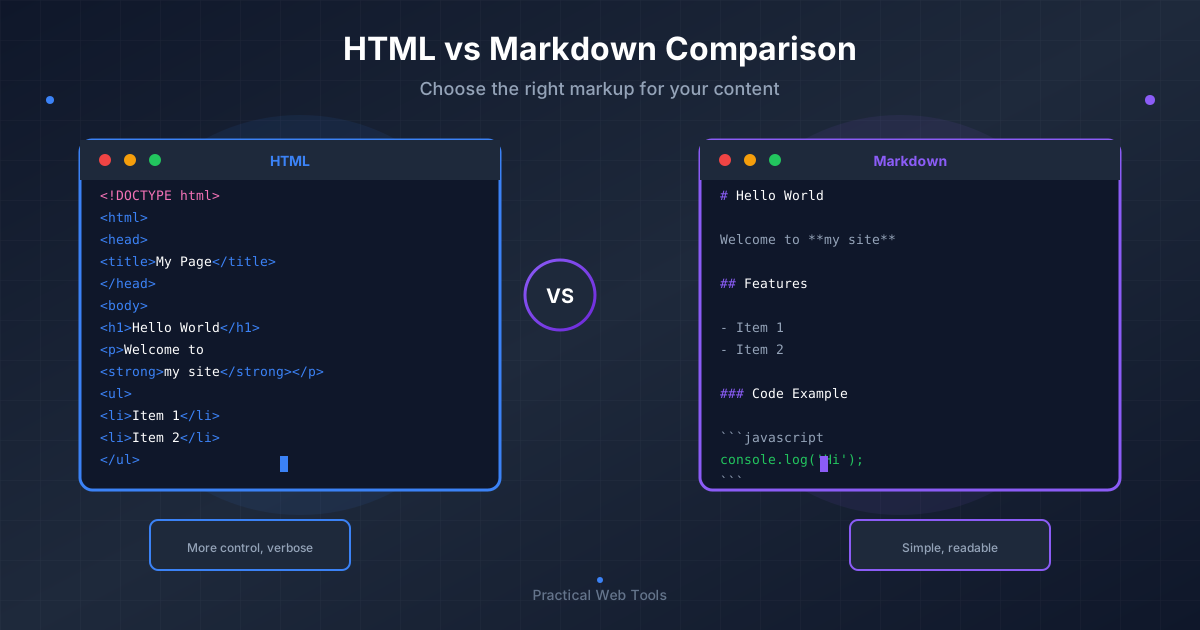
Markdown is ideal for writing content (portable, readable, version-control friendly), while HTML is necessary for precise layout control and interactive elements. Converting Markdown to HTML is clean and lossless - every Markdown element has an exact HTML equivalent. Converting HTML to Markdown is lossy - CSS classes, custom attributes, and layout information are lost because Markdown has no equivalents for these features.
Best practice: Write in Markdown for content creation, convert to HTML for web publishing, and keep HTML-specific elements (videos, forms, complex tables) as inline HTML within Markdown files.
I was three hours into migrating 247 blog posts from my old WordPress site to my new static site generator when I hit the wall. WordPress exports HTML. Jekyll wants Markdown. Copy-pasting 247 posts wasn't happening. Manual HTML-to-Markdown conversion would take days. And the export plugins I found either corrupted the formatting, cost $200, or required uploading my content to questionable third-party services.
I sat there staring at blog post number 23 - a 3,000-word guide to database indexing with code examples, tables, and carefully formatted sections - trying to manually convert nested div soup into clean Markdown. That's when I realized I needed a better solution.
This experience taught me something valuable: knowing how to convert between Markdown and HTML efficiently is essential for anyone who creates content on the web. Whether you're migrating platforms, extracting content for editing, or publishing Markdown in HTML environments, you need tools that work correctly without compromising your content's privacy.
Let me show you everything I learned about converting between these formats, including the methods that actually work and the pitfalls that waste your time.
When Should You Use Markdown vs HTML?
Markdown and HTML serve different purposes in the content ecosystem, and understanding when to use each one will save you countless hours of frustration.
I learned this the hard way when I wrote an entire technical documentation set in HTML because I didn't know Markdown existed. Months later, trying to update it was painful. Every change meant editing angle brackets and closing tags. One forgotten /div broke the entire layout. My collaborators refused to edit it because "the HTML is intimidating."
When I rewrote it in Markdown, updates became trivial. New contributors could edit files in any text editor. Version control diffs actually showed what changed instead of displaying tag soup. The content became accessible to non-technical writers.
Markdown excels when you need:
- Clean, readable source files that humans can edit comfortably
- Version control that shows meaningful diffs
- Fast writing without formatting interruptions
- Portability across different platforms and tools
- Collaboration with non-technical team members
- Content that might live in multiple formats (web, PDF, ebooks)
HTML excels when you need:
- Precise control over layout and appearance
- Complex interactive elements like forms or dynamic content
- Semantic markup for accessibility and SEO
- Custom styling with CSS classes and IDs
- Elements Markdown doesn't support (videos, iframes, complex tables)
- Direct integration with web applications
The real power comes from knowing both and converting between them as needed. I now write everything in Markdown first, then convert to HTML for publishing. If I need HTML-specific features, I add them inline. Best of both worlds.
Is Converting Between Markdown and HTML Lossless?
Here's what surprised me when I first started working with these conversions: they're not symmetrical. Converting Markdown to HTML is straightforward and lossless. Converting HTML to Markdown is messy and lossy.
Let me explain why this matters.
Markdown to HTML: Clean and Predictable
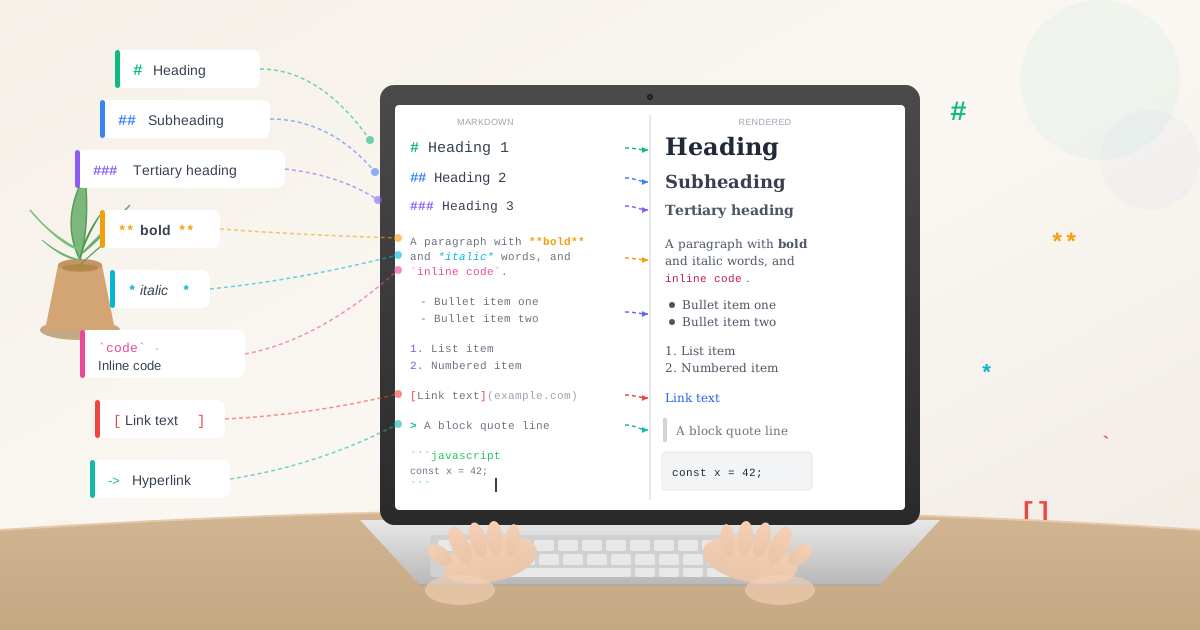
Markdown has a limited, well-defined syntax. Every valid Markdown element has a clear HTML equivalent:
- Headings become
<h1>through<h6>tags - Bold becomes
<strong>or<b> - Links become
<a>tags with proper href attributes - Lists become
<ul>or<ol>with<li>children
The conversion is deterministic. The same Markdown always produces the same HTML. Quality converters never lose information because HTML can represent everything Markdown expresses.
HTML to Markdown: Complicated and Lossy
HTML is vastly more expressive than Markdown. When you convert HTML to Markdown, you're translating from a complex language to a simple one. Information necessarily gets lost.
Consider a simple example. This HTML:
<div class="callout-box" style="background: #f0f0f0; padding: 20px;">
  <p class="intro">Important information here.</p>
</div>
In Markdown, you might get:
Important information here.
All the structure, classes, and styling disappear because Markdown has no equivalent. The converter does its best, but semantic richness vanishes.
I discovered this converting my WordPress posts. Any post using custom shortcodes, embedded content, or styled sections lost those features. I had to manually review every converted post to restore important formatting.
Converting Markdown to HTML: Step-by-Step
Let me walk you through the process I use for converting Markdown to HTML, including the edge cases that trip people up.
For Simple, Quick Conversions
When I need to convert a single Markdown document to HTML, I use our Markdown to HTML converter:
- Open the converter in your browser
- Paste your Markdown content in the input area
- The HTML appears instantly in the output section
- Copy the HTML and use it wherever needed
Everything processes locally in your browser. I've converted sensitive documentation, unpublished articles, and client work this way without worrying about where my content goes.
For Batch Conversions
When migrating my blog with 247 posts, I needed something more automated. I wrote a simple script using a Markdown library (I used marked.js for JavaScript environments) that:
- Read all Markdown files from a directory
- Converted each one to HTML
- Wrapped the HTML in my template
- Saved the results with proper filenames
This took 2 hours to set up but saved me days of manual work. If you're comfortable with basic scripting, this approach handles large-scale migrations efficiently.
For Complex Documents
Some Markdown documents include features that need special handling:
- Code blocks with syntax highlighting
- Tables (which require specific HTML structure)
- Images with alt text
- Nested lists
- Blockquotes within blockquotes
I learned to test my conversion with a sample document containing all these elements before running batch conversions. This catches parsing issues early rather than discovering them in post 187 of 247.
Converting HTML to Markdown: The Realistic Approach
Converting HTML to Markdown requires a different mindset because you'll lose information. Here's how I approach it to minimize pain.
Preparation: Clean Your HTML First
Before converting, I clean the HTML to improve results:
- Remove inline styles (they don't convert to Markdown anyway)
- Strip out
<div>and<span>tags that exist only for styling - Simplify nested structures where possible
- Remove comments and unnecessary attributes
- Ensure headings use proper
<h1>through<h6>tags, not<div class="heading">
This preprocessing dramatically improves conversion quality. When I skipped this step during my blog migration, I got Markdown full of escaped HTML and formatting garbage.
The Conversion Process
For individual pages, I use our HTML to Markdown converter:
- Copy the HTML source (View Source or Inspect Element in your browser)
- Paste it into the converter
- Review the generated Markdown
- Clean up any conversion artifacts manually
- Test the final result
For batch conversions, I used Turndown (a JavaScript library) which provides more control over how HTML elements map to Markdown.
Post-Conversion Cleanup
Every HTML-to-Markdown conversion needs manual review. Here's what I check:
Links: Make sure link text and URLs survived correctly. Sometimes complex link structures become malformed Markdown.
Images: Verify image paths and alt text. Relative paths might need updating depending on where the Markdown will live.
Code blocks: HTML <pre><code> blocks should become properly fenced code blocks with language identifiers if applicable.
Tables: Simple tables usually convert fine. Complex tables with colspan/rowspan need manual reconstruction or might need to stay as HTML.
Lists: Nested lists sometimes lose their structure. Check that hierarchy is preserved correctly.
I allocate 2-3 minutes per converted page for review and cleanup. Trying to automate beyond that point usually costs more time than it saves.
The Real-World Syntax Comparison
Let me show you how common elements actually convert, with examples from content I've worked with.
Headings Work Perfectly
This is the most reliable conversion in either direction:
# Main Title
## Section Heading
### Subsection
Converts to:
<h1>Main Title</h1>
<h2>Section Heading</h2>
<h3>Subsection</h3>
And back again perfectly. Never had issues with headings in thousands of conversions.
Text Formatting: Mostly Reliable
Basic formatting converts well:
**bold text** and *italic text*
Becomes:
<strong>bold text</strong> and <em>italic text</em>
But here's where it gets interesting. If your HTML uses <b> instead of <strong>, or <i> instead of <em>, converters handle it differently. Some preserve the distinction, others normalize to one style.
When I converted my old blog posts, inconsistent use of <b>/<strong> became consistent ** in Markdown, which converted back to consistent <strong> in HTML. This actually improved my semantic markup.
Links: Watch the Title Attributes
Basic links convert perfectly:
[link text](https://example.com)
To:
<a href="https://example.com">link text</a>
But title attributes are where things get messy:
[link](https://example.com "tooltip text")
Becomes:
<a href="https://example.com" title="tooltip text">link</a>
Going from HTML back to Markdown, title attributes sometimes get lost if the converter doesn't support them. I lost dozens of helpful tooltips this way before I learned to check for title attributes in my HTML source.
Lists: Structure Matters
Simple lists convert flawlessly:
- Item one
- Item two
- Item three
To:
<ul>
  <li>Item one</li>
  <li>Item two</li>
  <li>Item three</li>
</ul>
Nested lists require proper indentation in Markdown:
- Parent item
  - Child item
  - Another child
- Second parent
When converting HTML with deeply nested lists (4+ levels), I've seen converters choke on the indentation. Anything beyond 3 levels deep usually needs manual verification.
Code Blocks: The Devil's in the Details
Inline code converts reliably:
Use the `console.log()` function for debugging.
To:
Use the <code>console.log()</code> function for debugging.
Fenced code blocks work well:
```javascript
function example() {
  return true;
}
```
Becomes:
<pre><code class="language-javascript">function example() {
  return true;
}
</code></pre>
The problem: not all Markdown processors support language identifiers the same way. GitHub Flavored Markdown uses the format I showed above. Other systems use different conventions. Converting from HTML back to Markdown, the language identifier might not survive, or might be in the wrong format for your target system.
I now always verify code blocks after conversion and add language identifiers manually if needed.
Tables: Your Mileage Will Vary
Simple tables convert acceptably:
| Header 1 | Header 2 |
|----------|----------|
| Cell 1   | Cell 2   |
| Cell 3   | Cell 4   |
To reasonably structured HTML table markup.
But complex tables with merged cells, multiple header rows, or nested content? Those either become simplified Markdown tables (losing structure) or remain as raw HTML embedded in your Markdown (which most processors allow).
During my blog migration, I had a detailed comparison table with color-coded cells and merged headers. The HTML-to-Markdown converter gave up and just left it as HTML. I kept it that way because recreating it in Markdown table syntax would have been more work than it was worth.
What Gets Lost When Converting HTML to Markdown?
Let me be honest about what disappears when you convert, based on what I lost migrating hundreds of posts.
CSS Classes and IDs: Gone
HTML elements often have classes for styling:
<p class="lead-paragraph">Opening text here.</p>
In Markdown, you get:
Opening text here.
The semantic information is lost. If you need to preserve it, you have two options:
- Keep that HTML inline in your Markdown file (most processors allow this)
- Use HTML comments to mark sections for later processing
I went with option 1, embedding HTML for special formatting I needed to preserve.
Custom Attributes: Vanished
Data attributes, ARIA labels, custom attributes - all gone:
<button data-action="submit" aria-label="Submit form">Click here</button>
Becomes plain text in Markdown because Markdown has no button concept. These elements must stay as HTML if you need them.
Embedded Content: Stays as HTML
Videos, iframes, forms, interactive widgets - none of these have Markdown equivalents. They remain as HTML blocks in your Markdown document:
Here's a relevant video:

<iframe width="560" height="315" src="https://youtube.com/..."></iframe>

Continuing with text content...
This actually works fine. Most Markdown processors pass HTML through unchanged, so embedded content continues functioning.
Styling and Layout: Completely Lost
Flexbox layouts, grid systems, floated elements, positioned content - all layout information evaporates. Markdown assumes your styling happens separately via CSS applied to the generated HTML.
This was actually liberating for me. My old WordPress posts had inline styles everywhere from years of different editors and plugins. Converting to Markdown forced me to separate content from presentation, making the content more maintainable.
Tools and Methods: What Actually Works
I've tried dozens of converters over the years. Here's what I recommend based on what actually produces usable results.
For Quick, Individual Conversions
Use our browser-based converters:
- Markdown to HTML for publishing Markdown content
- HTML to Markdown for extracting content from web pages
Benefits: Private (runs in your browser), fast, handles most common cases correctly, no installation required.
Best for: Single documents, quick conversions, testing, working with sensitive content.
For Batch Conversions in JavaScript Environments
When migrating my blog, I used these libraries:
- marked.js for Markdown to HTML: Fast, extensible, supports GitHub Flavored Markdown
- Turndown for HTML to Markdown: Configurable rules, handles most HTML well
Both are well-maintained, properly handle edge cases, and give you control over conversion behavior when needed.
For Command-Line Batch Processing
Pandoc is the Swiss Army knife of document conversion. It handles Markdown, HTML, and dozens of other formats. I use it for complex conversions involving multiple formats:
pandoc input.md -o output.html
pandoc input.html -o output.md
Pandoc's strength: it understands document structure deeply and preserves more semantic information than simpler converters.
Pandoc's weakness: complex installation, steeper learning curve. Worth it for large migrations or ongoing conversion workflows.
For WordPress Specifically
When migrating from WordPress, I found these approaches work:
- Export to WordPress XML
- Use wordpress-export-to-markdown (a Node.js tool)
- Review and clean up the generated Markdown files
- Fix any conversion artifacts
This preserved my post metadata, handled images reasonably well, and dealt with WordPress shortcodes better than generic HTML-to-Markdown converters.
What Are Common Markdown-HTML Conversion Mistakes?
Let me share the mistakes I made so you don't have to.
Pitfall 1: Converting Without Testing
I converted 50 blog posts before checking the output carefully. Post 47 revealed that my code blocks were malformed throughout. I had to reconvert everything.
Solution: Convert a representative sample first. Find a document with all your edge cases (code blocks, tables, images, lists, links). Verify it converts correctly before batch processing.
Pitfall 2: Not Preserving Source Files
I once overwrote original Markdown files with converted HTML, then realized the HTML lacked features I needed. The original Markdown was gone.
Solution: Always convert to a new directory. Keep originals until you've verified converted results work correctly.
Pitfall 3: Ignoring Link and Image Paths
Converting from HTML to Markdown, I didn't realize my image paths were relative to a different directory structure. Every image broke.
Solution: Review and fix paths after conversion. Use absolute URLs for images if the content will live in multiple places.
Pitfall 4: Assuming Round-Trip Fidelity
I thought converting Markdown → HTML → Markdown would give me identical results. It doesn't. The second Markdown version lacked features like link titles and some formatting nuances.
Solution: Don't rely on round-trip conversions. Keep your source files in the original format when possible.
Pitfall 5: Not Handling Special Characters
Special characters (especially in code blocks) sometimes get escaped incorrectly, turning < into < inappropriately.
Solution: Review code blocks and technical content carefully after conversion. These areas most commonly have character encoding issues.
Practical Workflows for Different Scenarios
Here are the conversion workflows I use for different situations:
Workflow 1: Publishing Blog Post
I write posts in Markdown, then convert for platforms requiring HTML:
- Write post in Markdown in my editor
- Convert to HTML using Markdown to HTML converter
- Copy HTML into the blog platform's HTML editor
- Add any platform-specific styling or shortcodes
- Preview and publish
Time: 2 minutes for conversion and integration.
Workflow 2: Extracting Content for Editing
When I need to edit content trapped in a CMS:
- View source on the published page
- Copy the relevant HTML
- Convert to Markdown using HTML to Markdown converter
- Clean up conversion artifacts
- Edit in Markdown (much easier than HTML)
- Convert back to HTML when ready
- Update the CMS
Time: 5 minutes for extraction and cleanup, saves 30+ minutes on editing.
Workflow 3: Platform Migration
For large-scale migrations like my 247-post blog:
- Export all content from source platform
- Write a script using Turndown or Pandoc for batch conversion
- Convert everything
- Review a sample of converted files
- Fix common issues with find-and-replace
- Manually review posts with complex formatting
- Import to new platform
Time: 2 days for script and batch conversion, 1 week for review and cleanup. Still way faster than manual conversion.
Workflow 4: Collaborative Documentation
For technical docs with multiple contributors:
- Store everything in Markdown in Git
- Team members edit Markdown files
- Automated build process converts to HTML
- Published documentation always reflects current Markdown source
This workflow has saved me countless hours coordinating documentation updates.
Making Your Decision: Which Format to Use
After years of working with both formats, here's how I decide which to use:
Use Markdown as your source format when:
- Content will be maintained over time by multiple people
- You need version control with readable diffs
- Writers aren't comfortable editing HTML
- Content might be published in multiple formats
- Speed of writing matters more than precise layout
- Portability across platforms is important
Use HTML as your source format when:
- Precise visual control is essential
- You're building web applications, not content
- You need semantic markup for accessibility
- Forms, interactive elements, or complex layouts are required
- You're working with designers who think in HTML/CSS
My personal system: Write everything in Markdown first. When I need HTML-specific features, I add them inline. Markdown allows embedded HTML, giving me the best of both worlds. This approach has served me well for years.
Advanced Tips from Years of Converting
These tips took me years to learn. You get them in one article:
Tip 1: Standardize Your Markdown Dialect
Not all Markdown is created equal. GitHub Flavored Markdown, CommonMark, and various other dialects have subtle differences. Pick one standard and stick to it. I use GitHub Flavored Markdown because it's well-documented and widely supported.
Tip 2: Use Frontmatter for Metadata
Many static site generators support YAML frontmatter in Markdown files:
---
title: Post Title
date: 2025-05-29
tags: markdown, html
---

Post content here...
This keeps metadata with content in a structured way that survives conversions better than trying to embed it in HTML comments.
Tip 3: Test Your Conversion Pipeline
Before migrating content, build a test suite of documents covering all your edge cases. Run them through your conversion pipeline and verify the results. This catches issues before they affect your real content.
Tip 4: Automate What You Can, Accept Manual Work Where Necessary
Conversion can be 90% automated. That last 10% usually requires human judgment. Don't try to automate everything - you'll spend more time on automation than the manual work would take.
Tip 5: Document Your Conventions
When working with a team, document how you handle conversion edge cases. Do you keep complex tables as HTML? Do you use specific class names for styled content? Write it down so everyone converts consistently.
Looking Forward
The future of content creation increasingly embraces plain text formats like Markdown for source material, converting to presentation formats as needed. This separation of content from presentation makes content more durable, portable, and maintainable.
I've watched this evolution over a decade. Early 2010s: everyone wrote directly in CMSs or HTML. Mid 2010s: Markdown gained traction with developers. Late 2010s: non-technical writers discovered Markdown. Today: even content marketing teams use Markdown-first workflows.
The trend continues. Modern tools make conversion between formats increasingly seamless. The key is understanding what each format does well, converting intelligently, and maintaining source content in the format that best serves your workflow.
Your Next Steps
If you're ready to start working with both formats effectively:
This Week: Convert a sample document from Markdown to HTML and back. See what survives the round trip. Understand the limitations of conversion for your specific content.
This Month: Identify one workflow where format conversion would save you time. Implement it. Measure the time savings. For me, writing in Markdown saved 30% of my documentation time compared to writing in HTML.
This Year: Consider migrating your content to a Markdown-first workflow if you're maintaining long-lived content. The upfront investment pays dividends in maintainability.
The tools exist. The knowledge is in this article. The only thing left is to start converting.
Ready to try it yourself? Use our free Markdown to HTML converter or HTML to Markdown converter. Everything runs in your browser with no uploads, keeping your content completely private. Whether you're migrating a blog, extracting content from a website, or publishing documentation, you'll have clean conversions in seconds.
And if you need to process documents before or after conversion, check out our other browser-based tools for everything from PDF manipulation to text extraction. All with the same privacy-first, local processing approach that means your content never leaves your device.
Frequently Asked Questions
What is the difference between Markdown and HTML?
Markdown is a lightweight markup language using plain text characters for formatting (# for headers, ** for bold), designed for readability and easy writing. HTML is a markup language using tags (<h1>, <strong>) for precise web page structure and styling. Markdown is easier to write; HTML offers more control. Markdown converts to HTML for web publishing.
Is Markdown to HTML conversion lossless?
Yes, Markdown to HTML conversion is completely lossless. Every Markdown element has an exact HTML equivalent: # becomes <h1>, **bold** becomes <strong>bold</strong>, etc. The same Markdown always produces the same HTML. Quality converters never lose information in this direction.
Is HTML to Markdown conversion lossless?
No, HTML to Markdown conversion is lossy. CSS classes, inline styles, custom attributes, form elements, and complex layouts have no Markdown equivalents. Converting <p class="intro"> to Markdown gives you just paragraph text - the class is lost. Always keep HTML originals when converting to Markdown.
Can I use HTML inside Markdown files?
Yes, most Markdown processors pass HTML through unchanged. You can embed videos, iframes, forms, and complex tables directly in Markdown files. This is the recommended approach for content that Markdown can't express. Example: write prose in Markdown, embed YouTube videos with raw HTML.
Why do my converted tables look broken?
Markdown tables only support simple structures: single header row, uniform cells, no merging. Complex HTML tables with colspan, rowspan, nested elements, or multiple headers can't convert cleanly. Either simplify the table structure or keep it as embedded HTML within your Markdown file.
What's the best tool for batch Markdown conversion?
For batch conversion, use Pandoc (command-line, cross-platform) or JavaScript libraries like marked.js (Markdown to HTML) and Turndown (HTML to Markdown). For individual files, browser-based tools like our Markdown to HTML converter work instantly with no installation required.
Why should I write in Markdown instead of HTML?
Markdown is faster to write (no closing tags), more readable in raw form, portable across platforms, and produces cleaner version control diffs. Write in Markdown for content, convert to HTML for publishing. You'll save significant time on content that doesn't require HTML-specific features.
How do I preserve code formatting when converting?
Use fenced code blocks in Markdown with language identifiers: triple backticks followed by the language name. This converts to <pre><code class="language-javascript">. When converting HTML to Markdown, ensure your <pre><code> blocks have proper structure - converters recognize standard patterns better than custom implementations.