How to Write and Convert Markdown Free Online (Complete Guide)
How to Write Markdown: Complete Guide for Writers and Bloggers
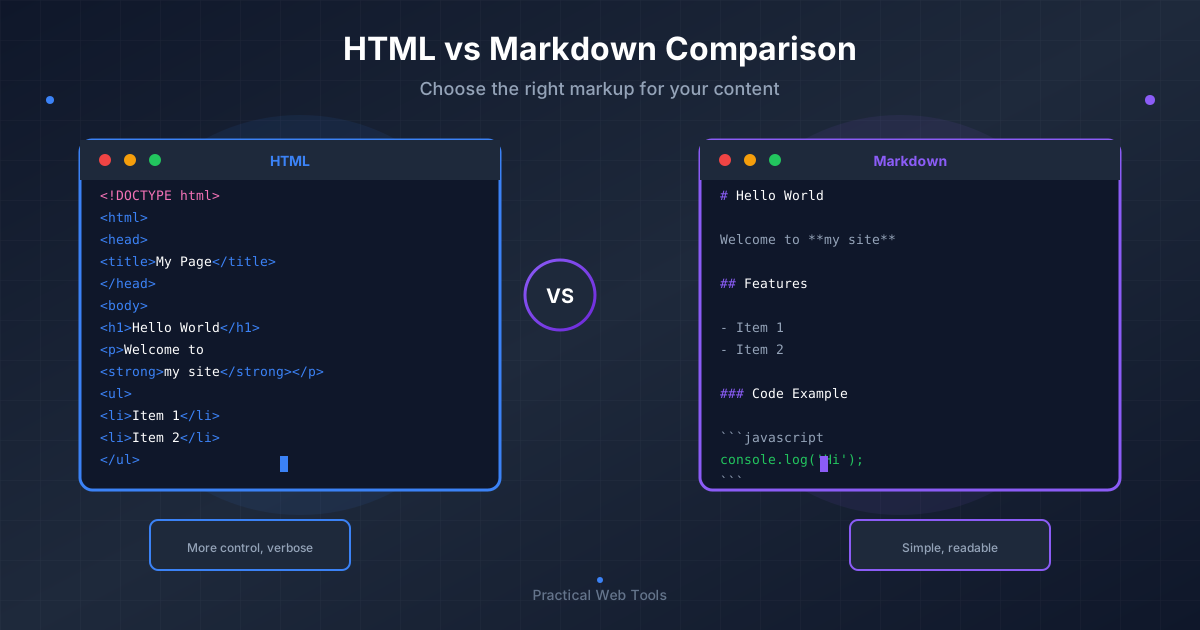
Markdown is a lightweight markup language that uses plain text characters to format documents - use # for headers, ** for bold, * for italic, and - for lists. Markdown files are portable (work on any device), version-control friendly (changes show in meaningful diffs), and convert instantly to HTML for web publishing. The learning curve is about 2 days, but the time savings compound over every document you write.
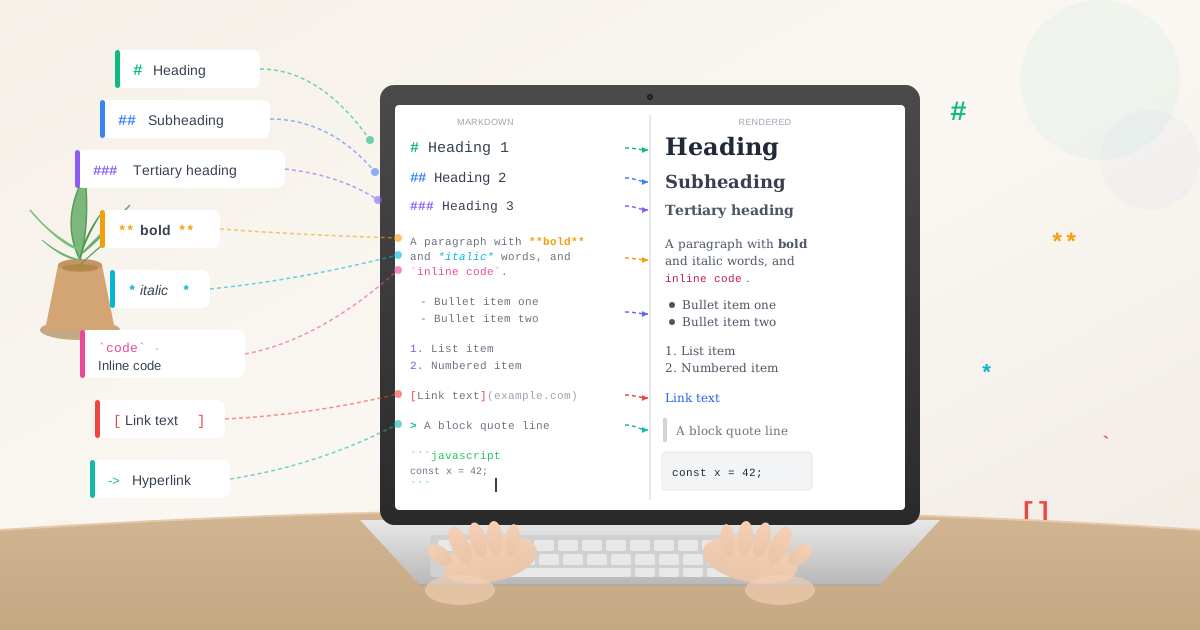
Key Markdown syntax to know immediately: # Header, **bold**, *italic*, - list item, [link text](url), and . That covers 90% of writing needs.
I've been writing professionally for eight years. For the first six, I used Microsoft Word for everything: blog posts, documentation, articles, reports. I spent more time fighting with formatting than actually writing. Headers that mysteriously changed size. Bullet points that refused to indent correctly. Styles that broke when copying between documents.
Two years ago, a developer friend introduced me to Markdown. "Just write," he said. "Add a # for headers, ** for bold. That's it."
I was skeptical. Another tool to learn. Another syntax to memorize. But I tried it for one blog post. That single post convinced me. Within a month, I'd converted my entire writing workflow to Markdown. Within three months, I was teaching my colleagues. Today, I write everything in Markdown first, and I can't imagine going back.
This guide teaches you what I wish someone had taught me two years ago: how to use Markdown effectively, why it matters for writers, and how to convert it to whatever format you need.
Why Should Writers Switch from Word to Markdown?
Word processors seem designed for writers. But they're actually designed for desktop publishing—for people who need precise control over how things look on a printed page. Writers don't need that. We need to focus on content, not formatting.
Here's what changed when I switched:
I stopped fighting with formatting. In Word, I'd spend 10 minutes making headers consistent. In Markdown, I type ## and move on. The formatting is consistent because it's literally the same syntax every time.
My writing became portable. Markdown files are plain text. They open in any text editor, on any device, in any operating system. I can write on my laptop, edit on my phone, and finish on my desktop. The same file works everywhere.
Version control actually works. I keep all my writing in Git now. Each change is tracked. I can see exactly what I wrote yesterday versus today. I can revert mistakes. I can branch to try different approaches. None of this works well with Word's binary format.
Conversion is instant. Need HTML for a blog post? Convert in 2 seconds. Need a PDF for a client? Convert through Pandoc. Need Word format because someone insists on it? That converts too. Write once, output to anything.
Collaboration became simpler. When colleagues suggest changes, I see exactly what they modified. No "track changes" that break formatting. No style conflicts when merging edits. Just clear text diffs showing what changed.
The learning curve was two days. The benefits have compounded for two years.
What Is the Basic Markdown Syntax?
Markdown uses plain characters you already know to indicate formatting. Instead of clicking a "Bold" button, you type **bold**. Instead of selecting "Heading 2" from a dropdown, you type ## Heading.
This might sound more complicated, but it's faster once you internalize it. Your fingers never leave the keyboard. You don't break flow to reach for a mouse. You just write.
Headers
Headers create document structure. Use # symbols—more symbols mean smaller headers:
# Main Title (biggest)
## Major Section
### Subsection
#### Minor Heading
I use # for my article title, ## for major sections, and ### for subsections. Rarely need more than three levels for online writing.
Practical tip: Put a space after the # symbols. Some Markdown processors require it. #Header might not work, but # Header always does.
Emphasis
Bold uses double asterisks: **bold text**
Italic uses single asterisks: *italic text*
Bold and italic uses three: ***both***
I use bold for important terms when first introduced. I use italic sparingly—mainly for emphasis when reading aloud would naturally stress that word. Using emphasis everywhere dilutes its impact.
Lists
Unordered lists use dashes, asterisks, or plus signs:
- First item
- Second item
- Third item
Ordered lists use numbers:
1. First step
2. Second step
3. Third step
The magic of Markdown lists: You don't need to renumber if you reorder items. Just use 1. for every item, and the converter handles numbering. This is brilliant when outlining—add, remove, and reorder freely without manual renumbering.
Links
Links use bracket-parenthesis syntax:
[link text](https://example.com)
[link with title](https://example.com "Shows on hover")
The bracket text shows to readers. The parenthesis URL is where they go. The optional quote text appears on hover.
I write my first drafts with URLs like [link text](URL) as placeholders, then add real URLs during editing. Keeps writing flow uninterrupted.
Images
Images are links with an exclamation mark prefix:


Alt text is what screen readers announce and what shows if images don't load. Make it descriptive. "Screenshot" is bad alt text. "Screenshot showing the user settings panel with password reset button highlighted" is good alt text.
What Is the Best Workflow for Writing in Markdown?
Theory is easy. Practice reveals what actually works. Here's my daily writing workflow:
I start with an outline in headers:
# Article Title

## Introduction

## Main Point One

## Main Point Two

## Main Point Three

## Conclusion
This takes 30 seconds and gives structure to work within. I can rearrange sections by moving text blocks. I can see document flow at a glance by scanning headers.
I write in chunks under each header. Focus on one section at a time. Complete it. Move to the next. The headers keep me organized without extra effort.
I use lists liberally. Bullet points clarify thinking. If I'm explaining multiple related items, I list them. Much easier to read than dense paragraphs.
I add links as placeholders first:
Studies show [significant improvement](CITATION NEEDED) in productivity.
During editing, I go back and find real URLs for placeholders. Separating writing and citation-hunting keeps momentum.
I keep it simple. I use maybe 10% of Markdown's features. Headers, bold, italic, lists, links, and occasional code blocks. That covers 95% of writing needs.
The actual writing app barely matters. I use VS Code because I'm a developer, but you could use any text editor. On my phone, I use a plain notes app. The Markdown works the same everywhere.
How Do I Convert Markdown to HTML?
You've written your article in Markdown. Now you need HTML for your blog. This is where Markdown's value becomes obvious.
Our Markdown to HTML converter processes everything in your browser. Copy your Markdown. Paste it in. The HTML appears instantly. No sign-up. No file upload. Everything happens locally on your device.
Why this matters: Your unpublished work never leaves your computer. If you're writing confidential documentation, sensitive reports, or unreleased product details, local processing eliminates exposure risk.
The alternative—uploading to a web service—means your content hits their servers. It might be logged. It might be used for training AI models. It might be accessed during a security breach. Local processing eliminates these concerns structurally.
The conversion process is simple:
- Write your content in any text editor
- Copy the Markdown text
- Paste into the converter
- Copy the generated HTML
- Paste into your CMS, blog, or website
The converter handles all standard Markdown plus common extensions: tables, strikethrough, task lists, and fenced code blocks. If your Markdown renders correctly on GitHub, it'll convert correctly here.
What Are the Limitations of Markdown?
Markdown is intentionally limited. It can't do everything Word does. That's a feature, not a bug.
Markdown doesn't control exact layout. You can't specify "2.3 inches of left margin" or "exactly 12pt Arial font." That's the point. You write content, and the display environment handles presentation. Same Markdown file looks appropriate on a blog, in an email, on a phone, or in a PDF.
Markdown doesn't have complex tables. You can make basic tables with pipes and dashes:
| Column 1 | Column 2 | Column 3 |
|----------|----------|----------|
| Data 1   | Data 2   | Data 3   |
| Data 4   | Data 5   | Data 6   |
But complex merged cells and nested tables? Use HTML directly or accept Markdown's limitations. For most writing, simple tables suffice.
Markdown doesn't do precise image placement. You can't wrap text around images in Markdown alone. You insert images, and they appear where you put them. For precise layout, you need CSS or HTML.
These limitations forced me to think about content differently. Instead of spending 20 minutes perfecting how an image sits on a page, I focus on whether that image communicates what I need it to communicate. The limitation makes me a better writer.
Advanced Syntax I Actually Use
Basic Markdown handles most writing. These additional features handle the rest:
Code Blocks
For showing code, use triple backticks with the language name:
```python
def greet(name):
return f"Hello, {name}!"
```
This renders with syntax highlighting in most Markdown processors. Essential for technical writing, useful for showing any formatted text exactly as written.
Blockquotes
For quotations, use the > symbol:
> This is a quote from someone else.
> It can span multiple lines.
I use blockquotes for actual quotes and for highlighting important points that deserve extra visual weight.
Horizontal Rules
For section breaks, use three dashes:
---
This creates a horizontal line across the page. Useful for separating major sections or transitioning between topics.
Task Lists
For to-do items, use checkboxes:
- [x] Completed task
- [ ] Pending task
- [ ] Another pending task
This is GitHub-flavored Markdown. Works in many modern Markdown processors. Brilliant for meeting notes, project plans, and outlines.
Tables
Basic tables use pipes and dashes:
| Feature   | Cost | Quality |
|-----------|------|---------|
| Free tier | $0   | Good    |
| Pro tier  | $10  | Better  |
| Enterprise| $50  | Best    |
The spacing doesn't need to line up perfectly. Markdown processors format it correctly. I often write tables without alignment and let the converter handle formatting.
My Markdown Workflow, Step By Step
Here's exactly how I write an article from idea to publication:
Stage 1: Outline (5 minutes)
I create a new .md file and write headers:
# [Article Topic]

## Hook/Opening Story

## Main Point 1
## Main Point 2
## Main Point 3

## Practical Examples

## Common Mistakes

## Conclusion/Action Steps
This structure works for most articles. Adjust as needed for your topic.
Stage 2: Rough Draft (60-90 minutes)
I fill in each section without worrying about polish. Get ideas out. Don't edit yet. Mark unclear parts with [TODO: research this] or [TODO: better example]. Keep writing momentum.
Stage 3: First Edit (30 minutes)
I read through, fixing obvious issues:
- Awkward sentences
- Missing transitions
- Unclear explanations
- Repetitive phrasing
I handle all [TODO] markers, either by completing them or deleting them if they're not essential.
Stage 4: Add Links and Citations (15 minutes)
I search for URLs to support claims, find examples, and add reference links. Change [study](URL) placeholders to real citations.
Stage 5: Final Polish (20 minutes)
I read aloud, fixing anything that sounds wrong when spoken. Check for typos. Verify all links work. Confirm all headers follow logical progression.
Stage 6: Convert and Publish (5 minutes)
Paste Markdown into the converter, copy HTML, paste into my CMS. Preview. Publish.
Total time for a 2,000-word article: 2-3 hours from blank page to published post.
Before Markdown, the same article took 4-5 hours, with more time wasted on formatting than actual writing. The efficiency gain compounds article after article.
What Are Common Markdown Mistakes to Avoid?
When teaching colleagues Markdown, these issues come up repeatedly:
Forgetting the space after header symbols. ##Header doesn't work in some processors. ## Header always works. Just add the space.
Inconsistent list markers. Mixing dashes, asterisks, and plus signs in the same list confuses some processors. Pick one (I use dashes) and stick with it.
Not testing links. Markdown makes links easy to write but also easy to break. Always test your links before publishing. Broken links frustrate readers.
Overusing bold and italic. If everything is emphasized, nothing is emphasized. Use bold for important terms. Use italic sparingly. Let most text be unformatted.
Making headers too small. Stop at three header levels (###) for most writing. Four or five levels means your document needs restructuring, not deeper nesting.
Forgetting alt text for images.  is valid syntax but terrible practice. Always write meaningful alt text: .
Tools and Apps Worth Using
You don't need special software for Markdown. Any text editor works. But some tools make writing nicer:
For Writing:
- VS Code (free): What I use. Excellent Markdown preview. Extensions for everything.
- Typora (paid): Clean, distraction-free writing environment. Live preview.
- iA Writer (paid): Popular minimalist option. Good focus mode.
- Any plain text editor: Notepad, TextEdit, nano, vim. Markdown is just text.
For Converting:
- Our browser tool (Markdown to HTML converter): No install needed. Instant conversion. Private.
- Pandoc (free): Command-line tool. Converts Markdown to dozens of formats.
- Many CMSs support Markdown natively: Ghost, Hugo, Jekyll, and many others.
For Previewing:
- Browser extensions exist for all major browsers that preview
.mdfiles. - Many text editors have built-in Markdown preview.
- Use our converter to see how HTML will render.
What I actually use: VS Code for writing, our web converter for HTML generation, Git for version control. That's the entire stack. Simple, fast, reliable.
Converting To Other Formats
Markdown converts easily to more than just HTML:
To PDF: Use Pandoc (pandoc input.md -o output.pdf) or print to PDF from HTML in your browser.
To Word: Use Pandoc (pandoc input.md -o output.docx) for clients who require .docx format.
To LaTeX: For academic papers, Pandoc converts Markdown to LaTeX.
To Slide Decks: Tools like Marp convert Markdown to presentation slides.
To Books: Many self-published authors write in Markdown and convert to EPUB or MOBI for e-readers.
The core principle: write once in Markdown, convert to whatever format your audience needs. The writing stays the same. Only the presentation changes.
Why This Matters For Bloggers
If you write online regularly, Markdown is particularly valuable:
Blog platforms often support Markdown natively. Write in Markdown, paste directly, publish. No conversion needed. Ghost, Dev.to, Hashnode, and many others support Markdown natively.
You own your content in a portable format. Switching blog platforms becomes simple—your content is plain text Markdown, not locked in proprietary formats.
Collaboration is straightforward. Email a .md file to a colleague. They edit in any text editor. Email it back. Merge changes easily.
Writing and publishing are separated. Write Markdown locally. Review it. Edit it. Perfect it. Then convert and publish. The separation reduces publishing anxiety.
Backups are simple. Plain text files are tiny. Back up entire writing archives easily. No complicated export procedures.
I've migrated between three different blogging platforms over eight years. The migrations were painless because my content was always Markdown. Copy files. Paste content. Done.
When Should You NOT Use Markdown?
Markdown isn't universal. Some situations call for different tools:
Complex document layouts: Annual reports, magazines, detailed graphic designs need desktop publishing tools. Markdown can't do precise layout.
Collaborative document editing with non-technical people: If your team expects Google Docs with real-time collaboration and comments, Markdown might frustrate them. The audience matters.
Documents requiring specific formatting for compliance: Legal filings, grant applications, and other forms with strict formatting requirements might need Word.
Heavy image manipulation: Markdown inserts images but doesn't edit them. Use proper image editing tools for that.
Spreadsheets and data tables: For anything beyond basic tables, use actual spreadsheet software.
Know Markdown's strengths. Use it for writing content where words matter more than pixel-perfect layout. That's most online writing.
Getting Started Today
You can start using Markdown right now, this minute, without installing anything:
- Open any text editor (Notepad, TextEdit, whatever)
- Write some text with Markdown formatting
- Save it as
test.md - Copy the content into our Markdown to HTML converter
- See the HTML output
That's it. You're using Markdown.
Try writing one blog post in Markdown. Just one. Use basic syntax: headers, bold, italic, lists, links. See how it feels.
If it works for that post, try another. And another. Within a few posts, the syntax becomes automatic. You'll stop thinking about it and just write.
The complete file conversion tools on our site work the same way—browser-based, local processing, instant results. Convert PDFs, images, and documents without uploading anything. Same privacy-first philosophy as the Markdown converter.
The Bottom Line
I wasted years fighting Word's formatting. Every document was a battle between what I wanted to express and how Word wanted to format it. Markdown ended that battle.
Now I write. Just write. When I want bold, I type **. When I need a header, I type ##. The syntax is invisible. I focus on words, not formatting.
The conversion to HTML, PDF, or whatever format I need happens in seconds through simple tools. The same content works everywhere: blog, documentation, email, PDF, or Word document.
Learning Markdown took two days. The return on that investment has been substantial for two years and counting. Every article is easier. Every document is simpler. Every migration is painless.
If you write regularly online, learn Markdown. Not because it's trendy or because developers use it, but because it lets you focus on what matters: your words.
Start with our free Markdown to HTML converter and see how it works for your writing. No installation. No sign-up. Just instant conversion.
Your content deserves better than fighting with formatting. Markdown lets you write again.
Frequently Asked Questions
What is Markdown and why should I use it?
Markdown is a lightweight markup language that uses plain text characters to format documents. Use # for headers, ** for bold, * for italic. Benefits include: portability (works everywhere), version control compatibility, instant conversion to HTML, and faster writing speed since you never leave the keyboard for formatting menus.
How do I create headers in Markdown?
Use the # symbol followed by a space. One # creates the largest header (H1), two ## creates H2, and so on up to six levels. Example: ## Section Title creates an H2 header. Always include a space after the # symbols for compatibility with all Markdown processors.
How do I make text bold or italic in Markdown?
Use double asterisks for bold: **bold text**. Use single asterisks for italic: *italic text*. Use triple asterisks for bold and italic: ***both***. Alternatively, underscores work too: __bold__ and _italic_.
How do I create links in Markdown?
Use square brackets for the link text and parentheses for the URL: [link text](https://example.com). Optional title text appears on hover: [link](https://example.com "tooltip"). Links are one of Markdown's most useful features for web writing.
How do I add images in Markdown?
Images use the same syntax as links but with an exclamation mark prefix: . Always include descriptive alt text for accessibility. Example: .
Can I create tables in Markdown?
Yes, using pipes and dashes. Basic syntax:
| Column 1 | Column 2 |
|----------|----------|
| Data 1   | Data 2   |
Note that Markdown tables are intentionally simple - for complex tables with merged cells, you'll need HTML.
What's the best Markdown editor?
Any text editor works for Markdown since it's plain text. Popular options include VS Code (free, excellent preview), Typora (clean interface, live preview), iA Writer (minimalist), or even basic Notepad. The tool matters less than learning the syntax.
How do I convert Markdown to HTML?
Use our Markdown to HTML converter - paste your Markdown and get HTML instantly. Everything processes in your browser (no uploads), so your unpublished content stays private. Most CMS platforms also have built-in Markdown support.
Ready to try it? Paste your Markdown into our free converter and see HTML output instantly. Everything processes in your browser - your content stays private.