Local AI Hardware Requirements - Minimum Specs Guide 2025 | Practical Web Tools
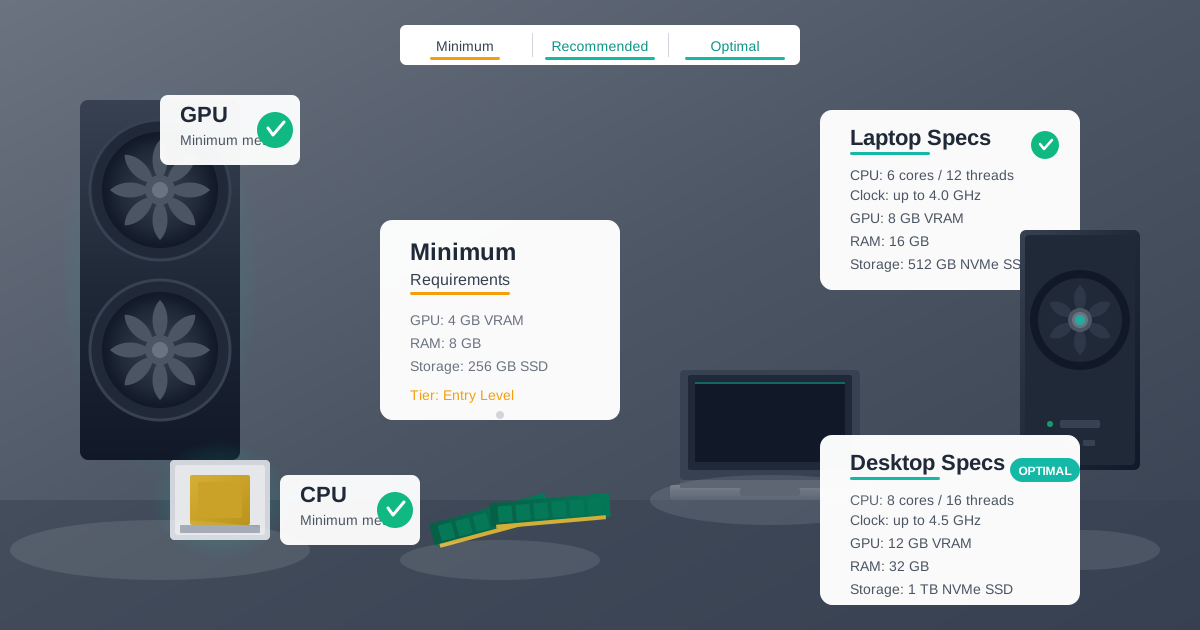
What are the minimum hardware requirements for local AI? The minimum specs to run local AI in 2025 are: 16GB RAM (absolute minimum for useful models), any 64-bit CPU from 2018 or later with 4+ cores, and an SSD for storage. A GPU is optional but recommended. With these specs, you can run 7-8B parameter models like Llama 3.1 8B or Mistral 7B that handle most practical tasks including document summarization, code assistance, and content generation.
That's the quick answer. Now let me explain why these numbers matter and how I learned them through extensive real-world testing.
"Will my computer run local AI?" That's the question I get most often when people hear I process client documents on-premise instead of sending them to ChatGPT. They assume running AI locally requires server racks, enterprise GPUs, or computer science degrees.
Last week, I watched a colleague successfully run a local language model on a four-year-old laptop with no dedicated GPU. The experience was perfectly usable for his document summarization workflow. Meanwhile, another team member insisted he needed to buy a $3,000 gaming rig before even trying.
The hardware requirements for local AI are wildly misunderstood. Marketing materials obscure what you actually need. Forum discussions mix professional machine learning engineering with simple text generation. Nobody gives you a straight answer.
This guide provides those answers based on testing across a dozen different systems, from budget laptops to high-end workstations. You will learn exactly what hardware you need, whether your current computer is already capable, and what upgrades provide the best value.
What Hardware Do You Actually Need for Local AI?
Over the past six months, I've tested Ollama and various language models on every computer I could access: my work laptop, personal desktop, old machines gathering dust, colleagues' systems, and a few deliberate hardware purchases specifically for benchmarking.
The most surprising finding: Most computers from the last five years can run useful local AI. Not cutting-edge AI. Not maximum-quality AI. But genuinely useful AI that improves productivity.
The second surprise: RAM matters far more than processor speed. A 2020 laptop with 16GB RAM and an old i5 processor ran circles around a 2023 laptop with 8GB RAM and a brand-new i7. The newer, faster processor couldn't compensate for insufficient memory.
The third discovery: GPUs aren't required but dramatically improve experience. CPU-only inference works. It's slower, but for many workflows, it's adequate. Add even a modest GPU and performance jumps 5-10x.
The pattern that emerged: Local AI has a minimum viable threshold that most recent computers meet, and performance improvements beyond that threshold follow predictable patterns based on specific components.
How Much RAM Do You Need to Run Local AI?
Forget everything else for a moment. RAM is the critical bottleneck.
Language models load entirely into memory during operation. If the model doesn't fit in RAM, it doesn't run. Period. You can't work around this with a faster processor or better GPU. If you lack RAM, you're done.
Here's how model size maps to RAM requirements:
3B parameter models (Phi-3 Mini, Llama 3.2 3B): 4-6GB RAM needed
- Viable on 8GB systems if you close other apps
- Comfortable on 16GB systems
- Quality: Basic but functional for simple tasks
7-8B parameter models (Llama 3.1 8B, Mistral 7B): 8-12GB RAM needed
- Tight on 8GB systems (barely workable)
- Comfortable on 16GB systems
- Ideal on 32GB systems
- Quality: Excellent for most practical work
13-14B parameter models (Qwen 2.5 14B): 16-20GB RAM needed
- Won't run on 8GB systems
- Workable on 16GB systems (with nothing else running)
- Comfortable on 32GB systems
- Quality: Noticeably better for complex reasoning
30-70B parameter models: 32-64GB RAM needed
- Requires serious hardware
- Most people don't need these
- Quality: Approaches GPT-4 for many tasks
I run Llama 3.1 8B on a system with 32GB RAM. It loads in about 5 seconds and uses 9GB during operation. I have 23GB free for everything else: browser, Slack, VS Code, email. No performance issues.
My colleague runs the same model on a laptop with 16GB RAM. It works, but he closes unnecessary apps first. If Chrome has 30 tabs open, the system starts swapping to disk and everything slows down.
The practical recommendation: 16GB RAM is the sweet spot for serious local AI work with 7-8B models. 8GB barely works. 32GB is comfortable. 64GB+ is for enthusiasts running very large models.
If you're buying a new computer or upgrading, prioritize RAM above everything else for local AI.
Do You Need a GPU to Run Local AI?
This is the most confusing aspect. You'll read posts claiming GPUs are absolutely essential, and other posts showing CPU-only setups working fine. Both are true depending on context.
CPU-only inference works. I've tested it extensively:
On an Intel i7-12700 (12 cores, 32GB RAM):
- Llama 3.2 3B: 18 tokens/second (perfectly usable)
- Mistral 7B: 8 tokens/second (slow but functional)
- Llama 3.1 8B: 7 tokens/second (workable for patient users)
Seven tokens per second means a 100-word response takes about 14 seconds. Not instant, but not agonizingly slow either. For document summarization where you submit a query and do other work while it processes, this is fine.
Add a GPU and performance transforms:
Same system with RTX 4070 12GB:
- Llama 3.2 3B: 125 tokens/second (7x faster)
- Mistral 7B: 76 tokens/second (9.5x faster)
- Llama 3.1 8B: 68 tokens/second (9.7x faster)
At 68 tokens/second, responses feel instant. You finish typing your prompt, press enter, and the reply streams immediately. The experience is completely different.
The practical reality: You can run local AI without a GPU. Whether you should depends on your workflow and patience. For occasional use, CPU-only works. For daily use, a GPU is worth it.
What Is the Best GPU for Local AI?
If you're buying or upgrading a GPU for local AI, these matter:
VRAM capacity (more important than raw speed):
- 8GB VRAM: Runs 7B models comfortably
- 12GB VRAM: Runs 7-14B models comfortably (sweet spot)
- 16GB+ VRAM: Runs larger models, future-proof
Specific recommendations by budget:
Budget ($200-250 used): RTX 3060 12GB
- Best value in used market
- 12GB VRAM is its secret weapon
- Enough power for excellent performance
Mid-range ($500-600 new): RTX 4070 12GB
- Best new GPU for local AI
- Fast, efficient, adequate VRAM
- What I recommend most often
High-end ($1,600+ new): RTX 4090 24GB
- For running very large models
- Overkill for most users
- Only buy if you know you need it
Apple Silicon alternative: MacBook with M1/M2/M3 and 16GB+ unified memory
- Excellent local AI performance
- Unified memory architecture is efficient
- Portable local AI workstation
I use an RTX 4070 12GB. It handles everything I throw at it. The RTX 4090 would be faster, but I'd never notice the difference for my workflows. The 4070 is plenty.
What CPU Do You Need for Local AI?
Everyone focuses on CPU specs, but for local AI, the processor matters less than you'd think.
Minimum viable CPU: Any 64-bit processor from 2018 or later with 4+ cores. That's it. An aging i5 or Ryzen 5 from 2019 works fine if paired with sufficient RAM.
Why processors matter less: When using a GPU, the heavy lifting happens on the graphics card. The CPU mainly coordinates operations. When using CPU-only inference, more cores help, but memory bandwidth often becomes the bottleneck before processing power does.
What actually makes a difference:
Core count matters more than clock speed. An 8-core CPU at 3.0GHz will likely outperform a 4-core CPU at 4.0GHz for AI workloads. Models benefit from parallel processing.
Modern architecture helps. A 2023 CPU with modern instruction sets will be more efficient than a 2018 CPU with identical specs. But the improvement is incremental, not transformational.
Integrated graphics on modern CPUs are surprisingly capable. Intel's Arc graphics and AMD's RDNA graphics can accelerate inference decently if you have no dedicated GPU.
My testing results on identical RAM configurations (32GB) with Llama 3.1 8B:
- Intel i5-12400 (6 cores, 2022): 7.2 tokens/second (CPU only)
- Intel i7-13700 (16 cores, 2023): 11.4 tokens/second (CPU only)
- AMD Ryzen 7 5800X (8 cores, 2020): 8.9 tokens/second (CPU only)
The differences exist but aren't dramatic. Add a GPU to any of these systems and they all perform similarly because the GPU becomes the limiting factor.
Practical advice: If you're building a new system for local AI, get a modern mid-tier CPU (i5/Ryzen 5 or better with 6-8 cores). Don't overspend on a flagship processor—that money is better spent on RAM or a GPU.
How Much Storage Space Does Local AI Require?
Storage requirements are straightforward but often overlooked:
Models themselves range from 2GB to 50GB+ depending on size:
- 3B models: 2-4GB each
- 7-8B models: 4-8GB each
- 14B models: 8-16GB each
- 70B models: 40-50GB each
Practical capacity needs:
- Casual use (2-3 models): 20-30GB free space
- Regular use (5-6 models): 50GB free space
- Enthusiast (10+ models): 100GB+ free space
Storage type matters more than capacity:
NVMe SSD (strongly recommended): Models load in 2-5 seconds. Inference starts quickly. System stays responsive.
SATA SSD (acceptable): Models load in 10-20 seconds. Slightly slower but workable.
HDD (avoid): Models can take 60+ seconds to load. System becomes sluggish. Not recommended for local AI.
I keep six models on my system (Llama 3.1 8B, Qwen 2.5 7B, Qwen 2.5 14B, Mistral 7B, Phi-3 Mini, and CodeLlama 7B). Total storage: 42GB. All sit on a 1TB NVMe SSD. Models load in 3-4 seconds.
A colleague uses an older laptop with a SATA SSD. Same models take 15-20 seconds to load. It's noticeably slower, but once loaded, inference performance is identical. The loading delay is annoying but not a dealbreaker.
Recommendation: Any SSD is acceptable. NVMe is better. HDDs are too slow for good user experience.
How Can I Test If My Computer Can Run Local AI?
Instead of speculating whether your computer can handle local AI, test it:
The 15-Minute Test
-
Check your specs (takes 2 minutes):
- Windows: Settings > System > About
- Mac: Apple menu > About This Mac
- Linux: Run
free -hfor RAM,lscpufor CPU
-
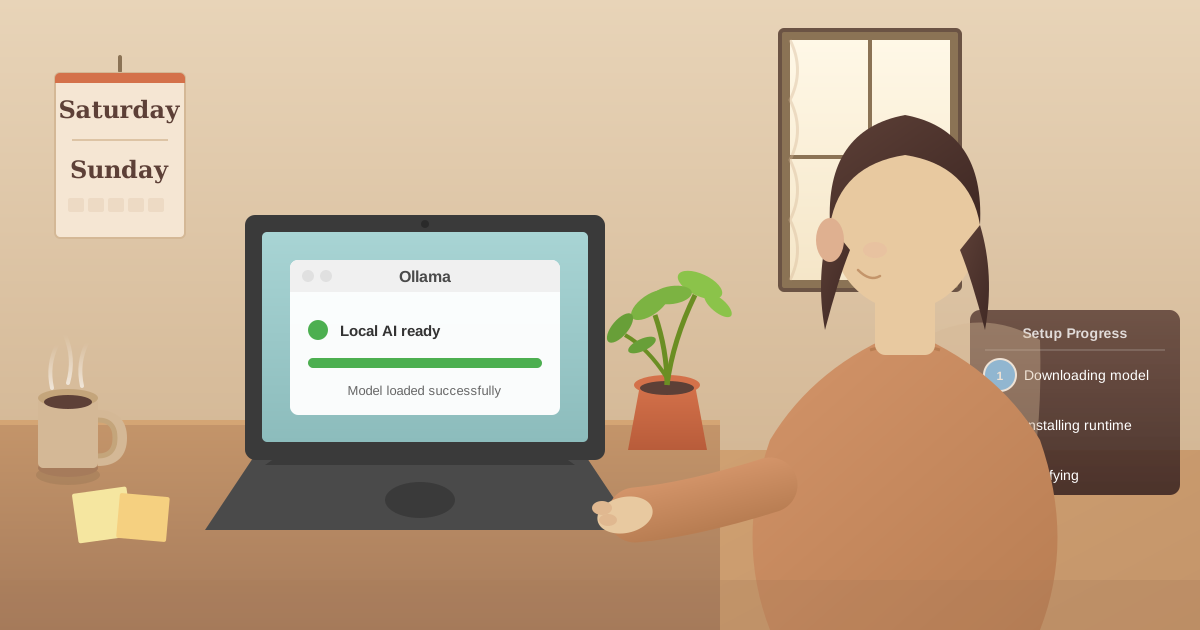
Install Ollama (takes 5 minutes):
- Download from ollama.com
- Run the installer
- Confirm it's working
-
Test a small model (takes 3 minutes):
ollama run phi3:mini- Ask it a simple question
- Note the response speed
- This tests basic functionality
-
Test a standard model (takes 5 minutes):
ollama run llama3.1- Ask it to summarize a paragraph
- Evaluate response quality and speed
- This tests real-world capability
If phi3:mini runs smoothly, your system meets minimum requirements. If llama3.1 runs acceptably (responses appear within 10-15 seconds), your system is genuinely capable for practical work.
If both models are painfully slow or fail to run, your hardware is insufficient. But you'll know concretely instead of guessing.
What Local AI Can Different Computer Types Run?
Let me translate specs into practical recommendations for different situations:
Scenario 1: Basic Laptop (8GB RAM, Integrated Graphics)
Example: 2021 MacBook Air M1 8GB
Can run: Phi-3 Mini, Llama 3.2 3B Experience: Slow but functional Use cases: Personal productivity, note-taking, occasional document work Verdict: Works for light use; not recommended for daily professional work
Scenario 2: Standard Laptop (16GB RAM, No Dedicated GPU)
Example: 2022 ThinkPad with i7, 16GB RAM
Can run: Llama 3.1 8B, Mistral 7B, Qwen 2.5 7B Experience: 10-20 tokens/second (workable) Use cases: Document summarization, writing assistance, research Verdict: Actually quite capable for typical use
Scenario 3: Desktop with Budget GPU (16GB RAM, RTX 3060 12GB)
Example: My colleague's setup, ~$800 total
Can run: Any 7-14B model comfortably Experience: 35-45 tokens/second (very good) Use cases: All professional work, coding assistance, complex documents Verdict: Excellent price/performance, recommended setup
Scenario 4: Modern Desktop (32GB RAM, RTX 4070 12GB)
Example: My current setup, ~$1,500
Can run: Any model up to 14B parameters smoothly Experience: 65-75 tokens/second (excellent) Use cases: Heavy professional use, multiple simultaneous workflows Verdict: No compromises, handles everything easily
Scenario 5: Apple Silicon (M1/M2/M3 with 16GB+ Unified Memory)
Example: MacBook Pro M2 Pro 32GB, ~$2,000
Can run: 7-14B models very well, even 70B models (slowly) Experience: 25-40 tokens/second for normal models Use cases: Professional work anywhere, portable local AI Verdict: Unique capability, excellent if already in Apple ecosystem
What Should You Do If Your Hardware Is Not Enough for Local AI?
If your computer doesn't meet minimum requirements, you have options:
Option 1: Upgrade RAM ($50-150)
- Easiest upgrade if your computer supports it
- Many laptops have soldered RAM (can't upgrade)
- Desktop RAM upgrades are straightforward
- Going from 8GB to 16GB transforms capability
Option 2: Add a GPU ($200-600)
- Only viable for desktops
- Used RTX 3060 12GB (~$200) is best value
- Requires adequate power supply
- Dramatically improves experience
Option 3: Use a different machine
- Cloud instance with GPU ($0.50-2/hour)
- Access from thin client
- Only for occasional use (costs add up)
Option 4: Buy purpose-built hardware ($800-1,500)
- Used workstation + RTX 3060 12GB: $800
- New mid-range desktop + RTX 4070 12GB: $1,500
- Either handles serious local AI well
I upgraded my previous system (16GB RAM, no GPU) by adding an RTX 4070 for $550 and an extra 16GB RAM for $80. Total investment: $630. Transformed the system from "barely usable" to "handles everything I throw at it."
Before making purchase decisions, verify your use case actually needs local AI. If you're processing sensitive documents, the privacy benefit justifies hardware investment. If you just want to experiment with AI, cloud APIs might be more economical.
Can You Run Local AI on a Mac with Apple Silicon?
Apple's M-series chips deserve special mention because they work differently from traditional CPU+GPU systems.
Unified memory architecture means RAM is shared efficiently between CPU and GPU components. That 16GB isn't split between system and graphics—it's one pool used dynamically.
Real-world implications:
M1 MacBook Air (16GB) runs Mistral 7B at 28 tokens/second. That's faster than many Windows laptops with discrete GPUs. The integrated neural engine accelerates specific operations efficiently.
M2 Pro (32GB) runs Llama 3.1 70B at 8 tokens/second. Slow, but it actually works. No desktop GPU except the RTX 4090 can run 70B models entirely in memory. The M2 Pro does it in a laptop.
M3 Max (128GB) runs Llama 3.1 70B at Q8 quantization at 9 tokens/second with excellent quality. This is genuinely powerful local AI in a portable form factor.
If you're already in the Apple ecosystem or considering it, modern MacBooks are excellent local AI machines. The 16GB models handle standard work well. The 32GB+ Pro/Max models handle large models that require thousands of dollars in desktop GPUs.
The main limitation: upgrades are impossible. You can't add RAM later or install a different GPU. Buy what you'll need for the next 3-5 years.
Frequently Asked Questions About Local AI Hardware
Can my computer run local AI without slowing down other work?
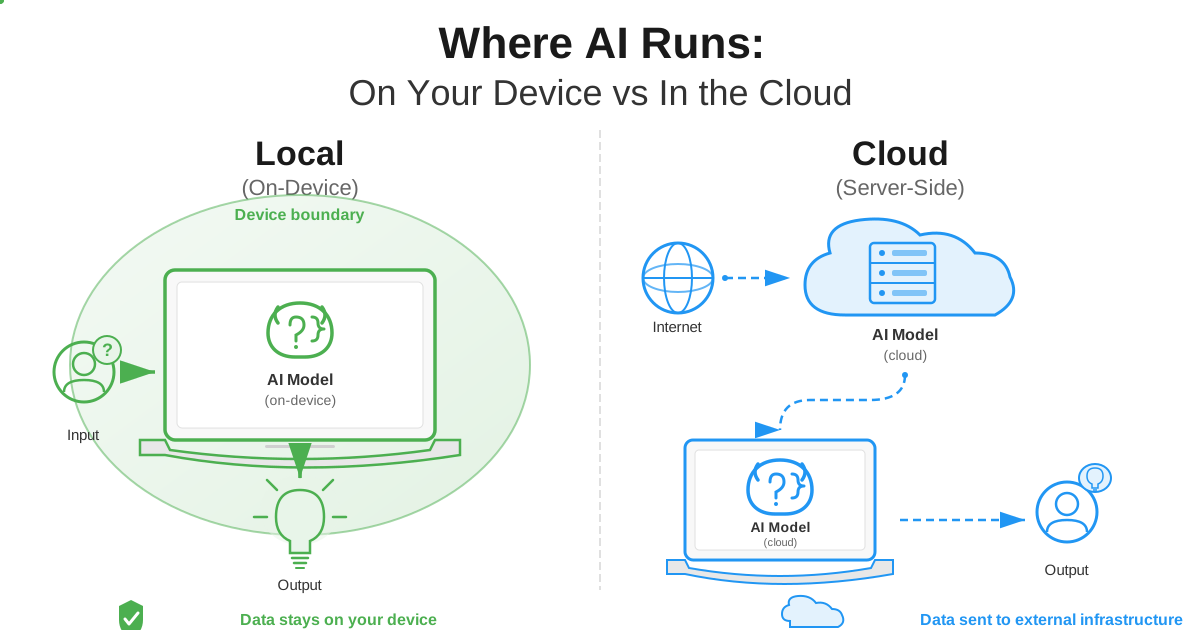
Yes. Local AI only uses significant resources while actively generating responses. Once the AI completes its output, resource usage drops to nearly zero. You can run AI in the background while working on other tasks without performance issues.
Do I need an NVIDIA GPU for local AI, or do AMD and Intel work?
NVIDIA GPUs have the best software support and are recommended for the easiest experience. AMD GPUs work but require more technical setup with ROCm drivers. Intel Arc GPUs are improving rapidly and work well with recent software updates. Apple Silicon Macs work excellently with unified memory architecture. For beginners, NVIDIA provides the smoothest path.
Can I run local AI on a gaming laptop?
Absolutely. Gaming laptops with 16GB+ RAM and discrete GPUs (GTX 1660 or better) are excellent local AI machines. Most gaming laptops from 2020 onward already have the hardware needed for useful local AI. You do not need to buy anything new.
How much does running local AI cost in electricity?
Very little. A GPU running AI workloads for 8 hours daily costs approximately $5-10 per month in electricity at typical US rates ($0.12/kWh). Even heavy daily use typically costs under $15 monthly. This is far less than cloud AI subscription costs.
How long will my hardware last for local AI before becoming obsolete?
Local AI hardware ages well. Systems from 2020 still handle modern models effectively. Expect 3-5 years of useful life from decent hardware purchased today. The key is having adequate RAM, which remains the primary bottleneck regardless of model improvements.
What is the cheapest way to run local AI?
The cheapest path is using hardware you already own. Most computers with 16GB RAM from the last 5 years can run useful models. If you need to upgrade, adding RAM ($50-150) provides the biggest improvement. For GPU acceleration on a budget, a used RTX 3060 12GB ($200-250) offers excellent value with its 12GB VRAM.
Can I run local AI completely offline without internet?
Yes. Once you download the model files (typically 4-50GB depending on model size), local AI runs entirely offline. This is one of the primary advantages over cloud AI services, as you can work on planes, in remote locations, or in air-gapped environments.
Is 8GB RAM enough to run local AI?
8GB RAM is barely sufficient and severely limits your options. You can run small 3B parameter models like Phi-3 Mini with other applications closed, but the experience will be constrained. 16GB RAM is the practical minimum for useful local AI work with 7-8B models.
Try It Before You Buy It
The single best way to know if your hardware is adequate: try it.
Install Ollama. Download a model. Run it. See how it performs with your actual workflow. This takes 30 minutes and costs nothing.
If performance is acceptable, you're done. You already have capable hardware. No purchase needed.
If performance is marginal, you've identified exactly what limits you: RAM, CPU speed, or lack of GPU acceleration. That data guides targeted upgrades instead of blind purchases.
Our AI chat interface runs locally in your browser using Ollama. It's the same infrastructure I use professionally. Try it with your existing hardware and see how local AI performs in real use.
The file conversion tools on our site demonstrate the same local-first architecture. Everything processes in your browser—PDFs, images, documents. Your files never upload to servers. Same privacy principle as local AI.
The Bottom Line
Most computers from the last 5 years can run useful local AI. You need 16GB RAM (minimum) and ideally a GPU, but even without a GPU, it works.
The hardware barrier is lower than people think. An old laptop with 16GB RAM runs models that produce professional-quality output. A used GPU for $200 transforms the experience from "adequate" to "excellent."
High-end hardware enables larger models and faster inference, but for most practical work, mid-range systems suffice. Don't let perfect be the enemy of good.
Start with what you have. Test with actual workloads. Upgrade only if you hit concrete limitations. Most people discover their existing computer is already capable.
The privacy benefits of local processing—your sensitive data never touching external servers—justify modest hardware investments for anyone handling confidential information. The productivity benefits justify it for heavy users. The cost savings compared to API billing justify it for teams.
Your computer probably already works. Install Ollama and find out. Then decide if you need anything better.
Hardware recommendations current as of December 2025. Prices fluctuate. New models release regularly. Test with your specific use case before purchasing.