Local LLM Setup - Beginner's Weekend Project Guide 2025 | Practical Web Tools
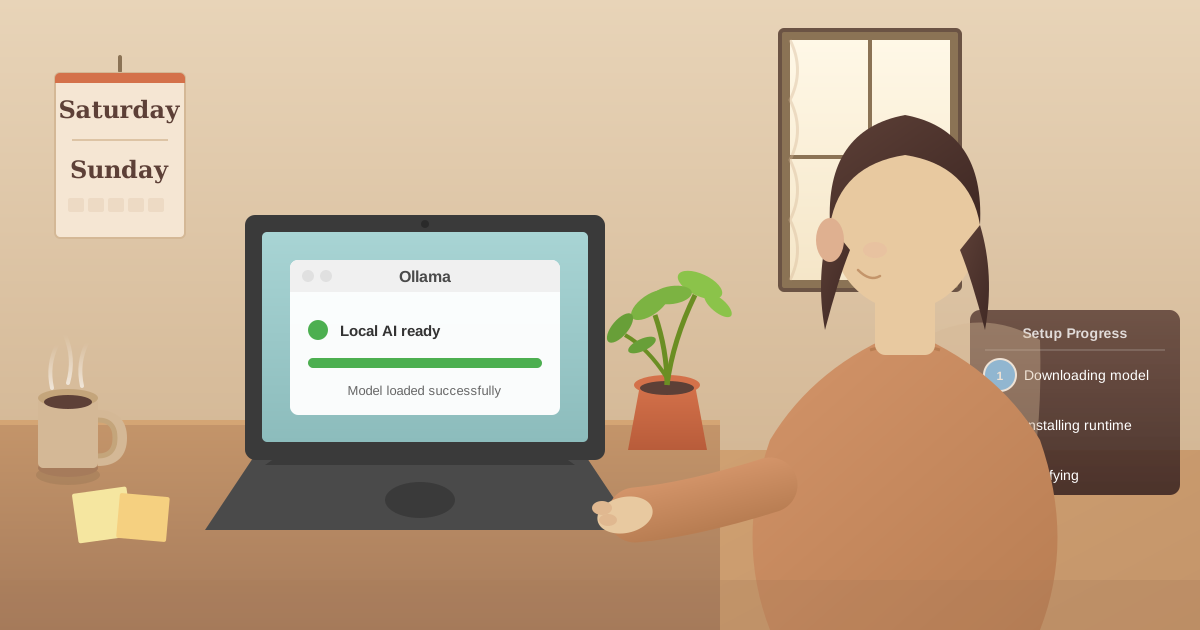
You can set up local AI on your computer in one weekend with zero programming experience. Using Ollama (free software) and Llama 3.2 (free AI model), the entire installation takes about 45 minutes of active work. By Sunday evening, you will have a fully functional AI assistant running on your laptop that costs nothing, works offline, and keeps all your conversations completely private.
This step-by-step guide walks through everything: checking hardware requirements, installing Ollama, downloading your first model, and connecting to a user-friendly chat interface at practicalwebtools.com/ai-chat.
The Saturday I Built My Own Private AI System
Last October, I decided to spend a weekend learning something new. I'd been hearing about people running AI locally on their laptops—no cloud, no subscriptions, complete privacy. It sounded complicated, but also fascinating. I gave myself Saturday and Sunday. If I couldn't get it working by Sunday night, I'd abandon the project.
Saturday morning at 9 AM, I started with zero knowledge about local AI. By Saturday afternoon at 3 PM, I had a fully functional AI assistant running on my MacBook. By Sunday evening, I was using it for real work and wondering why I'd waited so long to try this.
The entire project took maybe 6-7 hours total, spread across the weekend. Most of that was learning and experimenting. The actual technical work? Under an hour.
Three months later, I use my local AI every single day. I've saved $120 in subscription fees. My conversations stay completely private. I work with AI on airplanes and anywhere else. This weekend project became one of my most-used tools.
Here's exactly how I did it, step by step, with every mistake I made so you can skip them.
Why Is Local AI a Great Weekend Project?
I wanted a weekend project that was:
- Actually achievable: Something I could complete in two days, not start and abandon
- Immediately useful: Not just a learning exercise, but something I'd use daily
- Technically interesting: Challenging enough to learn something new
- Low financial risk: Free or cheap if it didn't work out
Running local AI checked every box. Free software, achievable in a weekend, genuinely useful afterward, and technically interesting without being overwhelming.
What Technical Skills Do You Need for Local AI Setup?
My technical background before starting:
- Comfortable using computers and installing software
- Can follow command-line instructions (copy-paste works fine)
- Zero experience with AI systems beyond using ChatGPT
- No machine learning knowledge
- No Python programming (turns out I didn't need it)
If you can install applications and copy-paste commands into a terminal, you have the skills needed for this project.
How Should You Prepare Before Installing Local AI?
I didn't start coding on Saturday morning. I spent Friday evening preparing.
Understanding What I Was Actually Building
I needed to understand the basics before diving in. I spent 20 minutes reading:
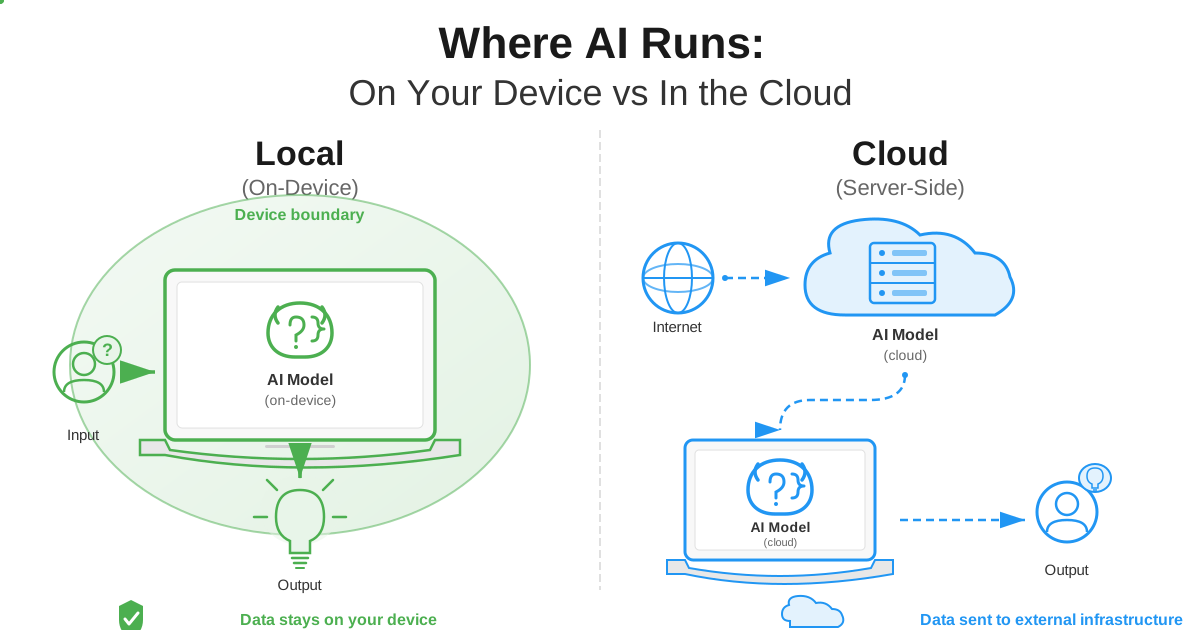
- What "running AI locally" actually means (AI on your computer, not cloud servers)
- What Ollama is (software that runs AI models)
- What AI models are (the "brains" you download)
- What hardware I needed (I already had it)
This context helped me understand what each step would accomplish instead of blindly following instructions.
Checking My Hardware
I have a 2021 MacBook Pro with 16GB RAM. I checked if this was sufficient:
Minimum requirements I found:
- 8GB RAM (I had 16GB ✓)
- 20GB free storage (I had 150GB ✓)
- Mac, Windows, or Linux (Mac ✓)
My laptop was more than adequate. Even an 8GB RAM computer from 2018 would work, just slower.
Setting Expectations
I set realistic goals for the weekend:
- Saturday: Get AI running locally, even if clunky
- Sunday: Make it actually usable and learn how to use it well
- Success criteria: Ask the AI a question and get a reasonable answer
No need to become an expert. Just get it working.
How Do You Install Ollama Step by Step?
I started Saturday at 9 AM with coffee and clear goals. By 11 AM, I had AI responding to questions.
Step 1: Install Ollama (10 Minutes)
9:00 AM: I opened my browser and went to ollama.com. The homepage had a prominent "Download" button. I clicked it.
For Mac, a .dmg file downloaded (about 60 MB). I double-clicked it, dragged Ollama to my Applications folder, and it installed. Exactly like installing any normal Mac application.
Mistake I made: I tried to open Ollama like a regular app after installing. I looked all over for an icon or window. Nothing happened. I got confused for about 10 minutes.
What I learned: Ollama doesn't have a visible interface. You install it, then interact with it through Terminal or through other apps that connect to it. This confused me initially, but it makes sense—Ollama is infrastructure, not an application you directly interact with.
Step 2: Verify Installation (5 Minutes)
9:15 AM: I opened Terminal (pressed Cmd+Space, typed "terminal", hit Enter).
Terminal looks intimidating if you've never used it. It's just a window where you type commands. I typed:
ollama --version
And pressed Enter. It showed:
ollama version 0.3.11
Success. Ollama was installed correctly.
For Windows users: Open Command Prompt (press Windows key, type "cmd"). The commands are identical.
For Linux users: You already know what you're doing with Terminal.
Step 3: Download My First AI Model (20 Minutes)
9:20 AM: This is where the magic starts. I needed to download an actual AI model. I typed:
ollama pull llama3.2
A progress bar appeared:
pulling manifest
pulling 6a0746a1ec1a... 100%
pulling 4fa551d4f938... 100%
pulling 8ab4849b038c... 100%
verifying sha256 digest
writing manifest
success
The download was about 5 GB. On my internet connection (100 Mbps), this took 12 minutes. I grabbed more coffee and checked email while waiting.
Mistake I almost made: I initially considered downloading llama3.2:70b (the massive 70-billion parameter version). I read that bigger models are better. But that version is 40 GB and would have taken over an hour to download. I stuck with the standard llama3.2 (8 billion parameters), which is excellent for almost everything.
Advice: Start with the default size. You can always download bigger models later if you need them.
Step 4: Run the AI for the First Time (1 Minute)
9:40 AM: Download finished. I typed:
ollama run llama3.2
After 3-4 seconds of loading, I saw:
>>>
This is the prompt. The AI was waiting for me to say something. My heart actually raced a bit. I typed:
Hi! Can you introduce yourself?
Two seconds later, response started appearing:
Hello! I'm an AI assistant designed to be helpful,
harmless, and honest. I can help you with questions,
tasks, creative projects, analysis, and conversation.
What would you like to know or work on today?
I had AI running on my laptop. No cloud. No subscription. Just working.
I sat there for five minutes asking it random questions:
- "Explain quantum physics in simple terms" (great answer)
- "Write a haiku about coffee" (decent haiku)
- "What's the capital of France?" (correctly answered "Paris")
Everything worked. I felt like I'd built something genuinely impressive, even though I'd just followed installation instructions.
To exit, I typed /bye and pressed Enter.
Total time so far: 45 minutes of actual work, 12 minutes of waiting for downloads.
Step 5: Understanding What Just Happened (15 Minutes)
I took a break to understand what I'd actually accomplished:
What I installed:
- Ollama: Software that manages and runs AI models
- Llama 3.2: An AI model created by Meta/Facebook, released as open source
What happens when I type a question:
- Ollama loads the AI model into my computer's memory
- The model processes my question using my computer's CPU and RAM
- It generates a response based on its training
- Nothing leaves my computer
Why this matters:
- Complete privacy: No company sees my questions
- No cost: No subscription or per-query fees
- Works offline: No internet needed after initial download
- Unlimited usage: Ask as many questions as I want
This understanding made me appreciate what I'd built more than blindly following steps.
How Do You Get a Better Interface for Local AI?
By 11 AM Saturday, I had working AI. But the Terminal interface felt clunky. I wanted something more like ChatGPT's interface.
Step 6: Getting a Better Interface (10 Minutes)
I opened a browser and went to our AI Chat tool. The page immediately detected my local Ollama installation:
✓ Connected to local Ollama
Model: llama3.2
Ready to chat
Now I had a proper chat interface:
- Clean, readable conversation history
- Easy copy/paste
- Better formatting
- Still completely local (the web page just connects to my local Ollama)
This 30-second setup transformed the experience from "works but uncomfortable" to "genuinely pleasant to use."
Step 7: Testing With Real Work (1 Hour)
11:15 AM: I wanted to see if local AI actually matched cloud AI for real tasks, not just toy examples.
Test 1: Email improvement I pasted a draft email I'd written that morning:
Hey team, just wanted to touch base about the project timeline.
We're running a bit behind schedule and I think we should probably
meet to discuss adjustments. Let me know when works for everyone.
I asked the AI: "Make this email more professional and direct."
Response:
Subject: Project Timeline Review Meeting - Action Required

Team,

Our project is currently behind schedule. I'd like to meet this week to
discuss timeline adjustments and get us back on track.

Please reply with your availability for a 30-minute meeting on Thursday
or Friday afternoon.

Thanks,
[Your name]
That's genuinely helpful. Better than what I'd written. Exactly what ChatGPT would have provided.
Test 2: Code explanation I pasted a JavaScript function I didn't fully understand and asked the AI to explain it. The explanation was clear, accurate, and detailed. Quality matched ChatGPT.
Test 3: Brainstorming I asked for 15 blog post title ideas about productivity. Got 15 creative suggestions in 10 seconds. Several were actually good.
Assessment after testing: For everyday tasks—writing help, code explanation, brainstorming, learning—I couldn't tell the difference between local AI and ChatGPT. Quality was equivalent.
Step 8: Trying a Different Model (30 Minutes)
1:00 PM: I'd read that different models have different strengths. I wanted to try Mistral, which people said was good for creative writing.
Downloading Mistral:
ollama pull mistral
This took another 10 minutes (4 GB download). Then:
ollama run mistral
I tested both models with the same creative writing prompt: "Write the opening paragraph of a mystery novel set in Tokyo."
Llama 3.2's version: Technically competent, somewhat generic, felt like decent but uninspired mystery writing.
Mistral's version: More atmospheric, better pacing, more engaging prose.
For technical questions, Llama was slightly better. For creative work, Mistral felt more natural. This is why people keep multiple models installed—they're tools optimized for different tasks.
Key discovery: Switching between models takes 2 seconds. Type /bye to exit one, run a different one. You can keep multiple models installed and use whichever fits your task.
Step 9: Cleaning Up What I Didn't Need (10 Minutes)
1:45 PM: I'd also downloaded Phi-3 (a smaller model) to test. It worked but wasn't as good as Llama or Mistral. I removed it to save disk space:
ollama rm phi3
This freed up 2.3 GB instantly. No reason to keep models I won't use.
Lesson: Don't hoard models. Download, test, keep what works, delete what doesn't.
What Can Local AI Actually Do?
Saturday was about getting AI working. Sunday was about learning to use it effectively.
Understanding What Local AI Can and Can't Do
I spent Sunday morning testing limits.
What works perfectly:
- Explaining concepts (tried: quantum physics, options trading, React hooks)
- Writing assistance (tried: emails, blog outlines, editing drafts)
- Code help (tried: debugging, explaining libraries, writing functions)
- General knowledge (tried: history questions, science, geography)
- Creative tasks (tried: story ideas, naming products, brainstorming)
What doesn't work:
- Current events (I asked about yesterday's news—it doesn't know)
- Real-time information (stock prices, weather, current sports scores)
- Web searches (it can't access the internet)
- Very specialized recent knowledge (papers published after its training cutoff)
This matches what I expected. Local AI knows its training data but can't access current information. For my uses—writing, coding, learning, brainstorming—it's perfect.
Learning Better Prompting
I spent an hour learning to write better prompts. Examples of what I learned:
Vague prompt: "Help with this code"
Better prompt: "This JavaScript function should filter users by age, but it's returning all users. Can you identify the bug and explain what's wrong?"
The better prompt got dramatically better results because it provided context and specified exactly what I needed.
Vague prompt: "Write about productivity"
Better prompt: "Write a 200-word explanation of the Pomodoro Technique for busy professionals who've never heard of it. Focus on practical implementation, not history."
Specific prompts produce specific, useful results. Vague prompts produce vague, generic results.
I practiced this for an hour, refining prompts until I consistently got high-quality responses.
Integrating Into My Actual Workflow
Sunday afternoon, I tested using local AI for real work:
Writing workflow: I was working on an article. Instead of writing alone, I:
- Brainstormed outline with AI (got 8 good section ideas)
- Wrote first draft alone
- Asked AI to review for clarity (caught 3 confusing explanations)
- Asked for better transitions between sections (got helpful suggestions)
Coding workflow: I was debugging an issue. I:
- Pasted error message into AI (got 3 potential causes)
- Asked it to explain a library's API (clear explanation)
- Had it review my fix (suggested improvement I hadn't considered)
Learning workflow: I was learning Docker. I:
- Asked AI to explain containers vs. virtual machines (clear analogy)
- Asked follow-up questions as they occurred (conversation flowed naturally)
- Had it create practice exercises (got 5 hands-on tasks)
By Sunday evening, local AI felt like a natural part of my workflow, not an experiment.
What Do You Get After One Weekend of Setup?
By Sunday at 6 PM, here's what I'd accomplished:
Software installed:
- Ollama (free)
- Two AI models: Llama 3.2 and Mistral (both free)
- Web interface: Practical Web Tools AI Chat (free)
Cost: $0 total. $0 ongoing.
Functionality:
- AI that matches ChatGPT for 90% of my needs
- Works offline
- Complete privacy
- Unlimited usage
- Multiple models for different purposes
Time investment:
- Saturday: 3 hours (including waiting for downloads)
- Sunday: 4 hours (learning and experimentation)
- Total: 7 hours spread across a weekend
Result: A tool I now use daily that will save me $480 per year in avoided ChatGPT/Claude subscriptions.
What Common Mistakes Should You Avoid When Setting Up Local AI?
Mistake 1: Downloading Too Many Models Initially
I got excited and downloaded six different models Saturday afternoon. They consumed 35 GB of disk space. I actually used two of them.
Better approach: Download Llama 3.2. Use it for a week. Only download additional models if you identify specific needs.
Mistake 2: Expecting Instant Cloud-Like Speeds
When responses took 15-20 seconds, I thought something was wrong. I spent 30 minutes troubleshooting before realizing this is normal.
Reality: Local AI is slower than cloud AI. My laptop takes 10-20 seconds for typical responses. This is expected and acceptable. The privacy and cost benefits outweigh the speed difference.
Mistake 3: Not Using a Better Interface Immediately
I used Terminal for two hours before trying a web interface. Terminal works, but a proper chat interface is so much better.
Lesson: Install the AI chat interface on day one. Save yourself frustration.
Mistake 4: Treating It Like a Search Engine
I asked "What happened in the election yesterday?" and got confused when it didn't know.
Understanding: Local AI doesn't have internet access. It knows its training data, not current events. For current information, use search or cloud AI.
Mistake 5: Not Restarting When Things Got Weird
At one point, Ollama started giving very slow responses. I spent 15 minutes trying different models and settings.
Solution: Restart Ollama. On Mac/Linux: pkill ollama then restart. On Windows: restart the Ollama service. This fixed it in 30 seconds.
What Is the Complete Local AI Setup Checklist?
If you want to replicate what I did, here's the exact checklist:
Friday Evening (30 minutes):
- Read this guide to understand what you're building
- Check your computer has 8+ GB RAM and 20+ GB free storage
- Verify you're running Mac, Windows 10+, or Linux
- Clear disk space if needed
Saturday Morning (2 hours):
- Visit ollama.com
- Download and install Ollama (5 minutes)
- Open terminal and verify installation:
ollama --version - Download Llama 3.2:
ollama pull llama3.2(15-20 minutes) - Run it:
ollama run llama3.2 - Ask a few test questions
- Exit:
/bye
Saturday Afternoon (1 hour):
- Open Practical Web Tools AI Chat
- Confirm it connects to your local Ollama
- Test with real work tasks
- Try writing help, code questions, or brainstorming
Sunday (Optional Refinement):
- Practice better prompting techniques
- Try a second model if interested (Mistral for creative work)
- Remove models you don't need:
ollama rm model-name - Integrate into your actual workflow
By Sunday evening, you'll have working local AI that costs nothing ongoing and keeps everything private.
What Can You Do With Local AI After Setup?
Three months after my weekend project, here's what I'm doing with local AI:
Daily work:
- Draft and edit emails (save 10-15 minutes daily)
- Debug code and explain error messages (save 30-45 minutes daily)
- Brainstorm ideas when stuck (infinite free brainstorming partner)
- Learn new technologies (personal tutor available 24/7)
Personal life:
- Get advice on sensitive topics I'd never put in ChatGPT
- Plan meals and workouts
- Learn about health concerns privately
- Explore financial scenarios without external logging
Cost savings:
- $0/month vs. $40/month for ChatGPT Plus + Claude Pro
- $480/year savings
- $2,400 savings over five years
Privacy benefits:
- Zero hesitation asking sensitive questions
- No corporate logging of my queries
- No accidental NDA violations from pasting confidential text
- Complete control over my data
Is Setting Up Local AI Worth One Weekend of Your Time?
Three months later, absolutely yes.
Immediate value: By Saturday afternoon, you have working AI. Use it immediately.
Long-term benefits: Cost savings compound monthly. Privacy matters more over time. Skills improve with practice.
Low risk: If you hate it, uninstall Ollama and you've lost one weekend. If you love it (like I did), you've gained a tool you'll use for years.
Actually achievable: I'm not an AI researcher. I didn't struggle through pages of documentation. The process is surprisingly straightforward.
Impressive result: You'll have a functioning AI system that rivals commercial services. That feels genuinely cool.
The hardest part is starting. Once you get through the first 30 minutes of installation and downloads, everything else is learning and experimentation.
Frequently Asked Questions About Local AI Setup
How long does it take to set up local AI?
Active setup time is approximately 45 minutes. Most time is spent waiting for model downloads (15-30 minutes depending on internet speed). By Saturday afternoon, you can have fully functional AI running on your computer.
Do I need programming skills to set up Ollama?
No programming skills required. If you can install applications and copy-paste commands into a terminal, you have all the skills needed. The process is similar to installing any other software.
What computer specs do I need for local AI?
Minimum: 8GB RAM and 20GB free storage. Recommended: 16GB RAM for better performance. Most computers from 2018 or newer meet these requirements. You do not need a gaming PC or special hardware.
Is local AI really free?
Yes, completely free. Ollama software is open-source and free. AI models like Llama 3.2 and Mistral are free to download. The only cost is electricity (approximately $8/month for heavy users).
How does local AI quality compare to ChatGPT?
For 90% of everyday tasks including writing, coding, and research, local AI (Llama 3.2) matches ChatGPT 3.5 quality. Most users cannot tell the difference for typical queries.
Can local AI work without internet?
Yes, that is one of its biggest advantages. After the initial model download, local AI works completely offline. Use it on airplanes, in areas with no cell service, during internet outages.
What if something goes wrong during setup?
The most common fix is restarting Ollama. On Mac/Linux run pkill ollama then restart. On Windows, restart the Ollama service. The software is simple enough that this fixes 95% of issues.
Which AI model should beginners start with?
Start with Llama 3.2 (standard version, about 5GB). It handles 90% of tasks excellently and runs well on most hardware. Only download additional models after using it for a week.
How Do You Get Started This Weekend?
If you want to start this weekend:
Today (preparation):
- Check your computer meets minimum specs
- Clear 20 GB disk space if needed
- Read this guide so you understand the process
Tomorrow (implementation):
- Visit ollama.com and download Ollama
- Install it (5 minutes)
- Open terminal and run:
ollama pull llama3.2 - When download completes, run:
ollama run llama3.2 - Ask it questions and verify it works
Day After (optimization):
- Open our AI chat interface
- Test with real work tasks
- Learn better prompting
- Integrate into your workflow
By the end of your weekend, you'll have what took me a weekend to build: a private, free, functional AI assistant that you'll use daily.
This weekend project delivers immediate results and compounds value indefinitely. Build your own private AI this weekend.
Ready to start your weekend project? Visit ollama.com to download Ollama, then use our AI Chat interface for a better experience. Browse available models to learn about different options beyond Llama 3.2.
Related guides:
- What Running AI Locally Means - Understanding local AI fundamentals
- Local AI Privacy Guide - Why privacy matters
- Local AI Cost Savings - Calculate your savings