How to Convert Audio Files Free Online (MP3, WAV, FLAC, AAC, OGG)
How to Convert Audio Files: Complete Guide to MP3, WAV, FLAC, AAC, and OGG
The best way to convert audio files in 2025 is using a browser-based converter that processes files locally on your device. This ensures complete privacy since your audio never uploads to external servers. For most users, converting to MP3 at 256-320kbps provides the best balance of quality and compatibility, while FLAC is ideal for archival purposes where you need lossless quality.
Quick Answer: Use MP3 for sharing and compatibility, WAV for editing, FLAC for archiving, AAC for Apple devices, and OGG for open-source projects. Convert using practicalwebtools.com/convert/audio for free, private, browser-based conversion.
The Day I Nearly Lost a Wedding Reception
My best friend's wedding reception audio almost became a disaster. The DJ had captured beautiful speeches and moments on his professional recorder, saving them as high-quality WAV files. But the couple wanted to share these memories with family overseas, and the 2GB of audio files wouldn't attach to any email, wouldn't upload to their family WhatsApp group, and took forever to download.
I volunteered to help. "I'll just convert them to MP3," I said confidently. Famous last words.
I downloaded the first free converter I found, uploaded the precious wedding audio to some random website, and waited. And waited. The site crashed halfway through. When I refreshed, the files were gone. I had uploaded irreplaceable wedding memories to a server I knew nothing about, and now they might be lost forever.
Fortunately, I still had the original WAV files. But that panic taught me two things: audio format conversion matters, and where your files go during conversion matters even more.
Why Does Audio Format Conversion Matter?
When I first started working with audio, I didn't understand why there were so many formats. MP3, WAV, FLAC, AAC, OGG, M4A, OPUS, WMA... it seemed like deliberate confusion.
After years of converting audio for various projects, I now understand that each format exists for specific reasons. Choosing the right format, and converting correctly, makes the difference between audio that sounds great and audio that sounds like it's playing through a tin can.
What Is the Difference Between Lossy and Lossless Audio?
Every audio format falls into one of two categories:
Lossy formats (MP3, AAC, OGG) achieve small file sizes by permanently removing audio information the algorithm decides you probably won't miss. Like JPEG for images, you lose quality you can never recover.
Lossless formats (WAV, FLAC, ALAC) preserve every bit of audio data. WAV stores it uncompressed (huge files), while FLAC compresses it mathematically without losing anything (smaller files, same quality).
Understanding this divide prevents the most common conversion mistake: expecting quality improvement by converting lossy to lossless. Converting an MP3 to FLAC doesn't restore lost audio, it just makes a bigger file with the same limited quality.
Real Conversion Scenarios I've Encountered
The Podcast Producer Problem
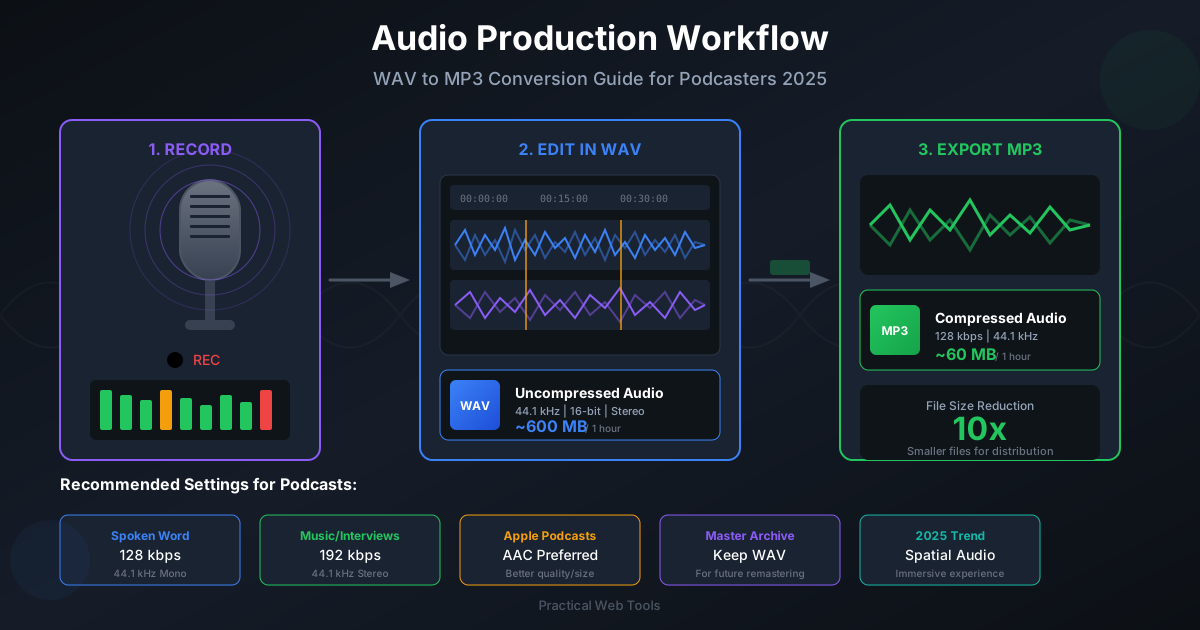
A friend produces a weekly podcast. She records in high-quality WAV format because her audio software works best with uncompressed audio. But distributing 500MB WAV files for a 60-minute episode would bankrupt her hosting budget and frustrate listeners with slow downloads.
She converts to MP3 at 192kbps for distribution. The files shrink to about 85MB while maintaining quality that sounds great on earbuds and car speakers. Her workflow:
- Record and edit in WAV
- Export final episode as WAV (master copy)
- Convert to MP3 192kbps for distribution
- Keep both versions: WAV for archive, MP3 for sharing
This same pattern works for any audio you create: keep lossless masters, create lossy versions for distribution.
The iPhone Voice Memo Frustration
My elderly mother sends me voice memos from her iPhone, but my Android phone sometimes struggles with the M4A format. She doesn't understand why files from her phone don't "just work" on mine.
The solution is simple: convert M4A to MP3. MP3 plays on literally everything. I set up a bookmark to our M4A to MP3 converter and showed her how to convert before sending. Problem solved.
The Vinyl Digitization Project
I spent months digitizing my father-in-law's vinyl collection. 200 albums of jazz, blues, and soul from the 1950s through 1980s. Many of these records are out of print, irreplaceable.
The format decision was critical:
- Recording: Captured as 24-bit WAV for maximum quality during digitization
- Archive: Converted to FLAC for long-term storage (lossless, smaller than WAV)
- Listening: Created MP3 versions at 320kbps for playing on various devices
- Sharing: Made 256kbps MP3 versions for family members
The FLAC archives ensure I'll always have perfect-quality masters. The MP3 versions make the music accessible everywhere.
Which Audio Format Should I Use? A Complete Comparison
After years of audio work, I've developed clear guidelines for each format. Here's a quick comparison table:
| Format | Type | File Size (3-min song) | Best Use Case | Compatibility |
|---|---|---|---|---|
| MP3 | Lossy | 3-8 MB | Sharing, portable devices | Universal |
| WAV | Lossless | 30 MB | Recording, editing | Universal |
| FLAC | Lossless | 15-20 MB | Archiving, audiophiles | Good (not Apple) |
| AAC | Lossy | 3-6 MB | Apple devices, streaming | Very good |
| OGG | Lossy | 3-6 MB | Gaming, web apps | Limited |
When Should I Use MP3 Format?
MP3 is the best audio format for maximum compatibility and easy sharing. It's 30 years old, which in tech terms makes it ancient. But that age is actually its strength. MP3 plays on everything: smartphones, cars, computers, smart speakers, alarm clocks, exercise equipment, and virtually any device with audio playback.
Use MP3 when:
- You need maximum compatibility
- You're sharing audio with others
- File size matters more than ultimate quality
- You're creating content for diverse audiences
Quality guidelines:
- 128kbps: Acceptable for voice-only content
- 192kbps: Good for mixed content (voice with music)
- 256kbps: Excellent for music, my typical choice
- 320kbps: Maximum MP3 quality, nearly transparent
When Should I Use WAV Format?
WAV is the best audio format for recording and editing because it stores audio with zero compression. Every sample, every bit, exactly as recorded. This makes WAV essential for professional work but impractical for storage and sharing.
Use WAV when:
- You're recording or editing audio
- You need to process audio through multiple stages
- Maximum quality is essential and storage isn't limited
- You're working with audio production software
Avoid WAV when:
- You need to share files (too large)
- You're archiving large collections (use FLAC instead)
- You're creating files for playback (use lossy formats)
When Should I Use FLAC Format?
FLAC is the best audio format for archiving music because it offers lossless quality at roughly half the file size of WAV. The compression is completely reversible, meaning you can convert FLAC back to WAV and get mathematically identical audio.
Use FLAC when:
- You're archiving important audio
- You want lossless quality without WAV's size
- You plan to create lossy versions later
- You're an audiophile who cares about quality
FLAC's limitation: Native Apple device support is limited. iPhones and iPads don't play FLAC without third-party apps. For Apple users, ALAC (Apple Lossless) achieves the same thing with native support.
Is AAC Better Than MP3?
Yes, AAC is technically superior to MP3. At the same bitrate, AAC sounds noticeably better. At lower bitrates, the difference is dramatic: AAC at 128kbps roughly matches MP3 at 192kbps in audio quality.
Use AAC when:
- You're creating content for Apple devices
- You need good quality at small file sizes
- You're creating video soundtracks
- Streaming efficiency matters
The catch: While AAC compatibility has improved dramatically, some older devices and systems still struggle with it. When in doubt, MP3 is safer.
What Is OGG Vorbis and When Should I Use It?
OGG Vorbis is an open-source audio format that offers excellent quality-to-size ratio with royalty-free licensing. If you care about avoiding proprietary formats or are developing games and web applications, OGG is your choice.
Use OGG when:
- You're working on open-source projects
- You're creating audio for web applications
- You're developing games (OGG is common in gaming)
- You want to avoid proprietary formats
The limitation: Consumer device support remains inconsistent. Many car stereos and older devices don't recognize OGG files.
How Do I Convert Audio Files Safely and Privately?
After my wedding audio scare, I became much more careful about how I convert files. Here's the process I use now.
Step 1: Understand What You Have
Before converting anything, identify your source format and quality. Converting from an already-compressed source limits your options.
- If your source is WAV or FLAC: You can convert to anything with full flexibility
- If your source is MP3 or AAC: Quality is already limited; you can only convert sideways or down
- If your source is low-bitrate lossy: Converting won't improve quality, only change format
Step 2: Choose Your Target Format Wisely
Select your output format based on your actual needs:
| Need | Recommended Format | Settings |
|---|---|---|
| Maximum compatibility | MP3 | 256-320kbps |
| Perfect archival | FLAC | Default compression |
| Apple devices | AAC or ALAC | 256kbps for AAC |
| Audio editing | WAV | Match source quality |
| Small voice files | MP3 | 128kbps mono |
| Music distribution | MP3 or AAC | 256kbps minimum |
Step 3: Convert with Privacy in Mind
This is where my wedding audio panic taught me a valuable lesson. When you upload files to a conversion website, you're trusting that site with your audio. For personal recordings, original music, confidential interviews, or anything sensitive, that's a real risk.
I now use browser-based converters that process files locally. Our audio converter runs entirely in your browser using WebAssembly. Your audio files never leave your computer. I can convert my father-in-law's irreplaceable vinyl recordings knowing they aren't being uploaded to some server I don't control.
Step 4: Verify Before Deleting Originals
After any conversion, verify results before removing source files:
- Play the converted file completely (not just the first few seconds)
- Compare quality to the original
- Check file size makes sense for your settings
- Verify metadata transferred correctly
I keep original files for at least a week after conversion, longer for irreplaceable audio.
Common Conversion Tasks
Converting Your Music Library
If you have FLAC or WAV files and need portable versions:
- Upload files to the audio converter
- Select MP3 format
- Choose 256kbps or higher for music
- Convert and download
- Keep lossless originals for archive
Preparing Audio for Podcast Distribution
When your podcast is ready for distribution:
- Export from your editor as WAV (master)
- Convert to MP3 at 128kbps (mono) or 192kbps (stereo)
- Upload MP3 to your podcast host
- Archive WAV master for future use
Converting iPhone Voice Memos
To make iPhone recordings universally playable:
- Transfer M4A files from iPhone
- Upload to M4A to MP3 converter
- Download MP3 versions
- Share with anyone on any device
Creating Lossless Archives
To archive important audio without losing quality:
- Start with WAV files (or other uncompressed source)
- Convert to FLAC using our converter
- Files shrink 40-60% with zero quality loss
- FLAC files serve as perfect masters forever
Mistakes I've Made (So You Don't Have To)
Mistake 1: Converting MP3 to FLAC Expecting Better Quality
Early in my audio journey, I thought converting my MP3 collection to FLAC would "upgrade" the quality. It doesn't. The audio quality was determined when the MP3 was created. Converting to FLAC just makes bigger files with the same limited quality.
Lesson: You can't add back information that was already lost. Only lossless sources can create high-quality conversions.
Mistake 2: Using Maximum Compression for Everything
I once converted an entire audiobook collection at the maximum MP3 quality (320kbps). The files were huge, the quality was overkill for spoken word, and I wasted storage space. Audiobooks sound perfect at 96kbps.
Lesson: Match quality settings to content. Voice needs less bitrate than music.
Mistake 3: Deleting Originals Too Quickly
I once deleted original recordings immediately after conversion, then discovered the converted files had audio glitches. Without originals, I had to re-record everything.
Lesson: Keep originals until you've thoroughly verified conversions.
Mistake 4: Uploading Sensitive Audio to Random Websites
The wedding audio incident. I uploaded irreplaceable recordings to an unknown server because I didn't think about privacy implications.
Lesson: For anything sensitive, use local processing tools that don't upload your files.
The Bottom Line on Audio Conversion
Audio format conversion is a fundamental skill for anyone working with digital audio. The key principles I've learned:
Start with the best quality source you can. You can always convert down, never up. A high-quality FLAC file can become excellent MP3, but a low-quality MP3 can only become a different low-quality file.
Choose formats based on actual needs. MP3 for compatibility, FLAC for archival, WAV for editing, AAC for Apple and streaming. Each format serves specific purposes.
Protect your privacy. Where your files go during conversion matters. For anything sensitive, use tools that process locally rather than uploading to external servers.
Keep your originals. Storage is cheap. Your time isn't. Keeping lossless masters lets you create any format you need later.
That wedding audio? I eventually converted it properly using local tools, made MP3 versions for easy sharing, and kept FLAC archives. The family in Germany finally got to hear the speeches, and nobody's private moments ended up on some random server.
Ready to convert your audio files? Use our free Audio Format Converter. All processing happens in your browser, your files never leave your device, and you maintain complete privacy over your recordings.
Common conversions:
- MP3 to WAV - Prepare files for editing
- WAV to MP3 - Create portable versions
- FLAC to MP3 - Convert lossless to universal
- M4A to MP3 - iPhone audio to universal format
- WAV to FLAC - Lossless compression for archival
Related guides:
- Audio Format Comparison - Detailed comparison of all formats
- Audio Quality Settings - Choosing the right bitrate
Frequently Asked Questions About Audio Conversion
Should I use MP3 or WAV for my audio files? Use MP3 when you need to share files or play them on various devices - it offers universal compatibility with small file sizes. Use WAV when you're recording or editing audio, as it preserves full quality without compression. For archiving, consider FLAC as a middle ground that offers lossless quality at half the WAV file size.
Does converting MP3 to FLAC improve audio quality? No, converting MP3 to FLAC does not improve audio quality. Once audio is compressed to a lossy format like MP3, the removed audio information is permanently lost. Converting to FLAC only creates a larger file with the same limited quality as the original MP3.
What is the best bitrate for MP3 music files? For music, 256kbps offers excellent quality for most listeners, while 320kbps is the maximum MP3 quality and is nearly indistinguishable from lossless audio. For podcasts and voice-only content, 128-192kbps is sufficient. Avoid bitrates below 128kbps for music as compression artifacts become noticeable.
Is it safe to convert audio files online? Many online converters upload your files to external servers, which poses privacy risks for personal recordings. The safest approach is using browser-based converters like practicalwebtools.com/convert/audio that process files locally on your device without uploading to any server.
What audio format does Apple use? Apple devices primarily use AAC for lossy audio and ALAC (Apple Lossless Audio Codec) for lossless audio. iPhones and iPads don't natively support FLAC, so if you need lossless audio on Apple devices, convert to ALAC or use a third-party app.
How do I convert M4A files from iPhone to MP3? M4A files from iPhone Voice Memos can be converted to MP3 using our free M4A to MP3 converter. Simply upload your M4A file, select MP3 output at 192-256kbps, and download the converted file that plays on any device.
What is the difference between FLAC and ALAC? FLAC (Free Lossless Audio Codec) and ALAC (Apple Lossless Audio Codec) both provide identical audio quality - completely lossless compression at about 50% of WAV file size. The only difference is compatibility: FLAC works better with Android and Windows, while ALAC has native Apple device support.
Can I convert audio files without losing quality? Yes, you can convert between lossless formats (WAV, FLAC, ALAC) without any quality loss. However, converting from lossless to lossy (like WAV to MP3) permanently removes audio data, and converting between lossy formats (like MP3 to AAC) degrades quality further. Always keep lossless masters and create lossy versions as needed.