How to Convert Audio Files with Best Quality Settings Free Online
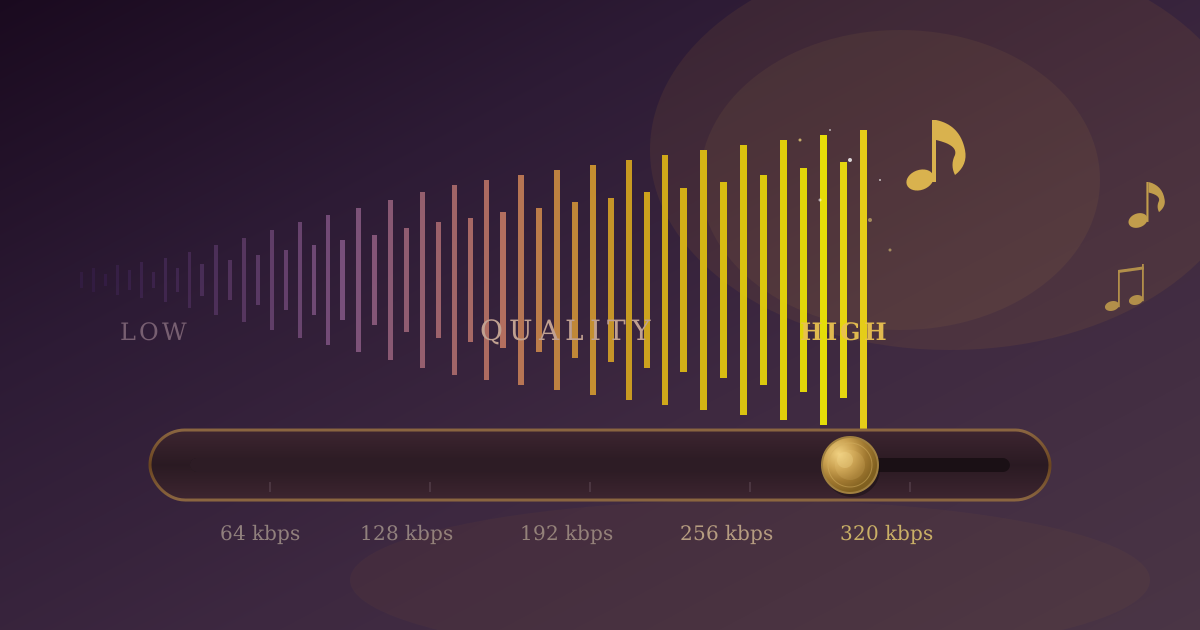
What Are the Best Audio Quality Settings for Converting Files?
The best audio quality settings depend on your content type: For music, use MP3 at 256-320kbps or FLAC for lossless quality. For podcasts with music, use 192kbps stereo MP3. For voice-only content, 128kbps mono is sufficient. Always use VBR (Variable Bitrate) when available for better quality-to-size ratio.
Quick Reference:
| Content Type | Recommended Format | Bitrate |
|---|---|---|
| Music (archival) | FLAC | Lossless |
| Music (portable) | MP3 VBR | 256-320kbps |
| Podcasts with music | MP3 | 192kbps stereo |
| Voice-only podcasts | MP3 | 128kbps mono |
| Audiobooks | MP3 | 64-96kbps mono |
The Night I Ruined 47 Audio Files (By Using the Wrong Quality Settings)
Last year, I had a client project: convert 47 podcast episodes from WAV to MP3 for distribution. Simple task. I'd done it before.
I opened my converter, selected all files, chose MP3 output, and hit convert. Ten minutes later, I had 47 MP3 files ready to deliver.
The client uploaded them to their podcast host. Within hours, listeners complained. The audio sounded "weird," "compressed," "like listening through a phone." Reviews dropped. The client was frustrated.
I listened to what I'd delivered. The quality was terrible. I'd accidentally used 64kbps encoding - fine for voice memos, disastrous for podcasts with music. The damage was done. I had to reconvert everything and the client had to re-upload 47 episodes.
That embarrassing mistake taught me that quality settings matter as much as choosing the right format. You can convert to MP3, FLAC, or AAC perfectly - but if you choose the wrong quality settings, you destroy your audio anyway.
Here's everything I learned about quality settings, bitrates, and how to avoid the mistakes that cost me a client relationship.
What Do Audio Bitrate and Quality Settings Mean?
For years, I treated audio conversion like a black box. Put files in, get files out, hope for the best. Then I ruined those 47 podcasts and decided to actually understand what I was doing.
What Is Audio Bitrate and How Does It Affect Quality?
Audio bitrate measures how much data is used per second of audio, expressed in kilobits per second (kbps). Higher bitrates mean more data, better quality, and larger file sizes. When you convert to MP3, AAC, or other lossy formats, bitrate is the primary setting that determines quality.
Low bitrate (64-96 kbps): Tiny files, poor quality. Fine for voice memos, terrible for music.
Medium bitrate (128-192 kbps): Reasonable files, acceptable quality. Works for podcasts and casual listening.
High bitrate (256-320 kbps): Larger files, excellent quality. Approaching lossless transparency for most listeners.
Think of bitrate like image resolution. A 64kbps audio file is like a 100-pixel-wide image - technically functional but obviously degraded. A 320kbps file is like a high-res photo - clear and detailed.
My 47-file disaster happened because I used 64kbps. Those podcasts had music intros, sound effects, and multiple speakers. They needed at least 128kbps, ideally 192kbps. At 64kbps, everything sounded muddy and compressed.
Lossless vs. Lossy: When Quality Settings Don't Matter
For lossless formats (FLAC, ALAC, WAV), there's no quality setting that matters. Lossless is lossless - you either preserve everything or you don't.
FLAC has compression levels (0-8), but these only affect file size and encoding speed, not quality. Level 0 is fastest but creates larger files. Level 8 is slowest but creates smaller files. The audio is identical either way.
This is why I now use FLAC for anything I want to keep forever. No quality decisions to make, no risk of choosing wrong settings.
Should I Use CBR or VBR for MP3?
VBR (Variable Bitrate) usually sounds better than CBR (Constant Bitrate) at the same average bitrate. This confused me for years. When converting to MP3, you can choose:
Constant Bitrate (CBR): Uses the same bitrate throughout the entire file. If you choose 192kbps, every second uses 192kbps regardless of audio complexity.
Variable Bitrate (VBR): Uses high bitrates for complex audio (music, multiple speakers) and lower bitrates for simple audio (silence, single speaker). Averages out to your target bitrate but distributes it smarter.
VBR usually sounds better than CBR at the same average bitrate. VBR at 192kbps average often beats CBR at 224kbps for sound quality.
I use VBR for everything now unless I have compatibility concerns (some very old players struggle with VBR, but this is rare in 2025).
What Are the Best Bitrate Settings for Different Audio Types?
After ruining those podcasts and learning from the experience, I developed specific quality standards for different situations.
What Bitrate Should I Use for Music?
For music, use 256kbps VBR for portable listening or 320kbps/FLAC for serious listening. I've converted my entire music library multiple times with different settings, testing on various equipment. Here's what I've learned:
For portable listening (phones, earbuds): MP3 at 256kbps VBR or AAC at 192kbps. Most people can't distinguish this from lossless on typical mobile gear. File sizes are manageable.
For home listening (good speakers, headphones): MP3 at 320kbps CBR or FLAC. At this quality level, the difference between lossy and lossless is subtle. I use 320kbps MP3 for compatibility, FLAC when I want perfect quality.
For archival/masters: FLAC, always. Never use lossy formats for masters. You can create lossy versions from FLAC anytime. You can't restore quality lost to lossy encoding.
For sharing with friends: MP3 at 256-320kbps. Universal compatibility, good quality, reasonable file sizes.
Testing I did: I converted the same track to MP3 at 128, 192, 256, and 320kbps. I then listened blind on three systems: iPhone earbuds, car stereo, and home speakers.
- 128kbps: Obvious artifacts on all systems
- 192kbps: Acceptable on earbuds, noticeable compression on speakers
- 256kbps: Good on all systems, minor differences on speakers
- 320kbps: Excellent on all systems, nearly indistinguishable from FLAC
My current standard: 256kbps VBR for portable, 320kbps or FLAC for home.
What Bitrate Should I Use for Podcasts?
For voice-only podcasts, use 96-128kbps mono MP3. For podcasts with music, use 192kbps stereo MP3. This is where I made my 47-file mistake. Not all podcasts need the same quality settings.
Voice-only podcasts (interview shows, talk radio): MP3 at 96-128kbps mono is perfectly fine. Voice doesn't need high bitrates. Most podcast hosting services recommend 96kbps mono for voice-only content.
Podcasts with music (intro/outro, sound effects): MP3 at 128-192kbps stereo. Music needs higher bitrates than speech. My ruined client project should have used 192kbps stereo minimum.
High-production podcasts (professional sound design): MP3 at 192-256kbps stereo. If you're competing with professional audio productions, quality matters.
Testing I did: I recorded a test podcast with voice, music intro, and sound effects. I converted it to 64, 96, 128, and 192kbps and had 10 people listen.
Results:
- 64kbps: Everyone noticed poor quality immediately
- 96kbps: Acceptable for voice-only sections, music sounded bad
- 128kbps: Good for voice, acceptable for music
- 192kbps: Good for everything
For podcasts with any music at all, I now use 128kbps minimum, 192kbps for professional quality.
What Bitrate Should I Use for Audiobooks?
For audiobooks, use 64-96kbps mono MP3 for single narrators. Audiobooks present unique challenges. You want good quality, but file sizes matter when storing 10-50 hour books.
Single narrator, minimal background: MP3 at 64-96kbps mono. Voice-only content compresses well at low bitrates.
Multiple narrators or sound effects: MP3 at 96-128kbps stereo. The complexity needs slightly higher bitrates.
Dramatized productions (multiple actors, full sound design): MP3 at 128-192kbps stereo. These are closer to podcasts than traditional audiobooks.
Real-world example: I converted my audiobook library (about 200 books) from various sources to consistent quality. A 20-hour audiobook at different settings:
- 64kbps mono: 576 MB, acceptable quality for single narrator
- 96kbps mono: 864 MB, better quality but rarely necessary
- 128kbps stereo: 2.3 GB, overkill for most audiobooks
I settled on 80kbps mono for single-narrator books. The quality is excellent for voice, and file sizes are manageable for long content.
What Audio Settings Should I Use for Video?
Match your audio quality to your video quality: 192-256kbps for 1080p, 256kbps for 4K. When extracting audio from video or creating video soundtracks, quality should complement your visual quality.
For 1080p video: MP3 at 192-256kbps or AAC at 192kbps. Audio quality should roughly match video quality.
For 4K video: MP3 at 256-320kbps or AAC at 256kbps. High-quality video deserves high-quality audio.
For web video (720p or lower): MP3 at 128-192kbps or AAC at 128kbps. Match the compressed nature of web video.
For archive/master video: WAV or FLAC. Keep lossless audio with lossless or high-quality video.
What Are the Recommended Quality Settings for Each Audio Format?
Each format has its own quality considerations and optimal settings.
MP3 Quality Settings I Actually Use
64kbps: Voice memos, low-quality sources only 96kbps: Voice-only podcasts, audiobooks (mono) 128kbps: Acceptable minimum for music, good for podcast with music 192kbps: Good quality for most uses, my "default" setting 256kbps: Excellent quality, my preference for music 320kbps: Maximum MP3 quality, nearly indistinguishable from lossless
I use VBR for all of these whenever possible. VBR quality level 2 (roughly 190kbps average) is my most common setting.
AAC Quality Settings I Actually Use
AAC is more efficient than MP3. You can use lower bitrates for equivalent quality:
96kbps: Roughly equal to 128kbps MP3 128kbps: Roughly equal to 192kbps MP3 192kbps: Roughly equal to 256kbps MP3 256kbps: Excellent quality, maximum practical bitrate
I use AAC primarily for video soundtracks and Apple-ecosystem content. For most other uses, MP3's universal compatibility wins.
FLAC Compression Levels
FLAC compression levels (0-8) only affect file size and encoding speed, not audio quality:
Level 0: Fastest encoding, largest files (about 60% of WAV size) Level 5: Default, good balance (about 50% of WAV size) Level 8: Slowest encoding, smallest files (about 45% of WAV size)
I use level 5 for everything. The encoding time difference is negligible on modern computers, and the file size savings beyond level 5 are minimal.
WAV: No Quality Settings Needed
WAV is uncompressed. There are no quality settings to worry about. The only variables are sample rate and bit depth:
44.1kHz, 16-bit: CD quality, perfect for music distribution 48kHz, 24-bit: Professional recording standard, use for recording and editing 96kHz, 24-bit: High-resolution audio, rarely necessary
For conversion purposes, match your source. If you're converting 44.1kHz/16-bit audio, keep it at 44.1kHz/16-bit. Don't artificially upscale.
Tools and Workflow for Best Quality
Using Our Browser-Based Converter
I now use our audio converter for most conversions because:
Complete privacy: Files never leave my computer. All processing happens in my browser. This matters when working with unreleased music or confidential client content.
Quality control: I can select exact bitrate, choose VBR vs CBR, and see detailed options before converting.
Batch processing: Convert dozens of files with identical settings in one operation.
No installation: Works in any browser, any device, any operating system.
My typical workflow:
- Open converter in browser
- Drag in source files (WAV or FLAC preferred)
- Select output format (usually MP3 or AAC)
- Choose quality settings (usually 256kbps VBR for music, 192kbps for podcasts)
- Convert and download
For the podcast project I ruined, I now follow this exact workflow. I set quality to 192kbps VBR, verify the settings, then convert. Haven't had quality complaints since.
Command-Line Conversion for Advanced Users
For automation and batch processing, I use ffmpeg:
For MP3 at 256kbps VBR:
ffmpeg -i input.wav -codec:a libmp3lame -q:a 2 output.mp3
For MP3 at specific CBR (192kbps):
ffmpeg -i input.wav -codec:a libmp3lame -b:a 192k output.mp3
For AAC at 192kbps:
ffmpeg -i input.wav -codec:a aac -b:a 192k output.m4a
For FLAC at compression level 5:
ffmpeg -i input.wav -compression_level 5 output.flac
I use this for automating conversions of entire music libraries or batch processing client work.
Testing Quality: How to Know You Got It Right
After the 47-file disaster, I developed a quality testing routine.
The A/B Comparison Test
- Convert a representative audio file at your chosen settings
- Play the original and converted version back-to-back
- Listen for compression artifacts: weird high-frequency sounds, muddy bass, loss of clarity
If you can easily hear differences, increase bitrate. If you can't hear differences, you've found the right setting (or can possibly decrease bitrate).
The Equipment Test
Test on multiple playback systems:
- Smartphone with earbuds (where most people listen)
- Car stereo (noisy environment, most forgiving)
- Home speakers or good headphones (most revealing)
If it sounds good on all three, your quality settings are appropriate.
The Real-World Use Test
Convert a handful of files, use them in the real context (podcast episode, music playlist, audiobook chapter), and verify quality is acceptable before converting entire collections.
This would have saved me from the 47-file disaster. If I'd tested one episode first, I'd have caught the 64kbps mistake immediately.
Common Quality Mistakes (And How to Avoid Them)
Mistake 1: Converting Lossy to Lossy
I've seen people convert MP3 to AAC or vice versa, thinking they're "upgrading" quality. You're not. You're degrading quality twice.
Solution: Always convert from lossless sources (WAV, FLAC) if possible. If you only have lossy sources, convert to formats with different purposes, not "better" quality.
Mistake 2: Using Too Low Bitrates to Save Space
Storage is cheap. Bandwidth is cheap. Your time isn't. Don't save 2GB of space by making hundreds of audio files sound terrible.
Solution: Use appropriate quality for the content. For anything you care about, err on the side of higher quality.
Mistake 3: Not Matching Quality to Content
My 47-file mistake. Using voice-memo quality (64kbps) for mixed-content podcasts (should be 192kbps).
Solution: Voice-only content can use lower bitrates. Music or mixed content needs higher bitrates.
Mistake 4: Blindly Using Defaults
Many converters default to 128kbps MP3. This is acceptable for some uses but inadequate for others.
Solution: Consciously choose quality settings based on your specific use case. Don't accept defaults without thinking.
Mistake 5: Not Keeping Lossless Masters
Converting to lossy formats destroys information permanently. If you later need higher quality, you're stuck re-converting from source.
Solution: Keep lossless masters (FLAC or WAV). Create lossy versions as needed. Storage is cheap enough that this is always worth it.
The Quality Settings Cheat Sheet
Based on years of experience and testing, here's my quick reference:
For Music
- Portable/casual: 256kbps MP3 VBR or 192kbps AAC
- Serious listening: 320kbps MP3 or FLAC
- Archival: FLAC always
For Podcasts
- Voice only: 96-128kbps MP3 mono
- With music: 192kbps MP3 stereo
- Professional: 256kbps MP3 stereo
For Audiobooks
- Single narrator: 64-80kbps MP3 mono
- Multiple narrators: 96-128kbps MP3 mono
- Dramatized: 128-192kbps MP3 stereo
For Video Soundtracks
- Web video: 128-192kbps MP3/AAC
- 1080p video: 192-256kbps MP3/AAC
- 4K video: 256kbps MP3/AAC
- Archive: WAV or FLAC
Getting It Right From Now On
The 47-file disaster taught me that quality settings matter as much as choosing the right format. You can ruin perfectly good audio by choosing inappropriate settings.
My current approach:
- Always start with lossless sources (WAV or FLAC) when possible
- Choose quality based on content type (voice vs music vs mixed)
- Test a few files before batch converting hundreds
- Use VBR when possible for better quality-to-size ratio
- Keep lossless masters and create lossy versions as needed
These practices have eliminated quality complaints from clients and prevented me from accidentally destroying audio files.
The right quality settings depend on your specific use case. Music for serious listening needs higher quality than voice-only podcasts. Archival masters need lossless formats. Portable music can use efficient lossy compression.
Choose consciously based on actual needs rather than accepting defaults or guessing. Your ears (and your clients) will thank you.
Ready to convert audio with proper quality settings? Use our free Audio Converter with full control over bitrates and quality. All conversion happens in your browser - no uploads, completely private.
Common conversions:
- WAV to MP3 - Convert lossless to portable with quality control
- FLAC to MP3 - Create lossy versions from lossless masters
- MP3 to WAV - Prepare lossy files for editing
- WAV to FLAC - Lossless compression for archival
Related guides:
- Audio Format Comparison Guide - Understanding all audio formats
- Complete Audio Conversion Guide - Full conversion strategies
Frequently Asked Questions About Audio Quality Settings
What is a good bitrate for MP3? For music, 256kbps is the sweet spot offering excellent quality with reasonable file sizes. For podcasts and spoken content, 128-192kbps is sufficient. The maximum MP3 bitrate of 320kbps is nearly indistinguishable from lossless audio for most listeners.
Does higher bitrate mean better quality? Yes, higher bitrate generally means better quality in lossy formats like MP3 and AAC because more data is preserved. However, there are diminishing returns: the difference between 256kbps and 320kbps is subtle, while the difference between 128kbps and 256kbps is very noticeable.
What bitrate should I use for Spotify-quality audio? Spotify Premium streams at 320kbps OGG Vorbis, which is roughly equivalent to 320kbps MP3. To match Spotify's highest quality, convert your audio files to 256-320kbps MP3 or equivalent AAC.
Is 128kbps MP3 good enough for music? No, 128kbps is generally not recommended for music. Compression artifacts are audible on most equipment, especially in complex passages with cymbals, high frequencies, or dynamic range. Use 256kbps minimum for music you want to enjoy.
What is the best bitrate for voice recordings? For voice-only recordings like podcasts and audiobooks, 96-128kbps mono MP3 is ideal. Human voice doesn't require high bitrates, and lower settings keep file sizes manageable for long-form content.
Should I use mono or stereo for podcasts? Use mono for single-speaker podcasts and voice-only content (saves 50% file size with no quality loss). Use stereo for podcasts with music, sound effects, or multiple speakers in different positions.
What does VBR quality level mean in audio conversion? VBR (Variable Bitrate) quality levels typically range from 0-9, with lower numbers meaning higher quality. VBR level 2 averages around 190kbps and is considered a good balance. The encoder uses higher bitrates for complex audio and lower bitrates for simple passages.
How do I convert audio without losing quality? To convert without losing quality, stay within lossless formats (WAV to FLAC, FLAC to ALAC). When converting from lossless to lossy, use high bitrates (256-320kbps for MP3). Never convert from one lossy format to another (MP3 to AAC), as this degrades quality twice.